1
MathType User Manual
You can start MathType Server by using the MathType Server command in the
MathType 5 submenu, located in the Programs submenu in the Windows Start
menu. Alternatively, you can check “Startup in server mode” in MathType’s
Object Editing Preferences dialog, so that MathType Server starts when you first
create or edit an equation. This command is on MathType’s Preferences menu.
Inserting Equations into a Document
There are several ways you can insert equations into documents created by your
word processor or other application. The method you choose depends on the
capabilities of the application you’re using. Applications that support OLE
(Object Linking and Embedding) are typically the easiest to use.
OLE is a Microsoft technology that allows applications to share data. Almost
every Windows word processor, desktop publishing program and presentation
program supports OLE. Using OLE, you can insert objects (e.g. equations)
created by another application directly into your document. These objects are
said to be embedded in the document. You can edit them using the original
application (e.g. MathType) by double-clicking on them in your document.
The following list describes the various ways to insert equations. You can:
• Use the Insert Equation toolbar button in applications like Microsoft Word.
• Use the Insert Object command available in applications that support OLE.
• Cut and paste using the clipboard.
• Drag-and-drop using the mouse.
• Create graphic files using MathType’s Save As command, then import them
into your document.
Insert Equation Toolbar Buttons and the Insert Object Command
Equation Editor Users
Once MathType has
been installed, most
applications that have a
toolbar button for using
Equation Editor will start
MathType instead.
Double-clicking existing
equations in your
document will open
MathType also.
70
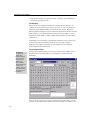
If your application has a toolbar button to insert an equation, this is the simplest
approach. Tutorial 1 in Chapter 4 provides an example using this method. The
toolbar button is typically a shortcut for using the application’s Insert Object
command. If your application doesn’t have such a toolbar button, you can
probably find its Insert Object command on the Insert or Edit menus. The Insert
Object command displays a dialog that lists all the types of objects you can insert
into a document — choose “MathType 5.0 Equation” from the list and click OK.
This will open a new MathType window ready for you to enter a new equation.
You insert an equation into your document by placing the insertion point where
you want the equation and clicking the appropriate toolbar button, or by using
the Insert Object command as described above. Once you’ve created your
equation, close the MathType window and your document — now containing
your new equation — will become active again.