1
Instruction Manual
ECG Scanning
Software
Software 2.03 and above
18-0020
Rev. C
Lifescreen Instruction Manual
i
© Copyright 2009 Spacelabs Healthcare Ltd
ii
18-0020 Rev. C
Contents
Page
1 Introduction........................................................................................... 6
1.1 Disclaimer ..................................................................................... 6
2 Safety and Regulatory .......................................................................... 7
2.1 Intended Use ................................................................................ 7
2.2 Declaration of Conformity ............................................................. 7
2.3 Caution ......................................................................................... 7
2.4 Warranty ....................................................................................... 8
2.5 Manufacturer ................................................................................ 9
2.6 Special Conditions ........................................................................ 9
2.6.1 Installation of Spacelabs Healthcare Software on Third Party PC
Systems ......................................................................................... 9
2.6.2 Installation of Other Software or Computer Systems ............ 9
2.6.3 Modification of the Operating System ................................... 9
3 CardioNavigator Operating Instructions.............................................. 11
3.1 Database Operations.................................................................. 11
3.1.1 Starting the Program........................................................... 11
3.1.2 Entering a New Patient ....................................................... 12
3.1.3 Editing Patient Details......................................................... 13
3.1.3.1 Hiding a Patient in the Database...................................... 13
3.1.3.2 Restoring a Hidden Patient .............................................. 13
3.1.3.3 Deleting a Patient from the Database .............................. 13
3.1.3.4 Recovering Deleted Patient Details ................................. 13
3.1.4 Configuring the Patient List ................................................. 14
3.1.5 Configuring the Patient Details Display............................... 14
3.1.6 Sorting and Searching the Patients List .............................. 14
3.1.7 Filtering the Patient List ...................................................... 14
3.1.7.1 Set Filter Definition for the Patient List............................. 14
3.1.7.2 Show Only Patients with at Least 1 Recording ................ 14
3.1.8 Configuring the Recording List............................................ 15
3.1.8.1 Selecting the Recording Details ....................................... 15
3.1.8.2 Adding New Columns (Extended Information) To the Recording List
15
3.1.9 Filtering the Recording List ................................................. 15
3.1.9.1 Set Filter Definition for the Recording List........................ 15
3.1.9.2 Analysed/Confirmed Checkboxes .................................... 16
3.2 Archiving and Backup ................................................................. 16
3.2.1 Creating a New Medium ..................................................... 18
3.2.2 Selecting the Recordings to Archive ................................... 18
3.2.3 Automatically Selecting All Recordings in a Date Range .... 19
3.2.4 Backup for CardioNavigator ................................................ 20
3.3 CardioNavigator Reports ............................................................ 20
3.3.1 Retrieving or Reviewing a Stored Report or Recording ...... 20
3.3.2 Printing a Stored Report ..................................................... 21
3.3.3 Deleting a Stored Report or Recording ............................... 21
3.4 Data Export Options ................................................................... 21
3.5 Email Functions .......................................................................... 22
Lifescreen Instruction Manual
3
3.5.1 Sending or Receiving a Stored Report or Recording by E-mail
22
3.5.2 Marking Items as SENT...................................................... 22
3.5.3 Reading a Received Email ................................................. 23
3.6 Starting a Program ..................................................................... 23
4 Lifescreen Operating Instructions....................................................... 25
Good Recording Quality ................................................................... 25
4.1.1 Hook-up............................................................................. 25
4.1.2 Skin Preparation ................................................................ 25
4.1.3 ECG Electrodes................................................................. 25
Lifescreen Instructions...................................................................... 26
4.1.4 Main Menu Help ................................................................ 26
4.1.5 Toolbar .............................................................................. 26
4.1.6 The Menu Bar.................................................................... 26
4.2.4 Tabs.................................................................................... 26
Loading a Recording and Starting a New Analysis........................... 27
4.3.1 For Lifescreen With CardioNavigator Integrated................. 27
4.3.2 For Lifescreen Without CardioNavigator Integrated............ 28
Loading a 7 Day Lifecard CF Recording........................................... 29
Loading a 48 Hour Lifecard CF Recording ....................................... 29
The Timebar ..................................................................................... 29
4.7 Patient Details ............................................................................ 30
Flowing EGC’s.................................................................................. 31
4.1.7 Controlling the Flowing ECG Display................................. 31
4.1.8 Paused Flowing ECG Cursors........................................... 32
Using Graphs and Histograms ......................................................... 33
4.8.2 RR Tachogram ................................................................... 33
4.8.3 RR Histogram ..................................................................... 34
4.8.4 Adjusting the Graph Display ............................................... 34
4.8.5 Zooming and Re-Scaling .................................................... 35
Creating and Labelling ECG and Graph Events ............................... 36
4.9.1 ECG Strips.......................................................................... 36
4.9.2 Graph Segments................................................................. 36
4.9.3 General Properties.............................................................. 36
4.9.4 Callipers (for ECG Events) ................................................. 36
4.9.5 Inhibit .................................................................................. 37
4.10 ECG Annotation Settings.......................................................... 37
4.11 ECG Gain and Polarity ............................................................. 38
4.12 Patient Diary............................................................................. 39
4.12.1 Add/Edit Patient Diary Entry ............................................. 39
4.12.2 Importing a Diary List........................................................ 39
4.12.3 Edit Lists ........................................................................... 40
4.13 The Print List ............................................................................ 40
4.14 Print Report .............................................................................. 41
4.15 Saving a Report........................................................................ 42
4.16 Managing Reports .................................................................... 44
4.16.1 Export ............................................................................... 44
4.16.2 Compact Flashcard........................................................... 45
4.16.3 Compact Flashcard Reader .............................................. 45
4
18-0020 Rev. C
4.17 Keyboard Shortcuts .................................................................. 45
4.17.1 The “Active” ECG Channel ............................................... 45
4.17.2 Shortcut Keys.................................................................... 46
4.17.3 Selecting ECG using the keyboard ................................... 49
4.18 Demonstration Mode ................................................................ 51
5 Reference ........................................................................................... 53
5.1 Principles of Operation ............................................................... 53
5.2 Sample Reports .......................................................................... 54
Lifescreen Instruction Manual
5
1 Introduction
You should have the manuals listed below supplied with this product. If any are
missing, please contact your supplier immediately for a replacement. Installation Manual
Part # 47-0049
For Installations with Sentinel
Part # 58-0042
Note:
If you are using Lifescreen in conjunction with Sentinel or CardioNavigator Plus
please refer the relevant manual below for further details on use.
Sentinel User Manual
Part # 58-0042
CardioNavigator Plus User Manual
Part # 18-0081
1.1 Disclaimer
Every effort has been taken to ensure the accuracy of these manuals, but
Spacelabs Healthcare cannot accept liability for consequences or losses caused
by errors or omissions. You are advised to check with Spacelabs Healthcare on
any point on which you are unsure or need confirmation.
6
18-0020 Rev. C
2 Safety and Regulatory
2.1 Intended Use
Lifescreen is an ECG screening system for recording and scanning up to seven
days of continuous ECG. The Lifescreen System consists of the Lifescreen
scanning software and the Lifecard CF 7-Day digital ECG recorder, preconfigured for Lifescreen mode.
You may have purchased the Lifescreen software to use in conjunction with a
Pathfinder ECG analysis system, and your existing Lifecard CF recorders.
Lifescreen displays the continuous (“full disclosure”) ECG, and displays graphs of
average heart rate and individual beat-to-beat intervals, to help you identify
interval and rate-related abnormalities. Selected ECG strips and graphs can be
printed out in the final report, together with your comments and interpretation. The
operator should be trained in electro-cardiography. A qualified medical
practitioner should make any diagnosis. Recordings can be exported in a format
compatible with a Spacelabs Healthcare Pathfinder ECG system, for further
detailed analysis.
With CardioNavigator you can:
•
Enter patient details
•
Configure the Lifescreen or Lifecard CF recorder
•
Download recordings from the recorder
•
Start a new analysis
•
Review a previous analysis
•
Print a previous report
•
Make a detailed search for specific patients and recordings
2.2 Declaration of Conformity
This product is in conformity with the essential requirements and
provisions of Council Directive 93/42/EEC concerning medical devices.
Your PC equipment should be CE Marked to the LV directive and comply
with the IT Safety Standard EN60950.
2.3 Caution
In the US, Federal Law restricts this product to use by, or on the order of, a
licensed physician.
Lifescreen Instruction Manual
7
2.4 Warranty
Subject to the conditions set out below, Spacelabs Healthcare (“The Company”)
warrants that its Products will be free from defects in material and workmanship
for a period of 12 months from delivery. This warranty is given by The Company
subject to the following conditions:
1
The Company shall be under no liability in respect of any defect arising
from fair wear and tear, wilful damage, negligence, abnormal working
conditions, failure to follow instructions (whether oral or in writing), misuse,
improper installation or alteration or repair of the Products without The
Company’s approval.
2
The above warranty does not extend to parts, materials or equipment not
manufactured by The Company, in respect of which the Customer shall
only be entitled to the benefit of any such warranty or guarantee as is given
by the manufacturer to The Company.
3
Subject as expressly provided here, all warranties, conditions or other
terms implied by statute or common law are excluded to the fullest extent
permitted by law.
4
Any claim by the Customer which is based on any defect in material or
workmanship of the Products shall be notified to The Company immediately
after discovery of the defect. If the Customer does not notify The Company
accordingly, the Customer shall not be entitled to reject the Products and
The Company shall have no liability for such defect.
5
Where any valid claim in respect of any of the Products which is based on
any defect in the material or workmanship of the Products is notified to The
Company, The Company shall be entitled to replace or repair (at The
Company’s sole discretion, either at the Customer’s premises or at The
Company’s premises in the United Kingdom) the Products (or part in
question) but The Company shall have no further liability to the Customer.
6
The Company shall not be liable to the Customer by reason of any
representation, or implied warranty, condition or other term, or any duty at
common law, or for any consequential loss or damage (whether for loss of
profit or otherwise), costs, expenses or other claims for consequential
compensation whatsoever arising out of or in connection with any act or
omission of The Company relating to the manufacture or supply of the
Products or use by the Customer.
8
18-0020 Rev. C
2.5 Manufacturer
Spacelabs Healthcare Ltd.
1 Harforde Court
John Tate Road
Hertford, SG13 7NW
Tel: +44 (0) 1992 507700
Fax: +44 (0) 1992 501213
www.spacelabshealthcare.com
2.6 Special Conditions
2.6.1 Installation of Spacelabs Healthcare Software on Third
Party PC Systems
The Company accepts no liability for problems introduced in existing systems or
software applications, caused by installing this product on third party PC systems
(i.e. not supplied by The Company as part of an integrated product). Installation of
this product is entirely at the user’s own risk. Provision should be made to back
up vital data and systems before installing this product.
2.6.2 Installation of Other Software or Computer Systems
This product may fail to operate correctly if you subsequently install other
software programs. Obtain authorisation from either your supplier Spacelabs
Healthcare before installation. The warranty on this product is INVALIDATED if
you proceed with installation without such authorisation. Repairs to systems
rendered inoperative as a result may be carried out at the customer’s expense
and at the Company’s discretion.
2.6.3 Modification of the Operating System
This product may fail to operate correctly if you modify the Windows operating
system, by installing upgrades, service packs or make changes to the
configuration and settings. Obtain authorisation from either your supplier or
Spacelabs Healthcare before making any modification. The warranty on this
product is INVALIDATED if you proceed with modification without such
authorisation. Repairs to systems rendered inoperative as a result may be carried
out at the customer’s expense and at the Company’s discretion.
Lifescreen Instruction Manual
9
10
18-0020 Rev. C
3 CardioNavigator Operating Instructions
3.1 Database Operations
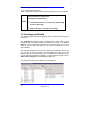
3.1.1 Starting the Program
NOTE
If you don’t have CardioNavigator integrated with your
analysis program, you can skip this section and go to
Section 4
CardioNavigator may be set up to start automatically on your PC. If not:
•
Double click on the CardioNavigator Icon on the Windows desktop
Or
•
Click on Start, Programs, CardioNavigator, CardioNavigator
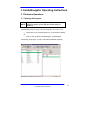
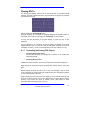
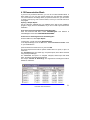
After starting the program, you will see the Patient Database displayed:
Lifescreen Instruction Manual
11
3.1.2 Entering a New Patient
Click on the New Patient button
Or
From the menu bar click Patient then New Patient
Or
Press the Insert button on the keyboard
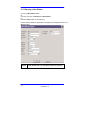
Enter the Patient details as requested in the dialogue box displayed and click on
OK when done.
NOTE
12
Fields marked with ! are mandatory. Others are optional
18-0020 Rev. C
3.1.3 Editing Patient Details
To change the details for a patient, either double click on their name in the
database or click once to highlight their name then click the EDIT PATIENT
button.
3.1.3.1 Hiding a Patient in the Database
If a patient is not currently undergoing treatment, you can ‘hide’ their record,
without losing any information.
Click once on their name to highlight the entry, then from the menu bar click on
PATIENT and select SHOW/HIDE PATIENT
Check the box to HIDE this patient, then click ‘OK’. In a networked setup, this
applies to all workstations.
button. 3.1.3.2 Restoring a Hidden Patient
On the menu bar, click on Patient the select Display Hidden Patients.
Select the option to Show Only Hidden Patients.
In the Patient list, click on the patient you wish to restore, then on the menu bar
click on Patient, then select Show/Hide Patient.
Check Off the Hide selection then click OK.
Finally, change the Display Hidden Patients option back to Show Only Patients
Not Hidden.
3.1.3.3 Deleting a Patient from the Database
Click once to highlight the required entry from the patient list, then click the
Delete Patient button. (You can also press the Delete key on the keyboard or
select the menu Patient - Delete Patient.)
"All recordings for this patient will also be deleted.
NOTE
"You cannot delete a patient if their recordings are
archived and the archive medium is unavailable or
write-protected.
3.1.3.4 Recovering Deleted Patient Details
If you know the Patient Number, you can recover deleted details, however
deleted recordings can ONLY be recovered from a backup medium.
Lifescreen Instruction Manual
13
button. Select Recover Deleted Patient Details from the File menu, enter the patient
number and click OK. The patient record will be restored.
3.1.4 Configuring the Patient List
You can choose which patient details to display in the list, and the order in which
they appear, by right-clicking in the patient list and selecting the Configuration
button.
Choose which items you want to be ‘visible’. The columns in the patient list will
appear in the same order. You may have to use a smaller Character Size to
display all the information you have chosen.
You can add custom fields to the patient’s details.
NOTE See the configuration information in section 4
3.1.5 Configuring the Patient Details Display
Right-click in the Patient Details Display (above the Recording List), then click
the Configuration button. Choose which items you want to be ‘visible’. The items
will appear in the same order. You may have to use a smaller Character Size to
display all the information you have chosen. Selecting Display Hard Disk
Capacity will show the remaining space on the hard disk, and provides a useful
warning when space is low and archiving is required.
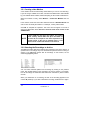
3.1.6 Sorting and Searching the Patients List
You can sort patients by Number, Name or Date of Birth.
Click on the appropriate button to re-order the patient list by Number, Name or
Date of Birth. If you sort by either number or name, you can search by typing (in
full) the required number or last name. The highlight bar will move to the
corresponding patient record.
3.1.7 Filtering the Patient List
3.1.7.1 Set Filter Definition for the Patient List
Click on the ‘Down arrow’ beside the Filter field, and then select ‘Filter
Definition’ to define or setup a new filter for the Patient List.
You set up a Filter to list only patient records matching defined criteria. The filter
can be very general or very specific- you can use any field appearing in the
patient details, including custom fields. If you leave a field blank, it won’t be used.
For example, you may wish to setup a filter which will group patients together of a
certain age and weight.
Click the New button and type in a Filter name. Complete the required fields and
then click OK. Only patients whose details match the filter will be displayed.
3.1.7.2 Show Only Patients with at Least 1 Recording
Checking this box will display only those patients with recordings matching the
14
18-0020 Rev. C
RECORDING FILTER. For example, if the recording filter is set for only
Lifescreen recordings, only patients with these recordings will be listed.
NOTE
Reselect ‘No Filter’, from the drop-down list, to display all
patients.
3.1.8 Configuring the Recording List
3.1.8.1 Selecting the Recording Details
You can choose which recording details to display, and the order in which they
appear, by right-clicking in the recording list and selecting the Configuration
button.
Choose which items you want to be ‘visible’. The columns in the recording list will
appear in the same order. Depending on your monitor setup, you may need to
change the order and the Character size, to make the columns visible.
Status Field
A = Analysed (12-Lead rhythm ECG).
B = Background 12-Lead rhythm stored.
C = Confirmed 12-Lead Report.
T = exTended information set.
3.1.8.2 Adding New Columns (Extended Information) To the Recording List
User-defined fields can be displayed in additional columns in the Recording
Details. You must define these fields first in the Options (see the Installation
Manual), after which they can be added to the ‘Visible’ list, above. For example:
to add a list of Recorder Types. To assign a value from your list to an individual
highlighted recording, select Extended Recording Information from the
Recording menu.
3.1.9 Filtering the Recording List
3.1.9.1 Set Filter Definition for the Recording List
Click on the ‘Down arrow’ beside the Filter field, and then select ‘Filter definition’
to define or setup a new filter for the Recording List.
You set up a Filter to list only recordings matching defined criteria. The filter can
be very general or very specific- you can use any field appearing in the recording
details, including custom fields. If you leave a field blank, it won’t be used. A
check-mark means this type of recording will be listed; no check-mark means it
won’t be listed. For example, you may wish to setup a filter which will display only
a certain type of recording, over a certain date range.
Click the New button and type in a Filter name.
Complete the required fields and then click OK. When you highlight a Patient
Record, only recordings whose details match the filter will be listed.
Lifescreen Instruction Manual
15
3.1.9.2 Analysed/Confirmed Checkboxes
‘Use’ = Filter inspects this setting
‘State’ = Analysed/Confirmed if checked, Not Analysed/Confirmed if not checked.
The ‘Analysed’ and ‘Confirmed’ status can only be used
with 12-Lead ECG recordings from
CardioNavigator/CardioCollect
NOTE
"To Limit the Patient List, see ‘Show Only Patients With
At Least 1 Recording.
"Reselect ‘No Filter’, to display all recordings.
3.2 Archiving and Backup
Your CardioNavigator database will gradually become full as the hard disk space
is used up.
The Cardioarchive program is part of CardioNavigator, and is used to move
recordings from their ‘default’ location (normally the hard disk) to an ‘Archive
Medium’, such as a DVD RAM, recordable CD or a network drive. This frees up
space on the hard disk and enables you to transfer the database to a more
secure medium.
Note that the recordings are moved. After archiving the database, there is still
only one copy, on the new medium. The patient details are copied. That is, the
patient’s name and details still appear in the CardioNavigator database, so that
you can add new recordings to that patient. To start the archive program, click on
‘Start Archive Program in the CardioNavigator File menu:
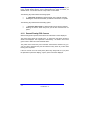
The CardioArchive program and database will be displayed:
16
18-0020 Rev. C
The Source specifies from where you want to move recordings. ‘Default’ is
normally hard disk ‘C’ on the PC.
The Dest (destination) specifies to where you want to move recordings. Sources
and Destinations must appear as drive letters (‘logical drives’) to the PC, for
example ‘F:’, ‘H:’, ‘M:’. CardioArchive currently does not support UNC names (for
example \\server\archive\).
If you want to use a network drive, it must be mapped as a drive to the PC.
Please ask your IT department for help with network drives.
Select the source or destination archive by clicking on the down arrow adjacent to
‘Source’ or ‘Dest’, then click on the required name.
CardioArchive keeps a ‘master’ list of patient names and recordings, for all
archives. When All Archives is selected as the Source, CardioArchive lists all
patients and the name of the archive where their recordings are located.
Lifescreen Instruction Manual
17
3.2.1 Creating a New Medium
A new medium must be electronically named before you can use it for archiving.
If you are using a writable CD or DVD, it must be formatted and/or made writable
by your CD/DVD writer software, before attempting to name it with CardioArchive.
When the medium is ready, select Medium – Create New Medium from the
menu:
In the next box, select the correct drive letter from the list of Available Drives and
enter a name to identify the medium. For example, ‘January -March 2003’:
Click OK to complete the operation. This name will now appear in the list of
Source and Destination drives. Be sure to write the name of the archive on the
CD/DVD label!
NOTE
A CD or DVD can only have one archive. You cannot
create ‘January - March 2003’ and ‘April -June 2003’ on
the same CD, for example. A new CD is required for the
second archive. In the case of network drives, a new
folder must be created and shared on the network. 3.2.2 Selecting the Recordings to Archive
The left-hand window lists all the patients with recordings in the Source archive. If
a patient has no recordings, they won’t be listed here (because there is nothing to
archive). The right-hand window lists all recordings on that archive, for the
selected (highlighted) patient.
You can select individual patients and recordings by clicking on the patient’s
name, then double-clicking on the recordings you want to archive. For example,
here all recordings for November 2002 have been selected for patient number
507708:
When you double-click on a recording, the size of the recording appears in the
column ‘M’ (medium). If you want to deselect a recording, double-click on it again. 18
18-0020 Rev. C
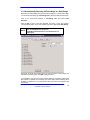
3.2.3 Automatically Selecting All Recordings in a Date Range
Most often you will probably want to archive all recordings in a certain date range.
You do this by first setting up a Recording Filter, which specifies the date range.
Click on the down-arrow adjacent to ‘Recording List’, and select Filter
Definition
Click on New to open a new filter template, and enter a name (for example,
‘January March 2003’). In the new template, type in the appropriate Date Range.
NOTE
The ‘Analysed’ and ‘Confirmed’ status can only be used
with 12-Lead ECG recordings from
CardioDirect/CardioCollect. Leave this blank for all
other types.
On the left, check all the recording types you want to archive. In this example, we
selected all recording types: Click OK to apply this filter.
In the database, you will now see only patients and their recordings, matching the
filter criteria. If a patient has recordings from other dates, these recordings won’t
be listed. If a patient has no recordings that match, their name won’t appear in the
left-hand list.
Lifescreen Instruction Manual
19
To quickly select all patients and recordings in this display, click the ‘Tick’ button
on the screen then click OK to accept the ‘Select Marked’ option.
Choosing Release Marked de-selects all previously marked recordings.
Reverse Marked changes marked to unmarked, and vice-versa.
Make sure the correct Destination archive medium is selected, before clicking the
‘Right Arrow’ button to start archiving the recordings.
When archiving is complete, this message advises you to write-protect the
medium, to prevent accidental overwriting or erasure.
NOTE
If you are using a CD-R, this is called ‘making
compatible’, after which the CD-R cannot be written to
again.
When you return to the CardioNavigator database, if a selected patient has
archived recordings, the archive is listed in the Archive column of the Recording
List. The Archive name is the one you gave when creating that new archive
medium. If you want to view those recordings, the corresponding archive medium
(CD, DVD, or network drive) must be ready.
3.2.4 Backup for CardioNavigator
The Backup utility makes a copy of the database to a DVD RAM, recordable CD
or a network drive. This can be used to recover data if the PC hard disk is
damaged. The Backup utility must first be set up in the Options (see the
Installation Manual). You may want help from your IT/IS department with this.
Once the utility has been set up, you can make a backup at any time by selecting
Backup for CardioNavigator from the File menu:
When you run Backup for CardioNavigator, the database must close first- click
OK when you are ready.
3.3 CardioNavigator Reports
3.3.1 Retrieving or Reviewing a Stored Report or Recording
Click on the required patient in the Patient List whose recording you want to
retrieve. Then double-click on the recording in the Recording List to retrieve or
review it. It will be opened with the appropriate program.
20
18-0020 Rev. C
3.3.2 Printing a Stored Report
To print a stored report directly, without opening it, first highlight the required
report in the Recording List, then click on one of the ‘printer’ buttons on the
toolbar:
Print report in your ‘Standard Format’, as defined in the
Options (see the Installation Manual).
Choose the format for printing the report. (This is only
available for 12Lead ECG, Ambulatory BP and Event
Recorder reports).
3.3.3 Deleting a Stored Report or Recording
Highlight the required report or recording in the Recording List.
Click the
button. (You can select more than one report or recording for
the same patient by holding the Control key and clicking, or the Shift key to
select a range.)
Once you confirm deletion, the reports or recordings
cannot be recovered.
NOTE
You cannot delete archived items unless the archive
medium is ready and is write-enabled. 3.4 Data Export Options
These options must be set up first in the CardioNavigator Options (see section
4.22). The option button will become active on the toolbar when the appropriate
report type is highlighted in the Recording List, (otherwise it is ‘greyed-out’).
Lifescreen Instruction Manual
21
Export QRS Intervals from 12-Lead Rhythm ECG
and Event Recordings only. The data format is
described in Section 6.
Export Exercise Stress ECG Report in Word/RTF
format. A sample is shown in Section 6.
Export RAW ECG Data from 12-Lead Rhythm ECG,
Resting ECG and Event Recordings only. The data
format is described in Section 6.
Holter Text File Saves, in text format, the patient
demographic details and analysis results summary
from a Pathfinder ambulatory ECG report. The data
format is described in Section 6.
3.5 Email Functions
3.5.1 Sending or Receiving a Stored Report or Recording by
E-mail
Sending a report by email is an additional option available for CardioNavigator. It
requires a dongle (protection key). You can send or receive all reports and
recordings except for Lifecard CF raw ECG (“AMB. ECG (Lifecard)”). The
recipient must also have the CardioNavigator program. The system must have an
existing email account. The email option must first be set up in the Options (see
the Installation Manual). You may want help from your IT/IS department with this.
1
Highlight the required report or recording in the Recording List, then click
the
‘Send Mail’ button
2
Select the recipient from the address list then click OK
3
The report or recording will be attached to an email form. Add any further
comments, then send the email as usual.
3.5.2 Marking Items as SENT
In the Options, set up an ‘Extended Information’ item for the Recording List, (See
the Installation Manual for details), and configure the recording list to display this
field (see page 15). You could label the field ‘Sent Mail’, with options ‘Yes’ and
‘No’, for example.
When highlighting the item to send by email, select Recording – Extended
Recording Information and choose ‘Yes’.
22
18-0020 Rev. C
3.5.3 Reading a Received Email
Open the received email message as usual. (Your email program may be set up
to alert you when new mail arrives.)
Double-click on the ‘attachment’ and (depending on the email program you are
using), Open, Run or Launch it. (Don’t select the Save option). The recording will
be copied to the Received Mail List - it will not be opened immediately.
Click on CardioNavigator’s
required item from the list.
Received Mail button, and then select the
Click Assign to compare this recording with the database.
NOTE
A matching patient record is NOT selected automatically The ! mark shows where the patient data does not match the currently highlighted
patient in the database.
If you know this is a new patient, click New Patient to generate a new patient
record, then click OK to assign the recording.
If the patient record exists (the ! mark would appear if some details were omitted
or mistyped), highlight the correct existing record and assign the recording.
The ‘Find
’ buttons snap to the matching entry in the database, if it exists.
button on the
NOTE
Only click ‘OK’ when you are sure the correct patient
record is highlighted.
A message similar to these may appear when you close the original email
message. This is normal, because the attachment has been moved. You don’t
need to save the changes and no data will be lost.
3.6 Starting a Program
All your Spacelabs Healthcare analysis programs can be started from the central
toolbar, or from the File menu.
The appropriate program will also be opened when you double-click a report,
analysis or recording in the Recording List.
Lifescreen Instruction Manual
23
Start a Lifes
24
18-0020 Rev. C
4 Lifescreen Operating Instructions
Good Recording Quality
Good recording quality is your first priority
4.1.1
Hook-up
Proper hook-up, or patient connection, is essential to ensure intelligible ECG
recordings. Inadequate skin preparation will result in excessive artefact in the
signal, causing measurement of false intervals and difficulty in visual
interpretation.
4.1.2
Skin Preparation
There are 3 main steps in good skin preparation:
CLEAN the skin using isopropyl alcohol, soapy water or a non-alcoholic swab.
This removes grease, which prevents the electrode adhering and impairs
conductivity.
SHAVE the site as needed with a new disposable razor - the electrode will not
remain in place on hair!
RUB the site with dry gauze to lightly redden the skin. This removes dry, dead
skin, lowering impedance and reducing pick-up of interference.
NOTE
Take care not to break the skin or cause bleeding. Avoid
abrasion (rubbing) on patients with delicate skin,
including children and elderly patients.
4.1.3
ECG Electrodes
Always use good quality electrodes designed for long-term (Holter) recording, and
ensure adequate skin preparation. We recommend Ambu Blue Sensor VL-00-S
for 24 hour recordings, and VLC-00-S for extended recordings up to 7 days.
Further information can be found at www.ambu.com.
Apply the electrodes in the positions shown in the ECG recorder instruction
manual.
Check the ECG quality on the recorder, as shown in the recorder instruction
manual.
Lifescreen Instruction Manual
25
Lifescreen Instructions
These instructions can also be found in the Lifescreen Online Help. To read the
Help, start the Lifescreen program and click on Help – Help topics:
4.1.4
Main Menu Help
To display this, you click Help and then Help Topics from the main menu. The
Main Menu Help is a series of pages which explain the features of Lifescreen.
When you see some blue or purple text, underlined (like this), it is called a
hyperlink. When you place the cursor over this, the cursor changes to a hand
You can then click on the text, to display more help on the subject.
You can also click on help topics on the left side of the Help Window, to display
the corresponding page.
Help Within a Window or ‘Dialog Box’
When you are in one of the menu windows or ‘dialog boxes’, click on the question
mark button at the top right of the dialogue, the cursor changes to a question
mark. You can then click on any of the items, for example buttons or edit boxes,
and a short help message will be displayed. If you click outside the items, the
cursor will return to normal.
4.1.5
Toolbar
The Toolbar is the row of pictorial ‘icons’ or ‘buttons’, under the Menu Bar at the
top of the display. Clicking on one of the buttons is the same as choosing the
relevant option from one of the menus. If you put the mouse cursor over a toolbar
button without clicking, a ‘tool tip’ appears, telling you what that button will do.
4.1.6
The Menu Bar
The Menu Bar is the row of words, or menu headings, at the top of the display.
Clicking on one of the headings displays a drop-down menu of options. Several
menu options also have a Toolbar button that performs the same function.
4.2.4 Tabs
When the Lifescreen display is shown in ‘split screen’ (ECG above, graphs
below), you can change which graph or table is shown in the bottom part of the
screen by clicking the appropriate tab.
You can switch to split screen mode by clicking the Split Screen button on the
toolbar. You can switch to full-screen ECG by clicking the Full-Screen button.
26
18-0020 Rev. C
You can arrange the tabs to be along either the top or the bottom of the display,
by selecting Arrange Tabs in the View menu option. Also see how to adjust the
graph display.
Loading a Recording and Starting a New Analysis
4.3.1 For Lifescreen With CardioNavigator Integrated...
1
Select the Patient
Select the patient in the CardioNavigator database (or enter
new patient details by clicking the New Patient button).
2
Option 1: Store the Recording, Analyse Later
Insert the compact flashcard recording into the compact
flashcard reader, connected to your PC. Now click the Lifecard
CF - Download button on the toolbar, to store the recording in
the Recording List. You may then re-use the card for another
patient.
To analyse the recording, double-click the stored recording in the list
NOTE
2
Routinely delete stored recordings you don’t need, to save
disk space
Option 2: Load the Recording and Analyse Now
Insert the compact flashcard recording into the compact
flashcard reader, connected to your PC. Now click the
Lifescreen button on the toolbar. The recorded ECG will be
loaded and displayed. If you have a previous analysis open and
not saved it, you’ll be prompted to do so, as all results of the
previous analysis will be erased
Lifescreen Instruction Manual
27
4.3.2 For Lifescreen Without CardioNavigator Integrated...
1
Option 1: Store the Recording, Analyse Later
•
From the Lifescreen menu, select File – Manage Reports. The
Report Manager will start up.
•
From the Report Manager menu, select Recording – Lifecard
CF – Store in Archive.
•
Fill in the required patient details, and then click OK.
Unless you intend to email this recording, ensure
Compress Recording is NOT selected.
NOTE
•
Routinely delete stored recordings you don’t need, to
save disk space, and empty the DELETED RECORDINGS
Archive (selected from the Archive drop-down list).
NOTE
2
28
To analyse the recording, double-click the stored recording in
the list.
Option 1: Load the Recording, Analyse Now
•
Insert the compact flashcard recording into the compact
flashcard reader, connected to your PC. Now from the menu,
click on File and select Load Recording.
•
You can also click on the Load Recording
button, on the
toolbar. The recorded ECG will be loaded and displayed. If you
have a previous analysis open and have not saved it, you will
be prompted to do so, as all results of the previous analysis will
be erased.
18-0020 Rev. C
Loading a 7 Day Lifecard CF Recording
When analysing a 7-Day recording, you can choose to load all days, or make a
selection. However you cannot have ‘gaps’ in the selection.
Click the button ‘on’ for the consecutive days you wish to load and analyse. To
view any remaining days that you switched ‘off’, you will need to load the
recording again and make a new selection. If you load all the days now, you can
still restrict the analysis to one day, by using the Timebar, for example. At the top
of this display, there is a button to Play Sound Recording, which will replay the
patient’s name or ID, if it was recorded by the operator when the recorder was
fitted.
Loading a 48 Hour Lifecard CF Recording
If you are loading a ‘standard’ Lifecard CF recording (up to 48 hours), you can
choose to either analyse the first 24 hours or the remainder of the recording.
Each part of the recording must be analysed and reported separately. After
completing the report on the first 24 hours, you should load the remainder of the
recording. A separate report is produced for each part, they are not combined.
Recordings made in this mode cannot be loaded in one pass, because of the
large amount of high-definition data they contain. (See also 7-Day Recordings).
There is a button to Play Sound Recording, which will replay the patient’s name
or ID, if it was recorded by the operator when the recorder was fitted.
The Timebar
The timebar, at the top of the ECG display, shows the duration of the loaded and
analysed recording. The timebar is annotated with (Day) hours:minutes. You can
immediately jump to any time in the recording by left-clicking on the timebar.
The yellow cursor indicates the current time.
The green area of the timebar indicates the analysed period.
The brown area of the timebar indicates the loaded, but unanalysed period.
The grey area of the timebar indicates how much ECG is still to load. You can
restrict the analysis (that is, the period for which the ECG is displayed and the
graphs calculated) to one day or a selected range. If you left-click (or right-click),
drag and highlight part of the timebar, you can select from the pop-up menu:
•
•
•
•
Analyse selected area (the area you highlighted in blue on the timebar)
Analyse the entire recording
Analyse the first day
Analyse a specified day. Choose the day from the sub-menu.
Lifescreen Instruction Manual
29
From the same menu you can inhibit or un-inhibit the beats in that region. This
may be useful if one part of the recording contains a lot of noise or artefact.
You can Export the ECG in the selected blue area, for further analysis using a
Spacelabs Healthcare Pathfinder analyser.
4.7 Patient Details
The Patient Details are displayed by selecting Patient Details from the View
menu, or by clicking the Patient Details button on the toolbar.
The Patient Details will be printed on the front page of the report. You can type in
details to identify the Patient, their referring Doctor and Hospital, and the
Lifescreen system Operator.
At the bottom of this dialog, there is a button to Play Sound Recording, which
will replay the patient’s name or ID, if it was recorded by the operator when the
recorder was fitted.
Some details are completed automatically, by reading details from the Lifecard
recording (for example, Date of Recording, Recorder Number and ID. (You can
read more information on these in the Lifecard CF user manual.) The Analysis
Date is entered automatically from the PC system clock.
There are 3 ‘tabs’ for comments, and each has a drop-down list of comments you
might frequently use:•
Symptoms or Reason for Test, where you could note the reasons for
the original referral, or the symptoms noted by the patient during the
recording.
•
Operator’s Comments, which may be a summary of what was seen in
the recording, to assist the doctor with their interpretation.
•
Doctor’s Comments, where the doctor can enter a diagnosis and
recommendations.
See also the Edit Lists option and Patient Diary Entries.
30
18-0020 Rev. C
Flowing EGC’s
The flowing ECG display ‘writes’ ECG on the screen like a conventional ECG
machine. The ECG is written from left to right, and when one page is full, it begins
overwriting from the top.
Start by clicking the Flowing ECG button
With this selected, you can adjust the speed by dragging the ‘Speed Control’ on
the toolbar, left or right, or by pressing the ‘arrow keys’ on the keyboard.
To stop, just click anywhere on the ECG display, or press any key on the
keyboard.
You can display 1,2 or 3 channels of ECG by making a selection in the ECG
Display Settings menu. You can also click the ‘cal pulse’ symbols on the left of
the display, or press 1, 2 and 3 on the keyboard to turn each channel on or off.
4.1.7
Controlling the Flowing ECG Display
•
If Flowing ECG is NOT active:
Pressing the space bar (or clicking the run button on the toolbar) will
start Flowing ECG.
•
If Flowing ECG IS active
Pressing the space bar or the ‘Pause’ key will pause and resume Flowing ECG.
Right-clicking will pause and resume Flowing ECG exactly like the space bar
does.
Double-clicking the ECG will return you to the normal display, with the ECG
cursor centred at the location that was double-clicked. This will happen whether
or not the flowing ECG is paused.
Single clicking the ECG will pause the display (if it isn’t already paused) and
move the “point of interest” cursor to the clicked area. If Flowing ECG is already
paused, it just moves the “point of interest” cursor. (See below for more
information about the Flowing ECG cursors.)
Lifescreen Instruction Manual
31
Pressing the Escape key or the Enter key will stop Flowing ECG, and return you
to the normal display with the cursor centred about the “point of interest”, as
defined above. You can also click the “stop” button on the toolbar.
The following keys will increase the flowing speed:
•
•
‘+’, right-arrow, up-arrow (on either keypad, with or without numlock)
Rotating the mouse wheel towards you will also increase the run speed.
The following keys will decrease the flowing speed:
•
•
4.1.8
‘-’, left-arrow, down-arrow (on either keypad, with or without numlock)
Rotating the mouse wheel away from you will also decrease the run
speed.
Paused Flowing ECG Cursors
When Flowing ECG is paused, there will be two vertical bar cursors displayed.
The green cursor shows the “rewrite point”, i.e. where the next portion of ECG is
about to be displayed. This represents a discontinuity - the ECG in front of the
green cursor is later in time than the ECG after it.
The yellow cursor shows the “point of interest” that has been clicked on by you.
You can click to reposition the point of interest as many times as you like while
Flowing ECG is paused.
If the two cursors are in the same place (which they always will be if you press
the spacebar to pause the display), only the yellow one will be displayed.
32
18-0020 Rev. C
Using Graphs and Histograms
To display a graph or histogram, click on the tab at the bottom left of the display,
or select from the View option on the menu bar.
Lifescreen can display graphs for:
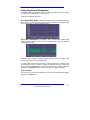
4.8.1 Heart Rate Graph - the rate in beats per minute, averaged over every
whole minute of recording time. All beats that are identified are included. (See
also ‘Trigger Arrows’ in the Annotations section).
4.8.2 RR Tachogram -this displays every detected RR (beat-to-beat)
interval. Adjacent points are joined by lines, except where there is an inhibited
region in the recording.
Possible ectopic intervals are readily observed as a big ‘stick’ in the graph. Click
on the ‘stick’ to see the corresponding ECG.
You can inhibit intervals from the analysis using the tachogram. Left-click, drag
and highlight the region of interest- a yellow box indicates the area- and from the
pop-up menu select Inhibit. You can reverse this action by reselecting the area
and choosing Un-inhibit. Inhibited areas are shown as a ‘gap’ in the graph
Undo and Redo
You can undo or redo the last inhibit action you took, by selecting the appropriate
option from the Edit menu.
Lifescreen Instruction Manual
33
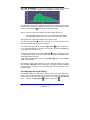
4.8.3 RR Histogram –is a ‘bar chart’ recording the number of RR intervals
within a range. The ‘width’ of each bar in the histogram is 50 milliseconds.
The histogram is drawn with a logarithmic vertical scale, as standard. This makes
it easier to see low and high values on the same axis. You can change to a linear
scale, by clicking the Log
button at the top right of the graph.
When you click on a ‘bar’ in the histogram, the ECG display shows you:
–
–
the longest RR interval in the ‘bar’ if you are to the right of the median
the shortest RR interval in the ‘bar’, if you are to the left of the median
The rightmost bar contains all intervals of 5 seconds or longer.
The interval range and the number of intervals in the ‘bar’, and the current
interval, are displayed at the top of the histogram.
button, or press the ^
To see the next longest interval, click the ‘Right Arrow’
up or > right keyboard arrow. To jump to the next bar, hold down the Control key
on the keyboard at the same time.
To see the next shortest RR, click the Left Arrow
button, or press the v down
or <-left keyboard arrow. To jump to the next bar, hold down the Control key on
the keyboard at the same time.
To go back to the last RR you viewed, click the Back
button or press Control
and Z on the keyboard.
By selecting a region of the histogram, you can restrict the analysis to a certain
day, by selecting Analyse from the pop-up menu. The graph results are restricted
to only the day you specify. You can subsequently return the selection to the
Entire Recording.
4.8.4 Adjusting the Graph Display
The standard display is a ‘split screen’, with ECG at the top, and a graph at the
bottom. You can switch between split screen and full screen ECG selecting Full
Screen ECG from the View option in the menu, or by clicking the Full Screen
ECG
button or the Split Screen ---0button on the toolbar.
34
18-0020 Rev. C
You can re-size the graph by pointing the cursor at the grey ‘border’ between the
ECG. When the cursor shape changes to a double-headed arrow, click and drag
the border up or down.
4.8.5 Zooming and Re-Scaling
Click on the
or
buttons at the top of the graph to zoom in or out of the
graph, or use the + or – buttons on the keyboard. The graph zooms around the
yellow cursor line.
To zoom or re-scale a graph, left-click, drag and highlight the region of interest - a
yellow box indicates the area. From the pop-up menu select Zoom, then choose
which axes to zoom.
arrow button at the top of
To return a graph to full scale, click the Left/Right
the graph, or select Re-Scale/Unzoom from the pop-up menu.
Also see the Print List.
Lifescreen Instruction Manual
35
Creating and Labelling ECG and Graph Events
You can select areas of the ECG and the graphs for inclusion in the printed
report. These selected areas are called ‘Events’ or ‘Event Strips’
4.9.1 ECG Strips
Left-click and drag, to select a region of the ECG, then choose Create ECG Strip
from the pop-up menu. You can also do this by pressing the Print Strip button
You can set up ‘properties’ for the event from the window that is displayed.
4.9.2 Graph Segments
Left-click and drag, to select a region of the Heart Rate Graph or RR Tachogram,
then choose Create Graph Segment from the pop-up menu. You can set up
‘properties’ for the event from the window that is displayed. All your events will be
shown in the Print List, where you can re-edit them.
4.9.3 General Properties
The Start Time and Duration of the selected region are shown at the top of this
display window.
The Event name is the title you want to give to this event. You can choose from
the list of names for ECG strips, by clicking the
down-arrow
and selecting from the list. This list can be edited using the Edit Event Names
List function. The name for Graph Segments is fixed.
down-arrow and
Comments can be appended to the name, by clicking the
selecting from the list. This list can also be edited using the Edit Event Names
List function.
Choose the appropriate Print Scale by clicking the
down-arrow and selecting
from the list. Larger scales use more paper. For example, if you have selected 30
seconds of ECG, it will require 1 page of paper if printed at 25mm/s (8 seconds
per strip). The scale for Graph Segments is fixed.
4.9.4 Callipers (for ECG Events)
Click the check-box to include the calliper Time Measurement on the strip. This
is the duration that was highlighted in the selection. You can also add the BeatBeat Rate, which converts the time measurement to a heart rate. The calliper
doesn’t detect the beats within the highlighted region, so take care to highlight
precisely from one beat to the next. For display zoom sizes x1, x2 and x4, you
can click the check-box to include the Amplitude Measurement, indicated by the
yellow box in the selected area.
36
18-0020 Rev. C
The amplitude is in millimetres and is automatically calibrated (1mV ECG = 2
large squares on the printed grid). This is generally of significance only for ST
segment deviation measurement. Calliper measurements are not applicable to
Graph Segments.
To Undo and Redo
You can undo or redo the last action you took on an event, by selecting the
appropriate option from the Edit menu.
4.9.5 Inhibit
Inhibited areas are parts of the recording where the noise/artefact level is too
high. Lifescreen will display the recording, but will exclude it from the analysis.
The beats and intervals will not be used in the graphs, and the beats will have no
annotation.
You can inhibit additional areas manually, if they cause erroneous results, by
highlighting the area in the ECG, or on the timebar, and selecting Inhibit.
Manually inhibited areas can also be uninhibited, in the same way. To Undo and Redo
You can undo or redo the last inhibit action you took, by selecting the appropriate
option from the Edit menu. 4.10 ECG Annotation Settings
Selecting ECG Annotation Settings from the Options menu, displays the ECG
Annotations Settings dialog box. You can also display this by clicking the
button on the toolbar.
There are several options you can select under the Global Settings tab: Grey
out Inhibited ECG colours grey any areas where you have highlighted and
selected Inhibit Beats, or where Lifescreen has detected an excessive noise level.
It is useful to see how much of the recording is inhibited. Display Pacing
Markers draws a yellow line in the ECG, wherever the recorder detected a pacing
pulse in the surface ECG. Reliable detection of the pacing pulse requires good
hook-up. Sometimes noise creates a false pacing marker. Annotate Inhibited
Beats will place a greyed out arrow below all beats that you have manually
inhibited. Disable All Annotation leaves the ECG with no annotation at all. You
can save any changes permanently by checking the Save Settings box. By
clicking the Zoom tab for each individual Zoom range, there are several options
you can select:
Display Trigger Arrows places an arrow beneath every detected beat.
Sometimes noise may be detected as a beat, or a poorly projected or ‘noisy’ beat
may not be detected at all. The trigger arrows are very useful alerting you to
these problems when you are reviewing beat intervals.
Lifescreen Instruction Manual
37
Display Event Markers ‘underlines’ all areas of ECG which you have marked as
an event. This is useful when reviewing your analysis.
Display RR Intervals displays the interval in milliseconds between consecutive
detected beats. The standard configuration does not display this at smaller zoom
ranges, to avoid overcrowding the display.
Display Channel Delineation Lines draws a line under each ECG row. You may
find this makes viewing easier.
To change the size on screen of the Polarity Icon (‘cal pulse’ indicating normal or
inverted ECG), or the recording Time annotation, click the Icon/Font tab, then
choose the setting you require.
You can save any changes permanently by checking the Save Settings box.
4.11 ECG Gain and Polarity
Selecting ECG Display Settings from the Options menu will display the ECG
Display Settings dialog box. You can also display this dialog box by pressing the
Display Settings
button on the toolbar.
Here you can make adjustments to the way ECG is displayed, and you can make
individual changes for each ECG channel by selecting the appropriate ‘tab’. You
can save your new settings permanently by checking the Save Settings box. You
can adjust the Gain for each channel, in steps from x1/4 to x4. These changes do
not affect the detection of beats, but have a big effect on the clarity of the ECG on
the screen. You may want to use normal or lower gain when first reviewing the
ECG, so that more can be displayed, then increase the gain in areas of interest,
to reveal any important detail in the ECG. The Vertical ECG Offset control
moves the ECG up or down. Use this adjustment to bring a region of ECG back
into view, if it is affected by baseline wander. (You would not usually save this
setting). Too much baseline wander indicates poor hook-up and skin preparation!
Check the Invert Polarity box to invert the ECG in that channel.
Under the Settings tab, you can change the Zoom size of the display, in steps
from x1/8 to x4. You can also zoom the display by pressing the + and – keys on
the keyboard, or by double-clicking in the ECG. Increase the Zoom setting to
magnify a region of interest, or reduce it to display more ECG.
The ECG Display settings select which channels of ECG appear on the screen.
Normally all 3 channels are on view, but you can switch off any channel which is
unusable, or perhaps have only one channel displayed for maximum clarity. You
can also switch channels on/off by clicking the square ‘Cal Pulse’ symbols on the
left side of the display, or by pressing the 1, 2 and 3 keys on the keyboard (each
press turns that channel on/off).
38
18-0020 Rev. C
The ECG Row Separation control adjusts the amount of space between rows of
ECG. Use this setting in conjunction with the Gain and Zoom controls, to prevent
ECG overlapping between rows.
Click the Centre Cursor
display.
button to centre the currently highlighted ECG in the
4.12 Patient Diary
If you asked the patient to keep a written diary, Lifescreen can automatically
create an ECG event strip at the specified times. Select the Enter Patient Diary
option from the File menu. To enter a diary time, click the Add button.
4.12.1 Add/Edit Patient Diary Entry
To edit any entry you have made to the Patient Diary list, highlight the required
entry and click the Edit button. By using the drop-down lists, you can select a
different date, time, symptom or activity. You can also simply type over any item
(except for the date) If the changes do not already exist in the list, you will be
asked if you want to save them for future use. If you answer ‘No’, they’ll be saved
only for that diary entry. If you decide you don’t want one of the entries before
accepting the list, highlight it then click the Delete button. Finally, click OK to
accept the list.
An event strip will appear in the Print List and will be printed in the report. The
diary entries will be removed from the Enter Patient Diary list. The Print List
shows how many times in each day that the patient pressed the ‘Patient Event’
button on the recorder, to mark the onset of symptoms. This may help to identify
the most significant days in the recording. Lifescreen automatically creates an
ECG Event Strip at these times, which you can view from the Print List. The
digital recorder records the ECG continuously, not only when the event button is
pressed.
4.12.2 Importing a Diary List
You could arrange for an administrative assistant to prepare the diary list first, by
typing details into a text document, using a word processing program or Windows
Notepad.
The
details
must
be
typed
in
the
format
<DATE><space><TIME><space><COMMENT>, using a new line for each diary
entry. For example:
07/04/2001 19:30:00 Chest pain while climbing stairs. 07/04/2001 20:10:00 Palpitations. 07/04/2001 9:15PM Breathless Lifescreen Instruction Manual
39
The time can be entered in either 24 hour format or 12 hour (AM/PM), as shown.
You don’t have to enter the number of seconds. The date format automatically
accepts your local setting (European or North American). Activities and symptoms
cannot be entered separately in this list, which must be saved in a text format
(type ‘.txt’). Click on the Import button and locate the text file, to import the list. A
message will alert you if there is any mistake in the file format
4.12.3 Edit Lists
By selecting Edit Lists from the Options menu, you can customise the dropdown lists available to label event strips and the comments in the report. Click
one of the 5 ‘tabs’ to select a list.
Event Names are the ‘titles’ of ECG events.
Event Comments may be appended to the name you choose for the event.
Operator Comments and Doctor Comments are added to the front page of the
printed report, in the Patient Details.
Activities are added to information you enter in the Patient Diary. In each case,
you can:
Add, add a new item to the list. Another box will appear where you can type in
your chosen text.
Edit, modify an existing item. Any item can be edited.
Delete, remove this item permanently from the list.
To return ALL the lists to the original factory settings (losing all changes), click
the Reset to System Default button.
4.13 The Print List
All the ECG strips and graph segments you have selected for printing are listed in
the Print List. To view the list, click on the Print List tab at the bottom of the
display.
40
18-0020 Rev. C
When you left-click on an event on the list, it will be shown on the ECG display.
The display will jump to that time.
To edit an event, double-click on the event in the list. It will be shown in the ECG
display and the Print Properties will appear.
When you right-click on an event in the list, it will be shown on the ECG display,
and from the pop-up menu you can either Edit the event or Delete the event. If
you select Edit, you can change the details of the event from the Print Properties.
You can delete multiple events by selecting them together in the list. To select
consecutive events, left-click on the first one, and hold the button down whilst
dragging down to select the others. Release the button, then right-click on the
highlighted region to display the pop-up menu. To select non-consecutive events,
hold down Control on the keyboard, while you left-click in turn on the required
events. Then, right-click on the highlighted region to display the pop-up menu.
Undo and Redo
You can undo or redo the last action you took on an event, by selecting the
appropriate option from the Edit menu.
4.14 Print Report
Selecting Print or Preview Report from the File menu provides several choices.
Click the Preview button to see how the report will look before printing out. When
you are ready to print out, click the Print button, or click Cancel if you do not
want to print now.
Report Format
You can change the Report Format by clicking the down-arrow from the list.
Two standard report formats are available:
– Full Report, with patient details, all graphs and ECG strips,
– Short Report, with patient details and ECG strips only.
You can create and customise your own report format, using the Set Up Report
Formats option in the File menu. If you want the format you selected to be the
default (so it is pre-selected in the list), check the Set as Default box.
Printer
If you have more than one printer set up to use with this PC, you can choose one
from the list after clicking the down-arrow
Print Range and Copies
You can choose to print all pages or only a selected range of pages, by entering
the page numbers in the box. You can also increase the number of copies that
you want to print.
Lifescreen Instruction Manual
41
Set Up Report Formats
Basics - By selecting Set Up Report Formats from the File menu, you can
customise the appearance of printed reports. You can modify an existing format
and either save it under the same name (if it was previously customised), or
under a new name. You cannot save changes to the standard System Formats they are protected. But you can create a new format based on a system format,
then use a new name when saving.
Procedure
Begin by selecting the Report you want to modify, by clicking the down-arrow
and highlighting the name in the list. The Report column describes what you want
to print. The Layout column describes where you want to print it. You can choose
the Page Frame (the border around the page) and the appearance of the Header
(title on the page), and define up to 8 Sections for the report. The sections do not
need to start on a new page.
Click the down arrow
list.
to the right of each item, to make a selection from the
After you have made all your selections, click OK. Another box will appear with
the following options:
Change This Format, modifying the original format and saving it with the same
name, or
Create New Format, saving it with a new name and preserving the original
format. You must choose this option if you started by modifying a system format
Other Functions
You can delete a customised format by selecting it from the list, then clicking the
Delete button. You cannot delete system formats.
You can change the name of a customised format by clicking the Rename
Report Format button, typing a new description in the box that then appears.
You cannot change the name of a system format.
4.15 Saving a Report
There are two types of report that you can save, Full Reports or Formatted
Reports. Full Reports contain all the ECG and analysis data, and can be reloaded
to continue your analysis. Formatted Reports are a copy of a printed report, which
can be viewed and emailed using Report Manager
To save a Full Report, select Save Full Report from the File menu. To save a
Formatted Report select Save Formatted Report from the File menu. These
selections display a dialog that allows you to select the destination of the report
save operation.
42
18-0020 Rev. C
The Report Name is taken automatically from the patient’s name that you
entered in the Patient Details dialog, but you can replace this with any name you
choose.
The Location specifies the disk and folder where the report is to be saved. If
there is more than one location set up on your system, you can choose the one
you want by clicking the down-arrow and selecting from the list. You can add
more locations by using the Configure Folder menu option in the Report
Manager program - see the user manual for more details.
Store Report To defines the ‘archive’ where this report will be stored, within the
selected location. If there is more than one ‘archive’ set up on your system, you
can choose the one you want by clicking the down-arrow and selecting from the
list. You can add more archives by using either the Configure Folder or Add
Archive to Configuration menu options in the Report Manager program.
If you are saving a Formatted Report, Report Format allows you to select which
format the saved report should have.
You can also Export all or part of the recording, to a Del Mar Reynolds Medical
Pathfinder analyser.
Confirm Overwrite Report
Lifescreen gives you the option either to replace an original report or create
another new report.
After loading a Lifecard ECG recording from a flashcard:When you proceed to store a report more than once during the current analysis,
Lifescreen gives you the option to replace the original or create another new
report. You might choose to replace the original if you had made a correction to it
and the original was invalid.
You might choose to make a new copy if you need to maintain a history or audit
trail of changes made to the report. If you re-load the same recording, or load a
new recording, you will not see this option when you first store the report, even if
the report has the same name. This is because Lifescreen knows it is from a
different analysis ‘session’.
After loading a previously stored full report:
Lifescreen always gives you the option either to replace the original or create
another new report.
Lifescreen Instruction Manual
43
Recover an Autosaved Analysis
Lifescreen can recover from a power failure or PC ‘crash’, if you have been using
the Autosave feature (this is normally enabled).
When you next start Lifescreen normally, the autosaved analysis will be retrieved.
This includes all your event strips, comments and patient details, plus any beat
inhibits you had made, up to the time of the last autosave.
If you had been analysing ECG from a flashcard recording when the problem
occurred, you will need to reinsert the card into the flashcard reader. The ID will
be checked and the original ECG reloaded, before applying the autosaved
analysis. If you were analysing a stored recording from an archive, it will be
retrieved and the autosaved analysis applied. To help avoid losing your work in
the event of a power failure or failure in your PC, Lifescreen can automatically
save the current analysis. You can set the frequency of automatic saves from 5 –
120 minutes. If you don’t want to use this feature, clear the check-box.
4.16 Managing Reports
You can search, copy, move, delete, rename and reorganise all your stored
reports using the Report Manager program.
Click on Manage Reports in the Lifescreen File menu, to start the Report
Manager.
Loading a Report When you select Load Report from the File menu, the
Report Manager program is opened. This allows you to view all the reports you
have previously saved, and to select a Report to load into Lifescreen.
NOTE
You can only load Lifescreen Reports.
4.16.1 Export
You can export all or part of the recording in a special format, for further analysis
using a Del Mar Reynolds Medical Pathfinder analyser. To export the entire
recording, select Export to Pathfinder from the File option on the menu bar. To
export part of the recording, highlight the required region on the timebar, then
select the Export Selected Region option from the pop-up menu.
44
18-0020 Rev. C
4.16.2 Compact Flashcard
The compact flashcard (CF Card) is the recording medium for the Lifecard CF
recorder. The card is 36 x 42 mm, and is available with several memory
capacities. In normal use, the data stored on the card is very secure. It will not be
erased unless it is reprogrammed, or physically abused. Your Lifecard recorder
user manual gives details of the amount of ECG that can be recorded on a given
capacity card, using a particular patient cable. If you need additional CF cards,
you should buy them from Del Mar Reynolds Medical, to ensure compatibility with
your Lifecard recorder and Lifescreen system.
4.16.3 Compact Flashcard Reader
The compact flashcard (CF Card) reader is connected to your PC via the USB
(Universal Serial Bus) socket, and is used to read ECG and patient information
from the CF card, as recorded by the Lifecard CF recorder. Make sure you insert
the card correctly, with the Spacelabs Healthcare logo facing down and the lined
label facing up. Never try to force the card, as the reader may be damaged.
4.17 Keyboard Shortcuts
Advanced users may find Lifescreen’s keyboard shortcuts to be useful.
Each of the main display windows – the graphs and the ECG window - has its
own set of keyboard shortcuts. These shortcuts will only work when the window
has the “input focus”. You give the input focus to a window by clicking within it.
You can tell if a window has the input focus because the window’s cursor will be
flashing when the window has the focus. So, for example, the ECG cursor will be
flashing while the ECG window has the focus, and the graph cursor will be
flashing when the graph window has the focus.
4.17.1 The “Active” ECG Channel
Some of the keys affect the “active” ECG channel. Only one channel may be
“active” at any one time. The “active” status for a channel is only used when you
press a keyboard shortcut – you can ignore the “active” status at all other times
To select a channel as the “active” channel, click on its polarity icon on the left of
the ECG window. The active channel always has its polarity icon drawn in yellow.
If a channel is not displayed, its polarity icon is drawn in grey. If a channel is
displayed, but not the “active” channel, its polarity icon is drawn in green.
Lifescreen Instruction Manual
45
4.17.2 Shortcut Keys
Global Shortcut Keys
These keys can be used when any main window has the focus. Note that they will
have no effect while a dialog box is displayed:
Shift Keys
Ctrl
Ctrl
Keystroke
F
L
Alt
R
Alt
A
Alt
Alt
Alt
S
P
T
Alt
F10
F3
F5
+
Tab
Alt
Alt
46
Effect
Toggle full-screen ECG display
Toggle log axis of histogram, if histogram
is visible
Toggle display of RR intervals in the ECG
display
Displays the ECG Annotation Settings
dialog
Displays the ECH Display Settings dialog
Invert active channel (toggle polarity)
Toggles display of ECG times in ECG
window
Print strip at current ECG cursor location
Load new recording
Display Patient Details dialog
Zoom in ECG display
Zoom out ECG display
Switch focus between ECG and
Graphs/Print Lists
18-0020 Rev. C
Basic ECG Keyboard Shortcuts
Shift Keys
Keystroke
Effect
Up Arrow
Down Arrow
Left Arrow
Move ECG cursor up
Move ECG cursor down
Move ECG cursor left (wrapping at left
of window)
Move ECG cursor right (wrapping at
right of window)
Move ECG cursor to start of ECG
Move ECG cursor to end of ECG
Move ECG cursor up one page
Move ECG cursor down one page
Move ECG cursor to the left of the
current row
Move ECG cursor to the right of the
current row
Move ECG cursor left by a large
amount
Move ECG cursor right by a large
amount
Move ECG cursor left by a small
amount
Move ECG cursor right by a small
amount
Slide ECG left
Slide ECG right
Slide ECG left by a large amount
Slide ECG right by a large amount
Slide ECG left by a small amount
Slide ECG right by a small amount
Toggle running display mode
Zoom in ECG
Zoom out ECG
Centre ECG cursor in display
Right Arrow
Ctrl
Ctrl
Home
End
Page up
Page Down
Home
End
Ctrl
Left Arrow
Ctrl
Right Arrow
Alt
Left Arrow
Alt
Right Arrow
Ctrl
Ctrl
Alt
Alt
Insert
Delete
Insert
Delete
Insert
Delete
<Spacebar>
+
5 (on
keypad)
Lifescreen Instruction Manual
47
Advanced ECG Short
48
Shift Keys
Keystroke
Effect
Shift
Shift
A
F
Alt
G
Shift
Alt
H
I
Alt
Ctrl
Ctrl
M
P
Up Arrow
Ctrl
Down Arrow
Alt
Up Arrow
Alt
Down Arrow
Ctrl
Ctrl
Ctrl
+
Page Up
Ctrl
Page Down
Alt
Page Up
Alt
Page Down
Alt
1,2 or 3
Shift
1,2 or 3
1,2 or 3
Toggles display of ECG Annotation
Changes the size of the time text (on
the left of the windows)
Changes the size of the polarity icons
(on the left of the window)
Toggles grey-outs for inhibited ECG
Toggles display of the polarity icons
(on the left of the window)
Toggles display of event markers
Toggles display of pacing markers
Increase ECG row separation by a
large amount
Decrease ECG row separation by a
large amount
Increase ECG row separation by a
small amount
Decrease ECG row separation by a
small amount
Increase gain of active ECG channel
Decrease gain of active ECG channel
Shift active ECG channel up by a
large amount
Shift active ECG channel down by a
large amount
Shift active ECG channel up by a
small amount
Shift active ECG channel down by a
small amount
Activate channel 1,2 or 3, if it is
currently displayed
Display only channel 1,2 or 3
Toggle display of channel 1,2 or 3
18-0020 Rev. C
4.17.3 Selecting ECG using the keyboard
It is possible to select ECG using the keyboard instead of the mouse. To do this,
first move the ECG cursor to the start or end of the area that you want to select.
Then press and hold either <shift> key while you move the ECG cursor by
pressing the ECG cursor movement keys (up, down, left, right, page-up, pagedown, home, end and so on). When you have selected the desired area of ECG,
release the <shift> key to display the ECG area selection menu.
Tachogram and Heart Rate Graph Keyboard Shortcuts
These keys can only be used while the tachogram or heart rate graph has the
Shift Keys
Ctrl
Ctrl
Shift
Shift
Ctrl
Ctrl
Ctrl+Shift
Ctrl+Shift
Alt
Alt
Keystroke
Effect
+
* (keypad)
Home
End
Home
End
Page Up
Page Down
Left Arrow
Right Arrow
Left Arrow
Right Arrow
Left Arrow
Right Arrow
Left Arrow
Right Arrow
Left Arrow
Right Arrow
Zoom in
Zoom out
Display entire graph
Move cursor to left of visible portion
Move cursor to right of visible portion
Move cursor to start of graph
Move cursor to end of graph
Scroll graph to left
Scroll graph to right
Move cursor one second to the left
Move cursor one second to the right
Move cursor one minute to the left
Move cursor one minute to the right
Move cursor one hour to the left
Move cursor one hour to the right
Move cursor one day to the left
Move cursor one day to the right
Move cursor to the left ¼ display width
Move cursor to the right ¼ display width
Lifescreen Instruction Manual
49
Histogram Keyboard Shortcuts
Shift Keys
Keystroke
Effect
Ctrl or Shift
Ctrl or Shift
Ctrl
+
* (keypad)
Home
End
Home
End
Page Up
Page Down
Left Arrow
Right Arrow
Left Arrow
Right Arrow
z
Alt
Alt
Left Arrow
Right Arrow
Zoom in
Zoom out
Display entire graph
Move cursor to left of visible portion
Move cursor to right of visible portion
Move cursor to start of graph
Move cursor to end of graph
Scroll graph to the left
Scroll graph to the right
Show previous beat in ECG display
Show next beat in ECG display
Move cursor to previous bar
Move cursor to next bar
Undo last cursor move. (Can undo many
moves)
Move cursor to the left ¼ display width
Move cursor to the right ¼ display width
Ctrl
Ctrl
“Print List” Keyboard Shortcuts
These can only be used while the “Print List” window has the focus. The “Print
List” doesn’t have a cursor that flashes when it has the focus. Instead, the current
row will be highlighted in bright white when it has the –focus and in grey when it
does not.
Shift Keys
Keystroke
Effect
Ctrl
Ctrl
Delete
Return
Up Arrow
Down Arrow
Page Up
Page Down
Home
End
Delete the currently highlighted strip
Edit the currently highlighted strip
Select previous strip
Select next strip
Move up one page
Move down one page
Go to first strip in the list
Go to last strip in the list
50
18-0020 Rev. C
4.18 Demonstration Mode
If you have not purchased Lifescreen, you can use it in Demonstration Mode. In
Demo Mode you can only open sample reports from the Lifescreen CD-ROM.
You cannot load new recordings. When you purchase Lifescreen, you will receive
a ‘dongle’ (security key) and a license number, so that you can make full use of
the program.
Opening a Sample Report
Put the Lifescreen CD-ROM into your CD/DVD drive. Wait for the installation
program to begin, but then click Cancel, as you do not need to proceed with the
installation.
If you have Lifescreen Integrated with CardioNavigator...
From the Lifescreen File menu, select CardioNavigator. This switches to
CardioNavigator. Now select FILE-REPORT MANAGER
If Lifescreen is NOT Integrated with CardioNavigator...
From the File menu, select Open Report.
In either case, you will now see the Report Manager.
In the Report Manager, from the File menu, select Find Archive Folders. Click
on your CD/DVD drive:
(This should have the Lifescreen icon), then click OK.
The Demo Report Archive will be opened. Double-click on a report, to open it in
Lifescreen.
The ‘Formatted’ report is a stored copy of a printed report, which will be reviewed
using the Report Manager.
The ‘Lifescreen’ full report is a complete, analysed, edited report with ECG
strips, and will be reviewed using Lifescreen.
The sample ‘Lifecard CF Recordings’ are original ECG recordings that will be
loaded into Lifescreen.
Lifescreen Instruction Manual
51
Please
Note:
When you load a recording from a CD-ROM, click OK on
the warning message that says “The recording cannot
be marked as read”. An original recording on a compact
flashcard is electronically marked to show it has been
read, but this cannot be done to a recording stored on a
CD-ROM.
Some functions (for example, changing patient details or loading new data)
cannot be performed in demonstration mode. You will see a message like this
52
18-0020 Rev. C
5 Reference
5.1 Principles of Operation
Lifescreen has a sophisticated beat detection (‘trigger’) software algorithm, based
on the Pathfinder ambulatory ECG analyser. There are no adjustments in
Lifescreen, making it simple to operate. Lifescreen triggers on the best quality
channel in each minute of the recording. The measured beat-to-beat intervals are
used to create the heart rate graph, RR histogram and RR tachogram. Lifescreen
displays ECG sampled at 128Hz (7.8ms resolution). The amplitude resolution is
2.5µV, with 12-bit (4096) digital resolution.
Lifescreen Instruction Manual
53
5.2 Sample Reports
This is a sample of a “Full Report”:
54
18-0020 Rev. C
Lifescreen Instruction Manual
55
56
18-0020 Rev. C
Lifescreen Instruction Manual
57
58
18-0020 Rev. C
Lifescreen Instruction Manual
59
60
18-0020 Rev. C
Lifescreen Instruction Manual
61