1
Basics
3. Basics
3.1 Overview
3.1.1 Control Panel: E-Map
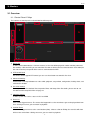
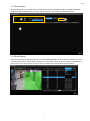
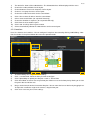
The interface of control panel can be divided into different parts:
9
11
10
1
6
3
8
4
2
7
5
1) Device List
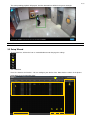
It shows all the added devices. Click one camera, its live view will be played in another monitor (advanced
live monitor). Click one NVR, you can watch the live views of all the cameras connected to it. Click on (the
left side of a device) to expand all the cameras connected to the NVR.
2) PTZ Control Panel
For devices which support PTZ control, you can use these buttons to control its live view.
3) Advanced Settings
All the buttons from top to bottom are: close CMS, playback, setup wizard, configuration, healthy check, and
minimize the window.
4) Live View Settings
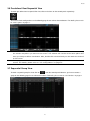
From top to bottom: Pre-defined View, Sequential View, and Group View. For details, please refer to “3.6
Pre-defined View/Sequential View” on page 16.
5) Computer Source
It shows system info such as status of CPU and RAM
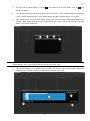
6) Event List
It lists all the triggered events. The events that happened less than 40 minutes ago can be played back from
here. Clicking one event, you can watch its playback.
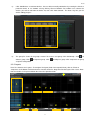
7) Location Event
It lists all the triggered events at the same location (floor). Choose a floor on E-Map, the event list will show
all the events of the floor. Clicking one event, you can watch its playback.
6