1
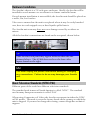
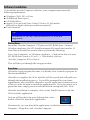
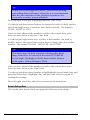
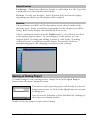
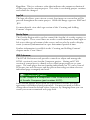
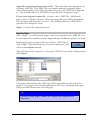
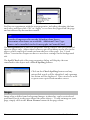
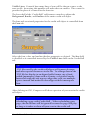
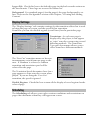
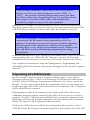
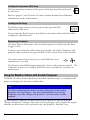
The object can be moved around on the page by
clicking on any section of the white object handles,
holding down the mouse button and dragging the
object. The object can be resized by clicking and
dragging any of the black points on the outline.
The page editor consists of several elements that facilitate page creation.
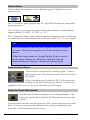
Object Selection Toolbar
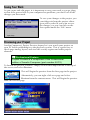
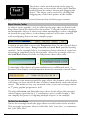
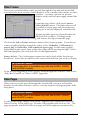
As objects (text, graphics, etc) are added to the page, they are listed in the
drop-down list in the object selection toolbar. Using the toolbar to select
and manipulate objects is often easier than attempting to select or highlight
an item in the page editor, as the editing window can become crowded
with overlapping objects in more complex pages.
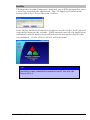
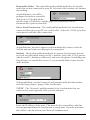
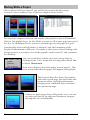
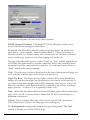
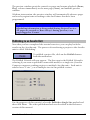
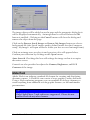
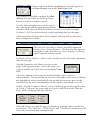
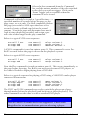
Controls are provided to access the Properties sheet for the selected object
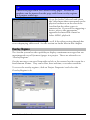
and to Delete the object. Bring Forward and Send Back provide layering
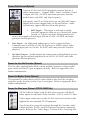
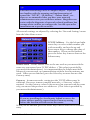
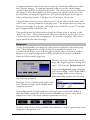
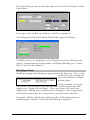
controls. In the example below, a rectangle is shown in front of a text box,
obscuring it completely in the first picture. Select the rectangle, click on
the Send Back button, and the second picture shows the result.
>>>
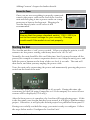
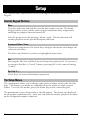
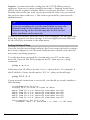
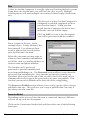
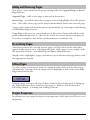
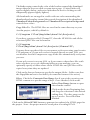
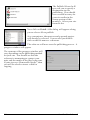
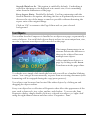
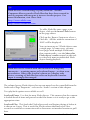
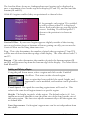
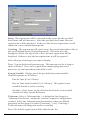
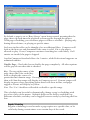
To the right of the object selection toolbar are two additional tools – a
dynamic color display, and information about the currently selected object.
As you move your mouse around the page editor, the dynamic color display
will change to show the RGB value of what is immediately under the mouse
cursor. This makes it very easy to match colors, if you are creating content
in 3rd party graphic programs as well.
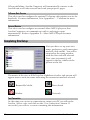
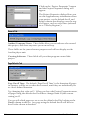
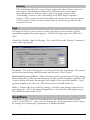
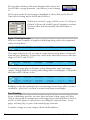
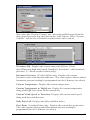
The object Position and Size indicators show details about the currently
selected object (position in X, Y coordinates, size in width, height). This
can simplify the process of aligning multiple objects, as an example.
The Safe Text Area Guides
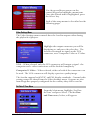
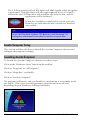
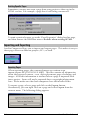
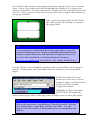
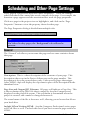
Notice the rectangle inside the page editor near the border of the window.
This rectangle represents what is called the “Safe Text Area”, or sometimes
the “Safe Title Area.”
50
Aavelin User Manual