1
Using the Object Locator
The Acrobat HD Ultra Mini Object Locator feature can help you quickly locate
something you're looking for on a page, or a specific part of an object you want
to view more closely.
The following directions can be used to locate a desired object with the
Remote and Camera:
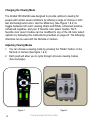
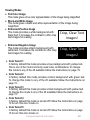
1. Press and hold down the "Find" button on
Remote (See Figure 1) or Camera (See Figure 2.)
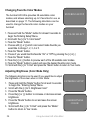
The Acrobat HD Ultra Mini will automatically zoom out
to the widest field of view, and a "target" (as shown in
Figure 3) will appear in the center of the monitor screen.
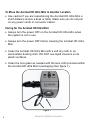
Figure 1
2. Move your work or reading material until you
have located the desired item within the "target"
area.
3. Release the "Find" button, and it will magnify the
item you located within the targeted area.
Figure 2
I----I
Figure 3
28
Using Acrobat HD Ultra Mini