1
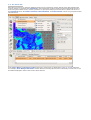
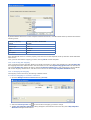
A global raster image is loaded using the operation Open Raster in the GPlates File Menu. This will show a dialog
requesting the user to choose the raster image file to be loaded. When a raster image is loaded, it will replace the
current raster image (if any).
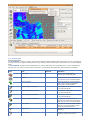
Whether or not a currently-loaded raster is displayed can be controlled using the operation Show Background
Raster in the GPlates Layers Menu. Please note that raster images do not display while using map projections other
than the 3D Globe.
4.3. The Manage Feature Collections Dialog
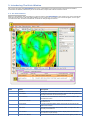
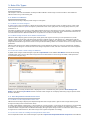
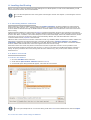
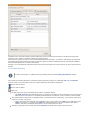
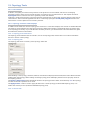
This dialog window enables you to load new files, and save, reconfigure and unload currently-loaded files. This is
where you will find any file-specific operations.
How to show The Manage Feature Collections Dialog:
1. Go to the File Menu in the menu bar.
2. Click on Manage Feature Collections menu item (shortcut: Ctrl+M).
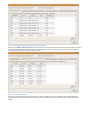
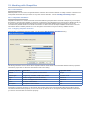
A single row in the table corresponds to one file.
Column Name
Function
File Name
The name of the file on disk
File Format
The file format type
Layer Types
Whether the file is in use on the globe canvas or being used for the rotation hierarchy
Actions
A collection of operations relevant to this file
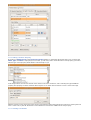
If you place your mouse over the file name a tool tip appears indicating the directory the file is located in.
4.3.1. Saving
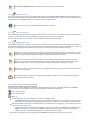
There are three different ways to save a file in GPlates.
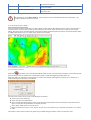
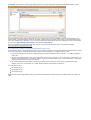
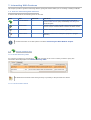
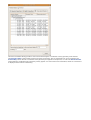
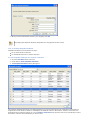
The Manage Feature Collections dialog contains a table of controls and status information about the feature
collections that are loaded in GPlates; each row corresponds to a single feature collection, and lists file name, format
and available actions.
Item
Name
Function
File Properties
Edit the file’s configuration
Save
Save the file using the current name