1
6 | ENGLISH
4.0 Reset the powerline adapter
To reset the powerline adapter to factory defaults, please follow these steps :
1.
2.
3.
4.
Press the ‘NID/RST’ button.
Keep the button pressed for 10 to 15 seconds.
Release the button.
All LED indicators with switch Off and the powerline adapter will reboot.
5.0 Change network name and password
To change the WiFi network name(SSID) and the WiFi-key, connect your WiFi
powerline adapter to a computer and follow the steps below :
1. Connect a network cable to the EM8036 and connect the other end to the network
card of your computer.
2. Connect the EM8036 to a wall outlet.
3. Make sure your computer is completely started.
4. Go to the ‘Control Panel’ of your computer.
5. Windows XP users need to click ‘Network connections’. Windows Vista users
need to click ‘Network and Sharing center’ and then click ‘Show network
connections’. Windows 7 users need to click ‘Network and Sharing Center’ and
then click ‘Change adapter settings’. Windows 8 users need to go to ‘Start’ (Apps)
and then choose ‘All Apps’. Choose ‘Control Panel’ and click ‘Network and
Sharing Center’. Click ‘Change adapter settings’.
6. Right-click your ‘LAN’ connection and click ‘Properties’.
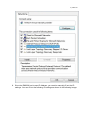
7. Windows XP users: Double-click ‘Internet protocol TCP/IP’. Windows Vista,
Windows 7 and Windows 8 users: Double-click ‘Internet protocol ‘TCP/IPv4’ as
shown in the following image: