1
User Manual
Tobii® Technology
Tobii TX300
Eye Tracker
Revision 1
www.tobii.com
Tobii TX300 Eye Tracker
On Safety
Read this manual carefully before connecting and using the eye
tracker
The Tobii TX300 Eye Tracker is intended only for use in office environments.
Do not open the eye tracker!
Non-compliance will result in loss of Warranty! There are no user serviceable components inside and
the risk of electric shock is high due to the presence of Dangerous High Voltages. Contact Tobii support if your eye tracker is not working properly.
The eye tracker contains a lithium battery. CAUTION! Risk of explosion if battery is replaced by an
incorrect type. If battery is replaced or the eye tracker is discarded, dispose of used batteries according to the battery instructions.
Epilepsy warning
Some people are susceptible to epileptic seizures or loss of consciousness when exposed to certain
flashing lights or light patterns in everyday life. Such people may have a seizure while watching certain
images or patterns on a monitor. This may happen even if the person has no medical history of
epilepsy or has never had any epileptic seizures.
Declaration of Conformity
This equipment has been tested and found to comply with the limits for a Class A digital device, pursuant to
part 15 of the FCC Rules and EMC directive 2004/108/EEC. The product also conforms with the directive
2006/95/EEC for low voltage.
Note: This equipment has been tested and found to comply with the limits for a Class A digital device, pursuant to part 15 of the FCC Rules. These limits are designed to provide reasonable protection against harmful interference in a residential installation. This equipment generates, uses and can radiate radio frequency
energy, and if not installed and used in accordance with the instructions, may cause harmful interference to radio communications. However, there is no guarantee that interference will not occur in a particular installation.
If this equipment does cause harmful interference to radio or television reception, which can be determined
by turning the equipment off and on, the user is encouraged to try to correct the interference by one or more
of the following measures:
•
•
•
•
Reorient or relocate the receiving antenna.
Increase the separation between the equipment and receiver.
Connect the equipment into an outlet on a circuit different from that to which the receiver is
connected.
Consult the dealer or an experienced radio/TV technician for help.
All Tobii Eye Trackers are CE-marked, indicating compliance with the essential health and
safety requirements set out in European Directives.
The Tobii Eye Trackers are for use in office environments.
3
User Manual
Legal information
Tobii TX300 Eye Tracker User Manual
This document contains information proprietary to Tobii Technology AB . The contents are confidential
and any disclosure to persons other than officers, employees, agents or subcontractors of the owner or
licensee of this document, without the prior written consent of Tobii Technology AB, is strictly prohibited.
No part of this publication may be reproduced, stored in a retrieval system, or transmitted in any form
or by any means, electronic or mechanical, including photocopying and recording, without the prior
consent of the copyright holder.
Manual release 1.0, January 2011
Tobii Technology AB reserves the right to change the content of this manual without any prior notice.
Changes due to typographical errors, innacuracies or modifications in programs and/or equipment may
be implemented at any time. Please check the Tobii web site www.tobii.com for updated versions of this
document.
All rights reserved.
© Tobii Technology AB
4
Tobii TX300 Eye Tracker
Table of Contents
•
•
•
Quick Start - Integrated screen setup 7
First time usage 7
Component checklist 8
•
•
•
Quick Start - Standalone setup 9
First time usage 9
Component checklist 9
•
Product Care 10
•
•
•
•
•
•
Assembling the TX300 12
Assemble the stand and the eye tracking unit 12
Remove the top plate 12
Attach the screen unit 13
Attach the Allen wrench to the foot of the eye tracking unit 13
Changing from an integrated screen setup to a standalone setup 13
•
•
•
•
•
•
•
Connecting Tobii Eye Tracker 14
Setting up the connection to your computer 14
Installing the USB Ethernet Adapter 14
Installing eye tracker software 14
Setting up the network connection to the eye tracker in Windows 15
Connecting to the eye tracker in Tobii Studio 17
Connecting tto the eye tracker when using the Tobii SDK 17
•
•
•
•
•
•
•
•
•
•
•
•
•
•
•
Configuration and settings 18
General setup guidelines 18
X Configuration Tool 19
Accessing the X Configuration Tool 19
Setting parameters in the X Configuration Tool 19
Measuring the Active Display Area 20
Measuring point on the TX300 20
Measuring the distance to the display or calibration grid 21
Measuring the horizontal angle of the eye tracker 21
Measuring the vertical angle of the display or calibration grid 22
Measuring the height difference between the display and eye tracker 22
Using a setup with side offset 23
Using a setup with angle offset 23
Saving a configuration to file 24
Using the configuration 24
•
•
•
•
Integrated screen setup examples 25
Basic setup with the integrated screen 25
Local Live Viewer setup with the integrated screen 25
Tobii E-Prime® setup with the integrated screen 26
•
•
•
Standalone eye tracker setup examples 28
Scene camera setup (tracking real objects) 28
TV setup/Projector setup/External Video setup 30
•
•
•
•
Parts and Controls 32
Front display 32
Screen unit - Left side panel 32
Rear panels 33
•
•
•
•
•
•
•
•
•
•
•
•
•
•
Customizing the Eye Tracker’s display 34
OSD menu 34
Navigating the menu 34
Adjusting the screen image 34
Adjusting the color 34
Color temperature User menu 35
Adjusting the display settings 35
Display Control menu 35
Adjusting the Zoom 36
Pip (picture in picture) menu 36
Pip Color Controls menu 36
System menu 37
OSD Configuration menu 37
Information tab 37
5
User Manual
6
•
•
Appendix I: Eye Tracker Upgrade 38
Eye tracker software upgrade 38
•
•
•
Appendix II: Troubleshooting Guide 39
Problems with the Apple Bonjour Service 39
Problems with the peer-to-peer network configuration 40
•
•
•
Appendix III: Specifications 41
Tobii TX300 Eye Tracker 41
Sync Out Port specifications 43
•
•
Appendix IV: Glossary 44
Definitions 44
•
•
Appendix V: Measurements 45
Accuracy and precision measurements 45
•
•
Appendix VI: Data sample output 46
Eye tracker data sample output 46
Tobii TX300 Eye Tracker
User camera
Power
DVI
VGA
Quick Start - Integrated
screen setup
First time usage
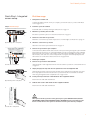
1.
Configure the network card
Configure the built-in network card in your computer, your network router, or your office LAN. Read
more on pages 14-17.
2.
Step 6. First time usage
Install the eye tracker software
Install Tobii Studio or Tobii Eye Tracking Tools. Read more on page 14.
3.
Mount the eye tracking unit on a table
Ensure the eye tracker is placed on a flat surface. Read more on page 12.
4.
Detach the cover from the eye tracker
Detach the cover from the eye tracker and place the cover in the flight case. Read more on page 12
Eye tracking unit - rear panel
5.
Attach the screen to the eye tracker
Attach the screen to the eye tracker. Read more on page 13
User camera
Power
DVI
VGA
6.
Connect the eye tracker to your computer
Connect the Power, DVI and LAN cables and turn on the eye tracker by pressing the system ON/OFF
button. When the eye tracker is on, a blue light will light up on the eye tracking unit’s system ON/OFF
button. Press the Source button on the screen to choose the input mode (Digital). See figures on the
left. If needed, connect the user camera and speaker. Do not forget to remove the plastic protection
film from the user camera before first use. Read more on page 32-33.
7.
Reboot your computer
8.
Connect the eye tracker to Tobii software
Screen unit - rear panel
Start Tobii Studio or other supported software and make sure the eye tracker is connected. Read more
on pages 17.
9.
Adjust your physical setup and enter the parameters in the X Configuration Tool
Adjust the physical setup of the eye tracker and other devices. Open the X Configuration Tool, select
the T setup option and save the selection to the eye tracker. Note: No measurements are needed
when using an Integrated screen setup. Read more on page 18-19.
10.
Eye tracking unit - rear panel
Create your Project and Tests in Tobii Studio or other supported software
Read more in the Tobii Studio User Manual.
11.
Calibrate and record in Tobii Studio or other supported software
Read more in the Tobii Studio User Manual.
When you turn off the eye tracker unit by pressing the system ON/OFF button, DO NOT
HOLD DOWN THE BUTTON FOR MORE THAN 2 SECONDS. Pressing the button for more
than 2 seconds will force the system to shut down and risk system memory corruption.
Screen unit - side panel
7
User Manual
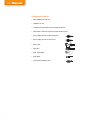
Component checklist
• Tobii TX300 Eye tracking unit
• TX300 Screen unit
• Computer with Tobii Studio or other supported software
• Tobii Studio or Tobii T/X Series Eye Trackers Resources CD
• Power supply cable for the Eye tracking unit
• Power supply cable for the Screen unit
• DVI-D cable
• LAN cable
• USB - LAN Adapter
• Audio Cable
• User Camera USB Cable A/B
8
Tobii TX300 Eye Tracker
Quick Start - Standalone
Setup
User camera
Power
DVI
VGA
First time usage
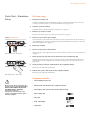
1.
Configure the network card
Install and configure the separate USB Ethernet adapter, configure the built-in network card in your
computer, your network router, or your office LAN. Read more on pages 14-17.
2.
Install the eye tracker software
Install Tobii Studio or Tobii Eye Tracking Tools. Read more on page 14.
3.
Mount the eye tracker on a table
Ensure the eye tracker is placed on a flat surface. Read more on page 12.
Step 4. First time usage
User camera
Power
DVI
VGA
4.
Connect the eye tracker to your computer
Connect the Power cable and the LAN cable and turn on the eye tracker. When the eye tracker is on,
a blue light will light up on the eye tracking unit’s system ON/OFF button. If needed, also connect the
speaker cable. Read more on page 33
5.
Reboot your computer
6.
Connect the eye tracker to Tobii software
Start Tobii Studio or other supported software and make sure the eye tracker is connected. Read more
on page 17.
Eye Tracking unit - rear panel
7.
Adjust your physical setup and enter the parameters in the X Configuration Tool
Adjust the physical setup of the eye tracker and other devices, measure all the required parameters
and enter them in the X Configuration tool. Save the parameters to the eye tracker. Read more on
page 18-24.
8.
Create your Project and Tests in Tobii Studio or other supported software
Read more in the Tobii Studio User Manual.
9.
Eye tracking unit - rear panel
Calibrate and record in Tobii Studio or other supported software
Read more in the Tobii Studio User Manual.
Component checklist
• Tobii TX300 Eye tracking unit
When you turn off the eye tracker unit
by pressing the system ON/OFF button,
DO NOT HOLD DOWN THE BUTTON
FOR MORE THAN 2 SECONDS.
Pressing the button for
more than 2 seconds will force the
system to shut down and risk system
memory corruption.
• Computer with Tobii Studio or other supported software
• Tobii Studio or Tobii T/X Series Eye Trackers Resources CD
• Power supply cable
• LAN cable
• USB - LAN Adapter
• Audio Cable
9
User Manual
Product Care
Temperature and humidity
Do not place the eye tracker in places subject to extreme
temperatures and humidity, such as on top or near a
heating element, or in a damp room.
Do not expose the eye tracker to direct sunlight. Failure
to comply may lead to equipment damage due to high
temperature exposure.
The recommended range of temperatures and humidity
values are:
Storage temperature: -20°C to +70°C / -4°F to 158°F
Storage humidity: Max. 70%, no condensation
Usage temperature: 0°C to +35°C / 32°F to 95°F
Usage humidity: Max. 80%, no condensation
Placement
Only use arms and stands specified by the supplier and
make sure that they are mounted and fastened correctly
according to the instructions. Do not place the eye
tracker on unstable and uneven surfaces.
Avoid places subject to strong mechanical vibrations or
shock. The eye tracker is not intended for mobile use.
Do not cover the ventilation openings of the eye tracker.
If these openings are covered, heat build-up may cause
failure and a possible fire hazard.
Ingress protection
IP class 20. No protection against objects smaller than
3.5mm.
Do not place the monitor in places with large amounts of
dust, dirt or sand, for example, near an open window or
an outdoor exit.
If setting up temporarily in an outdoor location take
adequate precautions against airborne dust and dirt.
Do not use the eye tracker near water. The eye tracker is
not water resistant.
Mechanical shock
If the eye tracker is exposed to mechanical shock, for
example, when dropped, do not try to connect it to a
power source. Contact Tobii support.
Power
It is recommended that you connect the power cable
of the eye tracker and computer to an outlet with a
protective earthing connection.
Use an accessible outlet and make sure that the cables
are properly placed to avoid a possible trip hazard.
Do not try to replace, repair or bypass a blown fuse. A blown
fuse is an indication that there is a malfunction in the eye
tracker, contact Tobii support to arrange for your equipment
to be serviced.
Transportation
Disconnect all the cables and grasp the monitor with both
hands when carrying it.
When you transport the eye tracker for repair, shipment or
traveling, use the original casing and packing materials.
Cleaning
10
Before cleaning the eye tracker’s monitor unplug the
power cord from the power outlet. Only use products
intended for screen cleaning. Avoid dripping liquids
into the openings between the screen surface and the
chassis as the eye tracker may be seriously damaged.
Tobii TX300 Eye Tracker
Eye tracker setup
For full functionality and best performance use computers
that fulfill the Minimum System Requirements and third
party equipment from the System Recommendations
document (available for download at www.tobii.com).
Make sure the network connection is set up according to
the description in this manual.
Always ensure that the eye tracker is turned off, i.e. that
the blue light on the system ON/OFF button is not lit,
before disconnecting the eye tracker from the power
supply.
Disposal of the eye tracker
Do not dispose of the eye tracker in general household or
office waste. Follow your local regulations for disposal of
electrical and electronic equipment.
11
User Manual
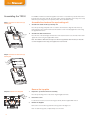
Assembling the TX300
Step 1. Assemble the Stand and eye
tracking unit
The TX300 can either be used with its supplied screen unit or as a standalone eye tracker. In the following instructions, the setup used with the screen will be called an integrated screen setup and a setup
where the eye tracking unit is used separately will be called a standalone setup.
Assemble the stand and the eye tracking unit
1.
Assemble the stand and the eye tracking unit
Place the eye tracking unit upside down on a table or other flat surface. Align the holes in the eye
tracker with the screws attached to the stand. Fasten the screws. If needed, tighten the screws using
the supplied Allen wrench.
2.
Assemble the foot and the stand
Place the foot on the stand. Align and fasten the screws attached to the foot to the holes in the stand.
Tighten the screws using the supplied Allen wrench.
Note: The TX300 is delivered in the flight case with the top plate attached. Therefore, for first time
use in an integrated screen setup, the top plate has to be removed.
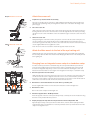
Step 2. Assemble the Stand and eye
tracking unit
Remove the top plate
Step 2 & 3. Remove the top plate
1.
Prepare the eye tracker unit for the assembly
Place the eye tracking unit on a flat surface. Angle it slighly backwards.
2.
Loosen the screws
Loosen the black screws, as seen in the image to the left, with the supplied Allen wrench.
3.
Remove the top plate
Remove the screws and the top plate. Place the top plate in the flight case.
Note: To attach the top plate, complete this process in reverse.
12
Tobii TX300 Eye Tracker
Attach the screen unit
Step 2. Attach the screen unit
1.
2.
Prepare the eye tracker unit for the assembly
Place the eye tracking unit on a flat surface. Angle it slighly backwards. Remove the top plate if it is
attached to the eye tracking unit by removing the five screws seen on the bottom left image on the
previous page.
Place the screen unit
Slide on the screen unit so the front of the screen unit hooks into the holes at the top front of the eye
tracking unit. Place the screen so the holes in the screen unit align with the holes in the eye tracking
unit. Hold on to the screen unit until the screws are fastened enough to ensure the screen unit cannot
fall off.
3.
Attach the screen unit
Ideally, attaching the screen unit is done by two persons: one who holds the screen unit in place and
one who fasten the screws. Fasten the black screws supplied with the eye tracker in the holes as
seen in the image to the left while you hold on to the screen unit. Once all screws have been fastened,
use the supplied Allen wrench to tighten the screws.
Step 3. Attach the screen unit
Note: The same screws are used both to fasten the top plate and the screen unit.
Attach the Allen wrench to the foot of the eye tracking unit
Underneath the foot of the eye tracking unit is a small, plastic holder for the Allen wrench. After first
time assembly, attach the Allen wrench to the holder. Keeping the Allen wrench in the holder prevents
it from getting lost.
Changing from an integrated screen setup to a standalone setup
In order to use the eye tracker in a standalone setup, the screen provided with the eye tracker has
to be removed. In addition, if the eye tracker has been used in a standalone setup and now should
be used in an integrated setup, the top cover has to be removed before attaching the screen. The
instructions below describes how to change from an integrated screen setup to a standalone setup.
1.
Place the eye tracker on a flat surface
Ideally, detaching the screen unit is done by two persons: one who holds the screen unit in place and
one who removes the screws. Angle the unit so the screen is close to vertical. Position yourself in
front of the screen. Hold the screen unit with one hand while you remove the screws with the other in
order for the screen unit not to fall off when all screws have been removed.
2.
Remove the screews that attaches the screen to the eye tracking unit
Use the supplied Allen wrench to remove the screws. Place the screws in the flight case.
3.
Remove the screen
Remove the screen and place it in the flight case.
4.
Attach the top plate to the TX300 Eye Tracker.
Place the top plate on the area of the eye tracker previously covered by the screen and attach it using
the black screws provided with the eye tracker.
5.
Adjust your physical setup and enter the parameters in the X Configuration Tool
Adjust the physical setup of the eye tracker and other devices, measure all the required parameters
and enter them in the X Configuration tool. Save the parameters to the eye tracker. Read more in the
chapter ‘X Configuration Tool’.
13
User Manual
Connecting Tobii Eye
Tracker
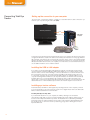
Setting up the connection to your computer
The eye tracker communicates with the computer via a standard network cable. Connect the eye
tracker to your computer using the LAN cable (LAN).
Stimulus presentation
LAN
VGA/ DVI o u t
Tobii Studio
computer
Connect the eye tracker directly to the built-in network card in your computer. The network card must be
configured in Windows to obtain an IP address automatically (see instructions on next page). Windows
will say limited connectivity for the eye tracker LAN connection. This is correct, so the warning that will
appear by the network connection icon can be ignored. Please note that if you connect the eye tracker
directly to the built-in network card in your computer you won’t be able to access the Internet unless you
use an additional network card or a wireless network.
Installing the USB to LAN adapter
If you want to use the provided USB to LAN adapter to equip the computer with an extra network
connector, start the setup by installing the USB to LAN adapter on your computer. Having an extra
network connector can be useful if wanting to connect to the internet or a local network at the same
time as having the eye tracker connected. However, the USB to LAN adapter should not be used
to connect the computer to the eye tracker. Plug the USB cable into an available USB port on your
computer. If running Windows Windows 7, the computer will detect new hardware and automatically
install the drivers for you. If running Windows XP or Windows Vista you will be prompted for the
drivers, which can be found on the separate CD provided. Please follow the on-screen instructions. For
detailed instructions on driver installation, please refer to the network adapter manual on the CD.
Installing eye tracker software
Install Tobii Studio, Tobii SDK or other supported eye tracking software on the computer you intend
to use. If Tobii Studio is to be used, ensure it is version 2.2.x or higher. Please refer to the Tobii Studio
Manual or Quick Start Guide for more information.
Installing Tobii Eye Tracking Tools
If you install Tobii Studio 2.2.x on your computer, the Tobii Eye Tracking Tools are installed
automatically. If Tobii Studio is not to be used, the installation file for the Tobii Eye Tracking Tools can
be found on the CD provided with the eye tracker. The installation file is called tobii-eye-trackingtools-X.msi (where X is replaced with the version number of the software). After installing the Tobii
Eye Tracking Tools you can browse for the eye tracker by going to Start > All Programs > Tobii >
EyeTracker Browser.
14
Tobii TX300 Eye Tracker
Setting up the network connection to the eye tracker in Windows
Windows XP Step 4.
The network card in Windows must be configured to obtain an IP address automatically. On most
computers this is the default setting. Please follow the instructions below to configure the network
card.
In Windows XP
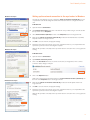
1.
Open the Windows Control Panel
2.
Open Network Connections. Right click on the network card you will be using to communicate with
the eye tracker. Choose Properties.
3.
Select Internet Protocol (TCP/IP) then click on the Properties button. See image to the left.
4.
Make sure that Obtain an IP address automatically is selected in the Internet Protocol (TCP/IP)
Properties window. See image to the left.
5.
Click OK to close the windows and apply the settings.
6.
Plug in the eye tracker to the network card you just configured and reboot your computer. Ensure the
eye tracker is powered on before rebooting the computer.
Windows will say limited connectivity for the eye tracker network connection. This is correct, ignore the
warning.
Windows XP Step 5.
In Windows Vista
Windows Vista Step 5.
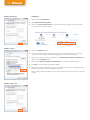
1.
Open the Windows Control Panel
2.
Open Network and Sharing Center
3.
Click on the View Status link next to Local Area Connection (see image below). The Local Area
Connection Status dialog box will open.
4.
Click on the Properties button.
Under “This connection uses the following items”, click Internet Protocol Version 4 (TCP/IPv4), and
then click on the Properties button. See image to the left.
5.
Make sure that Obtain an IP address automatically is selected in the Properties window. See
image to the left.
6.
Click OK to close the windows and apply the settings.
7.
Plug in the eye tracker to the network card you just configured and reboot your computer.Ensure the
eye tracker is powered on before rebooting the computer.
Windows will say limited connectivity for the eye tracker network connection. This is correct, ignore the
warning.
15
User Manual
Windows Vista Step 6.
In Windows 7:
1.
Open the Windows Control Panel
2.
Open Network and Sharing Center
3.
Click on the Local Area Connection link next to Connections: (see image below). The Local Area
Connection Status dialog box will open.
4.
Click on the Properties button.
5.
Click ‘Yes’ in the dialog window that appears. This action requires an Administrator account on the
computer. Consult your system administrator regarding local computer user permissions.
6.
Under “This connection uses the following items”, click Internet Protocol Version 4 (TCP/IPv4), and
then click on the Properties button.
7.
Make sure that Obtain an IP address automatically is selected in the Properties window.
8.
Click OK to close the windows and apply the settings.
9.
Plug in the eye tracker to the network card you just configured and reboot your computer. Ensure the
eye tracker is powered on before rebooting the computer.
Windows 7 Step 6.
Windows will say limited connectivity for the eye tracker network connection. This is correct, ignore the
warning.
Windows 7 Step 7 & 8.
16
Tobii TX300 Eye Tracker
Connecting to the eye tracker in Tobii Studio
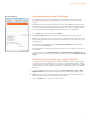
Eye Tracker Browser
The computer is connected to the Tobii TX300 Eye Tracker in Tobii Studio using the instructions
below. Before using this part of the guide, Tobii Studio or the Tobii Eye Tracking Tools has to be
installed.
The first time Tobii Studio is opened it is possible to select the Tobii TX300 Eye Tracker from the list
of connected eye trackers as the eye tracker connection window will appear automatically. After that
it has to be opened manually by following the instructions below. If you are accessing this connection
window automatically as when starting the software for the first time, go to step 3 below.
1.
Go to the Tools menu in Tobii Studio and select Settings.
2.
Click the Eye Tracker tab where the Tobii eye trackers found are listed. See image to the left.
3.
Select the eye tracker to be used. The eye tracker name is similar to the serial number on the back of
the eye tracker. When the Eye Tracker is selected, the Tobii Studio software will automatically connect
to the Eye Tracker.
The connection can be tested by clicking the “Test selected eyetracker” button. Make sure the
connection status says Connected.
If there are problems in connecting to the eye tracker or if the connection appears slow, try to reboot
your computer.
A status indicator below the Recording button in the Tobii Studio Design & Record view shows
if the eye tracker is connected or not. Click on the status indicator to open the Eyetracker Selector
window.
Connecting to the eye tracker when using the Tobii SDK
The eye tracker is connected by setting the IP address in Tobii SDK applications or other supported
software. If Tobii Studio is not installed on your computer you must first install the Tobii Eye Tracking
tools to be able to access and configure the eye tracker. The installation file called tobii-eye-trackingtools-X.msi (where X is replaced with the version number of the software) can be found on the CD
provided.
1.
To open the Tobii EyeTracker Browser go to the windows Start > All Programs > Tobii > Tobii
EyeTracker Browser. In the Tobii EyeTracker Browser window, all detected eye trackers are listed.
2.
Select the eye tracker to be used for testing. The hostname is shown in the information part of the
window. This name is similar to the serial number of the eye tracker.
3.
Click on the Copy button to copy the eye tracker hostname.
17
User Manual
Configuration and Settings General setup guidelines
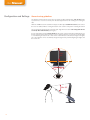
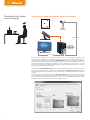
The distance from the person’s eyes to the eye tracker should be approximately ~65 cm (26’’). If the
eye tracker is too close or too far away from the test subject there is a risk of losing some of the gaze
data.
When the TX300 is used in a standalone setup, it should be placed below the screen (or the surface
that is to be studied) without covering the bottom of the screen for the person watching the stimuli.
The eye tracker should be placed so that the gaze angle will not exceed ~35º to any point on the
screen (or other stimuli used) (see images).
It is very important to have the correct distance to the screen, or the tracked object. Otherwise the eye
tracker cannot track the entire area. If the screen or object is placed too close to the eye tracker there
is a risk that the gaze data for the corners of the screen will not be collected (see image to the right).
The correct distance can be calculated by using basic trigonometry and including the gaze angles and
the screen size.
Max
35°
Max
35°
Max
35°
65
18
Max 35°
cm
26
’’
Tobii TX300 Eye Tracker
X Configuration Tool button
X Configuration Tool
The Tobii TX300 Eye Tracker can be used in many different situations. For example, it can be used with
any monitor or used to perform eye tracking relative to a physical scene, a TV, or a projection screen. For
all this to work, the user must provide some information to the TX300 eye tracker about the physical
setup. This is done using the X Configuration tool.
TX300 can be used both with the provided screen (integrated screen setup) and without the screen
(standalone setup). It can even be used with a screen other than the provided screen. However, if any
other screen than the screen provided with the eye tracker is used, it must be configured as a
standalone setup.
Accessing the X Configuration Tool
The X configuration tool is either installed when installing Tobii Eye Tracking tools or when installing
Tobii Studio. To open the X Configuration Tool go to Windows Start > All Programs > Tobii > Tobii
EyeTracker Browser. Or in Tobii Studio go to Global Settings: Tools > Settings > Eye Tracker.
Click on the TX300 Eye Tracker in the list and thereafter on the X Config Tool... button.
NOTE: Even if the TX300 is used in an integrated screen setup, it must be specified in the X
configuration tool. However, in that case only the tick box in the top right corner of the light gray area
needs to be ticked and no other measurements made.
Setting parameters in the X Configuration Tool
When the TX300 is used with its provided screen, i.e in an integrated screen setup, the only setting
that needs to be made in the X configuration tool is ticking the tick box labelled Use in T-mode (see
image below).
When using a standalone setup the user must always specify all the positioning parameters included
in the X Configuration tool. These are:
•
•
•
•
•
Eye tracker angle
Distance to screen
Screen angle
Active Display Area
Height difference between screen and eye tracker
Please be as careful and precise as possible when measuring the required parameters in your setup. All
parameters can have both positive and negative values. The values can be added both as centimeters
and inches. How to set up the different parameters will be described on the following pages.
19
User Manual
Measuring the Active Display Area
The correct screen or stimuli size must always be added in the X configuration tool. For computer
monitors, televisions and other displays, measure the size of the visible active area on the screen,
where you can see the actual image (see the top image to the left).
For projected screens, measure the size of the visible projection on the screen (see the bottom image
to the left). In a scene camera setup the active display area must be calculated based on the calibration
grid size. Read more about the calibration grid in the scene camera setup chapter.
Measuring point on the TX300
All distance measurements should ideally be made from a point on the TX300 stand. The point is
marked on the stand by a ‘+’-sign (the red circle in the image below). This point remains constant even
if the angle of the TX300 is changed. In addition to the measuring point on the stand, there is also a line
on the foot plate indicating from where horizontal distances can be measured (see the dotted circle in
the image below).
20
Tobii TX300 Eye Tracker
Measuring the distance to the display or calibration grid
Measure the distance from the measuring point on the foot of the TX300 (see image to the left) to the
front of the active display on the monitor, projection screen, or TV screen, or in a scene camera setup to
the virtual screen (25% larger than the calibration grid). If the measuring point on the TX300 is located
behind the active display, enter a negative distance (use - in front of the value).
Always make sure that the distance to the active display is long enough for the eye tracker to track the
entire area. Please read the General Setup Guidelines on page 17 for more information.
Measuring the horizontal angle of the eye tracker
Calibrate the digital angle gauge supplied with the TX300 before measuring the angle between the eye
tracker and the horizontal plane. To calibrate the digital angle gauge, place it on a flat, horizontal surface
and press the ‘Zero’ button. Measure the exact angle between the horizontal plane and the eye tracker
body using the supplied digital angle gauge.
Place the digital angle gauge on top of the eye tracker (see images below to the left). In many setups
the angle is usually around 30 degrees.
a = e.g. 35°
a
a
21
User Manual
Measuring the vertical angle of the display or calibration grid
Measure the angle between the vertical plane and the active display. In a scene camera setup measure
the angle between the vertical plane and the calibration grid used.
If the display is tilted forwards you should enter a negative angle (use - in front of the value). If the active
display is completely vertical the angle value is 0. In a scene camera setup where you want to track
objects on a horizontal table the angle would be 90 degrees.
Measuring the height difference between the display and eye
tracker
Measure the height difference between the measuring point on the TX300 and the bottom of the active
display area. Always use the visible active display as described in the ‘Measuring the active display area’
chapter.
In a scene camera setup measure the height difference between the bottom of the virtual screen (which
is 25% larger than the calibration grid) and the measuring point on the TX300 (see image to the left). If
the active display is located below the measuring point on the TX300, for example in a projector setup,
the value will be negative. Enter the value in the X configuration tool with a - in front to signify it as a
negative value.
22
Tobii TX300 Eye Tracker
Using a setup with side offset
If the Eye Tracker is not placed right in front of the screen with the axis horizontally aligned, an offset
can be entered in the X Configuration tool (called Side offset).
In this case check the Use Side Offset check box and enter the side offset from the center of the
active display to the center of the eye tracker, enter a negative value if the eye tracker is located to the
left of the center as seen from the front.
Using a setup with angle offset
The eye tracker should be placed parallel with the screen or tracked object. If this is not
the case you should check the Use Rotation check box and enter the angle between
the back of the eye tracker and the active display. If the eye tracker is rotated clockwise
(opposite as shown in the picture), enter a negative angle.
23
User Manual
Saving the configuration
When using different setups it is useful to save the different configurations locally on your computer.
This gives you the possibility to go back and reuse the configuration for the specific setup. The file can
also be used as a local backup for your configuration in case the settings need to be adjusted later.
Configurations can be saved and loaded in the Configuration tool.
A
24
B
C
A
Click Save To File to save the configuration as .xcfg file locally on your computer.
B
Click Load from File to load a saved .xcfg configuration.
C
To start using the configuration entered in the tool, you must click Save to Eyetracker. The parameters
will then be sent to the eye tracker and the eye tracker will immediately be properly configured. When
any parameter in the tool is changed the button must be pressed again for the eye tracker to get the
new settings.
Tobii TX300 Eye Tracker
Integrated screen setup
examples
Basic setup with the integrated screen
Stimulus presentation
LAN
VGA/ DVI o u t
Tobii Studio
computer
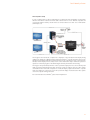
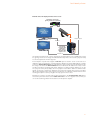
This basic setup is the simplest setup when using on-screen stimuli, such as images, movies, web or
software. The image above illustrates the single screen setup. The eye tracker is connected to the
computer via the computer’s LAN connector and a VGA or DVI cable. To create a portable lab, replace
the computer in the setup drawing with a laptop or shuttle computer.
Local Live Viewer setup with the integrated screen
Primary Screen
Stimulus
presentation
LAN
VGA/DVI out
Secondary Screen
Live viewer
(Optional)
Tobii Studio
computer with a
VGA/DVI dual
output card
VGA/DVI out
This setup is used when the test is to be supervised from a screen next to the eye tracker setup where
the moderator can see the eye movements of the subject in real time during testing. When using the
Tobii TX300 Eye Tracker in this setup, configure Windows to use the eye tracker’s screen as the primary
screen. For this option the graphics card in the computer must support dual output.. To create a portable
lab, replace the computer in the setup drawing with a laptop or shuttle computer.
25
User Manual
Tobii E-Prime® setup with the integrated screen
The Tobii extensions for E-Prime® offer a set of native E-Prime® objects tailored for the Tobii eye tracking
system. These offer functions on two different levels:
• TET level - In this mode, E-Prime® controls the Tobii Eye Tracker processing unit directly, without
using Tobii Studio at all. E-Prime® performs calibrations, collects gaze data and saves this to file.
• Tobii Studio level - In this mode, E-Prime® remote controls Tobii Studio. Timing is synchronized
between E-Prime® and Tobii Studio, data is collected by both E-Prime® and/or Tobii Studio. In this
mode, Tobii Studio can be used for data visualization and analysis.
Even though it is possible to run E-Prime® and Tobii Studio on the same computer, it is recommended
to run the E-Prime® software on a separate computer, which communicates with the Tobii Eye Tracker
processing unit and Tobii Studio software over TCP/IP. A video capture card can be used to capture
a video of the stimulus presented by E-Prime® in Tobii Studio for visualizations and post-recording
analysis.
One-computer setup
Stimulus presentation
LAN
VGA/ DVI out
E-Prime
Computer
The E-Prime® software and Tobii Studio software are run on the computer and communicate with the
Tobii Eye Tracker Server over a LAN network (TCP/IP protocol). Tobii Studio is used to calibrate the
participant, whereas the E-Prime® is used to display the stimulus and record the eye movement data. A
secondary screen can be added to the setup to enable the eye tracker operator to monitor the progress
of the trial during the recording.
26
Tobii TX300 Eye Tracker
Two-computers setup
In a two-computer setup you will use Tobii Studio to record the gaze data and E-Prime® to present the
stimulus. The E-Prime® software and Tobii Studio software are run on two different computers and
communicate with the Tobii Eye Tracker Server as well as between each other over a LAN network
(TCP/IP protocol).
The image from the Tobii Studio computer has to displayed on the Tobii Eye Tracker’s display during
calibration (to display the calibration points), whereas the E-Prime® computer should be shown on the
Tobii Eye Tracker’s display during the actual test. Therefore, both computers have to be connected to the
Tobii Eye Tracker’s display. Two secondary screens can be added to the setup to enable the eye tracker
operator to monitor the progress of the trial during the stimulus presentation and recording.
The image or video presented by E-Prime® on the eye tracker’s display also has to be recorded by Tobii
Studio and synchronized with the gaze data. The image or video recording is done via a video capture
card installed on the Tobii Studio computer. As a result, the display output of the E-Prime® computer
needs to be split in two connections: one to the eye tracker’s display and another to the video capture
card on the computer running Tobii Sudio.
For more information about E-Prime®, please visit www.pstnet.com.
27
User Manual
Standalone eye tracker
setup examples
Scene camera setup (tracking real objects or surfaces)
Calibration Grid
Video Camera
LAN
Primary Screen
Live viewer
VGA/DVI capture
Tobii Studio
computer with a
VGA/DVI output
+ VGA/DVI video
capture card
VGA/DVI out
Real objects, like magazines etc, can be used as stimuli in a scene camera setup where a video camera
is filming the object during the recording. In this setup the calibration points cannot be displayed on a
screen during the calibration, thus a separate calibration grid must be used. The grid can be drawn on
a paper and include five or nine points. The object you intend to track should fit within an area which is
25% larger than the actual calibration grid. Always make sure that the eye tracker is able to track the
person’s eyes over the entire calibration grid. During the calibration procedure the person is asked to
look at the corresponding points in the grid.
All values in the X Configuration Tool must be measured and added correctly to ensure accurate data
(see the chapter about the X Configuration Tool). Additionally a calibration image (see image from
Tobii Studio below) from the scene camera must be specified in Tobii Studio (see how in the Tobii Studio
manual).
The eye tracker is always calibrated against a two-dimensional surface, and all eye tracking data is
in two dimensions. If eye tracking is to be done on three-dimensional objects, parallax errors will be
induced. To minimize these errors always set up the scene camera overlooking the calibration area from
an angle as close as possible to that of the person being eye-tracked.
28
Tobii TX300 Eye Tracker
Example of a nine and five point calibration grid.
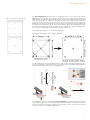
The Active Display Area (parameter in the X Configuration Tool) in a scene camera setup is always
25% larger than the size of the actual calibration grid. The stimulus you intend to track should always fit
within this area. The calibration grid must have the same shape as the calibration pattern used in Tobii
Studio and include either five or nine points. The calibration points can be drawn on a paper, marked on
a calibration board, or marked on objects in the scene. It is also good to include the 25% larger Active
Display Area (see below) around the grid to make it easier to measure the parameters required in the
X Configuration Tool. Make sure that the corners of the calibration grid are exactly 90 degrees and that
the center point is exactly in the middle of the grid. How to calculate the 25% larger Active Display Area,
which needs to be added in the X Configuration Tool is described below:
Active Display Area Height = 1.25 • Calibration grid height
Active Display Area Width = 1.25 • Calibration grid width
The 25% larger virtual screen (Active Display Area) is used also when specifying the other parameters
in the X Configuration Tool, like distance from the eye tracker to the screen and the height difference
between the eye tracker and the screen. See images below.
A
C
B
A
C
B
Eye calibration of a person is done with the manual calibration procedure in Tobii Studio. The person
conducting the study has to manually step through the calibration points by asking the person in front
of the eye tracker to look at the first calibration point, and when he does so, press the space bar. Then
have him look at the second calibration point, and so on.
29
User Manual
TV setup/Projector setup/External Video setup
Primary Screen
Stimulus presentation
LAN
VGA/DVI out
Secondary Screen
Live viewer
(Optional)
Tobii Studio
computer with a
VGA/DVI dual
output card
VGA/DVI out
Primary Screen
Stimulus
presentation
LAN
VGA/DVI out
Secondary Screen
Live viewer
(Optional)
Tobii Studio
computer with a
VGA/DVI dual
output card
VGA/DVI out
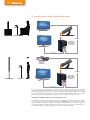
In a TV or projector setup, always make sure the eye tracker is able to track the eyes over the entire
screen by using the correct distance to the screen, and the correct tilt angle of the eye tracker. For more
information regarding the correct distance, refer to the chapter ‘General setup guidelines’. The TX300
Eye Tracker should be placed as high up as possible without covering the bottom of the screen from the
person watching it. A setup including a TV or projector can be realized in two different ways:
Computer will display stimulus on the TV or projector screen
You will use the computer for displaying the stimulus on the screen, for example by using Movie stimulus
in Tobii Studio. In this setup the computer must support a video out option so that the screen can be
used as an additional screen connected to the computer. Configure Windows to use the TV or projector
as the primary display. An additional optional secondary monitor can be used for monitoring the eye
movements during the recording by using the Live Viewer function in Tobii Studio.
30
Tobii TX300 Eye Tracker
External device will display stimulus on the screen
DVD player, Set top box,
gaming console etc. (Optional)
Video out
TV
Primary Screen
Stimulus
presentation
LAN
VGA/DVI capture
Video out
Secondary Screen
Live viewer
(Optional)
Tobii Studio
computer with
a VGA/DVI/
video output +
VGA/DVI video
capture card
VGA/DVI out
The stimulus presented on the screen is generated by an external device such as a DVD player, set top
box, gaming console etc. The image above illustrates the setup where a TV is used. If a projector setup
is to be used, replace the TV with a projector.
In this setup the computer must support a video out option so that the screen can be used as an
additional screen connected to the computer during the calibration procedure. Additionally, the computer
must have a Video Capture Card for recording the video signal coming in from the external device. For
this setup you should use the External Video stimulus in Tobii Studio. An additional secondary monitor
should be included for monitoring Tobii Studio during the recording. Configure Windows to use the
TV or projector as the primary display. The TV or projector must be able to take in two different video
signals, one from the computer (for calibration) and one from the external device used. You should be
able to switch between the two video signals (computer video for calibration and external device when
recording). Usually this is done by using the TV’s or projector’s remote control.
Remember to measure and add all the required parameters in the X Configuration Tool. Always
measure the parameters relative to the visible active area of the TV or projector screen, where you
can see the actual image. Read more about the tool in the previous chapters.
31
User Manual
Parts and Controls
Front display
Equipment list
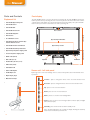
The Tobii TX300 consists of a screen unit and an eye tracking unit. The Tobii TX300 Eye Tracker has
built-in speakers in the eye tracking unit and a user camera placed at the front in the screen unit. The
control buttons for the display are located on the left side panel of the display. The system ON/OFF
button for the eye tracker is located at the rear of the eye tracking unit.
• Tobii TX300 Eye tracking unit
• Tobii TX300 stand
• Tobii TX300 foot
User camera
• Tobii TX300 Screen unit
• Tobii TX300 Top plate
Screen unit
• Allen wrench
• 10 x M4 Black screws
Eye tracking illuminators
• Tobii Studio or Tobii T/X Series Eye Trackers Resources CD
Eye tracking sensors
• Tobii TX300 Tracker User Manual
• Tobii TX300 Assembly instructions
• Screen unit power supply cable
• DVI-D cable (2.0 m)
• VGA cable (1.8 m)
Speaker
Ventilation
Eye tracking unit
• Eye tracking unit power supply cable
• Audio Cable (3.5 mm, 1.8 m)
• LAN Cable (3.0 m)
• USB Cable A/B
• USB - LAN Adapter
Screen unit - Left side panel
• TX300 flight case
Input image source and screen settings can be accessed on the panel located on the left side of the
eye tracker.
• Digital angle gauge
• Measurement tape
Increase - press to change the values on the on-screen selection menu
Decrease - press to change the values on the on-screen selection menu
Up - press to move on-screen selection
Down - press to move on-screen selection
Menu - press to access the screen settings Menu.
Source - press to select source: Analogue (VGA connector input) or Digital
(DVI connector input).
Stand By - press for the monitor to enter in Standby mode.
Note: The Stand By button only controls the display. Pushing the Stand By
button does not effect the eye tracker unit.
32
Tobii TX300 Eye Tracker
Rear panels
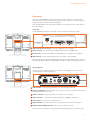
At the back of the TX300 the connections for the screen and the eye tracker can be found. The
screen connectors are found at the back of the upper part of the screen. The connectors for the eye
tracker are located
atcamera
the backPower
of the eye tracking unit.
DVI
VGA
User
Note: The Tobii TX300 comes with two power supplies; one is used for the screen and the other for
the eye tracking unit.
Screen unit
The VGA/DVI display and power connections can be found at the rear panel of the screen.
User camera
Power
DVI
VGA
1
2
4
3
1 USB connector for user camera - Connect to a USB port on your computer
2 Power connector - Connect to the power supply provided for the Tobii TX300 screen.
3 DVI connector - Connect to the digital video output (DVI) on your computer or video equipment.
4 VGA connector - Connect to the VGA output on your computer or video equipment.
Note: Most laptops only support VGA while DVI provides a higher quality output. If the study contains images with high detail and stored in a high definition format we recommend using the DVI connection.
Eye tracking unit
User camera
Power
DVI
VGA
The power connector, network connection, sync-out port and the trigger port (not in use) can be
found on the back of the eye tracking unit..
5
1
2
3
4
6
7
1 LAN connector - Connect to the eye tracker to your computer using a LAN cable.
2 System on/off button - Press the button once to turn on or off the eye tracker. The button will be
illuminated when the system is active.
3 Audio in connector - Connect to the Audio out connector on your computer.
4 Power connector - Connect the power cable provided for the TX300 Eye Tracking unit.
5 Sync-out port - This connector is currently not in use.
6 Status indicators - The status indicators are used by the system to indicate its current status.
7 50 Ohm terminated BNC connector - This connector is currently not in use.
Note: The system on/off button only controls the eye tracker. Pushing it does not affect the screen.
33
User Manual
Customizing the Eye
Tracker’s Display
OSD menu
The monitor settings can be adjusted on the on-screen display menu (OSD). To display the main
OSD menu press the Menu button located on the left side of the eye tracker. For best results it is
recommended that you turn on the monitor and wait for 30 minutes before making the adjustments.
Navigating the menu
Press the Menu button to display the main OSD menu on your screen. Use the Up and Down and
Menu buttons to select the different sub-menus.
Using the Menu, Up and Down buttons
1.
Display the main OSD menu. Press the Menu button to display the main menu on the screen
2.
Select the feature you want to adjust. Press the Up and Down buttons to display the desired submenu. Press the Menu button to select a sub-menu.
3.
Adjust the menu. Press the Up and Down buttons to make the adjustment, then press Menu button.
When you press the Menu button the settings are stored and the display returns to the previous
menu.
4.
Close the menu. Press the Menu button several times to exit the menu and return to normal viewing.
Adjusting the screen image
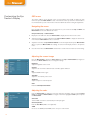
Press the Menu button to display the Image menu. Use the Up and Down buttons to navigate on
the menu, and Menu button to select or change the settings.
Brightness
Adjust the brightness of the screen
Contrast
Adjust the ratio of luminance between black and white, adjusts distinction
Hue
Adjust the RGB luminance gain
Saturation
Adjust the color intensity of the screen
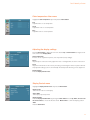
Sharpness
Adjust to sharpen or soften the picture
Color
Enter the Color Adjustment Menu
Adjusting the color
Press the Menu button to display the main menu, then press the button again to enter the Image
menu. Use the Up and Down buttons to navigate on the menu. Highlight the Color option and press
the Menu button.
Auto Color
Sets the RGB color balance automatically from the input signal
Color temperature
Enter the User Menu (White color adjustment)
sRGB
Choose to use sRGB (standard RGB) as the color space of the monitor
34
Tobii TX300 Eye Tracker
Color temperature User menu
Highlight the Color temperature option and press the Menu button.
Red
Adjust Red value of color temperature
Green
Adjust Green value of color temperature
Blue
Adjust Blue value of color temperature
Adjusting the display settings
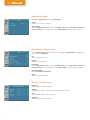
Press the Menu button to display the main menu. Use the Up and Down buttons to navigate on the
menu and show the Display Menu.
Auto Configuration
Executes an auto adjustment for phase, clock and position (factory settings).
Phase
Adjust the phase of the screen. Only adjust when noise or overlapped lines are shown on the screen.
Clock
Adjust the horizontal size of the screen by increasing or decreasing the number of picture elements.
Only adjust this setting if you have an horizontally unmatched picture after doing an auto adjustment.
Display Control
Enter the Display Control menu.
Display Control menu
Highlight the Display Control menu and press the Menu button.
Display Image
Select various modes of screen display
Aspect Ratio
Select display output aspect ratio
Display Position
Enter the Display Position Menu by pressing the Menu button. Use the Up, Down, Increase and
Decrease buttons to choose the direction and the Menu button to confirm the display’s position.
Zoom
Enter the Zoom Menu
35
User Manual
Adjusting the Zoom
Highlight the Zoom menu and press the Menu button.
In/Out
Adjusts zoom-in and zoom-out range
Zoom Position
Enter the Zoom Position menu by pressing the Menu button. Use the Up, Down, Increase and
Decrease buttons to choose the direction and the Menu button to confirm the zoom’s position.
Pip (picture in picture) menu
Press the Menu button to display the main menu, . Use the Up and Down buttons to navigate on the
menu and show the Pip Menu.
Pip
Turns the Pip feature on or off
Pip Size
Adjust the size of the picture
Pip Position
Enter the Pip Position menu by pressing the Menu button. Use the Up, Down, Increase and
Decrease buttons to choose the direction and the Menu button to confirm the picture’s position.
Pip Color Controls
Enter the Pip Color Controls menu.
Blend
Adjust Pip screen blending level
Pip Color Controls menu
Brightness
Adjust to brighten or darken the picture
Contrast
Adjust the ratio of luminance between black and white, adjusts distinction
Hue
Adjust the RGB luminance gain of the picture
Saturation
Adjust the color intensity of the picture
36
Tobii TX300 Eye Tracker
System menu
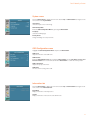
Press the Menu button to display the main menu. Use the Up and Down buttons to navigate on the
menu and show the System Menu.
Input Select
Select the imput source for the image
OSD Configuration
Enter the OSD Configuration Menu by pressing the Menu button.
Language
Select the OSD language
Factory Reset
Change all settings to factory set values
OSD Configuration menu
Highlight the OSD Configuration Menu and press the Menu button.
OSD Timer
Adjust the view time of the OSD menu.
OSD Position
Enter the OSD Position menu by pressing the Menu button. Use the Up, Down, Increase and
Decrease buttons to choose the direction and the Menu button to confirm the menu’s position.
OSD Transparency
Adjusts the opacity of the menu.
OSD Zoom
Choose to allow zooming on the OSD
Information tab
Press the Menu button to display the main menu. Use the Up and Down buttons to navigate on the
menu and show the Information tab.
Input Mode
Displays information on the input source
Version
Displays information on the screen’s controller firmware
37
User Manual
Appendix I:
Eye Tracker Upgrade
38
Eye tracker software upgrade
Follow the instructions below to upgrade the eye tracker software.
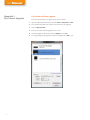
1.
Open the Tobii EyeTracker Browser, found under Start > All Programs > Tobii.
2.
In the Tobii EyeTracker Browser mark the eye tracker that is to be upgraded.
3.
Click the Upgrade button.
4.
Browse to the folder where the upgrade files are saved.
5.
Select the upgrade file with the file extension .tobiipkg and click OK.
6.
A message stating that the upgrade is finished should appear. Click OK to close.
Tobii TX300 Eye Tracker
Appendix II:
Troubleshooting Guide
At the back of the Tobii TX300 eye tracking unit two status indicator lamps can be found. Below is a
table describing what the different codes mean and what should be done by the user when seeing a
specific code.
Red Lamp
Green Lamp
Meaning
On
On
The eye tracking unit has been connected to a power source
This mode will only be displayed for a short while. If both lamps are
on for more than 10 seconds contact Tobii Support.
Off
Blink
The eye tracking unit has been turned on; or the eye tracking
unit firmware is being updated
This mode is displayed during the unit start up process. , if the light
continues to blink for a long period (> 60 seconds) contact Tobii
Support. During the firmware update this mode can be displayed
for a longer time, depending on the size of the update.
Off
On
Eye tracking unit hardware is working normally
This mode is the normal mode for a working eye tracker.
Blink
Off
Internal technical error
Something within the eye tracker does not work as intended. Turn
off the eye tracker by pressing the sytem ON/OFF button. Ensure
that the eye tracker is off before proceeding, i.e. the blue light on
the system ON/OFF button is out. Disconnect the power cable.
Wait for about a minute. Connect the power cable and turn on the
eye tracker again. If the eye tracker still blinks red, contact Tobii
Support.
On
Off
Internal technical error
Something within the eye tracker does not work as intended. Turn
off the eye tracker by pressing the system ON/OFF button. Ensure
that the eye tracker is off before proceeding, i.e. the blue light on
the system ON/OFF button is out. Disconnect the power cable.
Wait for about a minute. Connect the power cable and turn on the
eye tracker again. If the red lamp still turns on after starting the eye
tracker, contact Tobii Support.
The Tobii TX300 Eye Tracker use a network connection to communicate with the computer. The following
chapters help you to troubleshoot the most common connection issues with your Tobii Eye Tracker.
Problems with the Apple Bonjour Service
The Apple Bonjour service is used by the Tobii Eyetracker Browser and Tobii Studio to identify the eye
trackers that are connected to the same network as the computer. The service is installed automatically
with Tobii Studio and the Tobii Eye Tracking Tools.
1.
The Apple Bonjour Service is not installed on the computer.
Check if the service is installed on the computer:
Open the Windows Control Panel (Classic View in Windows Vista) > Administrative Tools >
Services.
If the Apple Bonjour Service is not listed, then it will have to be installed on the computer. First check that
either Tobii Studio or the Tobii Eye Tracking Tools are installed on the computer, open the All Programs
folder in your Windows Start menu:
1. If a folder named Tobii containing the Tobii Eyetracker Browser is present in the All Programs
folder, then at least one of the two is installed. If that is the case, download and install the latest version
of the Apple Bonjour Service from: http://www.apple.com/support/downloads/bonjourforwindows.
html
2. If the Tobii folder is missing from the All Programs folder, then re-install Tobii Studio or the Tobii
Eyetracker Browser on the computer.
39
User Manual
2.
The Apple Bonjour Service is installed but not started.
Open the Windows Control Panel (Classic View) > Administrative Tools > Services.
Check in the Services list if the Apple Bonjour Service’s Status is set to Started. If the Status is
empty then right click on it and select Start. Restart any Tobii applications and connect again.
3.
The Apple Bonjour Service cannot be started.
Most likely the service is blocked by an anti-virus software or Group Policy. Check any Group Policies
and anti-virus software installed (not only running) on the computer. If you do not know how to do this,
please contact your IT administrator as the procedure differs between security applications.
4.
The Apple Bonjour Service is up and running but there is still no connection.
Check that the port Apple Bonjour Service uses to scan the network is not blocked by any firewall.
It uses UDP port 5353. If you need help in doing this, please contact your IT administrator as the
procedure for doing this differs between security applications.
5.
If none of the above works.
If the computer is not connected to the Internet and Skype is running, Skype will flood all network
connections in attempts to connect to the Skype servers. This can cause problems with the eye tracker
connection. Turn off Skype.
6.
The eye tracker takes a long time to start tracking.
If the eye tracker shows a delay of 10-30 seconds when showing the track status, starting a calibration
or starting a recording, try to upgrade the Apple Bonjour Service to its most recent version (see point 1).
Using an outdated version of the Apple Bonjour Service’s may cause slow connection problems.
Problems with the peer-to-peer network configuration
When the eye tracker is connected directly to the test computer it uses a network connection with a
DHCP server.
Check if the network card is set to obtain an IP address automatically (see the chapter ‘Setting up the
network connection to the eye tracker in Windows’ chapter in this manual).
40
Tobii TX300 Eye Tracker
Appendix III:
Specifications
Tobii TX300 Eye Tracker
The characteristics of an eye tracker can be described in terms of gaze accuracy and gaze precision.
Accuracy describes the angular average distance from the actual gaze point to the one measured by
the eye tracker. Gaze precision describes the spatial variation between successive samples collected
when the subject fixates at a specific point on a stimuli. More information regarding the accuracy and
precision measurements can be found in Appendix V. A glossary can be found in Appendix IV.
Gaze accuracy (Preliminary measurements)
Monocular
Binocular
At ideal conditions1)
0.5°
0.4°
At 25° gaze angle
0.5°
0.4°
At 30° gaze angle
0.6°
0.5°
At 1 lux
1.1°
0.9°
At 300 lux
0.5°
0.4°
At 600 lux
0.6°
0.4°
At 1000 lux
0.6°
0.5°
White stimuli background (300 lux)
0.8°
0.6°
Accuracy under ideal conditions is measured in the center of the head movement box with the subject
fixed in a chinrest. Data is collected immediately after calibration, in a controlled laboratory environment with
constant illumination, with 9 stimuli points at gaze angles of ≤18º.
1)
41
User Manual
Gaze precision (Preliminary measurements)
Monocular
Binocular
With Stampe filter1)
0.06°
0.04°
Without filter
0.22°
0.15°
Stampe (Behavior Research Methods, Instruments & Computers, 1993, 25 (2), pp.137-142) describes
a noise reduction filter commonly used for eye tracking data. In these measurements, the Stampe stage 2
algorithm has been applied.
1)
Eye tracking specifications (Preliminary measurements)
Sampling
Latency
Sampling rate (binocular)
300 Hz
Sampling rate variability
0.3%
Processing latency
Total system latency
Timestamp precision
Via sync-out port
As specified in each data sample
Time to tracking recovery
Head movement
<10 ms
n.a.
Std dev 40 µs
For blinks
Immediate
After lost tracking
10 - 165 ms
Freedom of head movement at 65 cm
(width x height)
Operating distance
(eye tracker to subject)
Max head movement speed
Max gaze angle
Tracking technique
A glossary can be found in Appendix IV.
42
1.0 - 3.3 ms
37 x 17 cm (15 x 7’’)
50-80 cm (20-31’’)
50 cm/s (20’’/s)
35°
Dark pupil tracking
Tobii TX300 Eye Tracker
The TX300 Eye Tracker is an integrated eye tracker with a removable 23’’ TFT monitor. Removing the
TFT monitor transforms the integrated eye tracker into a standalone eye tracker.
Screen unit
Overall dimensions
557 mm
Screen size
23”
Screen resolution (Max)
1920 x 1080 pixel
Aspect ratio
16:9
Display colors
16.7 M (Hi-FRC)
Vertical Sync Frequency
49-75 Hz
Horizontal Sync Frequency
54.2-83.8 kHz
Response time
typical 5 ms
Luminance, white
typical 300 cd/m2
User Camera
Built in (640 x 480 @ 30fps)
Weight
4 kg (8.8 lbs)
Connectors
DVI/VGA
USB (User camera)
Power connector
Eye Tracking unit
535 mm
Eye tracking processing unit
Embedded
Speaker
3 W (mono)
Weight
6 kg (13.2 lbs)
Unit Size (without desk stand)
55 x 24 x 6 cm
(22 x 9 x 2’’)
Connectors
LAN (TCP/IP over Ethernet - data samples)
12 pin connector (LVDS - sync out)
3.5 mm audio plug (audio in)
50Ω terminated BNC connector (currently not in use)
Power connector
240 mm
43
User Manual
Appendix IV: Glossary
Definitions
Monocular/binocular
Monocular data shown is based on data from each eye individually. Binocular data is the average of
the two eyes.
Gaze precision
Describes the spatial angular variation between individual and consecutive gaze samples. Gaze
precision can be measured under various conditions. Gaze precision is sometimes also specified as
‘spatial resolution’. For more details, see Appendix VI
Gaze accuracy
Describes the angular average distance from the actual gaze point to the one measured by the eye
tracker. Gaze accuracy can be measured under various conditions. For more details, see Appendix II.
Sampling rate
Number of data samples per second. The TobiiT/X Eye Trackers series have a stable data-rate of 60,
120 or 300 Hz; that is 60, 120 or 300 data samples per second are collected for each eye.
Sampling variability
Sampling variability specifies the maximum difference between the stated sampling rate and the
actual sampling rate that can occur during an eye tracking test.
Processing latency
Describes the time required by the eye tracker processor to perform image processing and eye gaze
computations.
Total system latency
The duration from mid-point of the eye image exposure, to when a sample is available via the API on
the client computer (assuming a dedicated Gigabit Ethernet connection). This includes half of the
image exposure time, plus image read-out and transfer time, processing time and time to transfer the
data sample to a client computer.
Timestamp precision via sync-out The temporal deviation of the signal on the sync-out port relative to the beginning of the actual
port
exposure of the eye image.
Timestamp precision as specified The temporal deviation of the timestamp in the data sample received by the client application. This
in each data sample
includes any offset in the clock sync between the eye tracker processing unit and a typical client
computer.
44
Time to tracking recovery for
blinks
When a subject blinks, the eye tracker loses the ability to track eye gaze because the eye is covered
by the eyelid. If the pupil is occluded for only a short period (a few hundred milliseconds), the system
will regain tracking immediately when the pupil becomes visible again, but only if the subject has
maintained approximately the same head position during the blink. Data during blinks are only lost
when the pupil is occluded, i.e. during the eyelid movement itself or when the eye is closed.
Time to tracking recovery after
lost tracking
An eye tracker working in a natural user environment may occasionally lose track of the subject’s
eyes, e.g., when the subject completely turns away from the tracker. If a period of a few hundred
milliseconds elapses during which the eye tracker is unable to detect the eyes in close proximity to
where they were last detected, the eye tracker will start searching for the eyes within the entire head
movement box. The stated measurement is the typical time to tracking recovery in such a situation. If
the eye tracker is unable to detect the eyes of the subject even after about one minute, the system
will enter a “slow search” mode, leading to larger recovery times.
Freedom of head movement
Describes an area (height × width in cm) where at least one eye is within the eye tracker’s field of
view.
Operating distance
Describes the minimum and maximum distances between the subject’s eyes and the surface covering
the eye tracker sensors at which eye tracking can be done while maintaining robust tracking.
Max head movement speed
Describes the maximum head movement speed allowed while maintaining robust tracking. The
specified number is for sideways head movement.
Max gaze angles
The maximum gaze angle for which the eye tracker can perform robust and accurate tracking on
both eyes. The gaze angle is the angle ABC with A = center of the eye tracker (midpoint between
the two eye tracking sensors), B = eye position (midpoint between the left and the right eye) and C
= stimuli point.
Eye tracking technique
Tobii Eye Trackers use two different techniques to determine eye position: 1. Bright pupil eye tracking,
where an illuminator is placed close to the optical axis of the imaging device, causing the pupil to
appear lit up (the same phenomenon that causes red eyes in photos). 2. Dark pupil eye tracking
where the illuminator is placed away from the optical axis, causing the pupil to appear black.
Eye tracking processing unit
Gaze data calculations are performed by firmware embedded in the eye tracker. Different
applications can be connected over a LAN connection as clients to the eye tracker system to gather
eye gaze data and other data in real-time, perform calibrations, etc.
Tobii TX300 Eye Tracker
Appendix V: Measurements Accuracy and precision measurements
Gaze accuracy and precision are typically measured in degrees of visual angle. One degree accuracy
corresponds to an average error of 12 mm (0.47’’) on a screen at a distance of 65 cm (27’’). Data is
presented as monocular or binocular. Monocular data is based on data from the subject’s dominant eye
only. Binocular data is the average of both eyes.
Gaze precision
Precision measurements are done using artificial eyes to eliminate artifacts from human eye movements.
Tobii specifies precision both with and without noise reduction filters. All measurements are done at the
default sampling rate of the eye tracker and at the optimum distance between the eye tracker and the
subject. For TX300, the sampling rate was 300 Hz and the distance 65 cm (27’’). Precision is calculated
as root-mean-square (RMS) of successive samples.
Using a noise reduction filter can improve precision and it is often used when doing eye tracking analysis.
For comparison, Tobii provides precision values both with and without applying a filter. The filter used
is a Stampe stage 2 algorithm. More information about this filter can be found in Behavior Research
methods, Instruments & Computers 1993, 25 (2), pp. 137-142.
As the distance from the eye tracker influences precision, measurements are also taken at various
distances. Data from these measurements is binocular.
Gaze accuracy
Accuracy under ideal conditions is measured in the center of the head movement box with the subject
fixed in a chinrest. Data is collected immediately after calibration, in a controlled laboratory environment
with constant illumination, with 9 stimuli points at gaze angles ≤18º. Measurements are done on 20 test
subjects without lenses, glasses or droopy eyelids. Accuracy for one subject is calculated as the mean
of several data samples for several stimuli points across a screen. The accuracy figure presented is the
mean accuracy from all subjects.
Good accuracy is difficult to achieve at large gaze angles, but is important when testing large stimuli.
For instance, the upper corner of a 23’’ screen with the test subject at a distance of 65 cm (27’’) from
the eye tracker corresponds to a 31º visual angle from the center of the eye tracker unit. Consequently,
measurements are also presented for stimuli presentations at large gaze angles.
When luminance of the stimuli or the illumination in the lab changes, the size and shape of the pupil is
affected. Unless compensated for, this may cause a significantly reduced accuracy. Testing the influence
of surrounding light and stimuli luminance on accuracy is done in a laboratory environment with controlled
light conditions. Stimuli points are presented on a black background so as not to influence ambient light
conditions. Testing is also done with ambient light at a level deemed ‘normal’ office lighting where the
background is changed to white with black stimuli points. In previous technical specifications, for Tobii
products the results from a test in which the background was changed has been referred to as Drift.
As with precision, the distance from the eye tracker influences accuracy. When testing this influence,
calibration is done with the subject in the center of the head movement box (i.e. at a distance of 65 cm)
and measurements are made thereafter. Measurements are performed with the test subject at precise
and specific distances relative to the eye tracker, measured along the axis of the tracking sensors. Data
from these measurements is binocular.
45
User Manual
Appendix
VI: Data sample
output
Eye tracker data sample output
Different applications can be connected over TCP/IP (LAN connector) as clients to the eye tracker
to, e.g., gather eye gaze data in real-time and perform calibrations. Applications that can be used
together with the eye tracker include the Tobii StudioTM analysis software, third party analysis products
such as E-Prime® or your own custom written software for analysis, gaze-contingent applications or
eye control applications. For more information on how to create your own applications, please refer to
the Tobii Software Development Kit (SDK) product description.
Below is a list of data that can be accessed through the output of the eye tracker. In Tobii StudioTM
analysis software this data can be accessed through a Raw data text export function, and easily
imported into a spreadsheet for further analysis.
46
Timestamp
Timestamp in milliseconds stating the mid-exposure time when the sample was collected by the eye
tracker’s image sensors.
Gaze PointXLeft
Horizontal screen position of the gaze point for the left eye.
GazePointYLeft
Vertical screen position of the gaze point for the left eye.
CamXLeft
Horizontal location of the left pupil in the camera image (0 is left edge, 1 is right edge).
CamYLeft
Vertical location of the left pupil in the camera image (0 is top, 1 is bottom).
DistanceLeft
Distance from the eye tracker to the left eye. The distance is given in mm on a straight axis right out
from the eye tracker plane.
PupilLeft
Size of the pupil (left eye) in mm. The distance and pupil size measurements are calculated to be as
close to real values as possible. However, individual differences in the eyes of subjects or the strength
of glasses/contact lenses will affect the size values. The measures still reflect changes in pupil size
accurately.
ValidityLeft
The validity code indicates the system’s confidence in whether it has correctly identified which eye is
left and right for the specific sample. The validity is 0 if the eye is found and the tracking quality good.
If the eye cannot be found by the eye tracker the validity code will be 4. The value is for the left eye.
Gaze PointXRight
The horizontal screen position of the gaze point for the right eye.
GazePointYRight
Vertical screen position of the gaze point for the right eye .
CamXRight
Horizontal location of the right pupil in the camera image (0 is left edge, 1 is right edge).
CamYRight
Vertical location of the right pupil in the camera image (0 is top, 1 is bottom).
DistanceRight
Distance from the eye tracker to the right eye. The distance is given in mm on a straight axis out from
the eye tracker plane.
PupilRight
Size of the pupil (right eye) in mm. The distance and pupil size measures are calculated to be as close
to real values as possible. However, individual differences in the eyes of subjects or the strength of
glasses/contact lenses will affect these values. However, the measures still reflect changes in pupil
size accurately.
ValidityRight
The validity code indicates the system’s confidence in whether it has correctly identified which eye is
left and right for the specific sample. The validity is 0 if the eye is found and tracking quality is good. If
the eye cannot be found by the eye tracker, the validity code will be 4. The value is for the right eye.
Tobii_UserManual_TobiiTX300EyeTrackerUserManual_27122010_ENGus_PRINT
Tobii Support contact:
SWEDEN/GLOBAL
+46 8 522 950 10 Phone
[email protected]
www.tobii.com
Support hours: 9 am - 5 pm
(Central European Time, GMT+1)
GERMANY
+49 69 2475 034-27 Phone
[email protected]
www.tobii.com
Support hours: 9 am - 5 pm
(Central European Time, GMT+1)
NORTH AMERICA
+1 703 738 1320 Phone
[email protected]
www.tobii.com
Support hours: 8 am - 5 pm
(US Eastern Standard Time, GMT-6)
JAPAN
+81-3-5793-3316 Phone
[email protected]
www.tobii.co.jp
Support hours: 9 am - 5.30 pm
(GMT+9)
© Tobii®. Illustrations and specifications do not necessarily apply to products and services offered in each local market. Technical specifications are subject to change without prior notice.
All other trademarks are the property of their respective owners.
HEADQUARTERS, SWEDEN
Tobii Technology AB
Karlsrovägen 2D
Box 743
S-182 17 Danderyd
Sweden
+46 8 663 69 90 Phone
+46 8 30 14 00 Fax
[email protected]
central Europe
Tobii Technology GmbH
Niedenau 45
D-60325 Frankfurt am Main
Germany
+49 69 24 75 03 40 Phone
+49 69 24 75 03 429 Fax
[email protected]
North America
Tobii Technology, Inc.
510 N. Washington Street
Suite 200 - Falls Church, VA
22046 - USA
+1-703-738-1300 Phone
+1-888-898-6244 Phone
+1-703-738-1313 Fax
[email protected]
JAPAN
Tobii Technology, Ltd.
3-4-13 Takanawa, Minato-ku
Tokyo 108-0074
Japan
+81-3-5793-3316 Phone
+81-3-5793-3317 Fax
[email protected]
CHINA
Tobii Electronics Technology
Suzhou Co., Ltd
No. 678, Fengting Avenue
Land Industrial Park
Weiting, Suzhou
Post code: 215122
China
+86 13585980539 Phone
[email protected]
www.tobii.com