1
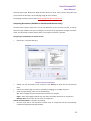
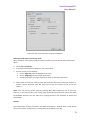
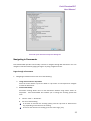
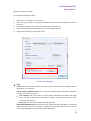
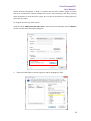
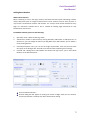
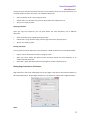
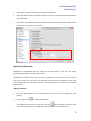
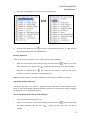
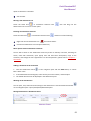
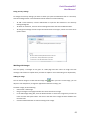
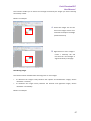
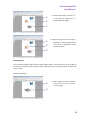
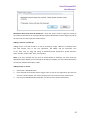
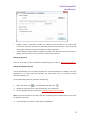
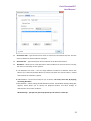
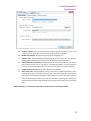
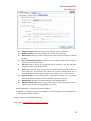
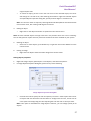
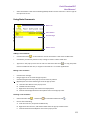
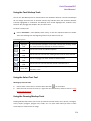
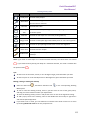
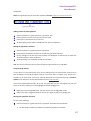
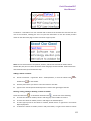
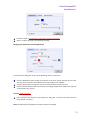
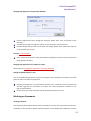
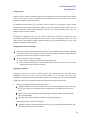
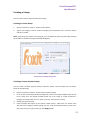
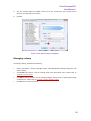
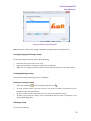
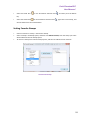
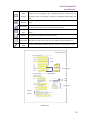
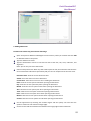
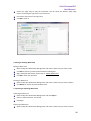
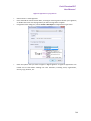
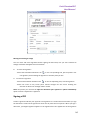
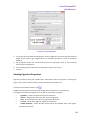
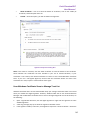
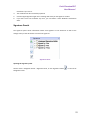
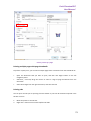
Foxit PhantomPDF User Manual Comb of Characters -- Spreads the user-entered text evenly across the width of the text field. If a border color is specified, Solid or Dashed Line is selected in the Appearance tab, each character entered in the field is separated by lines of that color. This option is available only when no other check box is selected. A B Text fields with and without the Comb property A. Text field with a border color, using the Comb property B. Text field without the Comb property Setting text field properties as default To set the current properties as default, right-click the text field > select Use Current Properties as New Defaults. Using Signature Field Tool The signature field is specially designed by to create blank digital signature fields for reviewers to sign. You can place the field anywhere you want the reviewers to sign. Creating a new Signature field Choose Forms > Signature Field on Menu Bar, and do one of the following: Drag to create a Signature Field of the required size. Double-click the page to create a Signature Field using the default size. In the Signature Properties dialog box which opens automatically, select property options to specify the Signature Field behavior. For moving, resizing, deleting, duplicating the signature field and setting tab order, please refer to “Using push button tool”. To set signature field’s General, Appearance and Actions tab properties, please refer to “Setting push button properties”. Signed tab for the signature field properties Nothing Happens When Signed – it is set as default. 143