1
Resizing, moving, and hiding IDE views
All views are resizable, movable, and detachable. Movable means that you can drag a view
from one location and drop it in another, even within another view. For example, you could
drag the Outline view into the Output Area, and it would become another tab there.
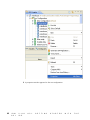
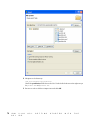
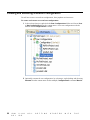
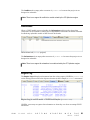
Detachable means that you can drag a view outside the OPL IDE frame and it becomes its
own standalone window. When you do this, to put the view back into the frame you need to
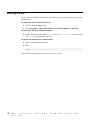
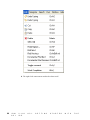
right-click in the tab area of the detached view and uncheck the Detached item in the
context menu:
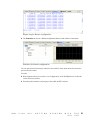
When you do this, the detached view will return to the frame.
Resizing views
To resize views, click on one of its borders or corners and drag it to the desired size.
Or, to temporarily expand a view to the full size of the IDE frame, double-click its tab.
Double-click again to shrink it back to original size.
Moving views
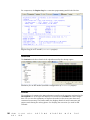
To move a view, right-click its top border and drag it to the desired location. A black border
appears as you drag the view around the frame, to tell you where the view will be placed if
you release the mouse button in that location.
Hiding views
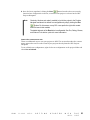
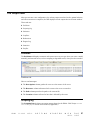
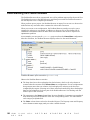
To hide a view, click its Close box
.
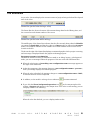
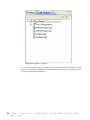
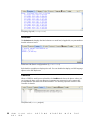
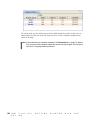
To display a view that has been closed, in the main menu choose Window>Show View and
select the name of the view you want to display:
I B M
I L O G
O P L
G E T T I N G
S T A R T E D
W I T H
O P L
T H E
I D E
33