1
4
Screen Adjustment
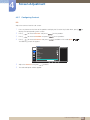
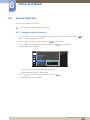
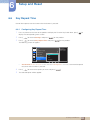
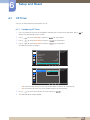
4.3.6 Configuring Image Size
Select the image size for sub-screen.
PIP
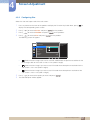
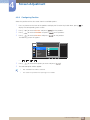
1
Press any button on the front of the product to display the Function Key Guide. Next, press [
] to
display the corresponding menu screen.
2
3
4
Press [
] to move to Screen and press [
] on the product.
Press [
] to move to PIP/PBP and press [
Press [
] to move to Image Size and press [
] on the product.
] (available in PIP mode (Size
/
)).
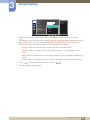
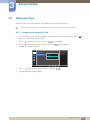
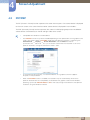
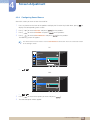
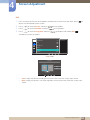
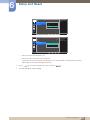
The following screen will appear.
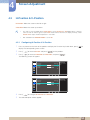
In PC mode
PIP/PBP
2Q
PIP/PBP Mode
Select the image size
for each screen.
Size
Position
Sound Source
Source
Image Size
Auto
Wide
Contrast
z
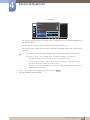
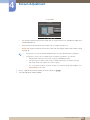
Auto: Display the picture according to the aspect ratio of the each screen input source.
z
Wide: Display the picture in full screen regardless of the aspect ratio of the each screen input
source.
4 Screen Adjustment
62