1
Surfaces
2.
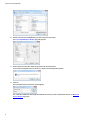
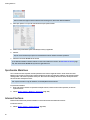
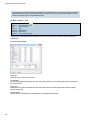
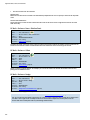
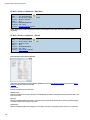
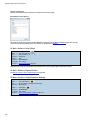
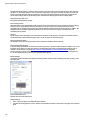
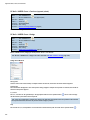
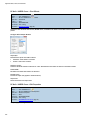
Select the surface to offset and press Enter.
3.
Enter the offset distance.
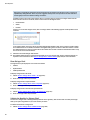
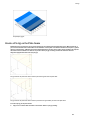
The sign of the offset determines which way the surface will be offset. Positive values will refer to port, forward, or up
as general offset directions. A magenta arrow is temporarily displayed on the surface at this time to indicate the
positive direction.
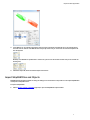
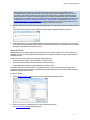
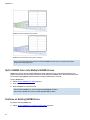
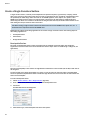
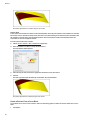
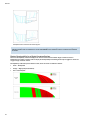
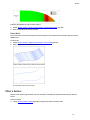
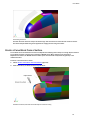
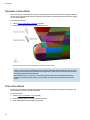
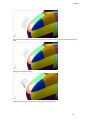
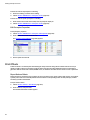
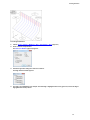
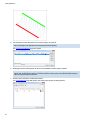
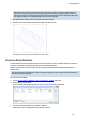
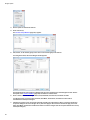
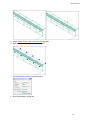
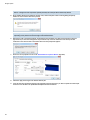
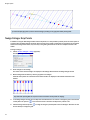
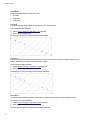
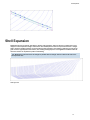
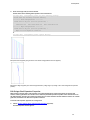
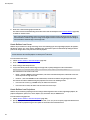
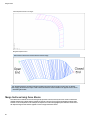
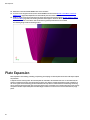
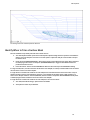
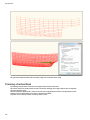
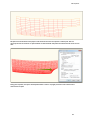
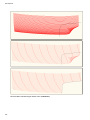
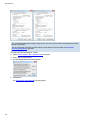
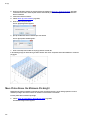
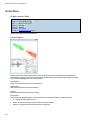
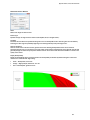
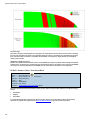
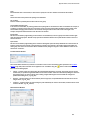
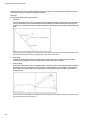
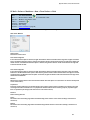
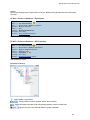
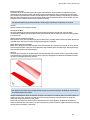
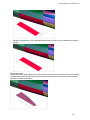
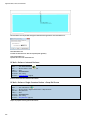
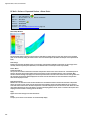
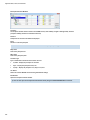
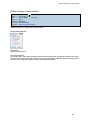
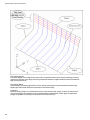
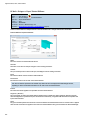
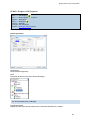
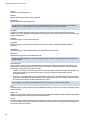
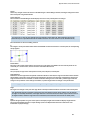
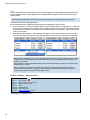
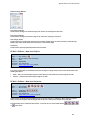
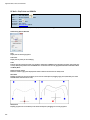
Original surface shown with a resulting offset surface
Split a Surface
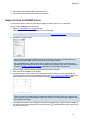
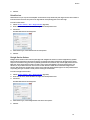
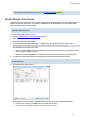
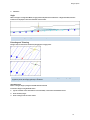
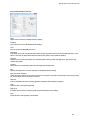
The split function can be used to cut the outside edge of a surface and to cut holes (inner trims) from a surface.
A surface may be split using the following cutting objects:
•
Marklines on the surface
•
Curves including NURBS curves, lines, polylines, circles, splines, and so on
•
Other surfaces
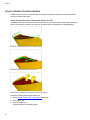
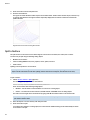
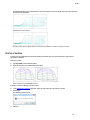
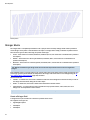
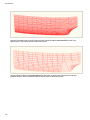
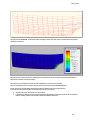
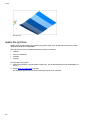
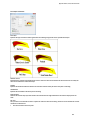
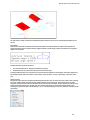
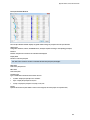
Splitting a surface produces a set of surfaces.
Note: ShipConstructor uses apparent intersection (from the current view direction) for splitting surfaces with curve cut
objects. True 3D intersection is used when splitting surfaces with surface cut objects (view direction is not used).
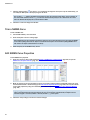
To split a surface
1.
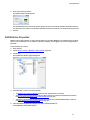
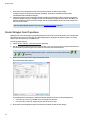
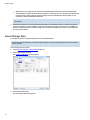
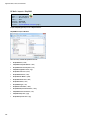
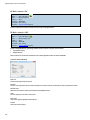
Choose SC Hull > Surface > Split (page 157).
The following prompt appears on the command line:
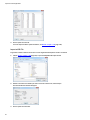
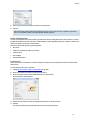
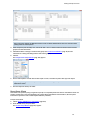
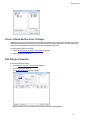
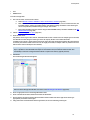
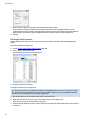
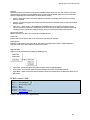
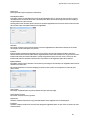
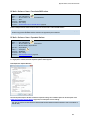
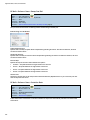
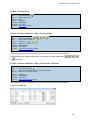
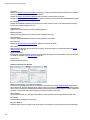
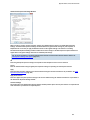
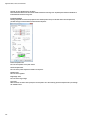
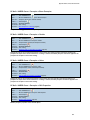
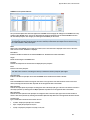
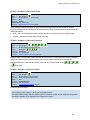
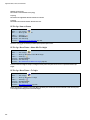
Select cutting object(s)[Markline/Surface]<Surface>:
There are two modes while selecting cutting objects:
•
Markline – Use this mode to select marklines on a surface as a cutting object.
•
Surface – Use this mode to select surfaces, AutoCAD entities, and NURBS curves as cutting objects.
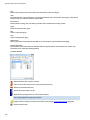
The mode can be changed via the command line by typing either M for markline mode or S for surface mode.
Note: The default split mode is the last used mode, and is listed in the prompt. In the above example, the default
split mode is Surface mode.
2.
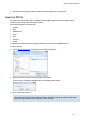
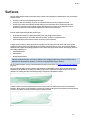
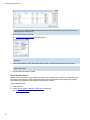
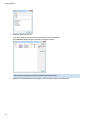
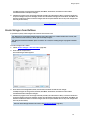
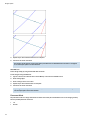
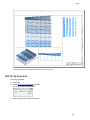
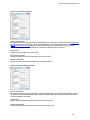
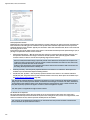
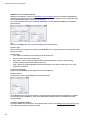
Select the objects to cut the surface(s) with and press Enter.
3.
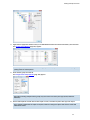
Select the surface to split.
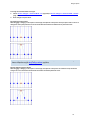
If a markline was selected as a cutting object, the surface that the markline belongs to will automatically be chosen
as the surface to be split.
34