1
Before starting the Setup
Make the following preparations before starting Setup.
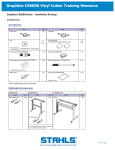
that all of the items included in the package. (Please see
in the CE6000 User's Manual (PDF).)
•Check
For the Parts Names, please see
in the CE6000 User's Manual (PDF).
the CE6000, and set up it. For the assembling procedures, see either Manual attached to the Stand or CE6000
•Assemble
User's Manual (PDF).
•When the previous version of Cutting Master 3 was installed, uninstall it.
•To use the Cutting Master 3, previously install the Design application (Adobe Illustrator or Corel Draw) that is used.
For the latest supported version, please visit our website.
•When there are virus detection program or system resident program, terminate them beforehand.
•Upon installation, be sure to log into Windows using an account with administrator privileges on your computer.
P.1-3
P.1-2
P.1-9
CAUTION
Usage of the software
Each of the Cutting Plotter Controller/Graphtec Studio/Cutting Master 3 software is engaged in various settings on the cutting Plotter. Do
not use them at the same time.
Flow of setup
Setting up the Plotter main unit
1. Attaching a Tool
The cutter blade can replaced depending on the material or thickness of the
media.
P.03
2. Loading Media (Paper or Marking Film)
Fix the media to the Plotter.
P.04
3. Aligning the Push Rollers
Adjust the position of the push roller.
P.09
4. About the Initial Setup screen
Select "Display Language" and "Length Unit".
P.10
5. Set the media type into the Plotter
Set the media type to the Cutting Plotter, depending on the set media.
P.10
6 Tool adjustment and test cutting
Adjust the protruded cutter edge length and the cutting Force depending on the material
and thickness of the media. Make test cutting for the set media to adjust the best condition.
P.11
For each software of CE6000 install them using the Installer housed in the
attached DVD-ROM.
P.14
Installing the Cutting Plotter Controller
Once Cutting Plotter Controller is installed, you can control main functions of
CE6000 through the PC.
P.15
Installing the CE6000 Driver (Cutting Plotter
Driver)
The CE6000 Driver software controls the Plotter and makes plotting according
to the data created by the PC.
P.16
Installing the Software
Launching the Start menu
A. Install CE6000 Software
The procedures vary depending on the Interface.
• To connect using the USB
Turn on the power source of Plotter in the middle of installing, and connect the USB cable.
P.16
• To connect using the RS-232C
Connect the RS-232C cable after installing is finished.
P.16
B. Setup the Graphtec Studio
Software enabling cutting data to be created through simple commands.
Create designs and edit characters/shapes using this software.
P.17
C. Setup the Cutting Master 3
Plug-in driver that enables simple cutting through direct operation from within
Adobe Illustrator and CorelDRAW.
P.18
D. Install the User's Manual
Installs the CE6000 User's Manual.
P.19
Install the software as necessity.