1
2
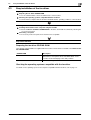
Easy installation of the fax driver
2.3
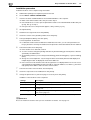
Installation procedure
Install the fax driver on the computer using the installer.
0
Administrator privileges are required to perform this task.
0
Use the Drivers & Utilities CD/DVD-ROM.
1
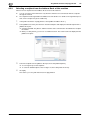
Insert the fax driver CD/DVD-ROM into the CD/DVD-ROM drive of the computer.
% Make sure that the installer starts, then proceed to Step 2.
% If the installer does not start, open the printer driver folder on the CD/DVD-ROM, double-click [Setup.exe], then go to Step 3.
% If the [User Account Control] window appears, click [Continue] or [Yes].
2
Click [Printer/FAX].
3
Read the license agreement, then click [AGREE].
4
Check the contents of the [Readme] window, then click [Next].
5
Select [Install printers/MFPs], then click [Next].
Connected printers are detected.
% For Windows Vista/7/8/Server 2008/Server 2008 R2/Server 2012, you can select [Preference for
IPv4] or [Preference for IPv6]. The address has the preference when detected in both IPv4 and IPv6.
6
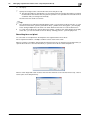
Select this machine, then click [Next].
% If this machine is not detected, restart it.
% You do not need to change the printing method from [Normal Printing] (Port 9100) unless otherwise
specified by the administrator.
% As the printing method, you can select [Normal Printing], [Internet Printing] (IPP), or [Secure Printing]
(IPPS).
% Among the connected printers, only the target model is automatically detected and displayed. If
multiple target models are displayed, check the IP addresses.
% If the connection to this machine cannot be recognized, it is not displayed in the list. In such a case,
select [Specify the Printer/MFP Except for the Above. Select (IP Address, Host Name...)], then manually specify the IP address and host name of this machine.
7
Select the check box of the fax driver, then click [Next].
8
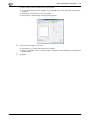
Check the components to be installed, then click [Install].
9
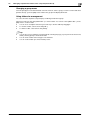
Change the printer name or print a test page, if necessary, then click [Finish].
Installation of the fax driver is then completed.
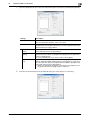
Settings
Description
[Review]
Displays the installed components for checking.
[Rename Printer]
Changes this machine name, if necessary.
[Property]
Sets the optional operating environment of this machine. For details, refer
to page 2-8.
[Print Setting]
Changes the default print settings of this machine, if necessary. For details, refer to page 2-8.
[Print Test page]
Prints a test page to check the normal data transfer, if necessary.
dReference
Be sure to initialize the fax driver after you have installed it. For details, refer to page 2-8.
2-7
d-Color MF 3300/3800