1
This manual will be changed timely without any notice, if user has doubt for any function, please confirm with supplier
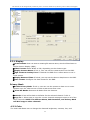
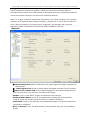
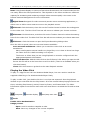
profiles, but you can add what you need. Note that this list of Video Profiles is same for ALL
Cameras, so if you change a Video Profile in use by multiple Cameras, the changes will take
effect for ALL Cameras.
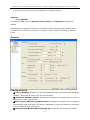
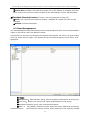
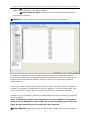
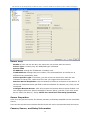
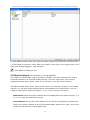
+: Click Add to create a new Video Profile.
- : Click Delete to remove a Video Profile. (It does not work with the Default Profiles.)
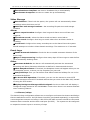
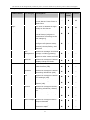
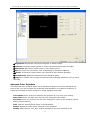
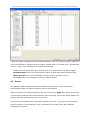
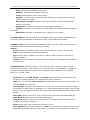
Video Format: Set the recording format to match the incoming video signal (NTSC or PAL)
Quality: 1 = Highest Quality, 6 = Lowest Quality. The higher the quality, the larger the
recorded file per minute.
Frame Rate: Set the number of Frames per Second (FPS) for the recording. The higher the
FPS, the larger the recorded file per minute.
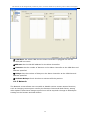
Record Audio: tick this box to record the audio signal along with the video signal.
NOTE: Check your local laws to make sure that audio recording is permitted in
your political jurisdiction.
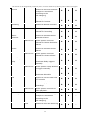
Resolution: Set the desired recording resolution. This higher the resolution, the larger the
file recorded file per minute
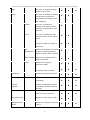
CIF
352x240 (NTSC) / 352x288 (PAL)
2CIF
704x240 (NTSC) / 704x288 (PAL)
D1 Standard /
528x320 (NTSC) / 528x384 (PAL)
DCIF
D1 High Def / D1 704x480 (NTSC) / 704x576 (PAL)
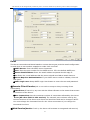
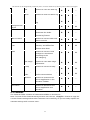
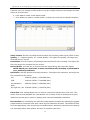
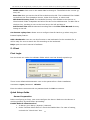
Limit Size: This setting allows user to enforce a maximum MB per Hour size limit. This
action ensures that playback the recorded file on a remote Client is streamed at a given
maximum bit-rate and is useful in dealing with network bandwidth limitations.
De-Interlace: De-interlacing can make the image appear smoother by reducing the jagged
edges between horizontal lines often cause by low resolution cameras. The default is best
for most applications; this should only be modified when absolutely required as this setting
can adversely affect video quality and size of recorded video files.
29