1
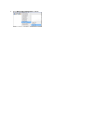
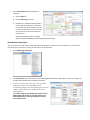
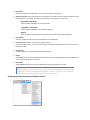
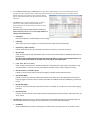
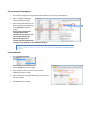
Type Your Own Text.For descriptions of each field name, refer to the Field Name values for barcodes topic in the online help. 5. Left Pos and Top Pos Indicate, in inches, how from the left and top the field should print. Lgth Enter the character length of the field. Code Enter the type of information that should print on the label. Enter B for the barcodes, C for character fields, $ for currency fields, and L for logical fields. Rtl Determines when the field should print on the label based on the item's Retail and Ourprice values. Select Y to print the print the field on the label when the item's Ourprice value is less than its Retail value. Select N to prevent the field from printing on the label when the item's Ourprice value is equal to or greater than its Retail value. Most often, only the Retail field would be excluded from the printed label when the Ourprice value is equal to or greater than the Retail value. Font Enter the font family you want to use for your labels, such as Verdana, Arial, or Times New Roman. Valid fonts are any supported by your label printer. Refer to the user manual for your label printer for a list of options. For bold font, enter the font family name followed by the word Bold. For example, Verdana Bold. Fsize Enter the printed size of the Font. Angle Controls the pitch, or angle, of your text. Enter any number between 0 and 359. To print text in italics, enter 45. To print text vertically, enter a value between 90 and 270. Enter a SKU and quantity to test your barcode label and press Enter (be sure your cursor is in the Sku for Test Label box).