1
Chapter 6. Setting-basic menu
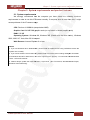
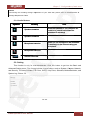
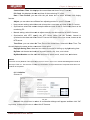
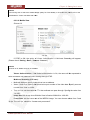
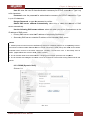
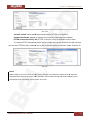
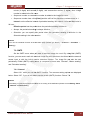
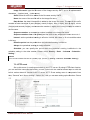
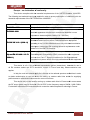
Factory Default: click this button to reset this IP Camera to the factory default setting. A
confirmation dialogue will appear and then click “OK” to process. Do not turn off this IP Camera
until the device reboots.
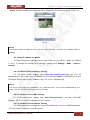
Backup Setting: you can save the setting data of this IP Camera into a file. Click “Save”
and follow the instructions on the browser to save the setting data file to your specified location.
Restore Setting: download the saved setting data of this IP Camera. Click “Browse” and
select saved file. Click “OK” and this IP Camera will be adjusted according to the loaded data and
then restarted.
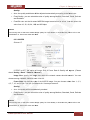
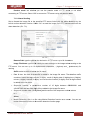
Firmware Update: upgrade the device software. Click “Browse” and select the file for
upgrading. A confirmation dialogue will appear. Click “OK” to start upgrading. The IP camera will
reboot to complete the update.
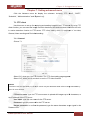
NOTE!
Use only upgrade files that are special for this IP Camera. Otherwise problems may occur. Do not turn off
the IP Camera power or disconnect the network until the upgrading is completed.
NOTE!
After upgrading new firmware, please execute “Factory Default” first to make it work.
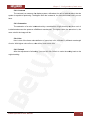
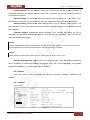
Upload Language Pack: upgrade the device language pack. Click “Browse” and select the
file for upgrading. A confirmation dialogue will appear. Click “OK” to start upgrading. The upgrade
is applied immediately. The default language is “English.”
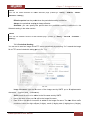
6.2. Camera
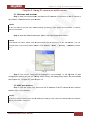
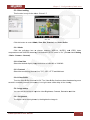
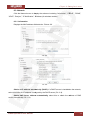
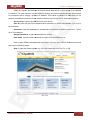
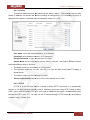
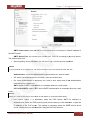
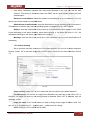
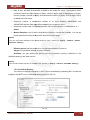
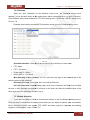
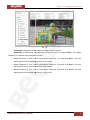
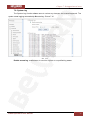
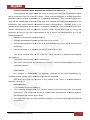
Click the Camera menu to display the submenu including “General”, “MPEG4” and
“MJPEG.”
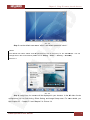
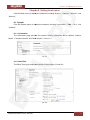
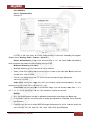
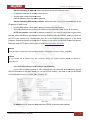
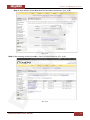
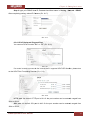
6.2.1. General
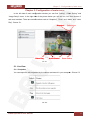
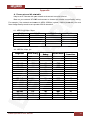
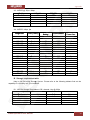
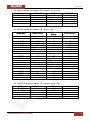
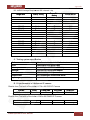
Picture 6.4
Pic. 6.4
N1000 Operations User Manual
19