1
RealPro Training and Consulting – The Leader in Real Estate Technology
RealPro’s Do Not Call Solution for REALTORS®
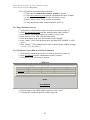
8. To verify that the user name has been deleted:
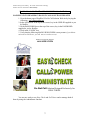
a. Verify that the ADMINISTRATE MENU SCREEN is present.
b. Click Add and Remove Users from the ADMINISTRATE MENU SCREEN.
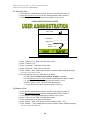
c. Verify that the USER ADMINISTRATION SCREEN is present.
d. In the “Select a User” field, click the down arrow.
e. Verify that the user name is absent from the User List.
To Change the Status of a User
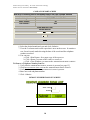
1. Verify that the ADMINISTRATE MENU SCREEN is present [see page 15].
2. Click Add and Remove Users from the ADMINISTRATE MENU SCREEN.
3. Verify that the USER ADMINISTRATION SCREEN is now present.
4. In the “Select a User” field, click the down arrow.
5. Click on the name of the user whose status is to be changed.
6. In the “Status:” field, click the down arrow and then click “disabled” or click
“active.”
7. Click “Submit.” [The ADMINISTRATE MENU SCREEN returns with the message
“The User xxx has been Edited.”]
To View Reports Created With the Call Power Function
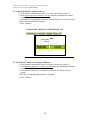
1. Verify that the ADMINISTRATE MENU SCREEN is present [see page 15].
2. Click View Reports from the ADMINISTRATE MENU SCREEN.
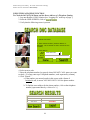
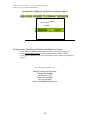
3. Verify that a USER LOG screen is present.
USER LOG
Real Pro Consulting EZList Company Reports
Username
Call Power
Easy Check
Last Login
Joseph Sabella
Jill Jones
Bill Brown
211
157
190
76
82
94
1/28/2005 2:42:00 PM
1/15/2005 9:58:00 AM
2/25/2005 1:30:00 PM
Home
Close Window
4. Click the name of the USER whose reports are to be viewed.
5. Verify that the COMPANY REPORT SCREEN is present.
17