1
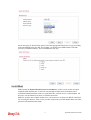
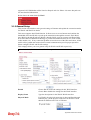
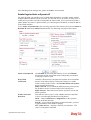
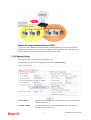
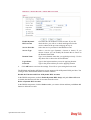
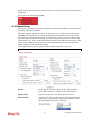
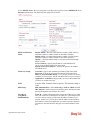
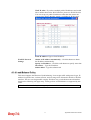
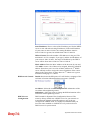
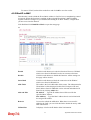
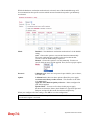
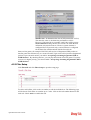
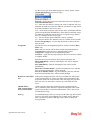
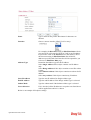
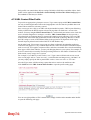
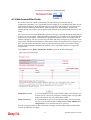
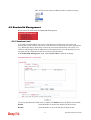
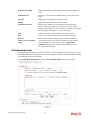
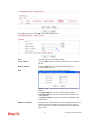
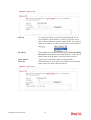
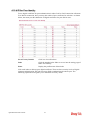
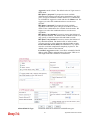
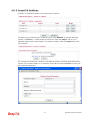
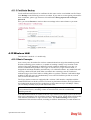
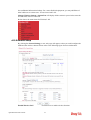
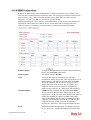
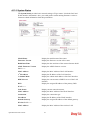
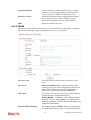
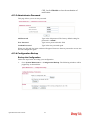
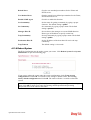
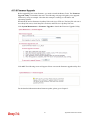
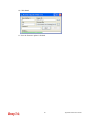
To use PPTP/L2TP as the accessing protocol of the internet, please choose PPTP/L2TP from
Internet Access menu. The following web page will be shown.
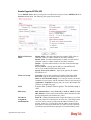
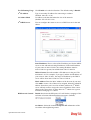
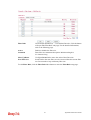
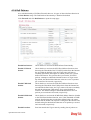
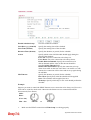
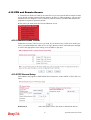
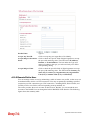
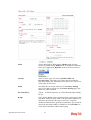
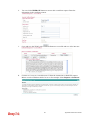
PPTP/L2TP Client
Mode
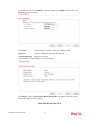
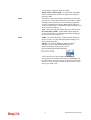
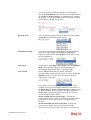
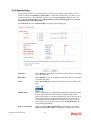
Enable PPTP- Click this radio button to enable a PPTP client to
establish a tunnel to a DSL modem on the WAN interface.
Enable L2TP - Click this radio button to enable a L2TP client to
establish a tunnel to a DSL modem on the WAN interface.
Disable – Click this radio button to close the connection through
PPTP or L2TP.
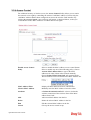
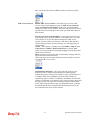
Server Address - Specify the IP address of the PPTP/L2TP
server if you enable PPTP/L2TP client mode.
Specify Gateway IP Address – Specify the gateway IP address
for DHCP server.
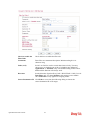
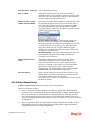
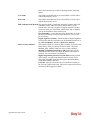
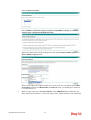
ISP Access Setup
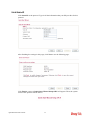
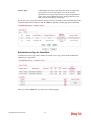
Username -Type in the username provided by ISP in this field.
Password -Type in the password provided by ISP in this field.
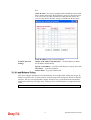
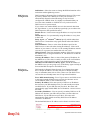
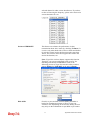
Index (1-15) in Schedule Setup - You can type in four sets of time
schedule for your request. All the schedules can be set previously in
Application – Schedule web page and you can use the number that
you have set in that web page.
MTU
It means Max Transmit Unit for packet. The default setting is
1442.
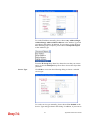
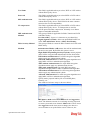
PPP Setup
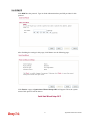
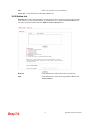
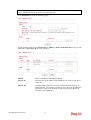
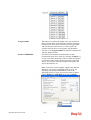
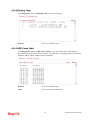
PPP Authentication - Select PAP only or PAP or CHAP for PPP.
Idle Timeout - Set the timeout for breaking down the Internet after
passing through the time without any action.
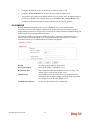
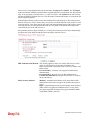
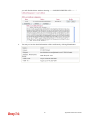
IP Address
Assignment
Method(IPCP)
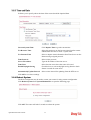
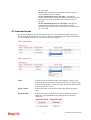
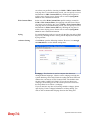
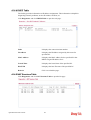
Fixed IP - Usually ISP dynamically assigns IP address to you each
time you connect to it and request. In some case, your ISP provides
service to always assign you the same IP address whenever you
request. In this case, you can fill in this IP address in the Fixed IP
field. Please contact your ISP before you want to use this function.
Click Yes to use this function and type in a fixed IP address in the
box.
Vigor2920 Series User’s Guide
76