1
3. On the Device Properties for the printer device, select Passive Monitors.
4. On the Passive Monitors section, click Add. The Select Passive Monitor Type
dialog appears.
5. Since you do not have an active monitor of this type configured in the Passive
Monitor Library, click Browse (…) to access the Passive Monitor Library.
6. In the Passive Monitor Library, click New.
7. Select SNMP Trap as the type of monitor you want to create.
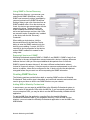
8. In the SNMP Passive Monitor instance dialog, enter ‘Printer Alerts’ in the Name
box.
9. In the Generic type (Major) box,
select 6 Enterprise Specific.
10. Click the Browse (…) button to
access the SNMP MIB Browser.
11. In the SNMP MIB Browser, find
mgmt > mib-2 > printmib > prtAlert
> printerV1Alert >
printerV2AlertPrefix >
printerV2Alert. This is the SNMP
Trap ID for the printer MIB, a
default MIB installed with WhatsUp
Professional.
12. Click OK.
13. In the Enterprise/OID box, delete the last two digits behind the 2 in the OID. This
should leave 1.3.6.1.2.1.43.18.2 in the box.
14. In the Payload box, click Add to build the expressions that you want to match on
for the passive monitor.
In this example, you browsed the MIB Browser and found the OIDs for
prtAlertCode (1.3.6.1.2.1.43.18.1.1.7) and prtSeverityLevel
(1.3.6.1.2.1.43.18.1.1.2). Since you want to be alerted when an SNMP Trap
payload contains the ‘Towner Low’ message in the prtAlertCode table, configure
the Match On to show 1.3.6.1.2.1.43.18.1.1.7=1104 (1104 is the code for ‘toner
low.) Since the ‘.’ character is used as a match expression, you have to add a \ to
the expression before each ‘.’ character.
You also want to know anytime a critical warning is sent from the printer, so click
Add again to add 1.3.6.1.2.1.43.18.1.1.2=3. We know from the description of the
instance that 3 is the code for ‘critical warning.’
15. Click OK to add the monitor to the Passive Monitor Library, then click OK to
record the selection of the new monitor type.
16. On the Select Passive Monitor Type dialog, click Next.
17. In the Setup Actions for Passive Monitors dialog build a list of actions that you
have created in the Action Library. When a trap is received that match the
payload, these actions are fired.
Network Monitoring with SNMP
8