1
A2410E/AE2410E base on Elastix user manual
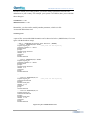
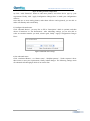
Figure 15 SIP extension parameters
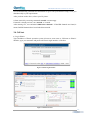
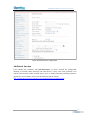
3) After successfully adding, click “Apply Configuration Changes Here” button to take your
configurations effect. Also you are able to add another SIP by click “Add Extension”.
Figure 16 SIP Apply Configuration
Once add two or more SIP phones, make them effective and registered, you are able to make
the soft phones call each other fluently and conveniently.
4. Add analog phones
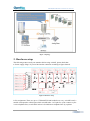
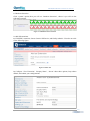
1) The way to add an analog phone is similar to SIP phone. The figure below will make you
clear.
Figure 17 Add analog phones
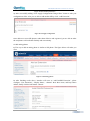
2) After finishing works above, interface will come to “Add DAHDI Extension”, please
configure “User Extension”, “Display Name”, “channel” these three items, and keep others
default, finally click the left bottom “submit”.
OpenVox Communication Co. LTD.
URL: www.openvox.cn
13