1
20
IOS Win32 Development Package User‟s Manual
IOSSW-DEV-WIN
VISUAL BASIC .NET
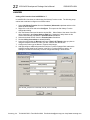
The steps to set up a Visual Basic .NET project to use IOS DLLs are as follows:
1. Open a new or existing project.
2. Add the files containing the DLL function prototypes (APC86xx.vb, IXXX.vb) and the error
code constants (IErrorCodes.vb) to the project. To do this, select Project | Add Existing
Item from the menu and select the desired files.
The following steps are only necessary if you will be implementing a callback function.
In Visual Basic .NET callback functions are implemented using delegates. A delegate is a
class that can hold a reference to a method and is equivalent to a type-safe function pointer or
a callback function.
1. Add a new module to the project that will contain the callback function. To do this, select
Project | Add Module from the menu, select the Module template and select Open.
2. Add an ISR subroutine to the new module. The format of the routine is hardware specific
and is given in the IXXX_SetUserCallback topic in the IOS module‟s Function Reference
document.
This format, however, will be some variation of the following:
Sub ISR(ByVal IosHandle As Short, ByVal Status As Short)
End Sub
3. In the declares section of your form code declare a garbage collection handle:
Dim gch As GCHandle
(Note: If the editor indicates GCHandle is an undefined type, add
Imports System.Runtime.InteropServices to the top of the source file.)
The DLL will store the delegate passed to it for later use. Since the DLL is unmanaged
code, it is necessary to manually prevent garbage collection of the delegate until the DLL
is through with it.
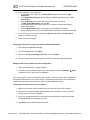
4. Include the following statements prior to the call to IXXX_SetUserCallback:
Dim dlg As IXXX_ISRDelegate
„defined in IXXX.vb
dlg = AddressOf ISR
„assign delegate to callback function
gch = GCHandle.Alloc(dlg) „protect the delegate from garbage
„collection.
5. Now notify the DLL that it should invoke the callback
IXXX_SetUserCallback(IosHandle, dlg, fReplace )
Acromag, Inc. Tel:248-295-0310 Fax:248-624-9234 Email:[email protected] http://www.acromag.com