1
eutaxa ٠ Electronic Keys & Reference Collections٠ User Manual
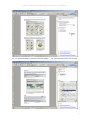
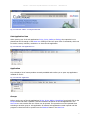
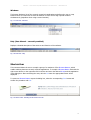
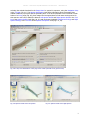
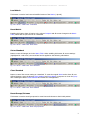
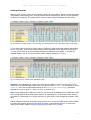
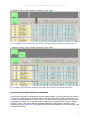
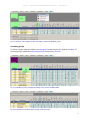
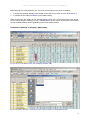
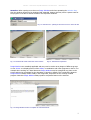
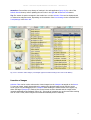
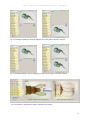
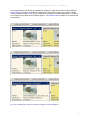
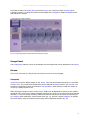
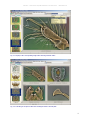
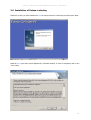
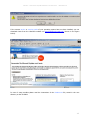
In addition the document contains a series of links, coloured in dark blue, which may be enabled in
order to open the connected page and to read the description of the highlighted term (figure 05). To
retrace your viewing path and to move back to the previous page, click on the appropriate green
button, placed at the lower margin of the interface (figure 05).
Text fragments that are not implemented as hyperlinks are displayed in a light blue colour.
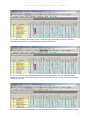
Fig. 05: Hyperlinks and highlighted text; navigation buttons on lower margin of the window
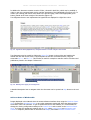
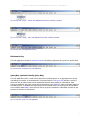
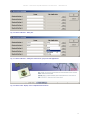
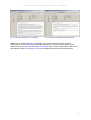
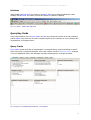
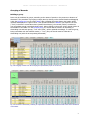
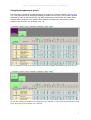
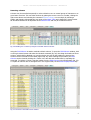
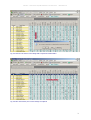
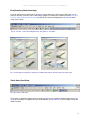
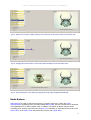
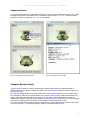
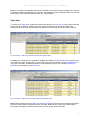
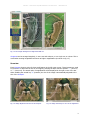
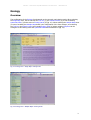
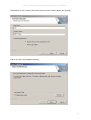
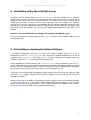
Text fragments may be copied by clicking the Select Tool button in the tool bar and marking the
wished text with the mouse cursor. Copy and paste the text into a Word document, using the
commands Ctrl + C and Ctrl + V. This method is useful for example to transfer names of authors and
publications, listed in the chapter "References".
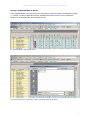
Fig. 06: Marking and copying of text fragments
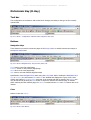
A detailed description how to navigate within the document can be queried via Help button in the tool
bar.
Advice to Users of Windows XP:
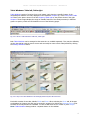
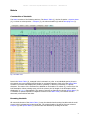
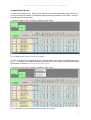
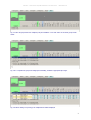
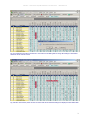
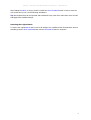
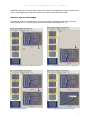
Images displayed in this Manual show the eutaxa software interface when using the Windows Classic
View. Choosing the Windows XP View or any other appearance setting will affect the design and the
colouration of the user interface. To get an optimal account of this software, it is recommended to
change the viewing configuration settings in the Control Panel and to switch to the Windows Classic
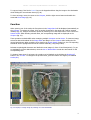
View. To change the appearance settings click on Start, select Control Panel and Appearance and
Themes in sequence, double-click on the menu item Display and enable "Switch to Classic View".
4