1
Searching for a Resource
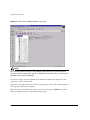
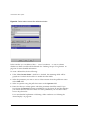
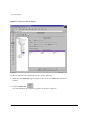
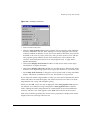
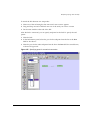
e To remove an attribute search criteria you
have added to the Attribute Criteria list,
select the attribute and click the Remove button
.
NOTE
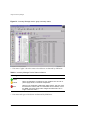
Attributes used as search criteria are combined using a Boolean OR. This means
that a resource that matches all the criteria specified in search criteria fields (in the
top part of the window) and that matches any one (or more) of the attribute criteria,
will be included in the search results.
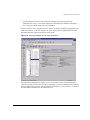
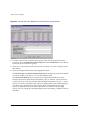
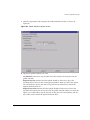
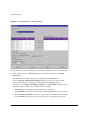
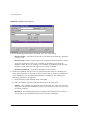
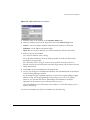
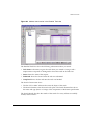
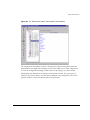
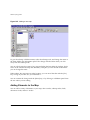
4 Specify a Scope for the search from the Component Tree at the left side of Search
Criteria area. The scope will limit the search to the group you select, and its
subordinate groups. By default the scope is set to the root-level group “Groups,”
which means all groups will be searched.
5 To reset all the criteria to their defaults (<ANY>) and to clear the Attribute Criteria
list, click the Reset button at the bottom of the window.
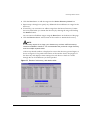
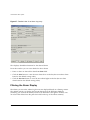
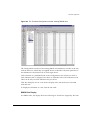
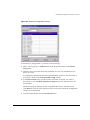
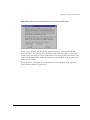
6 At the top of the Results portion of the window, select from the drop-down menu a
limit for the number of matches you want to see. All indicates you want to see all
matches. You can limit the results to 1, 10, 50, or 100 matches. The actual number of
matches found will be displayed next to this field.
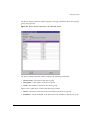
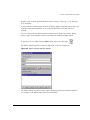
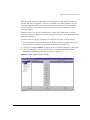
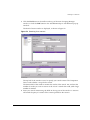
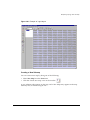
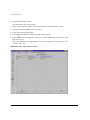
7 Click the Query button to initiate the search. The results will be displayed in the
bottom portion of the window. The list will become a scrolling list if the number of
results requires it.
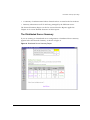
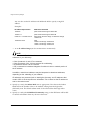
For each match, the results will display the following:
— Resource ID: a unique internal number provided by the EPICenter software. This
may be useful to distinguish between resources if you happen to have created
several resources with the same name.
— Resource Name: the name of the resource
— Path: the path through the Group hierarchy to the location of the resource.
Note that an individual resource (i.e. the same Name and ID) may appear multiple
times in this list if it is a child of multiple groups.
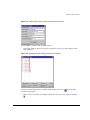
Once the list is complete, you can select resources in the Results list and take actions,
depending on how you initiated the Find function. The buttons at the bottom of the
window are slightly different depending on where you initiated the Find. See the
following sections, “Searching from the Main Toolbar,” and “Searching from the Add
Resources or Add Relationship Window” on page 262, for details on how you can use
the results of the search.
EPICenter Software Installation and User Guide
261