1
The Graphic Editors
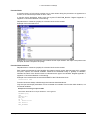
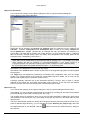
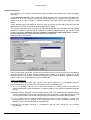
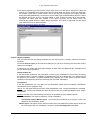
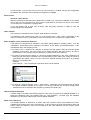
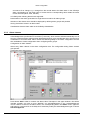
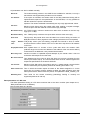
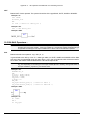
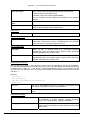
If the minimal comment size is greater than 0, then in order to enter a comment you simply click in the
comment line and then enter the comment. Otherwise you first must select the network to which a
comment is to be entered, and use 'Insert' 'Comment' to insert a comment line. In contrast to the
program text, comments are displayed in grey.
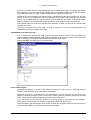
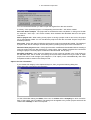
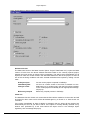
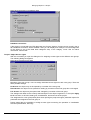
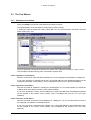
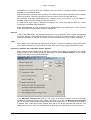
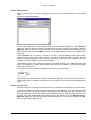
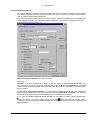
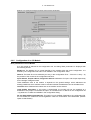
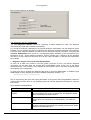
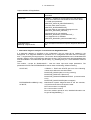
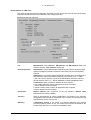
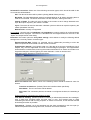
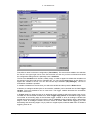
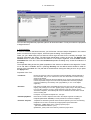
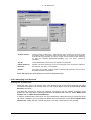
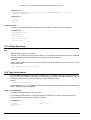
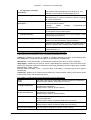
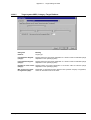
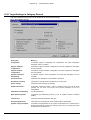
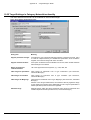
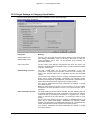
Alternative Look & Feel: The following options allow to define an alternative look of the networks.
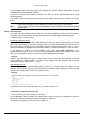
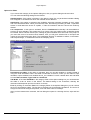
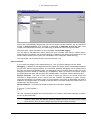
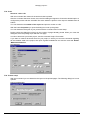
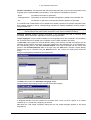
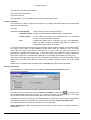
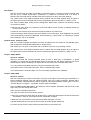
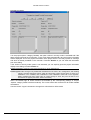
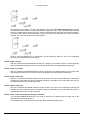
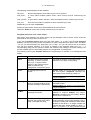
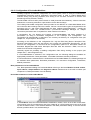
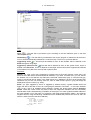
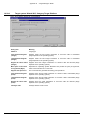
Comments per Contact (only for Ladder editor): If this option is activated, you can assign an
individual comment to each contact or coil. In the edit field Lines for Variable Comment enter the
number of lines which should be reserved and displayed for the comment. If this setting is done, a
comment field will be displayed in the editor above each contact and coil where you can insert text.
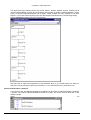
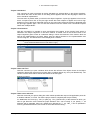
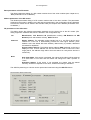
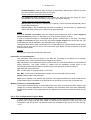
If 'Comments per Contact' is activated, then in the Ladder editor also the number of lines (Lines for
Variable Text:) can be defined which should be used for the variable name of the contact resp. coil.
This is used to display even long names completely by breaking them into several lines. In the
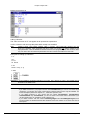
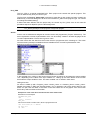
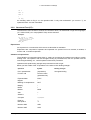
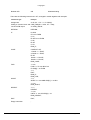
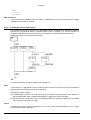
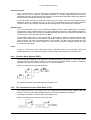
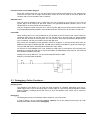
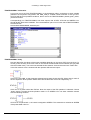
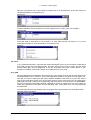
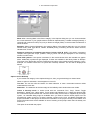
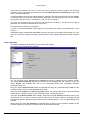
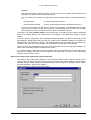
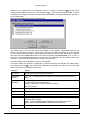
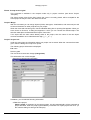
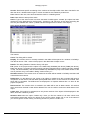
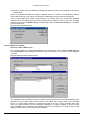
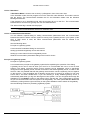
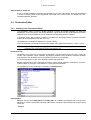
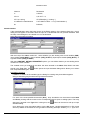
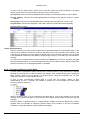
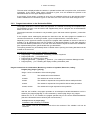
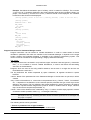
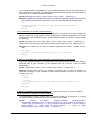
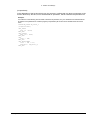
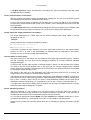
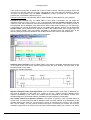
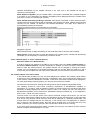
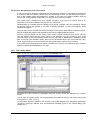
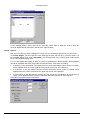
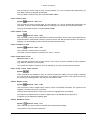
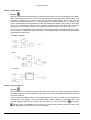
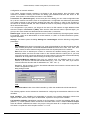
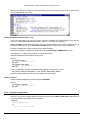
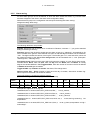
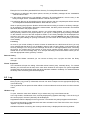
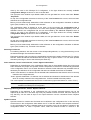
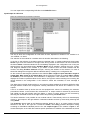
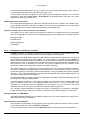
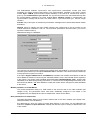
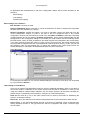
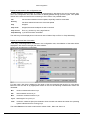
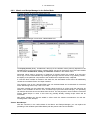
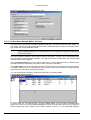
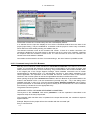
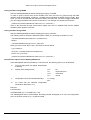
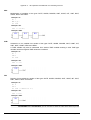
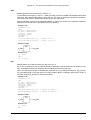
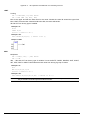
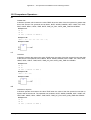
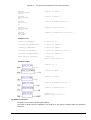
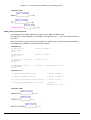
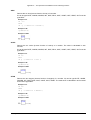
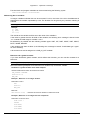
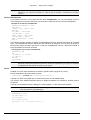
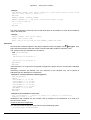
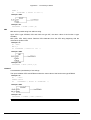
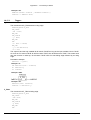
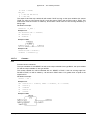
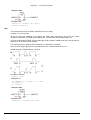
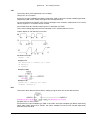
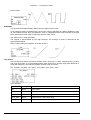
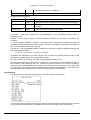
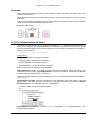
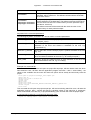
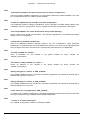
following example 2 lines are defined for the variable comment and 1 line for the variable text:
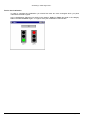
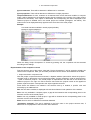
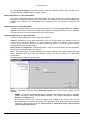
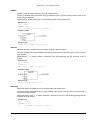
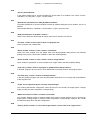
Example of a network with display of variable comment and address:
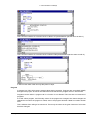
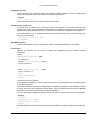
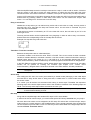
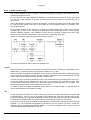
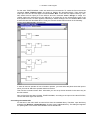
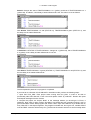
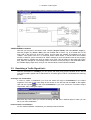
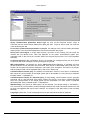
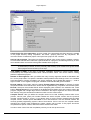
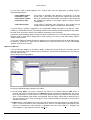
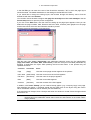
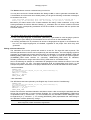
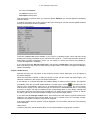
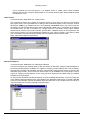
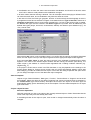
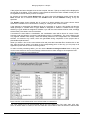
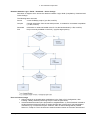
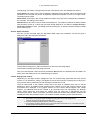
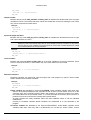
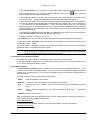
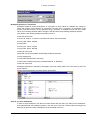
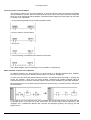
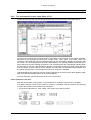
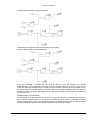
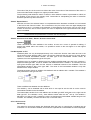
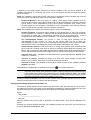
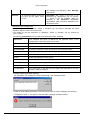
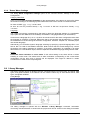
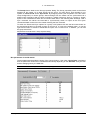
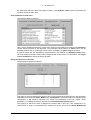
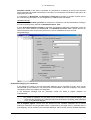
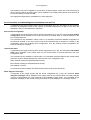
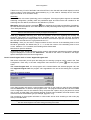
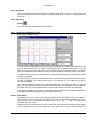
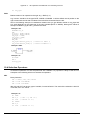
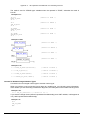
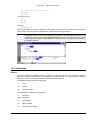
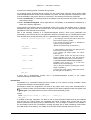
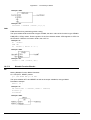
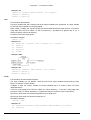
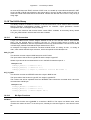
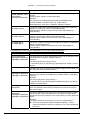
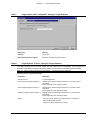
Networks with Linebreaks (only for Ladder editor): If this option is activated, linebreaks will be forced
in the networks as soon as the network length exceeds the given window size and some of the
elements would not be visible.
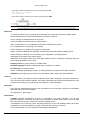
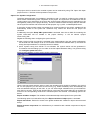
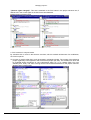
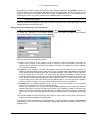
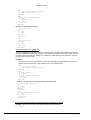
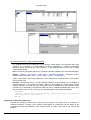
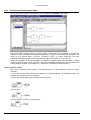
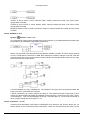
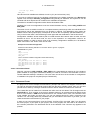
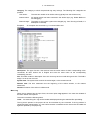
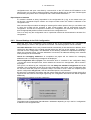
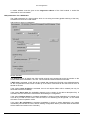
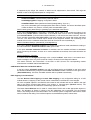
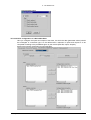
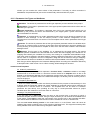
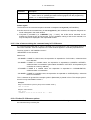
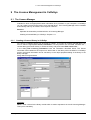
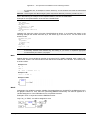
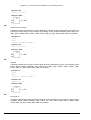
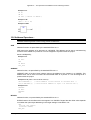
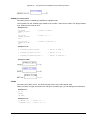
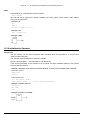
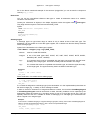
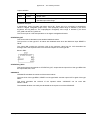
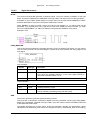
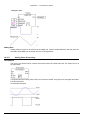
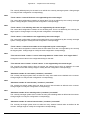
Example of a network with linebreaks
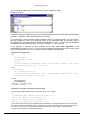
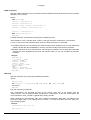
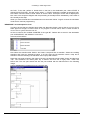
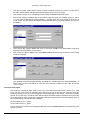
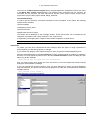
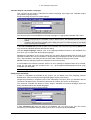
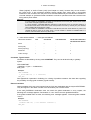
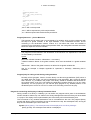
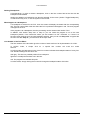
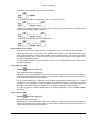
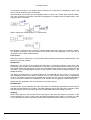
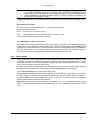
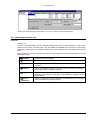
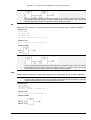
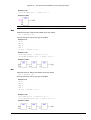
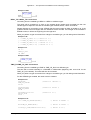
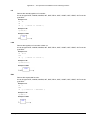
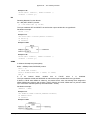
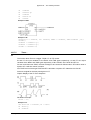
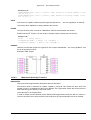
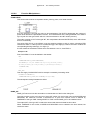
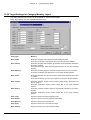
Replace with Symbol after entering Address: (only for Ladder editor): If this option is activated, you
can enter an address at a box resp. at a contact or coil (e.g. "%QB4") and this address will be
replaced immediately by the name of the variable which is assigned to the address. If there is no
variable assigned to the entered address, the address remains displayed unchangedly.
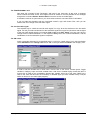
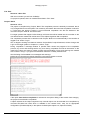
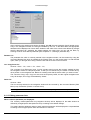
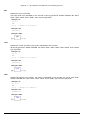
Set Contact Comment to Symbol Comment: If this option is activated, in the comment field of a
contact resp. a coil that comment will be displayed which has been defined at the declaration of the
variable used for the contact or coil (see above, picture at 'Comments per Contact'). The comment
then can be edited.. For this purpose however the option 'Comments per Contact' also must be
activated. Regard that a comment which has been entered already locally at a contact or coil will be
5-28
CoDeSys V2.3