1
The Graphic Editors
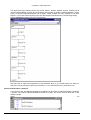
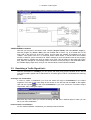
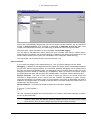
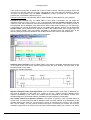
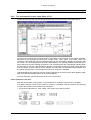
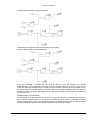
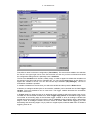
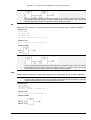
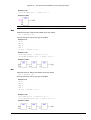
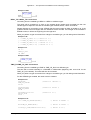
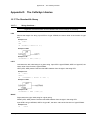
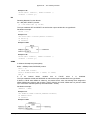
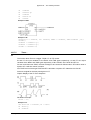
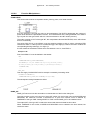
For an inserted jump, a selection can be made accompanying the entered text "???", and the jump
can be replaced by the label to which it is to be assigned.
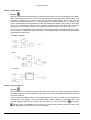
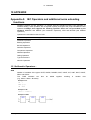
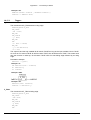
'Insert' 'Return' in FBD
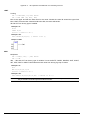
Symbol:
Shortcut: <Ctrl>+<R>
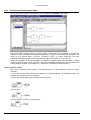
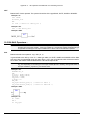
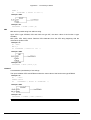
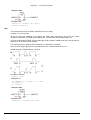
This command inserts a RETURN instruction.
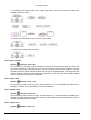
Depending on the selected position (see 'Cursor positions in FBD'), insertion takes place directly in
front of the selected input (Cursor Position 2),directly after the selected output (Cursor Position 4),
directly before the selected line cross (Cursor Position 5), or at the end of the network (Cursor
Position 6)
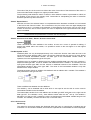
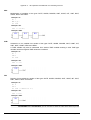
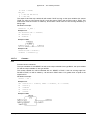
'Insert' 'Box' in FBD
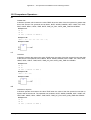
Symbol:
Shortcut: <Ctrl>+<B>
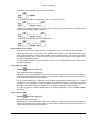
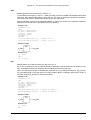
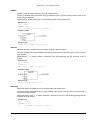
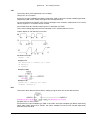
With this command, operators, functions, function blocks and programs can be inserted. First of all, it
is always inserted an "AND" operator. This can be converted by Selection and Overwrite of the type
text („AND") into every other operator, into every function, into every function block and every
program. You can select the desired POU by using Input Assistant (<F2>). If the new selected block
has another minimum number of inputs, these will be attached. If the new block has a smaller highest
number of inputs, the last inputs will be deleted.
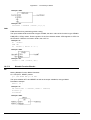
In functions and function blocks, the formal names of the in- and outputs are displayed.
In function blocks there exists an editable instance field above the box. If another function block that is
not known is called by changing the type text, an operator box with two inputs and the given type is
displayed. If the instance field is selected, Input Assistant can be obtained via <F2> with the
categories for variable selection.
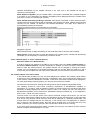
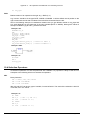
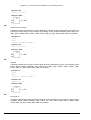
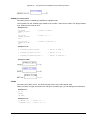
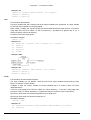
The newest POU is inserted at the selected position:
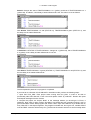
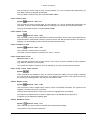
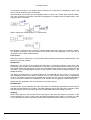
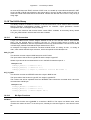
If an input is selected (Cursor Position 2), then the POU is inserted in front of this input. The first input
of this POU is linked to the branch on the left of the selected input. The output of the new POU is
linked to the selected input.
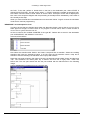
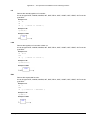
If an output is selected (Cursor Position 4), then the POU is inserted after this output. The first input of
the POU is connected with the selected output. The output of the new POU is linked to the branch
with which the selected output was linked.
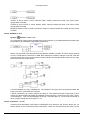
If a POU, a function, or a function block is selected (Cursor Position 3), then the old element will be
replaced by the new POU.
As far as possible, the branches will be connected the same way as they were before the
replacement. If the old element had more inputs than the new one, then the unattachable branches
will be deleted. The same holds true for the outputs.
If a jump or a return is selected, then the POU will be inserted before this jump or return. The first
input of the POU is connected with the branch to the left of the selected element. The output of the
POU is linked to the branch to the right of the selected element.
If the last cursor position of a network is selected (Cursor Position 6), then the POU will be inserted
following the last element. The first input of the POU is linked to the branch to the left of the
selected position.
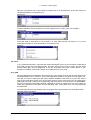
All POU inputs that could not be linked will receive the text "???". This text must be clicked and
changed into the desired constant or variable.
If there is a branch to the right of an inserted POU, then the branch will be assigned to the first POU
output. Otherwise the outputs remain unassigned.
5-32
CoDeSys V2.3