1
GETTING STARTED
TROUBLESHOOTING
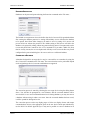
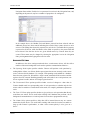
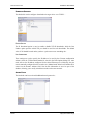
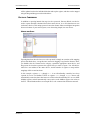
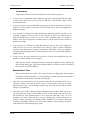
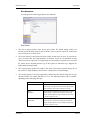
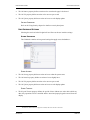
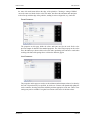
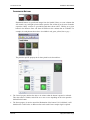
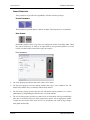
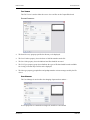
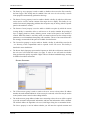
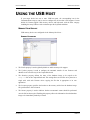
The exact process for getting to this point will vary from one operating system to another, but
the basic idea is the same: Find the My Computer icon—either on the desktop or on your start
menu—right-click it and select Manage. If that doesn’t work, select the System option from
the Control Panel, and activate the Device Manager from the Hardware tab.
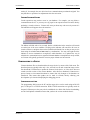
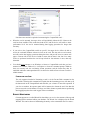
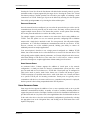
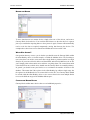
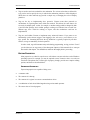
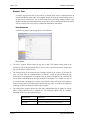
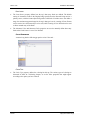
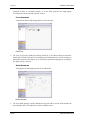
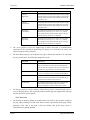
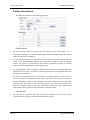
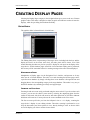
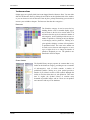
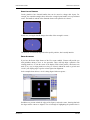
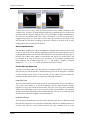
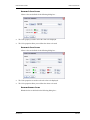
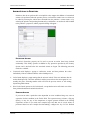
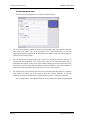
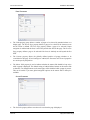
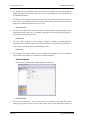
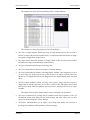
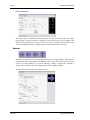
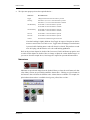
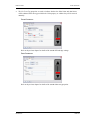
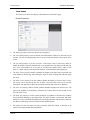
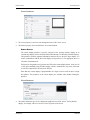
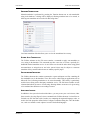
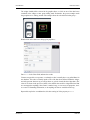
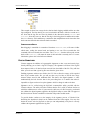
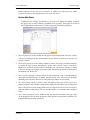
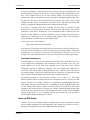
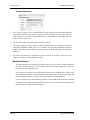
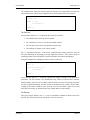
If you have a problem with your USB drivers, you will see a yellow icon carrying an
exclamation point under the Universal Serial Bus controllers category. The name of the icon
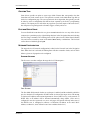
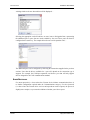
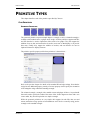
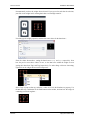
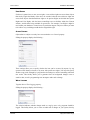
may be HMI or Loader or something similar. The broken driver is shown in close-up below…
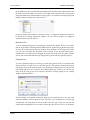
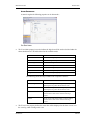
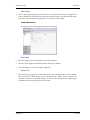
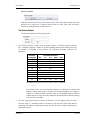
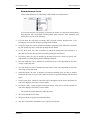
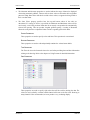
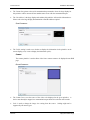
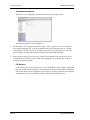
Incorrectly Installed Device
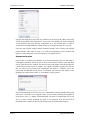
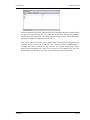
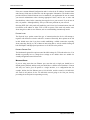
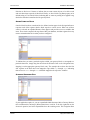
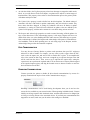
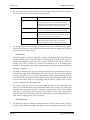
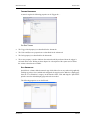
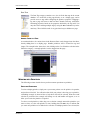
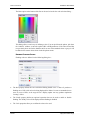
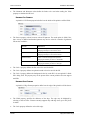
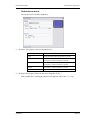
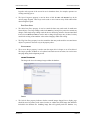
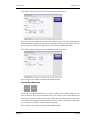
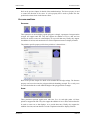
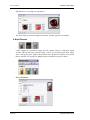
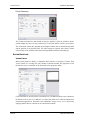
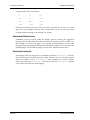
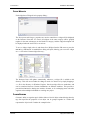
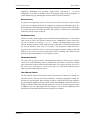
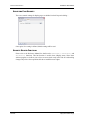
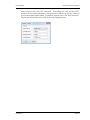
To fix the problem, right-click on the broken device and select Uninstall from the menu…
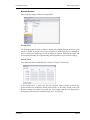
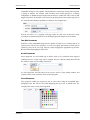
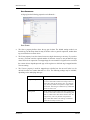
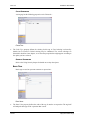
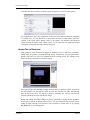
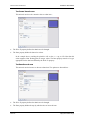
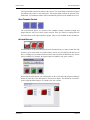
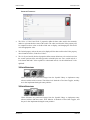
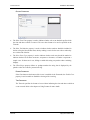
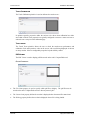
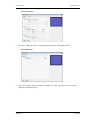
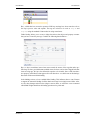
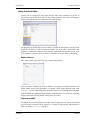
After asking for confirmation, Windows will remove the device from your system. You can
now power the Crimson target device off. After a couple of seconds, reapply power and
Windows will start the driver installation process once again.
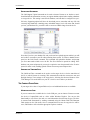
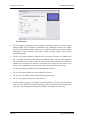
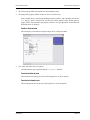
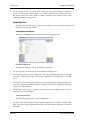
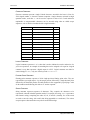
As mentioned above, Crimson actually uses distinct device drivers for the boot loader and for
the Crimson runtime. You may thus have to repeat this repair process for each driver,
although it is unlikely that things got beyond the boot loader if that install failed.
REVISION 2.6
PAGE 3