1
User, Administrator & First problem solving manual
Exposé RC3 – RC4 for Joomla!
Last updated: 14/07/2007 v1.4
4.2 Settings of the Album Manager
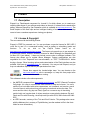
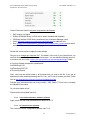
The layout of the Album Manager is shown below. In general, Collections and Albums are
managed on the left and Media is managed on the right. The sections below will refer to
these sections.
Before you start using Exposé, you must make some decisions regarding the size and
quality of the images and videos for your site. In addition, Exposé displays pictures in 3
sizes:
•
•
•
Small fitting: thumbnails displayed in the image strip
Normal Fitting: the image displayed when you click on a thumbnail in the image strip
Large fitting: the pop-up image displayed when you click the magnifying glass icon on
the Exposé toolbar. By default, this function is disabled.
•
Since the small and normal fitting boxes are displayed within the template, determining the
most appropriate sizes will certainly affected by the template you are using as well as the
available server space and bandwidth.
4.2.1
Photo settings
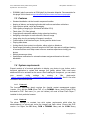
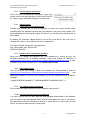
To adjust the photo settings, open the Exposé album manager from the component menu
of the Administrative back-end (or use the album manager for Windows®/OS X, see
below). Click the SETTINGS button to display the Exposé settings dialog. In the example
below, we have chosen settings to fit a space 700 pixels wide in our template.
21
www.gotgtek.com