1
softer you hit a pad the slower a parameter changes; the
harder you hit a pad the faster a change will occur.
• ‘Off’ simply means that aftertouch capabilities are
disabled.
Note that in Fader layout, aftertouch settings will not be
available when pressing and holding the Setup button.
If you are not familiar with aftertouch, it is indeed a powerful
sound design tool. Common examples of aftertouch are
adding vibrato or tremolo, or opening/closing a filter. Most
of Ableton Live’s instruments can respond to channel
aftertouch—Ableton Live, however, does not currently
support polyphonic aftertouch. Please consult your DAW
and third-party plug-ins’ documentation to confirm their
channel or polyphonic aftertouch capabilities.
Programmer (PGM) Layout—Programmer layout is
quite advanced, as it is reserved for individuals or firms
that want to design their own software to work with the
Launchpad Pro. Programmer is most similar to User Mode,
but with a different layout. For more information, see the
<Programmer’s Reference Guide>.
Setup Page Options
Each of the selectable layouts feature the following
parameters (except where noted) that can be adjusted to fit
your playing or mixing style.
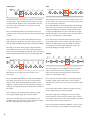
Velocity—The speed at which you strike a pad is read by
the Launchpad Pro as velocity information. Usually this
means that the harder you hit a pad, the louder your MIDI
instrument will sound, and vice-versa. Therefore, this area
of the Setup page lets you choose which pad sensitivity fits
your playing style.
• ‘Medium’ (Med) is the default and should suite most
playing styles, but if not there are two other options. For
example, if you tend to play your pads softly you could
choose ‘High’, which will skew incoming MIDI values
upwards. The result will be MIDI notes with higher velocities
than otherwise expected. On the other hand, if you play your
pads with a lot of force you might set your velocity to ‘Low’
to counterbalance your strength. Regardless, your velocity
selection will be remembered for each layout, meaning that
you could, say, set your Drum Mode velocity to ‘Off’ and
your Note Mode velocity to ‘Medium’.
• ‘Off’ means that pads will output CC values at 127,
regardless of how hard or soft your strike them.
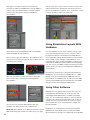
Aftertouch—This option allows you to choose ‘Off’,
‘Polyphonic’ or ‘Channel’ aftertouch for each Mode or
layout. This defines how Live instruments or third-party plugins respond to pad pressure while pads are held down.
• Polyphonic aftertouch means every pad can have its
own aftertouch amount. In other words, different notes will
respond individually even when multiple notes are held.
• Channel aftertouch means that one aftertouch value
will apply to all held notes. More specifically, the pad that
receives the greatest pressure will dictate the applied
aftertouch amount.
15
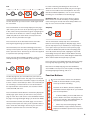
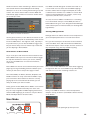
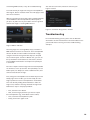
Aftertouch Threshold—These pads set aftertouch
sensitivity at ‘Low’, ‘Medium’ or ‘High’ thresholds. The
default setting is High, which requires the most pad
pressure in order to send aftertouch messages. When set
to Low the pads will produce aftertouch more easily—great if
you tend to hit your pads lightly.
Note that the following pads have a global effect, meaning
that their settings will apply to all other modes and layouts.
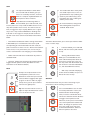
Pad Lighting—These two pads define how pads light up
when receiving MIDI notes.
• Internal (Int) – With this option engaged (lit), pads are lit
locally by pressing pads and/or buttons.
• MIDI – When this is lit, pads can be lit by MIDI data
coming in from the Launchpad Pro’s MIDI In port.
Ableton Live users should leave this set to Internal, but
if you are using your Launchpad Pro with other software
or hardware, you may wish to disengage either of these
depending on the circumstance.
MIDI Out—This pad controls whether MIDI is sent to the
Launchpad Pro’s physical MIDI Out port. This option is
mostly helpful for users who want to use the Launchpad Pro
with hardware MIDI devices. When set to on (lit), MIDI from
the pads and controls will be sent directly to the MIDI Out
port.
Note that this pad has a global effect, meaning that
changing its state will apply to all modes and layouts.
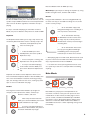
MIDI Channel—The bottom two rows of pads represent
the standard 16 MIDI channels. The choice of MIDI
channels is fixed in the Live layout’s Session, Note and
Device Modes; the User Mode’s MIDI channel, however,
can be set to MIDI channels 6, 7, 8, 14, 15 or 16. Therefore,
if you are using multiple Launchpad Pros (up to six) in
User Mode you can set the MIDI channel for each unit’s
User Mode separately. This allows each Launchpad Pro to
operate independently when MIDI mapping.