1
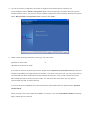
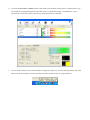
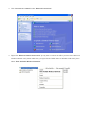
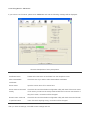
4. You can choose the configuration tool used to configure the wireless network card here. It’s
recommended to select ‘Ralink Configuration Tool’, which provides fully access to all function of this
wireless network card. If you prefer to use the wireless configuration tool provided by Windows XP, please
select ‘Microsoft Zero Configuration Tool’, and then click ‘Next’.
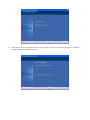
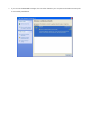
5. There are two wireless performance mode you can select here:
Optimize for WiFi mode
or
Optimize for performance mode
If you want to enhance wireless performance, please select ‘Optimize for performance mode’. However,
wireless compatibility is not guaranteed in this mode. If you want to use this mode, you may not be able to
communicate with older wireless devices and wireless access point, such as 802.11b devices, but the
data transfer rate will be enhanced in this mode. You can select this mode when you only plan to
communicate with 802.11 Draft-N devices.
If you want to keep compatibility and communicate with older wireless devices, please select ‘Optimize
for WiFi Mode’.
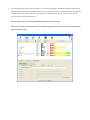
When you select one mode, please click ‘Next>’ to continue. If you see ‘Found New Hardware’ message
again, please ignore it and wait.