1
4. ADDING AN IMAGE TO A PAGE
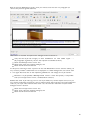
Most web pages have at least some visual (non-textual) content, so let's begin to see how
BlueGriffon can be used to place an image on the page. Just as there are benefits to grouping
all files for a website within one folder, there are benefits to having a nested folder dedicated
for the purpose of containing all images used on the website. As you'll soon see keeping
things categorized in this way will make expansion and revision of the site relatively painless.
Do you already have a digital image saved in your computer's storage system that you would
like to add to the tiny web page we are constructing? Is it an appropriate size for viewing on
the web? Keep in mind that large files take longer to download than small files do. Further,
there is seldom any advantage in sending more pixels to a web browser than it can display on
your screen (e.g. an 8 megapixel image will be scaled to a small fraction of its native size in
order to be fully displayed on a 1280 x 1024 pixel screen or monitor). If you have a suitable
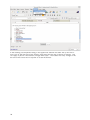
image, make a copy of that image and save it in a new folder named "images" within the
"T utorial_Site" folder.
12