1
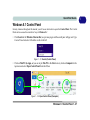
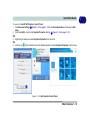
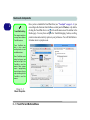
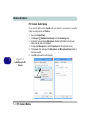
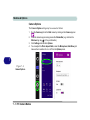
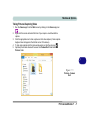
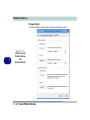
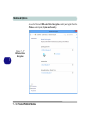
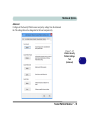
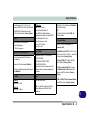
1 Quick Start Guide Control Center When in the Windows Desktop application (not in the Start screen) press the Fn + Esc key combination, or double-click the icon in the notification area of the taskbar to toggle the Control Center on/off. The Control Center gives quick access to frequently used controls and enables you to quickly turn the camera/Touch Pad on/off (see Appendix B for full details). Control Center Click on any button to turn any of the modules (e.g. TouchPad, Camera) on/off. Click on the power conservation modes to switch between Performance, Balanced or Energy Star modes (see page 3 - 12). To remove the Power Conservation Modes screen just click in a blank area of the icon or press a key on the keyboard. Click on the buttons (or just click and hold the mouse button) to adjust the slider for Brightness/Volume. Click on Display Switch and click to choose a display mode from the menu (see page C - 18). Table 1 - 4 - Control Center 1 - 14 Control Center