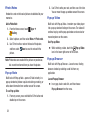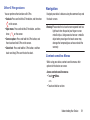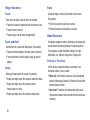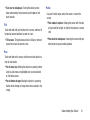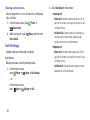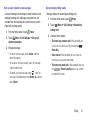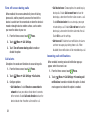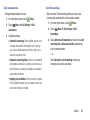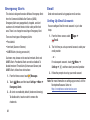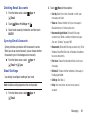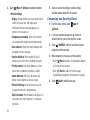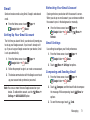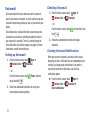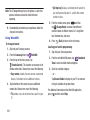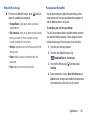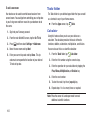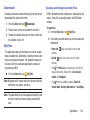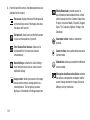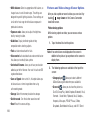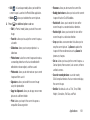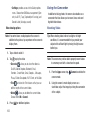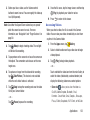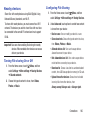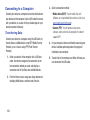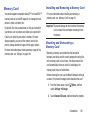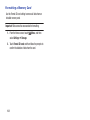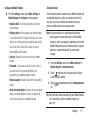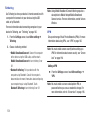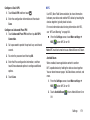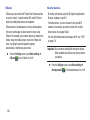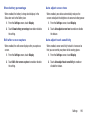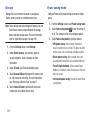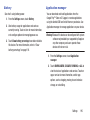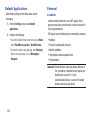
1
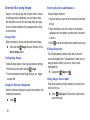
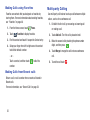
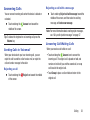
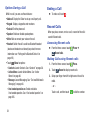
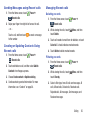
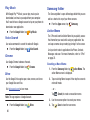
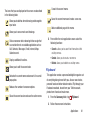
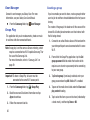
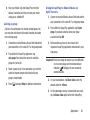
A N D R O I D
S M A R T P H O N E
User Manual
Please read this manual before operating your
device and keep it for future reference.
GH68_XXXXXX Printed in Korea
Intellectual Property
All Intellectual Property, as defined below, owned by or which is otherwise the property of Samsung or its respective suppliers
relating to the SAMSUNG Phone, including but not limited to, accessories, parts, or software relating there to (the “Phone
System”), is proprietary to Samsung and protected under federal laws, state laws, and international treaty provisions. Intellectual
Property includes, but is not limited to, inventions (patentable or unpatentable), patents, trade secrets, copyrights, software,
computer programs, and related documentation and other works of authorship. You may not infringe or otherwise violate the
rights secured by the Intellectual Property. Moreover, you agree that you will not (and will not attempt to) modify, prepare
derivative works of, reverse engineer, decompile, disassemble, or otherwise attempt to create source code from the software. No
title to or ownership in the Intellectual Property is transferred to you. All applicable rights of the Intellectual Property shall remain
with SAMSUNG and its suppliers.
Open Source Software
Some software components of this product, including but not limited to 'PowerTOP' and 'e2fsprogs', incorporate source code
covered under GNU General Public License (GPL), GNU Lesser General Public License (LGPL), OpenSSL License, BSD License and
other open source licenses. To obtain the source code covered under the open source licenses, please visit:
http://opensource.samsung.com.
Disclaimer of Warranties; Exclusion of Liability
EXCEPT AS SET FORTH IN THE EXPRESS WARRANTY CONTAINED ON THE WARRANTY PAGE ENCLOSED WITH THE PRODUCT, THE
PURCHASER TAKES THE PRODUCT "AS IS", AND SAMSUNG MAKES NO EXPRESS OR IMPLIED WARRANTY OF ANY KIND
WHATSOEVER WITH RESPECT TO THE PRODUCT, INCLUDING BUT NOT LIMITED TO THE MERCHANTABILITY OF THE PRODUCT OR
ITS FITNESS FOR ANY PARTICULAR PURPOSE OR USE; THE DESIGN, CONDITION OR QUALITY OF THE PRODUCT; THE
PERFORMANCE OF THE PRODUCT; THE WORKMANSHIP OF THE PRODUCT OR THE COMPONENTS CONTAINED THEREIN; OR
COMPLIANCE OF THE PRODUCT WITH THE REQUIREMENTS OF ANY LAW, RULE, SPECIFICATION OR CONTRACT PERTAINING
VZW_SM-N900V_UM_Eng_NC4_TN_071714_F1
THERETO. NOTHING CONTAINED IN THE INSTRUCTION MANUAL SHALL BE CONSTRUED TO CREATE AN EXPRESS OR IMPLIED
WARRANTY OF ANY KIND WHATSOEVER WITH RESPECT TO THE PRODUCT. IN ADDITION, SAMSUNG SHALL NOT BE LIABLE FOR
ANY DAMAGES OF ANY KIND RESULTING FROM THE PURCHASE OR USE OF THE PRODUCT OR ARISING FROM THE BREACH OF
THE EXPRESS WARRANTY, INCLUDING INCIDENTAL, SPECIAL OR CONSEQUENTIAL DAMAGES, OR LOSS OF ANTICIPATED PROFITS
OR BENEFITS.
Modification of Software
SAMSUNG IS NOT LIABLE FOR PERFORMANCE ISSUES OR INCOMPATIBILITIES CAUSED BY YOUR EDITING OF REGISTRY SETTINGS,
OR YOUR MODIFICATION OF OPERATING SYSTEM SOFTWARE.
USING CUSTOM OPERATING SYSTEM SOFTWARE MAY CAUSE YOUR DEVICE AND APPLICATIONS TO WORK IMPROPERLY. YOUR
CARRIER MAY NOT PERMIT USERS TO DOWNLOAD CERTAIN SOFTWARE, SUCH AS CUSTOM OS.
SAFE™ (Samsung For Enterprise)
SAFE™: "SAFE™" (Samsung for Enterprise) is a mark for a Samsung device which has been tested against Samsung's own
internal criteria for interoperability with certain third party security-related solutions for MDM and VPN. The testing includes field
testing with local network connection and menu tree testing which tests functionality of the solutions in conjunction with the
Samsung device. During the testing, the device is tested with the security solutions to see if the solutions work with the device as
described by the third party security solution providers. The testing, for example, includes field testing with local network
connection and menu tree testing which tests functionality of the solutions in conjunction with the Samsung device. For more
information about Samsung's SAFE™ program, please refer to www.samsung.com/us/safe.
Disclaimer of Warranties: EXCEPT AS OTHERWISE PROVIDED IN THEIR STANDARD END USER LICENSE AND WARRANTY, TO THE
FULL EXTENT PERMITTED BY LAW SAMSUNG ELECTRONICS CO., LTD., SAMSUNG TELECOMMUNICATIONS AMERICA, LLC, AND
THEIR AFFILIATES (COLLECTIVELY REFERRED TO HEREIN AS THE "SAMSUNG ENTITIES") EXPRESSLY DISCLAIM ANY AND ALL
WARRANTIES, EXPRESS OR IMPLIED, INCLUDING ANY WARRANTY OF MERCHANTABILITY, FITNESS FOR A PARTICULAR PURPOSE,
INTEROPERABILITY OR NON-INFRINGEMENT, WITH RESPECT TO INFORMATION TECHNOLOGY SECURITY PROTECTION, SAFE™
DEVICES AND APPLICATIONS TESTED WITH SAFE™ DEVICES. IN NO EVENT SHALL THE SAMSUNG ENTITIES BE LIABLE FOR ANY
DIRECT, INDIRECT, INCIDENTAL, PUNITIVE, OR CONSEQUENTIAL DAMAGES OF ANY KIND WHATSOEVER WITH RESPECT TO
INFORMATION TECHNOLOGY SECURITY PROTECTION, SAFE™ DEVICES OR APPLICATIONS TESTED WITH SAFE™ DEVICES. In
addition, information technology security protection will be affected by features or functionality associated with, among other
things the e-mail platform, master data management, and virtual private network solutions selected by the software provider,
solution provider or user. Choice of an e-mail, master data management, and virtual private network solution is at the sole
discretion of the software provider, solution provider or user and any associated effect on information technology security
protection is solely the responsibility of the software provider, solution provider or user. For complete statement of limited
warranty, please refer to www.samsung.com/us/safe, available on the web and where Samsung smartphones and mobile devices
are sold. [051214]
Samsung Telecommunications America (STA), LLC
Headquarters:
1301 E. Lookout Drive
Richardson, TX 75082
Phone: 1-800-SAMSUNG (726-7864)
Phone: 1-888-987-HELP (4357)
Internet Address:
www.samsung.com
©2014 Samsung Telecommunications America, LLC. Samsung is a registered trademark of Samsung Electronics Co., Ltd.
Do you have questions about your Samsung Mobile Device?
For 24 hour information and assistance, we offer a new FAQ/ARS System (Automated Response System) at:
www.samsung.com/us/support
The Bluetooth® word mark, figure mark (stylized “B Design”), and combination mark (Bluetooth word mark and “B Design”) are
registered trademarks and are wholly owned by the Bluetooth SIG.
Nuance®, VSuite™, T9® Text Input, and the Nuance logo are trademarks or registered trademarks of Nuance Communications,
Inc., or its affiliates in the United States and/or other countries.
Swype and the Swype logos are trademarks of Swype, Inc.
microSD™, microSDHC™ and the microSD logo are Trademarks of the SD Card Association.
Wi-Fi®, the Wi-Fi CERTIFIED logo, and the Wi-Fi logo are registered trademarks of the Wi-Fi Alliance.
LTE is a trademark of ETSI.
Google, Google Play and other marks are trademarks of Google, Inc.
©Samsung Telecommunications America, LLC (“Samsung”). Samsung, Super AMOLED, and AllShare are all trademarks of
Samsung Electronics Co., Ltd. and/or its related entities. Other company names, product names and marks mentioned herein are
the property of their respective owners and may be trademarks or registered trademarks. Appearance of device may vary.
©Verizon Wireless. Verizon Wireless, the Verizon Wireless logos, and Convoy™ are trademarks of Verizon Trademark Services
LLC. All company names, trademarks, logos and copyrights not property of Verizon Wireless are the property of their respective
owners.
Online Legal Information
The online version of the Health/Safety and Warranty guide for your device can be found at:
English: www.samsung.com/us/Legal/Phone_HSGuide
Spanish: www.samsung.com/us/Legal/Phone_HSGuide_SP
The online version of the End User Licensing Agreement for your device can be found:
Online at: www.samsung.com/us/Legal/SamsungLegal-EULA3.
Table of Contents
Section 1: Getting Started .......................... 4
Understanding this User Manual . . . . . . . . . . . . 4
Setting Up Your device . . . . . . . . . . . . . . . . . . . 6
Turning the Device On and Off . . . . . . . . . . . . . 9
Setup Wizard . . . . . . . . . . . . . . . . . . . . . . . . . 10
Memory Card . . . . . . . . . . . . . . . . . . . . . . . . . 10
Securing Your Device . . . . . . . . . . . . . . . . . . . 11
Section 2: Understanding Your Device .... 13
Features . . . . . . . . . . . . . . . . . . . . . . . . . . . .
Front View . . . . . . . . . . . . . . . . . . . . . . . . . . .
Side View . . . . . . . . . . . . . . . . . . . . . . . . . . . .
Back View . . . . . . . . . . . . . . . . . . . . . . . . . . .
Home Screen . . . . . . . . . . . . . . . . . . . . . . . . .
Multi Window . . . . . . . . . . . . . . . . . . . . . . . . .
Apps . . . . . . . . . . . . . . . . . . . . . . . . . . . . . . .
S Pen . . . . . . . . . . . . . . . . . . . . . . . . . . . . . . .
13
14
16
17
18
23
24
25
Navigation . . . . . . . . . . . . . . . . . . . . . . . . . . .
Notifications . . . . . . . . . . . . . . . . . . . . . . . . . .
Status Bar . . . . . . . . . . . . . . . . . . . . . . . . . . .
Entering Text . . . . . . . . . . . . . . . . . . . . . . . . .
29
32
33
33
Section 3: Contacts and Accounts ...........37
Accounts . . . . . . . . . . . . . . . . . . . . . . . . . . . . 37
Contacts . . . . . . . . . . . . . . . . . . . . . . . . . . . . . 38
Speed Dials . . . . . . . . . . . . . . . . . . . . . . . . . . 49
Section 4: Calling ......................................50
Making Calls . . . . . . . . . . . . . . . . . . . . . . . . .
Multi-party Calling . . . . . . . . . . . . . . . . . . . . .
Answering Calls . . . . . . . . . . . . . . . . . . . . . . .
Ending a Call . . . . . . . . . . . . . . . . . . . . . . . . .
Recent Calls . . . . . . . . . . . . . . . . . . . . . . . . . .
Call Settings . . . . . . . . . . . . . . . . . . . . . . . . . .
50
52
53
54
54
56
Section 5: Messaging ................................63
Types of Messages . . . . . . . . . . . . . . . . . . . . 63
Text and Multimedia Messaging . . . . . . . . . . . 64
Emergency Alerts . . . . . . . . . . . . . . . . . . . . . . 68
1
Email . . . . . . . . . . . . . . . . . . . . . . . . . . . . . . . . 68
Gmail . . . . . . . . . . . . . . . . . . . . . . . . . . . . . . . 71
Voicemail . . . . . . . . . . . . . . . . . . . . . . . . . . . . 72
Google Hangouts . . . . . . . . . . . . . . . . . . . . . . . 73
Section 6: Applications .............................74
Accessing the Apps Screen . . . . . . . . . . . . . . . 74
Managing Applications . . . . . . . . . . . . . . . . . . 74
Amazon folder . . . . . . . . . . . . . . . . . . . . . . . . . 76
Google folder . . . . . . . . . . . . . . . . . . . . . . . . . . 77
Samsung folder . . . . . . . . . . . . . . . . . . . . . . . . 80
Tools folder . . . . . . . . . . . . . . . . . . . . . . . . . . 102
Verizon folder . . . . . . . . . . . . . . . . . . . . . . . . 107
Calendar . . . . . . . . . . . . . . . . . . . . . . . . . . . . 109
Camera . . . . . . . . . . . . . . . . . . . . . . . . . . . . . 112
Clock . . . . . . . . . . . . . . . . . . . . . . . . . . . . . . 133
Contacts . . . . . . . . . . . . . . . . . . . . . . . . . . . . 137
Email . . . . . . . . . . . . . . . . . . . . . . . . . . . . . . . 137
Emergency Alerts . . . . . . . . . . . . . . . . . . . . . 137
Gallery . . . . . . . . . . . . . . . . . . . . . . . . . . . . . . 138
Help . . . . . . . . . . . . . . . . . . . . . . . . . . . . . . . 140
Isis Mobile Wallet . . . . . . . . . . . . . . . . . . . . . 141
Maps . . . . . . . . . . . . . . . . . . . . . . . . . . . . . . . 141
2
Messages . . . . . . . . . . . . . . . . . . . . . . . . . . .143
Music . . . . . . . . . . . . . . . . . . . . . . . . . . . . . .143
Phone . . . . . . . . . . . . . . . . . . . . . . . . . . . . . .149
Play Store . . . . . . . . . . . . . . . . . . . . . . . . . . .149
S Note . . . . . . . . . . . . . . . . . . . . . . . . . . . . . .151
Settings . . . . . . . . . . . . . . . . . . . . . . . . . . . . .152
Video . . . . . . . . . . . . . . . . . . . . . . . . . . . . . . .152
YouTube . . . . . . . . . . . . . . . . . . . . . . . . . . . .154
Section 7: Connections ........................... 155
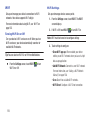
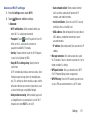
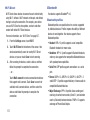
Wi-Fi . . . . . . . . . . . . . . . . . . . . . . . . . . . . . . .155
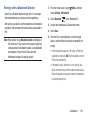
Wi-Fi Direct . . . . . . . . . . . . . . . . . . . . . . . . . .157
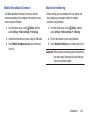
Mobile Hotspot . . . . . . . . . . . . . . . . . . . . . . .158
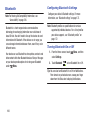
Bluetooth . . . . . . . . . . . . . . . . . . . . . . . . . . . .160
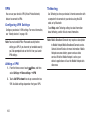
VPN . . . . . . . . . . . . . . . . . . . . . . . . . . . . . . . .162
Tethering . . . . . . . . . . . . . . . . . . . . . . . . . . . .162
NFC and Beaming . . . . . . . . . . . . . . . . . . . . .164
S Beam . . . . . . . . . . . . . . . . . . . . . . . . . . . . .164
Nearby devices . . . . . . . . . . . . . . . . . . . . . . .165
Connecting to a Computer . . . . . . . . . . . . . . .166
Memory Card . . . . . . . . . . . . . . . . . . . . . . . . .167
Section 8: Settings ................................. 169
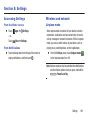
Accessing Settings . . . . . . . . . . . . . . . . . . . .
Wireless and network . . . . . . . . . . . . . . . . .
Device . . . . . . . . . . . . . . . . . . . . . . . . . . . . .
Default Applications . . . . . . . . . . . . . . . . . . .
Personal . . . . . . . . . . . . . . . . . . . . . . . . . . .
Accounts . . . . . . . . . . . . . . . . . . . . . . . . . . .
System . . . . . . . . . . . . . . . . . . . . . . . . . . . .
169
169
182
196
196
212
213
Index ........................................................ 222
3
Section 1: Getting Started
Understanding this User Manual
The sections of this manual generally follow the features of
your device. A robust index for features begins on page 222.
This manual gives navigation instructions according to the
default display settings. If you select other settings,
navigation steps may be different.
Unless otherwise specified, all instructions in this manual
assume that you are starting from the Home screen. To get to
the Home screen, you may need to unlock the device. For
more information, see “Securing Your Device” on page 11.
4
Note: Instructions in this manual are based on default settings,
and may vary from your device, depending on the
software version on your device, and any changes to the
device’s Settings.
Unless stated otherwise, instructions in this User
Manual start with the device unlocked, at the
Home screen.
All screen images in this manual are simulated. Actual
displays may vary, depending on the software version of
your device and any changes to the device’s Settings.
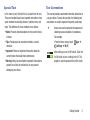
Special Text
In this manual, you’ll find text that is set apart from the rest.
These are intended to point out important information, share
quick methods for activating features, to define terms, and
more. The definitions for these methods are as follows:
• Notes: Presents alternative options for the current feature
or menu.
• Tips: Provides quick or innovative methods, or useful
shortcuts.
• Important: Points out important information about the
current feature that could affect performance.
• Warning: Brings to your attention important information to
Text Conventions
This manual provides condensed information about how to
use your device. To make this possible, the following text
conventions are used to represent frequently-used steps:
➔
Arrows are used to represent the sequence of
selecting successive options in procedures.
For example:
“From the Home screen, touch
Apps ➔
Settings ➔ Wi-Fi.”
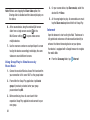
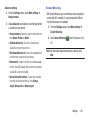
Many settings use an On/Off switch. Touch the
On/Off switch to turn a setting On or Off. This
graphic is used to represent the On/Off switch.
prevent loss of data or functionality, or even prevent
damage to your device.
Getting Started
5
Setting Up Your device
If not already installed, install the 4G LTE SIM (Subscriber
Identity Module) card, battery, and optional memory card,
and then charge the battery to begin using your device.
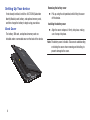
Back Cover
The battery, SIM card, and optional memory card are
installed under a removable cover on the back of the device.
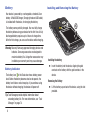
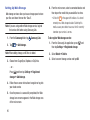
Removing the battery cover
Pull up using the slot provided, while lifting the cover
off the device.
Installing the battery cover
Align the cover and press it firmly into place, making
sure it snaps into place.
Note: The battery cover is flexible. Take care to avoid bending
or twisting the cover when removing and installing, to
prevent damage to the cover.
6
SIM Card
Your device uses a 4G LTE SIM (Subscriber Identity Module).
The 4G LTE SIM is a small, rectangular plastic card that
stores your phone number, information about your wireless
service, and other information such as messages.
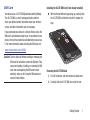
Installing the 4G LTE SIM Card (if not already installed)
With the Verizon Wireless logo facing up, carefully slide
the 4G LTE SIM Card into the slot until it reaches the
stop.
If you purchased your device at a Verizon Wireless store, the
SIM card is activated and ready to use. If you ordered a new
device, the card may need to be activated before you can use
it. For more information about activating the SIM card, visit:
www.verizonwireless.com/4GSIM.
Caution! Turn the device off before installing or removing the
SIM card. Do not bend or scratch the SIM card. Take
care when handling, installing, or removing the SIM
card, and avoid exposing the SIM card to static
electricity, water, or dirt. Keep the SIM card out of
reach of small children.
Removing the 4G LTE SIM Card
1. Turn off the device, and then remove the back cover.
2. Carefully slide the 4G LTE SIM Card out of the slot.
Getting Started
7
Battery
Installing and Removing the Battery
Your device is powered by a rechargeable, standard Li-Ion
battery. A Wall/USB Charger (Charging Head and USB cable)
is included with the device, for charging the battery.
The battery comes partially charged. You must fully charge
the battery before using your device for the first time. A fully
discharged battery requires up to 4 hours of charge time.
After the first charge, you can use the device while charging.
Warning! Use only Samsung-approved charging devices and
batteries. Samsung accessories are designed to
maximize battery life. Using other accessories may
invalidate your warranty and may cause damage.
Battery Indicator
The battery icon in the Status bar shows battery power
level. Before the battery becomes too low to operate, the
battery icon flashes and a tone plays. If you continue using
the device without charging, the device will power off.
Tip: Task Manager provides helpful information about
extending battery life. For more information, see “Task
Manager” on page 74.
8
Installing the battery
Insert the battery into the device, aligning the gold
contacts on the battery with the gold contacts in the
device.
Removing the Battery
Lift the battery up and out of the device, using the slot
provided.
Charging the Battery
Your device comes with a Wall/USB Charger (charging head
and USB cable) to charge your device from any 110/220 VAC
outlet.
Note: The battery comes partially charged. You must fully
charge the battery before using your device for the first
time. A fully discharged battery requires up to 4 hours
of charge time. After the first charge, you can use the
device while charging.
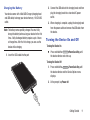
1. Insert the USB cable into the port.
2. Connect the USB cable to the charging head, and then
plug the charging head into a standard AC power
outlet.
3. When charging is complete, unplug the charging head
from the power outlet and remove the USB cable from
the device.
Turning the Device On and Off
Turning the Device On
Press and hold the
Power/Lock Key until
the device vibrates and starts up.
Turning the Device Off
1. Press and hold the
Power/Lock Key until
the device vibrates and the Device Options menu
displays.
2. At the prompt, tap Power off.
Getting Started
9
Setup Wizard
The first time you turn your device on, Setup Wizard will
guide you through the basics of setting up your device.
Follow the prompts to choose a default language, set up
accounts, choose location services, and learn more about
your device.
Memory Card
Your device supports optional, removable, microSD™ or
microSDHC™ memory cards of up to 64GB capacity (not
included), for storage of music, pictures, and other files.
For more information about using memory cards, see
“Memory Card” on page 167.
You can also use the Setup Wizard to quickly configure your
device at any time.
From any unlocked screen, press the
Home Key, and then touch
Apps ➔
Verizon ➔
Setup Wizard.
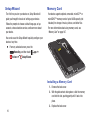
Installing a Memory Card
1. Remove the back cover.
2. With the gold contacts facing down, slide the memory
card into the slot, pushing gently until it locks into
place.
3. Replace the back cover.
10
Removing a Memory Card
Important! To prevent damage to data stored on the memory
card, unmount the card before removing it from
the device.
1. From any unlocked screen, press the
Home Key, and then touch
Menu ➔
Settings ➔ Storage ➔ Unmount SD card.
2. At the prompt, read the warning and select OK to
continue. Wait for SD card safe to remove to appear
in the Status bar and Notification panel.
3. Remove the back cover.
4. Gently press on the memory card to release the lock,
and then carefully pull the card out.
5. Replace the back cover.
Securing Your Device
Use your device’s screen lock features to secure your device.
To set a personal screen lock, use the Screen lock option
under Security settings. For more information, see “Screen
lock” on page 198.
For other settings related to securing your device, see
“Security” on page 201.
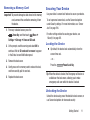
Locking the Device
By default, the device locks automatically when the
screen times out.
– or –
Press the
Power/Lock Key.
Tip: When the device is locked, the Emergency call feature is
available on the lock screen, allowing you to make
emergency calls even while the device is locked.
Unlocking the Device
Unlock the device using one of the default unlock screens, or
use Screen lock options for increased security.
Getting Started
11
Press the
Power/Lock Key, and then touch
and drag your finger across the screen.
Tip: Special notification icons display for missed calls or new
messages. Drag a missed call or message icon to view
the message or call log.
12
Section 2: Understanding Your Device
Features
• Access Movies, TV Shows, Music, Games, and Books with
• Touch screen with virtual (onscreen) QWERTY keyboard
• Brilliant 5.7” HD Super AMOLED® screen (1920 x 1080)
• 2.3 gigahertz quad-core processor
• Delivering data speeds faster than the current 3G network
technology by using 4G LTE and High Speed Packet Access
Plus (HSPA+).
• Android 4.4, KitKat Platform
• USB 3.0 connector for fast transfer speeds
• Smart Switch™ compliant. For more information,
®
• Support for Air View and Air Gestures .
• S Pen functionality
• Wi-Fi ® Capability
• WatchON® – Rich TV experience with Infrared (IR) remote
• Apps available to download from the Google Play™ Store
and Samsung Apps
• Samsung Link™ to share your media content across
connected devices. Cloud connectivity is achieved using an
external Web storage service
• Compliant with Samsung Link®
• 13 Megapixel Camera and Camcorder with auto focus and
digital zoom 10X
• 2 Megapixel Front Facing camera for Video Chat
• Share Shot picture sharing functionality, Camera sharing
over multi-connect Wi-Fi Direct connection
see www.samsungsmartswitch.com
®
Samsung Hub™
• S-Beam file transfer technology
• Bluetooth enabled
• NFC-compatible
• Galaxy Gear™ compliant. For more information, please
visit: www.samsung.com/us/galaxygearsupport
• Full Integration of Google Mobile™ Services (Gmail,
YouTube, Google Maps, Google Voice Search)
Understanding Your Device
13
• Multiple Messaging Options: Text/Picture/Video Messaging
and Google Hangouts™
• Corporate and Personal Email
• Music Player with multitasking features
• Pre-loaded e-reader applications such as Play Books™
• Assisted GPS (Google Navigation)
• Webkit-based browser
• Expandable memory slot— supports up to 64GB microSD
• Mobile HotSpot and USB Tethering-capability
• Video Chat using Google Hangouts
• Google Play™ Music
• Wi-Fi ® Calling using a micro SIM card
• HD Video Player 1080p
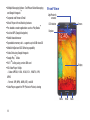
Front View
Light/Proximity
sensores
LED indicator
Camera
Earpiece
Display
– Codec: MPEG4, H.264, H.263, VC-1, WMV7/8, VP8,
MP43
– Format: 3GP (MP4), WMV (ASF), and AVI
• Video Player support for PIP (Picture in Picture) viewing
Menu
14
Home
Back
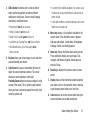
1. LED indicator illuminates with a series of distinct
colors and flashing patterns to indicate different
notifications and statuses. Events include Charging,
Low battery, and Missed event:
• Powering on: blue blinks/animates
• Battery Charging: red remains on
• Battery Fully Charged: green remains on
• Low Battery or Charging Error: red blinks/animates
• Missed Notification (Call or Messaging): blue
blinks/animates
2. Earpiece allows you to hear ringers, music, and other
sounds offered by your device.
3. Light Sensor lets you use the ambient light level to
adjust the screen brightness/contrast. This sensor
decreases screen brightness in dim light.
Proximity Sensor detects how close an object is to the
surface of the screen. This is typically used to detect
when your face is pressed up against the screen, such
as during a phone call.
• In a bright light condition (outdoors), the sensors cause
the device to increase the brightness and contrast for
better viewing.
• In dim light conditions, the device decreases the screen
brightness to compensate.
4. Menu key displays a list of options available for the
current screen. From the Home screen it displays
Add apps and widgets, Create folder, Set wallpaper,
Edit page, Search, and Settings options.
5. Home key displays the Home screen when pressed.
Press and hold to display your recent apps, Task
manager, and Remove all option. Double-press to
activate S Voice.
6. Back key re-displays the previous screen or clears
entries.
7. Display shows all the information needed to operate
your phone, such as the connection status, received
signal strength, phone battery level, and time.
8. Camera allows you to take pictures while facing the
screen and allows you to video conference.
Understanding Your Device
15
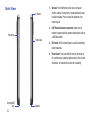
Side View
IR Blaster
Volume key
Power/Lock
1. Volume: From the Home screen, press to adjust
master volume. During calls or media playback, press
to adjust volume. Press to mute the ringtone of an
incoming call.
2. USB Power/Accessory connector allows you to
connect a power cable or optional accessories such as
a USB/data cable.
3. IR Blaster: Emits infrared signals used for controlling
external devices.
4. Power/Lock: Press and hold to turn the device on or
off, and to access a device options menu. Press to lock
the device, or to wake the screen for unlocking.
Charging/USB
port
16
Speaker
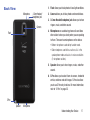
Back View
1. Flash allows you to take photos in low-light conditions.
Microphone
3.5mm Headset/
headphone jack
Camera
2. Camera allows you to take photos and record videos.
3. 3.5 mm Headset/headphone jack allows you to hear
ringers, music, and other sounds.
4. Microphones are used during phone calls and allow
other callers to hear you clearly when you are speaking
to them. There are two microphones on the device:
Flash
• Bottom microphone: used during handset mode.
• Side microphone: used while an active call is in the
speakerphone mode and assists in noise cancellation
(2 microphone solution).
5. Speaker allows you to hear ringers, music, and other
sounds.
6. S Pen allows you to select items in screens, handwrite
entries, and draw and edit images. S Pen also allows
you to use S Pen only functions. For more information,
refer to “S Pen” on page 25.
S Pen
Speaker
Microphone
Understanding Your Device
17
Home Screen
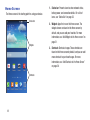
The Home screen is the starting point for using your device.
Status bar
1. Status bar: Presents icons to show network status,
battery power, and connection details. For a list of
icons, see “Status Bar” on page 33.
2. Widgets: Apps that run on the Home screen. The
widgets shown are found on the Home screen by
default, and you can add your favorites. For more
information, see “Add Widgets to the Home screen” on
page 21.
Widgets
3. Shortcuts: Shortcuts to apps.These shortcuts are
found on the Home screen by default, and you can add
more shortcuts to your favorite apps. For more
information, see “Add Shortcuts to the Home Screen”
on page 20.
Shortcuts
18
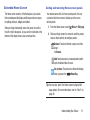
Extended Home Screen
The Home screen consists of the Home panel, plus panels
that extend beyond the display width to provide more space
for adding shortcuts, widgets and folders.
Slide your finger horizontally across the screen to scroll to
the left or right side panels. As you scroll, the indicator at the
bottom of the display shows your current position.
Adding and removing Home screen panels
Your device comes with six Home screen panels. You can
customize the Home screen to include up to the seven
default panels.
1. From the Home screen, touch
Menu ➔ Edit page.
2. Slide your finger across the screen to scroll the panels,
and use these controls to configure panels:
Remove: Touch and hold on a panel, and then
drag it
to Remove.
Add: Touch a previously-removed panel to add it,
up to the default total of seven.
Set as Home: The panel set as Home will display
when you press the
Home Key.
Tip: You can also “pinch” the Home screen to display Edit
page options. For more information, refer to “Pinch” on
page 30.
Understanding Your Device
19
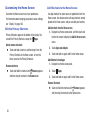
Customizing the Home Screen
Customize the Home screen to suit your preferences.
For information about changing your phone’s screen settings,
see “Display” on page 188.
Edit the Primary Shortcuts
Primary Shortcuts appear at the bottom of the display. You
can edit the Primary Shortcuts, except for
Apps.
Add or remove shortcuts
Touch and hold a shortcut, and then drag it from the
Primary Shortcuts to the Home screen, or from the
Home screen to the Primary Shortcuts.
Remove shortcuts
Touch and hold the shortcut until Remove appears,
and then drag the shortcut to the Remove icon.
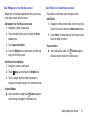
Add Shortcuts to the Home Screen
Use App shortcuts for quick access to applications from the
Home screen. Your device comes with app shortcuts already
placed on the Home screen, and you can add your favorites.
Add shortcuts from the Home screen
1. Navigate to a Home screen panel, and then touch and
hold on the screen to display the Add to Home screen
menu.
2. Touch Apps and widgets.
3. Touch and hold an app to add it to the Home screen.
Add Shortcuts from Apps
1. Navigate to a Home screen panel.
2. Touch
Apps.
3. Touch and hold an app to add it to the Home screen.
Remove Shortcuts
20
Touch and hold the shortcut until Remove appears,
and then drag the shortcut to the Remove icon.
Add Widgets to the Home screen
Widgets are self-contained applications that you can place
on the Home screen for quick access.
Add widgets from the Home screen menu
1. Navigate to a Home screen panel.
2. Touch and hold on the screen to display the Home
screen menu.
3. Touch Apps and widgets.
4. Touch the Widgets tab, and then touch and hold and
drag it to the Home screen.
Add Folders to the Home screen
Place folders on the Home screen to organize items.
Add Folders
1. Navigate to a Home screen panel, and then touch and
hold on the screen to display the Home screen menu
2. Touch Folder. The folder displays on the Home screen.
Touch the folder to name it.
Remove Folders
Touch and hold the folder until Remove appears,
and then drag the folder to the Remove icon.
Add Shortcuts from Widgets
1. Navigate to a Home screen panel.
2. Touch
Apps, and then touch the Widgets tab.
3. Touch a widget, and then follow the prompts to
configure the widget and place it on the Home screen.
Remove Widgets
Touch and hold the widget until Remove appears,
and then drag the widget to the Remove icon.
Understanding Your Device
21
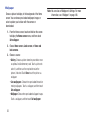
Wallpaper
Choose a picture to display in the background of the Home
screen. You can choose pre-loaded wallpaper images, or
select a picture you’ve taken with the camera or
downloaded.
1. From the Home screen, touch and hold on the screen
to display the Home screen menu, and then select
Set wallpaper.
2. Choose Home screen, Lock screen, or Home and
lock screens.
3. Choose a source:
• Gallery: Choose a picture stored on your device or on
an optional installed memory card. Touch a picture to
select it, and then use the crop tool to resize the
picture, if desired. Touch Done to set the picture as
wallpaper.
• Live wallpapers: Choose from pre-loaded interactive
moving wallpapers. Touch a wallpaper, and then touch
Set wallpaper.
• Wallpaper: Choose from pre-loaded wallpaper images.
Touch a wallpaper, and then touch Set wallpaper.
22
Note: You can also set Wallpaper in Settings. For more
information, see “Wallpaper” on page 188.
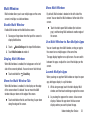
Multi Window
Move Multi Window
Multi window allows you to use multiple apps on the same
screen in multiple, re-sizable windows.
Enable Multi Window
Enable Multi window on the Notifications screen.
1. Sweep your finger down from the top of the screen to
display Notifications.
2. Touch
Quick Settings at the top of Notifications.
3. Touch Multi window to enable it.
Display Multi Window
When Multi window is enabled, the tab appears on the left
side of the screen by default. You can show or hide the tab.
Touch and hold the
Back Key.
Move the Multi Window Tab
When Multi window is enabled, its tab displays on the edge
of the screen where it’s docked. You can move the Multi
window tab up or down on the edge of the screen.
Touch and hold on the tab, and then drag it up or down
along the edge of the screen.
By default, Multi window is docked on the left side of the
screen. You can dock the Multi window at either side of the
screen.
Touch the tab to open Multi window (the tab turns
gray), and then drag Multi window to another edge of
the screen.
Use Multi Window to Run Multiple Apps
You can launch apps from Multi window, or drag an app to
the screen to run multiple apps at the same time.
The apps display together on a split screen. You can switch
between the apps, or adjust the size of their display on the
screen.
Launch Multiple Apps
When you drag an app from Multi window on top of an open
app, both apps display in a split window.
1. While using one app, touch the tab to display Multi
window, and then touch and drag an app to the screen.
2. As you drag the app over the screen, a blue screen
displays. Release the app when the blue screen
displays where you want to place the app.
Understanding Your Device
23
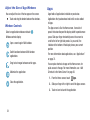
Adjust the Size of App Windows
You can adjust the size of the two apps on the screen.
Touch and drag the border between the windows.
Window Controls
Select an application window and touch
.
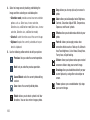
Window controls display:
Open a recent app in Multi window.
Switch locations between Multi window
applications.
Drag text or images between certain apps.
Maximize the application.
Apps
Apps holds all applications installed on your device.
Applications that you download and install are also added
to Apps.
The Apps screen is like the Home screen, it consists of
panels that extend beyond the display width to provide more
space. Slide your finger horizontally across the screen to
scroll to the left or right side panels. As you scroll, the
indicator at the bottom of the display shows your current
position.
For more information about applications, see “Applications”
on page 74.
You can place shortcuts to apps on the Home screen, for
quick access to the app. For more information, see “Add
Shortcuts to the Home Screen” on page 20.
1. From the Home screen, touch
Close the application.
Apps.
2. Slide your finger left or right to scroll the Apps screens.
3. Touch an icon to launch the application.
24
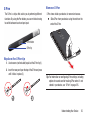
S Pen
Remove S Pen
The S Pen is a stylus that assists you in performing different
functions. By using the Pen button, you can minimize having
to switch between touch and pen input.
S Pen stores inside your device, for convenient access.
Slide S Pen from your device using the notch on the
end of the S Pen.
S Pen button
S Pen tip
Replace the S Pen tip
1. Use tweezers (not included) to pull out the S Pen tip (1).
2. Insert the new pen tip on the top of the S Pen and press
until it clicks in place (2).
Tip: For information on configuring S Pen settings, including
options for sounds and for tracking S Pen when it’s not
stored in your device, see “S Pen” on page 215.
Understanding Your Device
25
Easy Clip
Instantly outline and crop images on the screen, in any
shape, to share or paste. You can edit the cropped content,
or personalize it with your own handwriting.
Use Easy Clip
1. Press and hold the S Pen button, and then draw around
the image you want to clip, making sure to close the
shape.
2. Tap the app you want to paste the image into, or if you
do nothing, the image is pasted to Clipboard.
Air View
Hover S Pen over the screen to preview content, or view
information about an item on the screen. For example:
• Hover over an email in a list to preview the message before
opening it.
• Hover over a photo album to preview the contents, or see a
picture enlarged.
• Hover over the time line during video playback to preview
and navigate to specific scenes.
• In Calendar, hover over dates and events to see details.
• Hover over an icon or screen button to view the item’s title.
For more information about Air View, see “Motions and
gestures” on page 213.
26
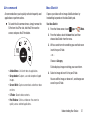
Air command
Air command allows you to quickly activate frequently used
applications or perform actions.
To launch the Air command menu, simply remove the
S Pen from the S Pen slot, hold the S Pen near the
screen, and press the S Pen button.
Idea Sketch
Express your ideas with an image. Add illustrations by
handwriting keywords on the Idea Sketch pad.
Use Idea Sketch
1. From the Home screen, touch
Apps ➔
S Note.
2. From the toolbar, select the Insert tool, and then
choose Idea Sketch from the menu.
3. Write a search term for something you want to draw or
insert into your S Note.
– or –
Choose a Category.
S Note displays images matching your search term.
• Action Memo: Link short notes to applications.
• Scrap booker: Capture, save and categorize clipped
images.
• Screen Write: Capture screenshots and write or draw
on them.
4. Select an image to insert it into your S Note.
You can edit the image, or draw on it, and changes are
saved in your S Note.
• S Finder: Search device contents.
• Pen Window: Outline a window on the screen to
quickly access selected applications.
Understanding Your Device
27
Photo Notes
Handwrite a note on the back of pictures to add detail to your
memories.
Add a Photo Note
1. From the Home screen, touch
Gallery.
Apps ➔
2. Select a picture, and then select Menu ➔ Photo note.
3. Use S Pen to write a note on the back of the picture,
and then select
Done to save the note with the
picture.
Note: Photo notes are saved with the picture on your device,
but are not transferred when you share the picture.
Pop-up Note
Multi-task with Pop-up Note—open an S Note instantly in a
pop-up window to jot down a quick note during a meeting, or
write down information from another area of the screen.
To use Pop-up Note:
1. From any screen, press and hold the S Pen button and
double-tap on the screen.
28
2. Use S Pen to write your note, and then save it for later.
You can move the pop-up window around the screen.
Pop-up Video
Multi-task with Pop-up Video—transform your video player
into a pop-up window floating on the screen. The video will
continue to play, and the pop-up window can be resized or
moved anywhere on the screen.
Use Pop-up Video
While watching a video, touch the
Pop-up Video
icon in the lower right corner of the screen.
Pop-up Browser
Multi-task with Pop-up Browser—Launch a new, floating
browser window by selecting a web link from any
application.
Launch Pop-up Browser
In any app, touch a web link, and then choose
Pop-up Browser from the menu.
Other S Pen gestures
You can perform other functions with S Pen.
• Go back: Press and hold the S Pen button, and then draw
on the screen.
• Open menu: Press and hold the S Pen button, and then
draw
on the screen.
• Screen capture: Press and hold the S Pen button, and
then touch and hold S Pen on the screen.
• Select text: Press and hold the S Pen button, and then
touch and drag S Pen over the text to select.
Navigation
Navigate your device’s features using the command keys and
the touch screen.
Warning! Please note that a touch screen responds best to a
light touch from the pad of your finger or a nonmetallic stylus. Using excessive force or a metallic
object when pressing on the touch screen may
damage the tempered glass surface and void the
warranty.
Context-sensitive Menus
While using your device, context-sensitive menus offer
options for the feature or screen.
Access context-sensitive menus
• Touch
Menu.
– or –
• Touch and hold on an item.
Understanding Your Device
29
Finger Gestures
Touch
Pinch
Using two fingers, make a pinch motion on the screen.
Touch items to select or launch them. For example:
For example:
• Touch the onscreen keyboard to enter characters or text.
• Touch an item to select it.
• Touch an app’s icon to launch the application.
• Pinch in to zoom in on pictures or screens.
• Pinch out to zoom out on pictures or screens.
Touch and Hold
Activate items by a touch and hold gesture. For example:
• Touch and hold a widget on the Home screen to move it.
• Touch and hold on a field to display a pop-up menu of
options.
Swipe
Swipe your finger across the screen. For example:
• Swipe your finger across the screen to unlock the screen.
• Swipe your finger across the screen to scroll a
Home screen or a menu.
• Swipe your finger across the screen to drag an item.
30
Hand Gestures
Your device recognizes motion, allowing you to navigate and
access features by moving the device in specific gestures.
To use gestures, enable the Motion settings. For more
information, see “Motions and gestures” on page 213.
Pick Up or Turn Over
Lift the device, or place the device screen-down, on a
horizontal surface, such as a table.
• Direct call: Lift the device to your ear to call a displayed
contact in Messaging, Contacts, or Recent calls to dial the
contact’s device number.
• Smart alert: The device will automatically notify you to
missed calls and alerts that occurred while the device was
stationary.
• Turn over to mute/pause: Turning the device screendown automatically mutes incoming call ringtones and
alerts sounds.
Tilt
Touch and hold with your thumbs on the screen, and then tilt
the device forward and back to zoom in or out.
• Tilt to zoom: Tilting the device while in Gallery or Internet
causes the screen to zoom in or out.
Palm
Use your hand to swipe across the screen, or cover the
screen.
• Palm swipe to capture: Swiping the screen with the side
of your hand (left to right, or right to left) captures a screen
shot.
• Palm touch to mute/pause: Covering the screen with your
hand mutes or pauses media playback.
Pan
Touch and hold on the screen, and then move the device in a
side-to-side motion.
• Pan to move icon: Moving the device in a panning motion
(side-to-side) moves a highlighted icon to a new location
on the Home screen.
• Pan to browse images: Moving the device in a panning
motion while viewing an image moves focus around in the
image.
Understanding Your Device
31
Notifications
Notifications shows information about connections, alerts
and other items.
1. Touch and drag downward from the top of the screen
to display notifications.
2. Touch an item to open the item, or to launch the related
app or feature.
World Clock
While displaying Notifications, touch the time in the Status
bar to display a World clock. Add cities to the clock to display
the time in different zones around the world.
Clearing Notifications
Quick Settings
Use Quick Settings at the top of Notifications to control
popular settings. Slide your finger right and left to see all the
icons.
• Wi-Fi: Turn Wi-Fi On or Off. See “Wi-Fi” on page 170.
• GPS: Turn Standalone GPS services on or off. See
“Location” on page 196.
• Sound: Switch between your sound settings, Mute (all
sounds silenced) and Vibrate (all sounds replaced by
vibration).
• Screen rotation: Enable or disable the Auto rotation
setting, to control whether the screen automatically
updates when you rotate the device. See “Auto-rotate
screen” on page 190.
1. Sweep your finger downward from the top of the
screen to display Notifications.
• Bluetooth: Turn Bluetooth On or Off. See “Bluetooth” on
2. Touch a notification to clear it, or touch Clear to clear
all notifications.
• Smart stay: Enable or disable keeping the screen active
page 160.
while you are looking at it. See “Smart screen” on
page 192.
• Airplane mode: Turn Airplane mode On or Off. See
“Airplane mode” on page 169.
32
• Power saving: Enable or disable Power saving mode. See
“Power saving mode” on page 194.
• Hands-free mode: Enable or disable Hands-free mode, to
have incoming caller ID and text messages read out. See
“Hands-free mode” on page 183.
• Screen Mirroring: Enable or disable Screen Mirroring, to
wirelessly share your phone’s screen with Wi-Fi-enabled
TVs. See “Screen Mirroring” on page 181.
Status Bar
The Status bar shows network and battery status icons and
other details.
For a list of the available icons:
1. From the Home screen, tap
Apps ➔
Settings.
2. Repeatedly swipe upward on the screen to scroll down
to System.
3. Under System, tap About phone ➔ Icon glossary.
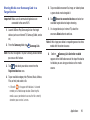
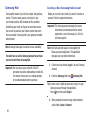
Entering Text
Your device uses a virtual QWERTY keyboard for text entry.
Use the keyboard to enter letters, punctuation, numbers, and
other characters into text entry fields or applications. Access
the keyboard by touching any text entry field.
You can also use voice input to speak your inputs.
The virtual QWERTY keyboard displays at the bottom of the
screen. By default, when you rotate the device, the screen
orientation updates to display the keyboard at the bottom of
the screen.
Understanding Your Device
33
Text Input Methods
Your device offers three text input methods: Google voice
typing, Samsung keyboard, and Swype.
You can set a default text entry method in Settings. For more
information, see “Keyboards and input methods” on
page 205.
To choose a text input method at any time:
While entering text, touch and drag downward from the
top of the screen to display Notifications, and then
touch Choose input method.
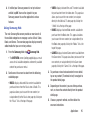
Using Samsung Keyboard
The Samsung keyboard is a custom virtual QWERTY
keyboard, featuring optional predictive text. Input characters
by tapping the onscreen keys with your finger, or use speech
recognition.
You can enable predictive text, to have the Samsung
keyboard match your key touches to common words and
displays them. Select a word from the display to insert it into
your text.
Configuring Samsung keyboard
Configure the Samsung keyboard to your preferences.
• For more information, see “Samsung keyboard” on
page 206.
• While entering text, touch
, and then select
from the
pop-up menu.
Entering Upper and Lower Case Letters
The default case is lower case (abc). Enter upper and lower
case alphabet letters by touching the Shift key to toggle the
case, before touching the letter key(s).
• Touch once to switch from abc to Abc mode
• Touch and hold to switch to ABC mode
34
Entering Symbols and Numbers
To enter common symbols, touch
to switch to symbol
mode, and then touch the corresponding key.
To enter less-common symbols, touch
touch the corresponding key.
To enter numbers, touch
keys.
➔
, and then
, and then touch the number
Using Google Voice Typing from the Samsung
keyboard
When you enable the Voice input setting for Samsung
keyboard, you can access Google Voice Typing from the
Samsung keyboard.
While entering characters, potential word matches
display in the Predictive text area above the keyboard.
Touch a word to insert it into your text.
Using Google Voice Typing
Use your voice to enter text using the Google Voice typing
feature.
1. While entering text, touch and drag downward from the
top of the screen to display Notifications, and then
touch Select input method ➔ Google voice typing.
2. At the Listening prompt, speak your text. As you
speak, the text is displayed in the text field.
For more information about enabling Voice input, see
“Samsung keyboard” on page 206.
Touch
, and then speak your input.
Using Predictive text
When using Predictive text, you can have next-letter
prediction and regional error correction, which compensates
for pressing the wrong keys on the QWERTY keyboard.
Understanding Your Device
35
Entering Text using Swype
Swype is a new way to enter text on touch screens. Instead
of touching each key individually, use your finger to trace
over the letters of a word. For each word, place your finger
on the first letter and glide to the subsequent letters, lifting
on the last letter.
Swype Help
While entering text, you can get information about Swype.
Touch and hold
Swype to access Settings, for the
How to Swype tutorial.
Configuring Swype
Configure Swype options in the Language and input settings.
• While entering text, touch and hold
Swype.
• For more information about Swype settings, see “Swype”
Switch to a Numeric Keyboard, to quickly enter numbers and
mathematical operators.
36
Touch
Using the Swype Keyboard:
• Touch and hold on a key to enter the character at the top of
the key.
• Touch and hold on a key until a menu of all characters
available on that key appears, and then touch a character
to enter it.
• Touch
to switch to Symbol mode, and then touch a key.
Editing Keyboard
The Editing Keyboard provides a quick way to move the
cursor and highlight text. If the application in which you are
working supports editing, you can cut, copy or paste
highlighted text.
Swype from
Swype to
.
Using Swype Voice Input
on page 208.
Using the Numeric Keyboard
Entering Symbols and Numbers
.
Enter text by speaking. Swype recognizes your speech and
enters text for you.
Touch
Voice Input. At the prompt, speak the text
you want to enter.
Section 3: Contacts and Accounts
Accounts
Your device provides the ability to synchronize information,
from a variety of accounts, including Email, Facebook,
Google, and your Samsung account. Depending on the
account, you can choose to synchronize your calendar,
contacts, and other types of content.
Contacts from your accounts appear in your device’s
Contacts.
With synchronization, you can ensure that information on
your device is updated with any information that changes in
your accounts.
Setting Up Your Accounts
Set up and manage your accounts with the Accounts
settings.
For information about setting up other, non-synchronized
email accounts, see “Setting Up Email Accounts” on
page 68.
Tip: For more information on setting up your email, visit the
Smartphone Resource Center at:
http://smartphones.verizonwireless.com
Addan account
1. From the Home screen, touch
Settings ➔ Add account.
Apps ➔
2. Select an account provider, and then follow the
prompts to enter your credentials and sign in.
3. The device communicates with the provider’s server to
set up your account on the device.
Manage accounts
1. From the Home screen, touch
Settings.
Apps ➔
2. Select an account, and then touch a setting to enable
or disable synchronization. When enabled, a check
mark appears in the check box.
Contacts and Accounts
37
Contacts
Creating Contacts
Contacts ➔
Use Contacts to store information for your friends, family and
colleagues, to make contacting them easy.
1. From the Home screen, touch
Create contact.
Access Contacts
2. At the Save contact to prompt, select a save option for
the contact (options depend on accounts set up):
From the Home screen, touch
Contacts.
Contact tip:
• Swipe your finger left-to-right across a contact to make a
call to the contact.
• Swipe right-to-left across a contact to create a message
addressed to the contact.
• Device: Save to the phone’s Contacts.
• Google: Save to your Google account.
• Corporate: Save to your Corporate account.
3. Touch contact fields to enter information:
• Touch
contact.
Photo ID to choose a picture to identify the
• Touch Name to enter a name for the contact. Touch
to enter Name prefix, First name, Middle
name, Last name, or Name suffix.
• Touch Phone number to enter a phone number, and
then touch the Label button to choose a label, from
Mobile, Home, Work, Work Fax, Home Fax, Pager,
Other, Callback, or Custom. To add another number,
touch
.
38
• Touch Email address to enter an email address, and
then touch the Label button to choose a label, from
Home, Work, Other, or Custom to create a new label.
To add an address, touch
.
• Touch Groups to assign the contact to a group. For
more information about Groups, see “Groups” on
page 46.
• Touch Ringtone to choose a ringtone for the contact.
• Touch Message alert to choose a tone to alert you to
messages from this Contact.
• Touch Vibration pattern to choose a vibration pattern
to play along with the ringtone when this contact calls
or sends you a message.
• Touch Add another field to add more fields, including
Phonetic Name, Organization, IM, Address, Notes,
Nickname, Website, Events, or Relationship.
4. When you finish entering information, touch Save.
Creating Contacts from Recent calls
Save a phone number from a recent call to create a new
contact, or update an existing contact.
For more information, see “Creating or Updating Contacts
Using Recent calls” on page 55.
Creating Contacts from the Phone Keypad
Enter a phone number with the Phone Keypad, and then save
it.
1. From the Home screen, touch
Phone.
2. Touch the digits of the phone number on the Keypad.
3. Touch Add to Contacts, and then select Create
contact from the pop-up menu.
4. Continue entering contact information. For more
information, see “Creating Contacts” on page 38.
Tip: While entering a phone number, you can add waits or
pauses. Enter the number up to the pause or wait, and
then touch
Menu to select Add 2 sec pause or
Add wait.
Contacts and Accounts
39
Creating Contacts from Business cards
From your Contacts list, you can quickly and easily capture
the information on a business card and save it to a new
Contact entry and to your Business cards list.
1. From the Home screen, tap
Contacts ➔
Menu ➔ Business cards. The Business cards
screen displays, showing images of the business cards
you have captured.
2. To capture a new business card, tap
Camera view finder screen displays.
Capture. The
3. Move your phone until the business card image fills the
area within the guidelines, and then tap Take. The
new Contact entry screen displays with information
from the business card populating the Contact
information fields.
4. Review the Contact information and make any needed
corrections or changes, and then tap Save. The saved
Contact entry screen appears with an image of the
business card as the Contact photo ID.
5. To return to the Business cards screen, tap
Back.
40
Updating Contacts
Make changes to update an existing contact.
1. From the Home screen, touch
Contacts.
2. Touch a contact to view its information, and then touch
Edit.
– or –
Touch and hold a contact, and then select Edit from the
menu.
3. Continue entering contact information. For more
information, see “Creating Contacts” on page 38.
Updating Contacts from the Phone Keypad
Enter a phone number with the Phone Keypad, and then save
it.
1. From the Home screen, touch
Phone.
2. Touch the digits of the phone number on the Keypad.
3. Touch Add to Contacts, and then select Update
existing from the pop-up menu.
4. Select a contact to update, and then continue entering
contact information. For more information, see
“Creating Contacts” on page 38.
• Choose Customized list to select contact types for
each account, or the phone.
Updating Contacts from Recent calls
Save a phone number from a recent call to create a new
contact, or update an existing contact.
For more information, see “Creating or Updating Contacts
Using Recent calls” on page 55.
Choosing Contacts to Display
1. From the Home screen, touch
2. Touch
display:
Contacts.
Menu, and then touch Contacts to
• Choose All contacts to show all contacts.
• Choose an account to only display contacts from that
account.
• Touch Device to show only show contacts saved to the
phone.
• Touch SIM to show only contacts saved to the SIM
card.
Contacts and Accounts
41
Contacts Settings
1. From the Home screen, touch
2. Touch
Other Contacts Options
Contacts.
Menu, and then touch Settings:
• Select Only contacts with phones to show contacts
with at least one stored phone number.
• Touch List by to sort contacts by first or last name.
1. From the Home screen, touch
Contacts.
2. Touch a contact to display it, and then touch
Menu:
• History: View calls and messages to and from this
contact.
• Touch Display contacts by to list contacts by first or
last name.
• Edit: Modify contact information.
• Touch Service numbers to view and call customer
service for your service provider.
• Link contact/Separate contact: Manage multiple
contacts as one. For information, see “Linking
Contacts” on page 44.
• Touch Contact sharing settings to set your
preferences for transferring contacts by Bluetooth. You
can choose to send all namecards at once, or
individually. For more information about sending
contacts, see “Sending Namecards (vCards)” on
page 45.
• Delete: Erase the contact record.
• Mark as default: Set a default phone number or other
field (such as IM or email address). Defaults are the
contact method used when creating a message or
calling a contact. You can also set a default by touching
and holding on a contact field.
• Share namecard via: Send one or more selected
contacts as namecards. For information, see “Sending
Namecards (vCards)” on page 45.
42
• Add to reject list: Mark the contact so that calls or
messages from the contact are rejected automatically.
To remove a contact form the reject list, touch and hold
on the contact in the main contacts screen, and then
choose Remove from reject list.
• Place to home screen: Add a shortcut icon to a Home
screen to provide direct access to this contact.
My Local Profile
My local profile is your own contact record, listed under ME
in Contacts. You can send My local profile as a vCard over a
Bluetooth connection or as an attachment to a message.
Creating My Local Profile
1. From the Home screen, touch
Contacts.
2. At the top of the Contacts list, touch Set up profile,
and then enter your information in the contact fields.
For more information, see “Creating Contacts” on
page 38.
Sending My Local Profile
You can send your profile as a vCard over a Bluetooth
connection or as an attachment to a message.
1. From the Home screen, touch
Contacts.
2. Under ME, touch your profile to display your contact
information.
3. Touch
via.
Menu, and then touch Share namecard
4. Choose a sending method, and then follow the prompts
to send the profile.
Contacts and Accounts
43
Linking Contacts
Your device can synchronize with multiple accounts,
including Google, Corporate, and other providers, plus social
networking sites like Facebook. When you synchronize
contacts from these accounts with your device, you may
have multiple contacts for one person.
Linking contact records allows you to see all the contact’s
numbers and addresses together. Linking also helps you
keep your contacts updated, because any changes to
information in the respective accounts is automatically
updated the next time you synchronize with the account.
Linking contacts
1. From the Home screen, touch
Contacts.
2. Touch and hold on a contact, and then select Link
contact.
3. Select a contact to join to the selected contact.
44
Separating contacts
1. From the Home screen, touch
Contacts.
2. Touch a contact to display its information.
3. Under the Connection heading, phone icons show how
many contacts are linked to this one. Touch
to
display the linked contacts.
4. Touch
next to a contact to remove it from the
Linked contact list.
Exporting and Importing Contacts
You can export your contact list to and from USB storage
(your device’s memory), or an installed memory card.
Contacts are exported and imported as a special VCF file, and
contacts are sent as vCards.
1. From the Home screen, touch
Contacts.
2. Touch
Menu, and then touch Share namecard
via. For more information, see “Sending Namecards
(vCards)” on page 45.
– or –
Touch Import/Export, and then select an option:
• Import from USB storage: Copy contacts that are
saved in device memory.
• Export to USB storage: Copy contacts to device
memory.
• Import from SD card: Copy contacts from an optional
installed memory card (not included).
• Export to SD card: Copy contacts to an installed
memory card (not included).
• Import from SIM card: Copy contacts that are saved
from the SIM card to device memory.
3.
Follow the prompts to complete the operation.
Sending Namecards (vCards)
You can send a contact namecard as a vCards using a
Bluetooth connection to other Bluetooth devices, or as an
attachment to a Gmail or Email message.
Important! Not all Bluetooth devices will accept contacts, and
not all devices support transfers of multiple
contacts. Check the target device’s
documentation.
1. From the Home screen, touch
Contacts.
2. Touch
Menu, and then touch Import/Export ➔
Share namecard via.
3. Touch contacts to mark them for sending, or touch
Select all to mark all contacts. A check mark appears
in the check box for marked contacts.
4. Touch Done. At the prompt, choose a sending method,
and then follow the prompts to send the namecard:
• Bluetooth: For more information about sending using
Bluetooth, see “Bluetooth” on page 160.
• Email: For more information about sending email, see
“Email” on page 68.
Contacts and Accounts
45
• Gmail: For more information about sending Gmail, see
“Composing and Sending Gmail” on page 71.
• Messages: For more information about sending
messages, see “Creating and Sending Messages” on
page 64.
• Drive: For more information, refer to “Drive” on
page 80.
• Wi-Fi Direct: For more information about using Wi-Fi
Direct, see “Wi-Fi Direct” on page 157.
Backing Up Contacts
Use Backup Assistant Plus to save a copy of your Contacts to
a secure web site.
For more information, see “Backup Assistant Plus” on
page 212.
1. From the Home screen, touch
2. Touch
Contacts.
Menu, and then touch Backup.
3. Follow the prompts to log in to your Backup Assistant
Plus account.
46
Favorites
Mark contacts with a
star to identify them as Favorites.
Favorites display on the Favorites tab in the Phone and
Contacts for fast dialing or messaging, and are indicated by
the
.
Creating Favorites
1. From the Home screen, touch
Contacts.
Menu ➔ Add to
2. Touch
Favorites ➔
Favorites, select the contacts to be added to favorites,
and then touch Done.
– or –
Touch a contact to display it, and then touch
top right of the screen.
at the
Groups
Assign contacts to Groups to make searching for contacts
faster, or to quickly call or send messages to group
members. Your device comes with pre-loaded groups you
can use to add your contacts, or you can create new groups.
Accessing Groups
From the Home screen, touch
Groups.
Creating a New Group
1. From the Home screen, touch
Groups.
Contacts ➔
Contacts ➔
2. Touch a Group to display it.
Contacts ➔
2. Touch
Menu ➔ Create, and then enter
information:
• Touch Group name to enter a Group Name.
• Touch Group ringtone to choose a ringtone for calls
from members of this group.
• Touch Message alert to choose an alert tone to play
for messages from members of this group.
• Touch Vibration pattern to choose a vibration to play
for calls from members of this group.
• Touch Add member to select members from Contacts.
3. Touch
Editing a Group
1. From the Home screen, touch
Groups.
to save the new group.
3. Touch
Menu ➔ Edit group, and then update
information for the group. For more information, see
“Creating a New Group” on page 47.
Deleting a Group
1. From the Home screen, touch
Groups.
2. Touch
Contacts ➔
Menu, and then touch Delete groups.
3. Touch a group to mark it for deletion, or touch
Select all to mark all groups. When selected, a check
mark appears in the check box. You cannot delete
pre-loaded groups.
4. Touch Delete, and then choose Group only or Group
and group members.
5. When prompted, touch OK to delete the selected
group(s).
Contacts and Accounts
47
Adding Contacts to a Group
1. From the Home screen, touch
Groups.
Sending a Message to Group Members
Contacts ➔
2. Touch a Group to display it, and then touch
member.
Create a new text or email message, addressed to the
group’s members.
Add
1. From the Home screen, touch
Groups.
Contacts ➔
3. Touch contact(s) to mark them for addition, or touch
Select all to mark all contacts. When selected, a check
mark appears in the check box.
2. Touch a Group to display it.
4. Touch Done to add the selected contact(s).
4. Touch contacts to mark them as recipients for the new
message, and then touch Done.
Removing Contacts from a Group
1. From the Home screen, touch
Contacts ➔
Groups.
2. Touch a Group to display it.
3. Touch
Menu, and then touch Remove member.
4. Touch contact(s) to mark them for removal, or touch
Select all to mark all contacts. When selected, a check
mark appears in the check box.
5. Touch Done to remove the selected contact(s).
48
Menu, and then touch Send message or
3. Touch
Send email.
5. The new message opens, with the marked contacts as
recipients. Continue creating the message, as desired.
For more information, see “Creating and Sending
Messages” on page 64, or see “Composing and
Sending Email” on page 70.
Speed Dials
Removing or Reassigning a Speed Dial
Speed dials are 1, 2, or 3-digit shortcuts (1 to 100) you
assign to contacts, to allow you to quickly call the contact.
1. From the Home screen, touch
2. Touch
Menu, and then touch Speed dial setting.
For more information about calling using speed dials, see
“Making Calls using Speed Dials” on page 50.
3. Touch
Menu, and then touch an option:
Note: Some speed dials are reserved by default, and cannot
be assigned:
Speed dial 1 is reserved for Voicemail.
Speed dial 96 is reserved for data usage inquiries.
Speed dial 97 is reserved for balance inquiries.
Speed dial 98 is reserved for minutes inquiries.
Speed dial 99 is reserved for payment inquiries.
Contacts.
• Change order: Touch an assigned speed dial, and
then touch a new speed dial location to change the
order.
• Remove: Touch a speed dial to remove it.
Assigning Speed Dials
1. From the Home screen, touch
2. Touch
Contacts.
Menu, and then touch Speed dial setting.
3. A list of speed dials displays.Touch a speed dial, and
then touch a contact to assign the contact to the speed
dial.
Contacts and Accounts
49
Section 4: Calling
Making Calls
Making Calls Using the Phone Keypad
Your device offers multiple ways to make calls:
1. From the Home screen, touch
• Use the touch screen Phone Keypad to enter the phone
2. Touch the digits of the telephone number on the
Keypad.
number or speed dial.
• Call a contact from Contacts.
• Call a contact from Favorites.
• Return a call, or call a recent caller, from Recent calls.
• Voice dial using S Voice.
3. Touch
Phone.
to place the call.
Making Calls using Speed Dials
Speed Dials are 1, 2, or 3-digit shortcuts (1 to 100) you
assign to contacts, to allow you to quickly call the contact.
For more information about setting speed dials, see “Speed
Dials” on page 49.
1. From the Home screen, touch
Phone.
2. Touch the digits of the speed dial number on the
Keypad, holding the last digit until the number dials.
50
Making Calls from Contacts
Making Calls using S Voice
A contact is an entry that you have created to store the
name, numbers, and other information for people or groups
of interest.
For more information, see “Contacts” on page 38.
Place a call by speaking the name or number.
1. From the Home screen, touch
.
Phone. then touch
2. Find the contact and touch it to open the Contact entry.
2. The first time you access, follow the prompts to
confirm the license agreement, and view information
about.
3. Swipe your finger from left to right across the contact
to dial their default number.
3. Follow the prompts to speak a command. You can say
commands such as:
1. From the Home screen, touch
Contacts.
• Call <Name >: Call an entry in your Contacts list.
– or –
Touch a contact, and then touch
number.
to dial the
• Dial <Phone number>: Call a spoken phone number.
• Redial: Repeat a recent call.
Calling
51
Multi-party Calling
Making Calls using Favorites
Favorites are contacts that you designate as favorites by
starring them. For more information about creating favorites,
see “Favorites” on page 46.
1. From the Home screen, touch
2. Touch
Phone.
Favorites to display favorites.
3. Find the contact and touch it to open the Contact entry.
4. Swipe your finger from left to right across the contact
to dial their default number.
– or –
Touch a contact, and then touch
number.
to dial the
Making Calls from Recent calls
Return a call, or call a number from a recent call stored in
Recent calls.
For more information, see “Recent Calls” on page 54.
52
Use multi-party call features to set up a call between multiple
callers, such as for a conference call.
1. Establish the first call, by answering an incoming call
or making a call.
2. Touch Add call. The first call is placed on hold.
3. Make the second call by touching the phone number
digits, and then press
.
4. Touch Merge to merge the calls into one conference
call.
5. To end the call touch
.
Answering Calls
Rejecting a call with a message
You can answer incoming calls when the device is locked or
unlocked.
Touch and drag the
middle of the screen.
Answer icon toward the
Tip: To silence the ringtone for an incoming call, press the
Volume key.
Sending Calls to Voicemail
When your device alerts you to an incoming call, you can
reject the call to send the caller to voice mail, or reject the
call and send a message to the caller.
Rejecting a call
Touch and drag the
of the screen.
Reject icon toward the middle
Touch and drag Reject call with message toward the
middle of the screen, and then select an existing
message, or Create new message.
Note: For more information about creating reject messages,
see “Set up call rejection messages” on page 57.
Answering Call-Waiting Calls
When you receive a call while on a call:
• Touch and drag the
Answer icon to answer the
incoming call. The original call is placed on hold, and
remains on hold until you end the second call, or swap
calls back to the original call.
• Touch Swap to place a call on hold and return to the
original call.
Calling
53
Options During a Call
While in a call, you can use these features:
• Add call: Display the Dialer to set up a multi-party call.
• Keypad: Display a keypad to enter numbers.
• End call: End the phone call.
• Speaker: Enable or disable speakerphone.
• Mute: Mute or unmute your voice on the call.
• Headset: Switch the call’s audio to a Bluetooth headset
(device and headset must already be paired; for more
information see “Pairing with a Bluetooth Device” on
page 161).
• Touch
Menu for options:
– Contacts: Launch Contacts. See “Contacts” on page 38.
– Action Memo: Launch Action Memo. See “Action
Memo” on page 80.
– Message: Launch Messaging. See “Text and Multimedia
Messaging” on page 64.
– One-handed operation on: Enable or disable
One-handed operation. See “One-handed operation” on
page 205.
54
Ending a Call
To end a call, touch
.
Recent Calls
When you place, answer, or miss a call, a record of the call is
saved in Recent calls.
Accessing Recent calls
From the Home screen, touch
Recent calls.
Phone ➔
Making Calls using Recent calls
1. From the Home screen, touch
2. Touch
Phone.
Recent to display recent calls.
3. Swipe your finger from left to right across the call to
redial.
– or –
Touch a call, and then touch
to dial the number.
Sending Messages using Recent calls
1. From the Home screen, touch
Recent calls.
Phone ➔
2. Swipe your finger from right to left across the call.
– or –
Touch a call, and then touch
to the number.
to create a message
Creating or Updating Contacts Using
Recent calls
1. From the Home screen, touch
Recent calls.
Phone ➔
2. Touch and hold on a call, and then select Add to
Contacts from the pop-up menu.
3. Choose Create contact or Update existing.
4. Continue entering contact information. For more
information, see “Contacts” on page 38.
Managing Recent calls
Deleting records
1. From the Home screen, touch
Recent calls.
2. While viewing the calls, touch
touch Delete.
Phone ➔
Menu, and then
3. Touch call records to mark them for deletion, or touch
Select all. A check indicates marked records.
4. Touch Delete to delete marked records.
Filtering records
1. From the Home screen, touch
Recent calls.
2. While viewing the calls, touch
touch View by.
Phone ➔
Menu, and then
3. Select a filter type, from All calls and messages, All
calls, Missed calls, Dialed calls, Received calls,
Rejected calls, All messages, Sent messages, and
Received messages.
Calling
55
Viewing call durations
2. Select Call block for these options:
View the length of the Last call, all Dialed calls, all Received
calls, or All calls.
1. From the Home screen, touch
Recent calls.
2. While viewing calls, touch
Call duration.
Phone ➔
Menu, and then touch
Call Settings
Configure settings for calling with your device.
Call block
Manage your phone’s Auto Reject/Accept mode.
1. From the Home screen,
touch
Phone ➔
Menu ➔ Call settings.
– or –
From the Home screen,
touch
Apps ➔
Settings ➔ Call.
56
• Incoming call:
– Block calls: Set blocking of incoming calls Off, to
apply to All numbers, or to apply to numbers in your
Call block list only.
– Call block list: Choose to block all incoming calls
with Unknown number, and/or Create/manage
numbers whose calls are to be blocked.
• Outgoing call:
– Block calls: Set blocking of outgoing calls Off, to
apply to All numbers, or to apply to numbers in your
Call block list only.
– Call block list: Create/manage numbers to whom
outgoing calls are to be blocked.
Set up call rejection messages
Create and manage text messages to send to callers when
rejecting incoming calls. Messages you create here are
available from the incoming call screen when you use the
Reject with message option.
1. From the Home screen, touch
Phone.
2. Touch
Menu ➔ Call Settings ➔ Set up call
rejection messages.
3. Manage messages:
• To create new messages, touch Create, and then
follow the prompts.
• To change an existing message, touch the message,
and then edit the text.
• To delete an existing message, touch
, select the
message(s) to be deleted or touch Select all, and then
touch Delete.
Answering/ending calls
Manage settings for answering and ending calls.
1. From the Home screen, touch
Phone.
Menu ➔ Call Settings ➔ Answering/
2. Touch
ending calls.
3. Configure these options:
• The home key answers calls: When enabled, you
can answer an incoming call by pressing the
Home Key.
• Voice control: When enabled, you can answer an
incoming call using voice commands.
• The power key ends calls: When enabled, pressing
the
Power/Lock Key ends a call, without
turning off the screen.
Calling
57
Turn off screen during calls
When enabled, the screen automatically turns off during
phone calls, and the proximity sensor on the front of the
device is used to turn the screen back on when the device is
moved or brought close to another surface, such as when
you move the device to your ear.
1. From the Home screen, touch
2. Touch
Phone.
Menu ➔ Call Settings.
3. Touch Turn off screen during calls to enable or
disable the option.
Call alerts
Set options for sounds and vibrations to occur during calls.
1. From the Home screen, touch
2. Touch
Phone.
Menu ➔ Call Settings ➔ Call alerts.
3. Configure options:
• Call vibrations: Enable Vibrate on connection to
network to have your device vibrate when it connects
to the network. Enable Call-end vibration to have the
device vibrate when the other caller ends the call.
58
• Call status tones: Choose options for sounds to play
during calls. Enable Call connect tone to have the
device play a tone when the other caller answers a call.
Enable Minute minder to have a tone play once per
minute during a call. Enable Call end tone to have the
device play a tone when the other caller ends the call.
Touch OK to save the settings.
• Alerts on call: Enable to have notifications for alarms
and new messages play during phone calls. When
disabled, these notifications will be muted during a call.
Incoming call notifications
When enabled, incoming voice call notification pop-ups
appear, when the screen is on.
1. From the Home screen, touch
Phone.
Menu ➔ Call Settings ➔ Incoming call
2. Touch
notifications to enable or disable this option. A check
mark appears to indicate this option is enabled.
Call accessories
Call forwarding
Configure headset options for calls.
1. From the Home screen, touch
Phone.
Menu ➔ Call Settings ➔ Call
2. Touch
accessories.
3. Configure settings:
• Automatic answering: When enabled, and you have
a headset connected to the Headset Jack, incoming
calls are answered automatically after a delay, set at
Automatic answering timer.
• Automatic answering timer: Choose a time period to
delay before automatically answering an incoming call
when Automatic answering is enabled and a headset is
connected to the device.
When activated, Call forwarding allows you to have your
incoming calls automatically sent to another number.
1. From the Home screen, touch
Phone.
Menu ➔ Call Settings ➔ Call
2. Touch
forwarding.
3. Touch Activate call forwarding to choose to have All
incoming calls or Unanswered calls automatically
sent to another number.
– or –
Touch Deactivate call forwarding to have your
incoming calls sent to your phone.
• Outgoing call conditions: When the device is paired
with a Bluetooth headset, you can choose to make calls
even when the device is locked.
Calling
59
Ringtones and keypad tones
Personalize call sound
Choose tones and/or vibration to play for incoming calls and
keypad touches.
1. From the Home screen, touch
Phone.
Choose options for call audio, in cases where you might need
the sound softer or more clear, or optimized for your right or
left ear. These are the defaults, but you can change them
during a call by touching
Menu ➔ My call sound.
Menu ➔ Call Settings ➔ Ringtones and
2. Touch
keypad tones.
1. From the Home screen, touch
3. Configure settings:
2. Touch
sound.
• Ringtones: Choose a default ringtone for incoming
calls.
Menu ➔ Call Settings ➔ Personalize call
3. Configure options:
• Vibrations: Choose a vibration pattern, or create your
own pattern, to play for incoming calls when Incoming
call vibration is turned On. Vibration plays along with
the ringtone, if Silent mode is not enabled.
• Adapt sound: Follow the prompts to find the best call
sound for you.
• Vibrate when ringing: When enabled, the Device
vibration plays for incoming calls.
• Off: Choose Off to use the phone’s default sound.
• Keypad tones: When turned on, sounds play when
you touch the Phone keypad.
60
Phone.
• Soft sound: Higher voice frequencies are reduced.
• Clear sound: Higher voice frequencies are increased.
Noise reduction
Voicemail
Enable or disable noise reduction. When enabled, the effect
of background noise is suppressed, to help you and the other
caller hear your call better.
1. From the Home screen, touch
2. Touch
Phone.
Menu ➔ Call Settings.
3. Touch Noise reduction to enable or disable the option.
Increase volume in pocket
When enabled, the device uses the proximity sensor to detect
when the device is in a pocket or other close-fitting location
such as a purse or bag, and increases the volume for
incoming call ringtones.
1. From the Home screen, touch
2. Touch
Phone.
Menu ➔ Call Settings.
3. Touch Increase volume in pocket to enable or disable
the option.
Configure options for voicemail.
1. From the Home screen, touch
2. Touch
Phone.
Menu ➔ Call Settings.
3. Configure options:
• Voicemail service: By default, your device uses your
wireless service provider’s voicemail service. If you
have another option for voicemail installed, select it
here.
• Voicemail settings: By default, the speed dial for
calling voicemail for your service provider is *86 (*VM).
If you wish to use another speed dial, touch Voicemail
number to set a new one.
• Sound: Choose a ringtone to play for a voicemail
notification.
• Vibrate: Choose an option for vibration to play for a
voicemail notification.
Calling
61
Other call settings
1. From the Home screen, touch
2. Touch
Phone.
Menu ➔ Call Settings.
3. Configure options:
• Current country: Choose the country you are in. This
is used in Assisted dialing.
• Assisted dialing: When turned On, your phone
automatically dials appropriate codes and prefixes for
international calls. Touch
to turn the option On or
Off, and then touch Assisted dialing to configure
settings.
• Auto retry: When enabled, the device will
automatically redial a call if it receives a busy signal
from the network.
• TTY mode: Choose a TTY mode to enable TTY mode,
for use with optional TTY equipment.
• Hearing aids: Enable or disable hearing aid support.
• DTMF tones: Play DTMF tones.
• Voice privacy: Enhance voice privacy on calls.
62
Section 5: Messaging
Types of Messages
Your device supports these types of messages:
• Text messages: Send and receive simple messages
containing text to other mobile phones or email addresses
(also known as SMS).
• Multimedia messages: Send and receive text messages
Note: Messaging service availability depends on your network
and service plan. Multimedia Messaging charges apply
per your Calling Plan. Monthly plans are available.
Higher rates apply for International Multimedia
Messaging (when available). Compatible Device
required. Consult Verizon Wireless for more information.
with pictures, video, and/or sound to other mobile phones
or email addresses (also known as MMS).
• Mobile IMs: Exchange Instant Messages with other users
of popular messaging sites.
• Email: Send and receive email from your email accounts,
including Corporate mail.
• Gmail: Send and receive Gmail from your Google account.
• Voicemail: Retrieve voice messages from callers.
• Google Hangouts: Chat with other Google Hangouts users.
Messaging
63
Text and Multimedia Messaging
– Preview: View the message and attachments before
Your device can send and receive text and multimedia
messages.
– Add to Contacts: If the recipients are not saved in
Creating and Sending Messages
1. From the Home screen, touch
2. Touch
Messages.
New message.
3. Touch Enter recipient and enter a name, phone
number or email address, or touch
to add
recipients from Contacts. As you enter text, matching
contacts appear. Touch a contact to add it to the list.
4. Touch Enter message, and then enter the message.
While entering the message, use these options
(available options depend on attachment):
• Touch
Attach to add media or content to the message
(converts the message to MMS).
• Touch
Menu for options:
– Insert smiley: Add a text emoticon to the message.
– Add text: Select text from S Note, Calendar,
Contacts or Text templates to add.
– View contact: Display the addressed contact’s
information.
64
sending.
Contacts, save the info as a new contact, or update
an existing contact.
– Add slide/Remove slide: Add or remove a slide.
Slides hold pictures or other media, and adding a
slide converts the message to MMS.
– Add subject: Add a subject field (converts the
message to MMS.)
– Duration: Set the length of time the media on the
slide displays.
– Layout: Choose whether the message text appears
above (Text on top) of the attachment(s), or after (Text
on bottom).
– Priority level: Set the urgency of the message.
– Discard: Erase the message without sending it.
– Translate: Automatically translate your message text
to a selected language using S Translator. For more
information, refer to “S Translator” on page 87.
5. Touch
to send the message.
Managing Messages
– Locked messages: View messages you’ve locked.
Messages you send and receive to the same contact, number
or address are grouped together as a “thread”, so you can
see all the messages you exchanged with a recipient in one
place, like a conversation.
1. From the Home screen, touch
Messages.
2. Message threads display by contact, number, or
address. While viewing message threads, you have
these options:
• Touch and hold a thread to choose options, including:
– View Contact / Add to Contacts: View the contact
record, or save the sender/recipient’s information.
– Delete thread: Erase the entire message thread.
– Save messages: Save the message.
• Touch
Menu for options, including:
– Search: Enter characters to search messages and
recipients.
– Delete threads: Choose message threads to erase.
– Draft messages: View messages you’ve created
but not yet sent.
Locked messages cannot be deleted.
– Font size: Change the size of your message font.
– Save messages: Save messages to storage.
– Settings: Configure Messaging settings.
– About: View information about Messaging.
Message Settings
Configure settings for message storage, delivery, or alerts.
1. From the Home screen, touch
Messages.
Menu, and then touch Settings ➔ General
2. Touch
tab for options:
• General settings:
– Default messaging app: Select any installed
messaging app (such as Samsung Messages or
Hangouts) as your default messaging app.
– Restore messages: Restore messages saved to an
optional memory card back to the Messaging app.
– Delete old messages: When enabled, messages
are automatically erased when storage reaches
default limits. When disabled, the device will prompt
you to delete old messages to make room.
Messaging
65
– Text message limit: Set the number of SMS
messages per conversation.
– Multimedia message limit: Set the number of
MMS messages per thread.
– Text templates: Text templates are phrases that you
can add to your messages. Use a pre-loaded text
template, or create your own.
• Display:
– Bubble style: Choose the appearance of messages
in a message thread. Touch a bubble style for each
side of the conversation, and then touch Save.
– Background style: Choose the appearance of the
screen behind message threads. Touch a style, and
then touch Save.
– Split view: When enabled, messages display in a
split screen view when the device is in landscape
orientation.
– Use the volume key: When enabled, you can
change the size of message text while viewing by
pressing the Volume Key.
66
• Signature settings
– Add signature: When enabled, a text signature is
added to all messages you send.
– Signature text: Enter a text signature to add to
messages when Add signature is enabled (available
when Add signature is enabled).
3. Touch SMS/MMS tab for options:
• Text message (SMS) settings:
– Delivery reports: When enabled, you receive a
delivery report for text messages you send.
– Manage SIM card messages: Allows you to
manage messages stored on your SIM card.
• Multimedia message (MMS) settings:
– Delivery reports: When enabled, you receive a
delivery report for multimedia messages you send.
– Auto-retrieve: When enabled, MMS messages
download automatically. When disabled, the device
prompts for download.
– Roaming auto-retrieve: When enabled, MMS
messages download and display automatically when
roaming. When disabled, the device prompts you to
download new MMS messages.
– MMS alert: When enabled, your device alerts you
when a message changes from SMS to MMS, such
as when you attach a picture.
– Group conversations: When you enter multiple
recipients, the message is considered a group
message. When this option is enabled, replies to the
original message are sent to all recipients.
– Preview message: When enabled, a preview of
new messages appears in the Status bar with the
message notification.
• Callback number
– Turn on callback number: When enabled, a
telephone number is included in messages you send.
– Callback number: Enter a telephone number to add
to messages when Enable callback number is
enabled (available when Enable callback number is
enabled).
4. Touch the More tab for options:
• Notification settings:
– Notifications: When enabled, message alerts
display in the Status bar.
– Select ringtone: Choose a sound for message
alerts.
– Vibrate: Configure vibration for message alerts.
– Message alert repetition: Choose the frequency of
alerts for new messages.
Messaging
67
Emergency Alerts
Email
This device is designed to receive Wireless Emergency Alerts
from the Commercial Mobile Alert Service (CMAS).
Emergency Alerts are geographically-targeted, and alert
customers of imminent threats to their safety within their
area. There is no charge for receiving an Emergency Alert.
There are three types of Emergency Alerts:
• Presidential
• Imminent (Severe or Extreme)
• AMBER Alerts (missing person alert)
Messages.
2. Touch
Menu, and then touch Settings ➔ More ➔
Emergency Alerts.
3. All alerts are enabled by default (checkmark showing).
To disable alerts, touch an alert to remove the
checkmark.
68
Setting Up Email Accounts
You can configure Email for most accounts in just a few
steps.
1. From the Home screen, select
Email.
Apps ➔
2. The first time you set up an email account, select your
email provider.
Customers may choose not to receive Imminent Alerts and
AMBER Alerts. Presidential Alerts can not be disabled. To
disable Imminent Threat Alerts (Extreme and Severe) and
AMBER Alerts, follow these instructions:
1. From the Home screen, touch
Send and receive email using popular email services.
– or –
For subsequent accounts, touch
Menu ➔
Settings ➔
, and then select your email provider.
3. Follow the prompts to set up your email account.
Note: For more information on setting up your email, visit the
Smartphone Resource Center at:
https://smartphones.verizonwireless.com
Deleting Email Accounts
1. From the Home screen, select
Email.
2. Touch
Menu ➔ Settings ➔
2. Touch
Apps ➔
.
3. Select email account(s) for deletion, and then touch
DELETE.
Syncing Email Accounts
Syncing refreshes your device with the account’s servers.
When you set up an email account, you can choose whether
the account syncs in the background, or manually.
From the Home screen, select
Email ➔
Sync.
Apps ➔
Email Settings
Use settings to configure handling of your email.
Menu for these options:
• Sort by: Select the criteria the order in which your
messages are listed.
• View as: Choose whether to list your messages in
Standard view or in Conversation view.
• New meeting invitation (Microsoft Exchange
accounts only): Send a meeting invitation message.
Also see “Calendar” on page 109.
• Documents (Microsoft Exchange accounts only): Enter
Windows SharePoint Services or Windows file address
to access documents.
• Font size: Choose the desired text font size for your
messages.
• Delete all: Choose whether to delete all messages in
the displayed folder.
• Settings: See Step 3.
Note: Available settings depend on the email provider.
1. From the Home screen, select
Email.
• Help: View instructions on how to set up email
accounts.
Apps ➔
Messaging
69
3. Touch
Menu ➔ Settings for additional options:
• General settings:
– Display: Choose whether your email content will be
shrunk to fit you screen, and choose what
information from each message appears as a
preview in the message list.
– Composing and sending: Select what functions
are available while composing and sending emails.
– Auto-advance: Choose the screen to display after
you delete or move a message.
– Confirm deletions: When enabled, Email will
prompt you to confirm when you delete messages.
– Priority senders: Enter email addresses, to have
emails from the addresses treated as a priority.
– Spam addresses: Edit the list of senders and
domain names reported as sources of spam.
– Rules for filtering: Set email filtering rules and
manage filtered email in combined view.
– Split view mode: When enabled, emails display in a
split screen view when the device is in landscape
orientation.
70
4. Touch an account to configure specific settings.
Available options depend on the account.
Composing and Sending Email
1. From the Home screen, select
Email.
Apps ➔
2. If you have multiple accounts set up, choose an
account from the menu at the top of the screen.
3. Touch
COMPOSE, and then touch fields to enter
recipients and the email text.
4. While composing a message, use these options:
• Touch
Menu for options. Available options depend
on the type of email account.
• Touch
Attach to add a file to the message.
Available options depend on the type of email account.
5. Touch
Send to send the message.
Gmail
Send and receive emails using Gmail, Google’s web-based
email.
From the Home screen, touch
Apps ➔
Google folder ➔
Gmail.
Setting Up Your Gmail Account
The first time you launch Gmail, your device will prompt you
to set up your Google account, if you haven’t already set it
up. If you set up your Google account on your device, Gmail
is set up automatically.
1. From the Home screen, touch
Apps ➔
Google folder ➔
Gmail.
2. Follow the prompts to sign in, or create a new account.
3. The device communicates with the Google server to set
up your account and synchronize your email.
Note: You can use more than one Google account on your
device. To add another account, use the
Menu ➔
Settings ➔ ADD ACCOUNT option.
Refreshing Your Gmail Account
Syncing refreshes your device with the account’s servers.
When you set up an email account, you can choose whether
the account syncs in the background, or manually.
From the Home screen, touch
Apps ➔
Google folder ➔
Gmail ➔
Menu ➔
Refresh.
Gmail Settings
Use settings to configure your Gmail preferences.
1. From the Home screen, touch
Apps ➔
Google folder ➔
Gmail.
2. Touch
Menu ➔ Settings for options.
Composing and Sending Gmail
1. From the Home screen, touch
Apps ➔
Google folder ➔
Gmail.
2. Touch
Compose, and then touch fields to compose
the message. While composing, touch
Menu for
options.
3. To send the message, touch
Send.
Messaging
71
Voicemail
Checking Voicemail
All unanswered calls to your device are sent to voicemail,
even if your device is turned off, so you’ll want to set up your
voicemail and personal greeting as soon as you activate your
device.
Visual Voicemail is a feature that allows you to review your
voicemails on your device, including the option to listen to
your voicemail in any order. There is a monthly charge for
Visual Voice Mail, and airtime charges may apply. For more
information, contact Verizon Wireless.
Setting up Voicemail
1. From the Home screen, touch
Apps ➔
Verizon folder ➔
Voicemail.
– or –
From the Home screen, touch
touch and hold
.
Phone, and then
2. Follow the automated instructions to set up your
password and record a greeting.
72
1. From the Home screen, touch
Apps ➔
Verizon folder ➔
Voicemail.
– or –
From the Home screen, touch
hold
.
, and then touch and
2. Follow the automated instructions to manage
voicemail.
Clearing Voicemail Notifications
When you have new voicemail, your device alerts you by
displaying an icon in the Status bar, and, depending on your
settings, by playing sound and vibration. If you want to
remove the icon from the Status bar, use the Clear
notifications option.
From the Home screen, touch
Apps ➔
Verizon folder ➔
Voicemail ➔
Clear notifications.
Google Hangouts
Chat with other Google Hangouts users.
Note: Hangouts requires that you have a Google account set
up on your device. For more information, see “Setting
Up Your Accounts” on page 37. If you set up your
Google account, you are automatically logged in.
From the Home screen, select
Apps ➔
Google folder ➔
Hangouts.
Messaging
73
Section 6: Applications
Accessing the Apps Screen
From the Home screen, touch
Apps.
Launching an App
From the Apps screen, locate the desired app icon and
touch it.
Task Manager
Your device can run apps simultaneously, with some apps
running in the background. Use Task manager to see which
apps are running on your device, and to end running apps to
extend battery life. You can also uninstall apps from your
device and check memory usage.
1. From any unlocked screen, press and hold the
Home key, and then select Task manager.
3. Touch the Downloaded tab to view information about
apps you’ve installed on your device. Touch Uninstall to
remove an app from your device.
4. Touch the RAM tab to display the amount of RAM
(Random Access Memory) in use. Touch Clear memory
to clear processes to increase available RAM.
5. Touch the Storage tab for internal system storage and
SD card memory statistics.
Managing Applications
Apps displays all applications installed on your device,
including apps you download and install.
You can change the way apps appear on the screen, uninstall
apps you’ve downloaded, and share apps with friends. When
you install new apps, new screens are added to hold them.
Tip: Touch and drag your finger on the tabs to scroll the tabs.
2. Touch the Active applications tab to view apps running
on your device. Touch End, or End all to close apps.
74
Tip: You can place shortcuts to apps on the Home screen, for
quick access to the application. For more information,
see “Add Shortcuts to the Home Screen” on page 20.
Downloading and Installing Apps
Find new apps to download and install on your device:
•
Amazon Appstore: For more information, see
“Appstore (Amazon)” on page 77.
•
Play Store: For more information, see “Play Store” on
page 149.
•
Samsung Hub: For more information, see “Samsung
Hub” on page 94.
Uninstalling Apps
You can uninstall apps you download and install. Pre-loaded
apps cannot be uninstalled.
Menu ➔ Uninstall/
1. From the Apps screen, touch
disable apps.
Apps that can be uninstalled show
on their icon.
2. Touch
app.
Customizing the Apps Screens
Choosing a view
By default, app icons appear in Grid view. You can change
the view to list view.
1. From the Apps screen, touch
Menu ➔ View type.
2. Choose an option:
• Customizable Grid: The default view, which allows
you to touch and hold on apps to move them from
screen to screen.
• Alphabetical grid: Icons are arranged in a grid, in A-Z
order.
• Alphabetical list: Icons display in a list, sorted from
A-Z.
, and then follow the prompts to uninstall the
Note: Pre-loaded apps cannot be uninstalled.
Applications
75
Amazon folder
Apps screen options
From the Apps screen, touch
Menu for options:
• Edit: Touch and hold an app icon for these options:
– Drag it to a new location.
– Drag it to
to create a new folder to contain the
icon.
– Drag it to
to create a new apps screen and place
the icon on it.
– Drag it to
to launch Application manager to view
information about the app. For more information, see
“Application manager” on page 195.
The Amazon folder is a pre-defined apps folder that you can
add as a shortcut to any of your Home screens.
From the Apps screen, touch
Amazon.
Amazon
Shop with Amazon.
From the Amazon folder, touch
Amazon.
Amazon Kindle
Use the Amazon KindleTM application to download books for
reading, right on your phone.
– Drag to
(if available) to remove the icon. The
trashcan is only available for apps you’ve installed.
Pre-loaded apps cannot be removed.
• Create folder: Create a new folder to contain apps.
• View type: Configure the apps screen.
• Uninstall/disable apps: Remove or disable an app
that you downloaded from your device. Preloaded apps
cannot be uninstalled but can be disabled.
• Show disabled apps: Control whether disabled app
icons are visible in Apps.
76
Note: You must be registered with Amazon to use the Kindle
application. At the prompt, enter your Amazon account
credentials.
From the Amazon folder, touch
Amazon Kindle.
Amazon MP3
Shop for music with Amazon.
From the Amazon folder, touch
Amazon MP3.
Google folder
Appstore (Amazon)
Browse and download applications, games and more from
the Amazon application store.
From the Amazon folder, touch
Appstore.
Note: Airtime or download charges may apply when using
Appstore.
Download audio books to enjoy on your phone.
From the Amazon folder, touch
Audible.
IMDb
Search movies and actors, view trailers and show times,
explore top charts and box office information, and add
movies and TV to your personal Watchlist.
From the Amazon folder, touch
IMDb.
From the Apps screen, tap
Google.
Google
Use Google Search to search the Web.
Audible
The Google folder is a pre-defined apps folder that you can
add as a shortcut to any of your Home screens.
From the Google folder, tap
search text.
Google and enter the
– or –
From the Home screen, tap the Google Search bar and
enter the search text.
Google Settings
The Google Settings menu provides a quick and ready access
point to configure preferences for Google+, Maps & Latitude,
Location, and so on. You can also use the Search function to
initiate a Google Search from this menu.
1. From the Google folder, tap
select an on-screen option.
Google Settings and
2. Select one of the available onscreen options.
3. Follow the onscreen prompts.
Applications
77
Google+
Gmail
Google+ makes messaging and sharing with your friends a
lot easier. You can set up Circles of friends, visit the Stream
to get updates from your Circles, use Messenger for fast
messaging with everyone in your Circles, or use Instant
Upload to automatically upload videos and photos to your
own private album on Google+.
1. Sign on to your Google account.
2. From the Google folder, tap
Send and receive emails via Gmail, Google’s web-based
email.
For more information, see “Gmail” on page 71.
Gmail.
Hangouts
Chat with other Google Hangouts users.
Google+.
3. Select the account you want to use to sign in to
Google+.
– or –
Tap Add account to create another account.
4. Follow the onscreen instructions to use Google+.
Note: Visit www.google.com/mobile/+/ for more information.
Note: Google Hangouts requires a Google account. For more
information, see “Google” on page 212. When you set
up your Google account on your device, you are
automatically logged in.
From the Google folder, tap
Hangouts.
Play Books
Google Books is now Google Play™ Books. Discovering your
favorite books and authors has never been easier. With
Google Play Books, you can shop the world's largest
selection of e-books and read them anywhere you like; such
as on a tablet, phone, e-reader, or the Web.
78
From the Google folder, tap
From the Google folder, tap
Play Books.
Play Games
Play Movies & TV
Play Games allows you to discover new games and to unify
your gaming activities.
Note: Play Games requires that you have or create a Google+
profile.
From the Google folder, tap
Play Games.
Photos
Automatically save every photo you take with your device to
your Google+ account. Then it is easy to view, organize, and
share them with friends and family of your choice.
With Google Play™ Movies & TV, you can rent thousands of
different movies, to watch instantly, or download for offline
viewing later. You’ll need to have a Google account set up on
your device to download content.
From the Google folder, tap
Play Movies & TV.
Play Newsstand
Subscribe to your favorite magazines so you can have them
available to read on your device at your leisure.
Visit play.google.com/store/newsstand to learn more.
Note: This app requires a Google Account.
Visit google.com/+/learnmore/photos to learn more.
Note: This app requires a Google Account.
From the Google folder, tap
From the Google folder, tap
Play Newsstand.
Play Games.
Applications
79
Samsung folder
Play Music
With Google Play™ Music, you can play music you’ve
downloaded, and music you copied from your computer.
You’ll need to have a Google account set up on your phone to
download a new application.
From the Google folder, tap
Play Music.
Voice Search
Use voice commands to search the web with Google.
From the Google folder, tap
Voice Search.
Chrome
Use Google Chrome to browse the web.
From the Google folder, tap
Chrome.
Drive
Use the Google Drive app to open, view, rename, and share
your Google Docs and files.
Visit drive.google.com to learn more.
The Samsung folder is a pre-defined apps folder that you can
add as a shortcut to any of your Home screens.
From the Apps screen, tap
Samsung.
Action Memo
The S Pen and inventive Action Memo let you quickly access
the information you need, while using any application. You
can keep a memo always nearby by pinning it to the screen.
Link your short notes to applications like Phone, Contacts,
Messages and so on. For more information, refer to “S Pen”
on page 25.
Creating a New Memo
1. From the Samsung folder, tap
Action Memo. The
action Memo screen is displayed.
2. Tap an existing Memo to open it then tap the screen to
enter edit mode.
– or –
Note: This app requires a Google Account.
Tap
(Create) to create a new action memo.
3. Use the onscreen options to create your memo.
80
From the Google folder, tap
Drive.
4. Tap
Save to store the new memo.
The icons that you see displayed on the screen are described
in the following table:
Allows you to add free-format drawing and change the
input color.
Cancels the current memo.
Saves the current memo and creates a new one.
Add an additional page to the memo.
Allows you to erase marks and drawings.
Circle an onscreen text or drawing to then assign that
as an action item to an available application such as:
Call, Contacts, Messages, Email, Internet, Maps
Calendar event.
Displays additional functions.
5. From within the main application screen select the
following functions:
• Search: allows you to search for information within
existing memos.
• Create: allows you to create a new memo.
• Delete: allows you to delete an existing memo.
Allows you to edit the current color.
Detaches the current memo and converts it in a small
pop-up box.
Reduces the number of onscreen options.
Closes the current session and save the action memo.
Flipboard
This application creates a personalized digital magazine out
of everything being shared with you. Access news stories,
personal feeds and other related material. Flip through your
Facebook newsfeed, tweets from your Twitter account,
photos from friends and much more.
1. From the Samsung folder, tap
Flipboard.
2. Follow the onscreen instructions.
Applications
81
Gear Manager
Creating a group
Connect to and manager you Galaxy Gear. For more
information, see your Galaxy Gear User Manual.
From the Samsung folder, tap
Gear Manager.
Group Play
This application lets you share documents, photos or music
in real-time with other connected friends.
Note: Group play is not the same as Screen mirroring, which
requires a connection to a Wi-Fi capable Samsung TV or
the use of the Samsung Link.
For more information, refer to “Samsung Link” on
page 89.
Important! To share a Group Play, all users must be
connected to the same Wi-Fi access point.
1. From the Samsung folder, tap
Group Play.
2. Read the onscreen Disclaimer information and tap
Agree to continue.
3. Follow the onscreen tutorials.
82
If you have media you want to share, create a group for other
users to join to and then share/collaborate with what you are
sharing.
The creator of the group is the leader and it the source of the
shared file. All other joined members can then interact with
the file being shared.
1. Connect to an active Wireless Access Point and confirm
your other participants are also connected to this same
Wi-Fi.
2. From within the Group Play application, tap the Set
group password field to enable the function which
requires users to enter a password prior to connecting
to your new group.
3. Tap Create group. If previously selected, enter your
group password and tap OK. Mobile AP is enabled.
4. Tap one of the media items listed under the Share and
play content heading.
5. Tap to select the items you want to share (indicated by
a check mark), and then tap Done or OK.
6. Have your friends sign onto Group Play from their
devices (see below) and they can view your media
using you as a Mobile AP.
Joining a group
A joiner is the participant of an already created group. You
can only view and interact with media shared by the leader
of an existing group.
1. Connect to an active Wireless Access Point and confirm
your connection is this same Wi-Fi as the group leader.
2. From within the Group Play application, tap
Join group. Your device then scans for available
groups for you to join.
3. Select a group to join. Once connected, you can then
select the shared content and interact with your
group’s shared media.
4. Press
and select Help for additional information.
Using Group Play to Share Videos on
Split Screens
1. Connect to an active Wireless Access Point and confirm
your connection is this same Wi-Fi as the group leader.
2. From within the Group Play application, tap Create
group. If previously selected, enter your group
password and tap OK.
3. Before continuing, have all users launch their
respective Group Play application and connect to your
new group.
Important! Once users begin to connect, you are notified by
an on-screen pop up and the connected user
indicator (
) displays the new number of
connected users.
4. On your source device, tap Share video, select the
desired video file ➔ Done.
5. As the video begins to play, all connected users must
tap the Share video option within their Group Play.
Applications
83
Note: Without users tapping the Share video option, the
Sharing slider is disabled and the video only displays on
the device.
6. At the source device, drag the enabled Split screen
slider from a single screen session ( ) to the
Multi-Screen setting (
) to span videos across
multiple devices.
7. Use the onscreen number on each participant’s screen
to align the devices accordingly and display the same
video over several different screens.
Using Group Play to Simultaneously
Share Music
1. Connect to an active Wireless Access Point and confirm
your connection is this same Wi-Fi as the group leader.
2. From within the Group Play application, tap Create
group. If previously selected, enter your group
password and tap OK.
3. Before continuing, have all users launch their
respective Group Play application and connect to your
new group.
84
4. On your source device, tap Share music, select the
desired file ➔ Done.
5. As the song begins to play, all connected users must
tap the Share music option within their Group Play.
Internet
Open the browser to start surfing the Web. The browser is
fully optimized and comes with advanced functionality to
enhance the Internet browsing feature on your phone.
Your device is equipped with a Google browser to navigate
the mobile Web.
From the Samsung folder, tap
Internet.
PEN.UP
S Health
This Samsung application allows you to join a an online
community, fallow your favorite artists, show off your
artwork, and connect with other artists.
S Health is a wellness application that allows you to better
manage your health by providing you with relevant
information.
This community brings together anyone that uses the S Pen
to draw, sketch, scribble or paint. Share pictures, comment
on other creations, or just browse through the pages for
something to add to your personal collection.
Note: Access to this feature requires that you already be
logged in to your Samsung account application. For
more information, refer to “Add account” on page 212.
1. From the Samsung folder, tap
PEN.UP.
2. From the main screen tap either Sign up or Explore
PEN.UP.
3. Follow the onscreen instructions.
1. From the Samsung folder, tap
S Health.
2. Read the introduction and tap Start.
3. Read the Terms and conditions information, place a
check mark in the Agree check box.
4. Tap Next.
5. Enter your personal information, and then tap Next.
6. Follow the onscreen instructions to use S Health.
and then tap Help for more detailed
7. Press
information.
Applications
85
Before You Start Exercising
This app can be used to monitor your exercise. While
moderate physical activity, such as brisk walking, is safe for
most people, health experts suggest that you talk with your
doctor before you start an exercise program, particularly if
you have any of the following conditions:
• Heart disease
• Asthma or lung disease
• Diabetes, or liver or kidney disease
• Arthritis
You should also check with your doctor if you have symptoms
suggestive of heart, lung, or other serious disease, such as:
• Pain or discomfort in your chest, neck, jaw, or arms during
physical activity
• Dizziness or loss of consciousness
• Shortness of breath with mild exertion or at rest, or when
lying down or going to bed
• Ankle swelling, especially at night
• A heart murmur or a rapid or pronounced heartbeat
• Muscle pain when walking upstairs or up a hill that goes
away when you rest
86
Finally, the American College of Sports Medicine
recommends that you see your doctor before engaging in
vigorous exercise if two or more of the following apply:
• You are a man older than age 45 or a woman older than
age 55
• You have a family history of heart disease before age 55
• You smoke or quit smoking in the past six months
• You have not exercised for three months or more
• You are overweight or obese
• You have high blood pressure or high cholesterol
• You have impaired glucose tolerance, also called
pre-diabetes
When in Doubt—Check It Out
If you are unsure of your health status, have several health
problems, or are pregnant, you should speak with your
doctor before starting a new exercise program. Working with
your doctor ahead of time is a good way to plan an exercise
program that is right and safe for you. Consider it the first
step on your path to physical fitness.
S Translator
Allows you can easily translate words and phrases (verbal or
text messages) into many different languages.
Note: Access to this feature requires that you already be
logged in to your Samsung account application. For
more information, refer to “Add account” on page 212..
1. From the Samsung folder, tap
S Translator.
2. If prompted, follow the onscreen instructions to log into
your Samsung account.
To translate text:
1. At the S Translator screen, tap the top language bar to
select your target/source language. Default is Spanish.
2. Tap the bottom language bar to select the destination
language that you would like to translate to. Default is
English (US).
4. Tap the selected
Translate button within the
bottom field. The top target language field is then
updated with the new translation.
To translate using your voice:
Important! The two onscreen buttons at the bottom of the
application correspond to the two currently
selected languages.
1. At the S Translator screen, tap the left voice button to
verbally speak the selected language (corresponds to
top field).
2. Wait a few seconds until the onscreen notification
shows “Speak in...” then speak using the selected
language.
3. Within a few seconds, confirm the translated text now
appears in the other translation field.
3. Enter text into the top box and it will automatically be
translated into the lower box.
Applications
87
Speak button to translate
4. Tap the selected
using your selected input language and voice.
• Example, if trying to speak in English and get a Spanish
translation, tap the Speak (English (US)) button and
wait for the text to display onscreen.
5. Press
for additional options. Choose from:
TTS readout speed, Auto readout, and Help.
S Voice
Launches your phone’s built-in voice recognition system that
allows you to initiate several common tasks without having
to touch the device.
This is a voice recognition application used to activate a wide
variety of functions on your device. This is a natural language
recognition application.
This goes beyond the Google Search Voice Actions feature
that simply recognizes Google commands and search terms.
You can ask questions (Is it raining in Dallas?) or give voice
commands (Show me where to find cheap gas).
88
From the Samsung folder, tap
S Voice.
Using S Voice
1. From the Samsung folder, tap
S Voice.
2. Read the onscreen disclaimer information and tap
Confirm to continue.
3. Review the Terms of Service and tap Agree to
continue.
4. Navigate through the following onscreen tutorial
screens by reading the information and tapping Next,
or tap Skip to continue without reading the
information.
5. Wake up the application by repeating the phrase
Hi Galaxy.
Note: The wake-up command/phrase can be changed from
“Hi Galaxy” to anything else.
6. Tap
Speak if the device does not hear you or
to give it a command.
Samsung Link
Example 1:
• I want to find the best pizza online.
• Tap
and say “Find me the best pizza”. This
launches an Internet search.
Example 2:
• I want to go to Cambridge.
• Tap
and say “Navigate to Cambridge”. This
launches the Map application and indicates where this
is in relation to your current position.
Note: You can set S Voice to be always listening:
• With S Voice running, tap
Menu➔ Settings.
• Under Wake up, slide Voice wake-up
ON
OFF
to ON.
This application wirelessly synchronizes your Samsung
mobile phone with your TV, streams content and even keeps
tabs on who calls or sends text messages with real-time,
onscreen monitoring. Samsung’s Samsung Link makes
staying connected easy.
Allows users to share their in-device media content with
other external devices using DLNA certified™ (Digital Living
Network Alliance) Devices. These external devices must also
be DLNA-compliant. Wi-Fi capability can be provided to TVs
using a digital multimedia streamer.
Important! The Samsung account manages the access
information (username/password) to several
applications, such as Samsung Link.
AllShare/Samsung Link Definitions:
Samsung Link/
AllShare Play
This new feature builds on the previous
AllShare Play functionality. It includes
features such as Web storage integration
and social networking integration. This is a
Web service that requires using a
Samsung account.
Applications
89
Group Play
AllShare Cast
(with Hub
accessory)
A subset feature of Samsung Link, this
allows you to mirror photos and
multimedia presentations with other
members of your current Wi-Fi group.
Users must be on the same Wi-Fi and
provide an access code to join the group.
This feature functions with an external
AllShare Cast Hub to fully mirror what is
currently displayed on your device to the
external TV.
Important! You must connect both of your communicating
devices to the same Wi-Fi and use an
active/registered Samsung account prior to using
this application.
For more information, refer to “Wi-Fi Settings” on
page 170.
For more information, refer to “Add account” on
page 212.
90
1. Confirm you have already logged in to your Samsung
account.
2. From the Samsung folder, tap
Samsung Link.
3. If prompted with an onscreen notification about no
Wi-Fi detected, tap Cancel (to continue by using your
network connection) or Connect to continue.
4. Tap Sign in.
5. If prompted to log into your Samsung account, tap
Sign in and follow the onscreen instructions.
Note: If the main screen still shows a Sign in box, close the
application and restart it.
6. Follow the onscreen prompts.
to reveal the DEVICES & STORAGE list, scroll
7. Tap
down the screen. The DEVICES & STORAGE list
contains two separate streaming media options:
• Registered devices allows you to stream/share
selected multimedia content from your device to DLNA
compliant device connected to the same Wireless
Access Point.
• Registered storage: allows you to receive and
playback media stored externally (server, laptop, and so
on) directly on your device by allowing you to add a Web
storage service for streaming content.
Configuring Samsung Link Settings
The Samsung Link™ application must first be configured
prior to its initial use. You must setup parameters such as
connected Wi-Fi, Items to share, source server address, and
external device acceptance rights.
1. From the Samsung folder, tap
Samsung Link.
2. Press
and then tap Settings and configure the
following settings as desired:
• Registered storage: allows you to add a Web storage
location. Without a storage service/location added, you
cannot use Samsung Link.
• Video optimization: allows you to setup the video
quality for streamed video content. Move the slider to
the on position to activate the feature.
• Password lock: allows you to restrict access to
Samsung Link by requiring a user enter the currently
active and associated Samsung account password.
Move the slider to the on position to activate the
feature.
• My account: displays Samsung account information.
• Customer support: allows you to contact the
Samsung Link team using a new email from an
available email account.
• About this service: displays application information.
• Save to: allows you to save your media to your internal
phone memory or to an SD card.
• Auto upload: allows you to enable automatic upload of
images from your device to those storage locations
specified within the Web storage list. Move the slider to
the on position to activate the feature.
Applications
91
Setting Up Web Storage
Web storage services allow you to use storage space to store
your files and share them on the “Cloud”.
Note: If you are using another Web storage service, log into
that service first before using Samsung Link.
1. From the Samsung folder, tap
2. Tap
Samsung Link.
➔ Add storage.
Note: When adding storage, an N Drive is added.
3. Choose from: SugarSync, Dropbox, or SkyDrive.
– or –
Press
and then tap Settings ➔ Registered
storage ➔ Add storage.
4. Follow the on-screen instructions to register or log into
your cloud service.
5. Once the process is successfully completed, the Web
storage icon or name appears in the Web storage area
of the main screen.
92
6. From the main screen, select a connected device and
then tap on the media that you would like to share.
• A file with
in the upper-left indicates it is stored
remotely on a Web storage location. Selecting this
media causes your device to access the file currently
stored on your services’ servers.
To de-register Web storage service:
1. From the Samsung Link application, press
then tap Settings ➔ Registered storage.
2. Select Delete ➔ Delete.
3. Select a current storage service and tap OK.
and
Sharing Media over Samsung Link to a
Target Device
5. Tap an available onscreen file, image, or video to place
a green check mark alongside it.
Important! Make sure all communicating devices are
connected to the same Wi-Fi.
6. Tap
Stream to connected devices and select an
available target device to begin streaming.
1. Launch AllShare Play/Samsung Link on the target
device (such as an Internet TV, Samsung Tablet, and so
on).
2. From the Samsung folder, tap
Samsung Link.
Note: You must be signed in to your Samsung Account before
you can use this feature.
and select your device name from the
3. Tap
Registered devices area.
7. On a target device (ex: Internet TV) select the
onscreen Allow button to continue.
Note: At this stage your device is requesting access to share
media with the external source.
8.
Confirm
Samsung Link Controller enabled
appears in the Notification area at the top of the device
to indicate you are using your device as the media
source.
4. Tap an available category tab (Pictures, Music, Movies,
Files, or Info) and select a file.
• A file with
in the upper-left indicates it is stored
remotely on a Web storage location. Selecting this
media causes your device to access the file currently
stored on your services’ servers.
Applications
93
Samsung Hub
Samsung Hub makes it easy to find, sample, and purchase
movies, TV shows, books, games, and music, in one
user-friendly location. With hundreds of titles available,
entertaining your family on-the-go has never been easier.
You can rent or purchase your favorite content and watch
from any location. Samsung Hub is your gateway to mobile
entertainment.
Note: Samsung Hub usage is based on service availability.
You must have an active Samsung Account to purchase
and rent content from Samsung Hub.
Important! You must be using an active Wi-Fi/4G/LTE
connection to preview and download a media file.
The internal memory acts as a storage location
for your downloaded rental or purchase.
Creating a New Samsung Hub Account
Before you can rent or buy media, you must first create an
account. Enter the required information.
Important! The Samsung account manages the access
information (username/password) to several
applications, such as Samsung Link, Chat On,
and Samsung Hub.
Note: Your Samsung Hub account is managed by the
Samsung account application. This application
manages your user profile information.
1. Confirm you have already logged in to your Samsung
account.
2. From the Samsung folder, tap
Samsung Hub.
Tip: In some cases it might be necessary to sign in to your
Samsung account through the application.
Press
and then select Sign in.
3. When prompted to connect using mobile networks,
select either Cancel or Connect.
94
4. If notified your Samsung account is not yet active or
verified, tap OK. You must be signed in to your
Samsung account to use the application’s various
features.
Using Samsung Hub
The main Samsung Hub screen provides an overview of all
the available categories on one page such as: Music, Video,
Books, and Games. The overview page also displays recently
added media that you can rent or purchase.
1. From the Samsung folder, tap
Samsung Hub.
• The OVERVIEW screen (landing page) displays an main
access for all available categories and recently available
content for purchase or rental.
2. Scroll across the screen to select from the following
available pages:
• MUSIC: displays featured Music content available for
purchase/stream from the Music store & Radio. This
page also allows you to search for new content, or
navigate directly to the Music store page by clicking on
the “Music” link at the top of the page.
• VIDEO: displays featured film and TV content available
for purchase/rent from the video store. This page also
allows you to search for new content, or navigate
directly to the Movie & TV store page by clicking the
“Video” link a the top of the page.
• BOOKS: displays featured Book content available for
purchase from the Book store. This page also allows
you to search for new content, or navigate directly to
the Book store page by clicking the “Books” link a the
top of the page.
• GAMES: displays featured Game content available from
the Game store. This page also allows you to search for
new content, or navigate directly to the Game store
page by clicking the “Games” link a the top of the page.
3. To purchase or view featured content in more detail,
tap on any content (Thumbnail or text) to navigate to
the product detail page.
4. Depending on the content, you can either purchase,
rent, or stream the content directly from the product
detail page.
5. Choose a payment method, and then follow the
onscreen instructions.
Applications
95
Samsung Hub Notices
• Any media item (Media Content) may be rented or
purchased after you create an account in Samsung Hub.
• Media Content that is purchased and downloaded may be
viewed concurrently on up to five (5) devices with
Samsung Hub (or “the service”) that are also registered to
the same account.
• You may remove a device from your account no more than
once every 90 days.
• You may remove Media Content from a device as many
times as you’d like. You will have the ability to
re-download the Media Content later subject to content
re-download availability and content provider permissions.
• You may need network coverage to access Media Content
you have acquired through the Service.
• You can use 3G, 4G, or Wi-Fi connectivity to download
Media Content.
• Unlike purchased Media Content, rented Media Content will
be viewable on only 1 device in your account at a time.
• Media Content is downloaded and saved to your authorized
device's SD card. No SD Card included out of box.
96
• Your Media Content may pause/stop or not download in
networks where there is a weak signal.
• You may begin watching downloaded Media Content as
soon as a) license acquisition has occurred and b)
sufficient amount of the Media Content has been buffered.
• You must finish watching Media Content within the time
limit set out for each piece of content (which may be as
short as 24 consecutive hours).
– Stopping, pausing or restarting rented Media Content
does not extend the available viewing time.
– In no event will rented Media Content be available for a
period of more than thirty (30) days (or shorter on a
title-by-title basis) after the Media Content has been
rented (e.g., if you begin viewing rented Media Content
on the 29th day after the rental transaction, but do not
finish viewing the entire title, that rented Media Content
may not be available for the entire twenty-four (24)
consecutive hour period if such period would extend the
viewable time beyond the thirty (30) day rental window).
Unless otherwise restricted by the Content Providers, you can
download Media Content to your TV using HDMI connections;
otherwise, you cannot play Media Content downloaded from
your mobile device output.
Scrapbook
1. From the Samsung folder, tap
This application allows you to combine documents, images,
and music into a digital scrapbook.
1. From the Samsung folder, tap
Scrapbook.
2. Tap Start and follow the onscreen tutorials.
SketchBook for Galaxy
This application allows you to explore your imagination
through sketches using Autodesk SketchBook application
and S Pen.
1. From the Samsung folder, tap
Galaxy.
SketchBook for
2. Follow the onscreen tutorials.
Story Album
With Story Album, you can create a digital Album of your
story in media. Special moments display on a time line, and
if you wish, you can have your album published as a hard
copy.
Story Album.
2. Read the introductory information and tap Next.
3. Tap Start to begin your Story Album.
4. Follow the onscreen instructions.
5. Press
and then tap Help for additional
information.
TripAdvisor
With the TripAdvisor, you can plan and have your perfect trip.
With over 75 million reviews and opinions by travelers, it is
easy to find the best hotels, restaurants, and fun things to do.
1. From the Samsung folder, tap
TripAdvisor.
2. Sign in with your Samsung Account if you have not
already done so.
3. Follow the onscreen instructions to use TripAdvisor.
4. Press
for additional options.
Applications
97
WatchON
Important! Before initiating use, verify you have an active
Internet connection available (either mobile
network or Wi-Fi connection).
Note: Before beginning your initial WatchON application
setup, confirm your TV is turned off.
Using WatchON
For more information, refer to www.samsungwatchon.com.
Initial Configuration
1. Sign into your Samsung account.
2. From the Samsung folder, tap
WatchON.
4. Enter your current zip code and tap Done. This zip
code must correspond to the location of your desired
TV and set top box.
5. From the Find your TV service screen, select a service
provider from the available channel listing.
6. From the Personalize screen, you can either follow the
onscreen prompts to personalize your desired content
or tap Skip to continue without customizing your
content.
7. Read the onscreen Peel Disclaimer agreement and tap
Agree to complete the set up process.
Customizing Your Remote
1. From the top of the main screen, tap
Remote Control ➔ Set Up Now.
Note: If you are not connected to an active Wi-Fi, you may be
prompted to continue the set up process over a mobile
network. Click Connect to proceed.
2. From the Select your TV brand screen, tap your TV’s
manufacturer name.
3. Select your desired country for your TV Guide’s source
listing and tap Next.
• If you have a brand of TV not listed or you are using a
projector, select from one of the following two options.
Choose from either Other TV Brands or
I Have a Projector.
98
3. Aim your device at the TV and tap
Power to
confirm the set up process completed successfully and
the correct TV IR codes were selected.
Note: The process of the initial TV activation can take up to 10
seconds. Please do not press the button again.
4. If the TV turned on, tap Yes, this code works.
– or –
If the TV did not turn on after tapping
Power and
waiting 10 seconds, tap No, test next code or
Send this code again.
5. From the Select your channel source screen, select
the entry that corresponds to your current channel
control method:
• Set-top Box: selected when channel changes are
accomplished using a receiver box. Channels are not
changed with the TV remote but rather through the
receiver/box.
• My xxx TV: selected when a signal is fed directly into
the TV and no box is used. Channels are changed
directly on the TV by using the TV remote and not a
box’s remote.
Note: Try matching your current channel selection method.
6. Select the Satellite Box Brand from the available list.
For example, DirectTV®.
• If your brand does not display in the list, tap Show
other brands and follow the onscreen instructions.
Important! You must configure your set top box for IR
communication with your device. If you do not
select More Info below and follow the
onscreen instructions you may not be able to
properly use the application.
7. When prompted to Enable IR, tap More Info to learn
how to configure your set top box to receive and
respond to IR controls.
8. Only after completing the IR setup process and
programming your box, press
(Back).
Applications
99
Note: This IR programming of your set top box is a one-time
process and once successful should not need
repeating.
9. If prompted to personalize your experience, follow the
onscreen instructions.
Using WatchON
WatchON.
3. From the top of the main screen, tap
(Remote Control). This launches an onscreen set of
remote control tabs. Choose from one of the following:
• Easy remote: provides the most common used control
features. Scroll down to view additional functions.
4. Tap the bottom of the screen to access additional
remote tabs Choose from one of the following:
• TV: provides access to control functions specific to your
TV.
100
5. From the remote screen press
and then
tap
(Change Room) to choose from different
receivers/boxes in different rooms. Ex: Living Room
box, Bedroom box, and so on.
6. Press
To change channels:
1. Sign into your Samsung account.
2. From the Samsung folder, tap
• [Set top box]: displays customized control specific to
your configured set top box. Ex: satellite dish remote
control functions.
(Back) to return to the main menu.
Locating your favorite programming:
1. Sign into your Samsung account.
2. From the main WatchON screen, tap
Combined
View to reveal available media categories.
3. Select an available category.
– or –
Tap Channel Guide to display on your TV an onscreen
listing of available set top box shows.
For additional information on the WatchON application,
press
and then select Help.
WatchON Settings
From the main WatchON screen, press
select an available onscreen option:
Personalize WatchON
and then
• Change Room: allows you to select a previously
configured room.
• Edit channels: allows you to add or remove channels
from your custom list. Press and hold a channel
number to update the channel entry.
• Settings: provides access to the Samsung WatchON
settings menu.
• About: displays onscreen information about the
application.
• Help: displays onscreen help information.
You can personalize your application to do things such as
show content only from your selected media categories, or
add an additional room’s set top box.
To configure your Just for you settings:
The Just for you option displays available content matching
your activated media categories. These categories can be
configured during your initial set up or at any later time.
1. Sign into your Samsung account.
2. From the main WatchON screen, tap
Combined View ➔ Just for you.
3. From the On TV tab, press
Settings.
and then select
4. Access parameters such as Basic info, Genres and
Sports to then configure and enable those parameters
you would like to show in the Just for you tab.
Applications
101
To add a new room:
Your device can be used to control boxes/receivers from
several rooms. You could go from controlling your set top box
in your living room and then move into your bedroom to do
the same.
1. Sign into your Samsung account.
2. From the main WatchON screen, tap the On TV tab
3. Press
and then select Settings ➔ Add room.
4. Name the new room and tap Next.
5. Enter your current zip code and tap Done. This zip
code must correspond to the location of your desired
TV and set top box.
Tools folder
The Tools folder is a pre-defined apps folder that you can add
as a shortcut to any of your Home screens.
From the Apps screen, tap
Tools.
Calculator
Using this feature allows you to use your device as a
calculator. The calculator provides the basic arithmetic
functions; addition, subtraction, multiplication, and division.
You can also use this as a scientific calculator.
1. From the Tools folder, tap
Calculator.
2. Enter the first number using the numeric keys.
3. Enter the operation for your calculation by tapping the
Plus, Minus, Multiplication, or Division key.
4. Enter the next number.
5. To view the result, tap the = (equals) key.
6. Repeat steps 1 to 4 as many times as required.
Note: Place the screen in Landscape mode to reveal
additional scientific functions.
102
Downloads
Opening and Navigating within Files
Provides quick access to tabs containing a list of your current
downloaded files (Internet and Other).
1. From the Tools folder, tap
Downloads.
2. Place a check mark on an available file to select it.
3. Choose an available action such as Share, Delete, Sort
by size/date, or Clear list.
My Files
This application allows you to manage your sounds, images,
videos, bluetooth files, Android files, and other memory card
data in one convenient location. This application allows you
to launch a file if the associated application is already on
your phone (ex: MP4).
From the Tools folder, tap
My Files.
Note: Navigation in this viewer works on a hierarchy structure
with folders, sub-folders, and so on.
DCIM is the default location for pictures or video taken by the
device. These files are actually stored in the DCIM folder
location.
To open files:
1. From the Tools folder, tap
My Files.
2. Tap a folder and scroll down or up until you locate your
selected file.
• Home tab
directory.
• Up tab
directory.
allows you to back up to the root
allows you to back up into a higher
• Tap
➔ View as to change the way the files are
displayed onscreen. Choose from: List, List and
details, or Thumbnail.
• Tap
for these additional options: Select all,
Create folder, Sort by, Add shortcut, and Settings.
Note: The application lets you view supported image files and
text files on both your internal storage and microSD
card.
Applications
103
To navigate:
1. Tap All files ➔ Device storage/SD memory card to
see the contents of either device or your internal
SD card.
2. The following folders may display:
• Download: this folder contains downloads you have
made.
• Movies: this folder contains your Video and Movie files.
• Music: this folder contains your Music files.
• Notifications: this folder contains all of the
notifications you have received.
• ShareShot: displays the files shared during a group
share shot session.
• Pictures: this folder contains your photos.
• Alarms: this folder contains any alarm files you may
have.
• Ringtones: this folder contains any ringtones you have
purchased.
• Android: the Android folder stores files that are used in
Android applications.
Note: Different folders may display depending on how your
phone is configured.
• Application: this folder contains app info for S Note.
• Bluetooth: this folder stores files sent by a Bluetooth
device.
• DCIM: this is the default location for pictures and
videos taken by the device. Tap DCIM ➔ Camera to
view the picture or video files.
104
3. Once you have located your file, tap the file name to
launch the associated application.
POLARIS Office 5
Voice Recorder
Polaris Office Mobile for Android is a Microsoft Office
compatible office suite. This application provides a central
place for managing your documents online or offline.
The application can also open Adobe PDF (Portable
Document Format) files.
1. From the Tools folder, tap
POLARIS Office 5.
2. From the Registration screen, enter your Email
information (if desired) and tap Register to complete
the process.
– or –
Tap Skip to ignore this registration. The main Polaris
Office screen displays.
3. Follow the onscreen instructions to use Polaris Office.
The Voice Recorder allows you to record an audio file up to
one minute long and then immediately send it as a message.
1. From the Tools folder, tap
Voice Recorder.
2. Following are the playback controls:
Record to record an audio file.
Stop to stop recording. The file automatically
saves to the Voice list.
Pause to pause the recording of an audio file.
Cancel to cancel the recording of an audio file.
Bookmark to bookmark the current recording.
List to display a list of current recordings.
Recording quality to adjust the recording
quality. Choose from: Normal or High quality
recording.
Applications
105
3. From the Recorded files page, press
select one of the following:
and then
• Share via and select a method in which to share this
audio file. Selections are: Add to Dropbox, Bluetooth,
ChatON, Email, Evernote - Create Note, Gmail,
Messages, or Wi-Fi Direct. Refer to each specific
section, depending on the method you selected to send
this voice recording.
• Delete: allows you to delete one or more voice
recordings. Tap the recordings to delete and tap
Delete.
• Change category: allows you to assign the currently
selected recording to a user-created category entry.
• Sort by: allows you to sort the current list by either:
Date (most recent), Date (oldest), Name, or Category.
• Search: allows you to search for key terms within the
existing list.
• Manage categories: allows you to existing
user-created category entries.
106
• Settings: the following settings are available:
– Storage: allows you to choose where your
recordings are saved. Select between Phone or
memory card.
– Recording quality: allows you to set the recording
quality to High or Normal.
– Contextual filename: (requires GPS tagging) allows
you to adjust the filename based on contextual
information such as your current GPS location.
– Default name: allows you to choose the name prefix
for your recordings. For example, if your Default
name is Voice, your recordings would be named
Voice 001, Voice 002, Voice 003, and so on.
– Noise reduction: allows you to activate/deactivate
background noise suppression.
– Logo display: allows you to display a custom logo
on the recording screen.
– Language: allows you to select an available
language for use with the voice memos.
– Channel: allows you to assign recording mode to
either Mono or Stereo.
– Skip interval: allows you to assign a skip length.
• End: allows you to exit the application.
Verizon folder
Cloud
The Verizon folder is a pre-defined apps folder that you can
add as a shortcut to any of your Home screens.
From the Apps screen, tap
Verizon.
Caller Name ID
Subscribe to Caller Name ID to identify unknown callers by
Name, Picture, and City & State.
Note: Caller Name ID requires a subscription.
From the Verizon folder, tap
Caller Name ID.
Voicemail
Touch
Touch
Cloud.
Mobile HotSpot
Provides access to the Tethering and Mobile HotSpot menu
where you can use either the USB tethering or portable
HotSpot functionality.
1. From the Verizon folder, tap
Mobile HotSpot.
2. Activate the desired connection method.
All unanswered calls to your phone are sent to voicemail,
even if your phone is turned off, so you will want to set up
your voicemail and personal greeting as soon as you activate
your phone.
Use Verizon Cloud to back up and access information. You
can use Verizon Cloud to transfer content between other
devices that are sometimes running on different operating
systems.
For setup information see either “Tethering” on page 162 or
“Mobile Hotspot” on page 158.
For Mobile Hotspot usage information see “Mobile Hotspot”
on page 158.
Voicemail.
Note: For more information about setting up and checking
voicemail, see “Setting up Voicemail” on page 72.
Applications
107
My Verizon Mobile
Verizon Tones
View details and manage your Verizon Wireless account.
Note: No airtime or minute charges apply when accessing
My Verizon Mobile.
From the Verizon folder, tap
My Verizon Mobile.
NFL Mobile
Play the popular game on your phone.
From the Verizon folder, tap
NFL Mobile.
Setup Wizard
Use the Setup wizard to quickly configure your phone.
From the Verizon folder, tap
Preview, purchase, and download ringtones and ringback
tones.
Note: Airtime or download charges may apply.
1. From the Verizon folder, tap
Verizon Tones.
2. The first time you launch the app, you’ll be prompted to
create a profile. Follow the prompts to install and use
the app.
VZ Navigator
Use VZ Navigator® to find, share and navigate to millions of
locations, avoid traffic and drive or walk with ease.
Setup wizard.
Note: VZ Navigator requires service activation. Contact
Verizon Wireless for more information.
Slacker
Listen to your Slacker Radio station on your device.
From the Verizon folder, tap
Slacker.
Important! To use some features of this service, you must
register with the service.
108
From the Verizon folder, tap
VZ Navigator.
Calendar
VZ Protect
The Verizon Mobile Security application helps protect your
phone from digital threats, including viruses and malware,
and from people accessing the information on your phone if it
is ever lost or misplaced.
Verizon Mobile Security helps keep your phone secure and
protected from viruses, malware and risky web sites.
Important! Data charges apply when using VZ Security.
From the Verizon folder, tap
VZ Security.
With this feature, you can consult the calendar by day, week,
or month, create events, and set an alarm to act as a
reminder. Google Calendar is built into the phone and
synchronizes both new and existing entries between your
phone and your online Google account.
Important! You should previously add an account (Facebook,
Microsoft Exchange ActiveSync, or Google) prior
to using the Calendar.
1. From the Apps screen, tap
Calendar. The following
tabs are available on the right side of the display:
• Year: displays the Year view.
• Month: displays the Month view.
• Week: displays the Week view.
• Day: displays the Day view.
• List: displays the events in a List view.
• Task: allows you to search for tasks.
Applications
109
2. Tap
event.
Create event to create a new Calendar
Enabling the Handwriting mode
1. From the Apps screen, tap
– or –
Tap Today to display the current date indicated by a
blue box, and then press
and select one of the
following options:
Calendar.
2. Tap
Enable Handwriting to edit the onscreen
Calendar by adding hand-written information.
3. Use the following functions:
Allows you to add free-format drawing.
• Go to: displays a specific date.
• Delete: allows you to delete All events, All events
before today, or an individual event.
Allows you to erase marks and drawings.
• Search: allows you to search within your current
events.
Undo the last action.
• Calendars: allows you to view the current Calendar
accounts.
Redo the last action that was undone.
• Settings: displays a list of configurable settings.
Exits the current action and returns to the
Calendar application.
Creating a Calendar Event
1. From the Apps screen, tap
Calendar.
2. Within the Year, Month, Week, and Day tabs,
Create event to create a new Calendar event.
110
Saves the current updates.
Calendar Settings
Using the Calendar settings you can select the day with
which you want the calendar o begin. You also select how
you want to view the calendar, by Month, Week, or Day or
determine how to manage events, notifications, sounds, and
defaults reminders.
1. From the Apps screen, tap
2. Press
Calendar.
➔ Settings.
3. Tap View styles and select an option.
• Tap Month view styles and select an option.
• Tap Week view and select a type.
4. Tap First day of week and select either
Locale default, Saturday, Sunday or Monday.
5. Tap Badge and select either None, Number of events
and tasks, Number of events today, or Number of
tasks today.
6. Tap Hide declined events to activate this option. A
check mark indicates selection.
7. Tap Lock time zone (to lock event time based on your
current user-selected time zone). Select a time zone
from within the Select time zone field.
8. Tap Show week number to display the week numbers
along the side of the week entries.
9. Tap Hide completed tasks to activate this option. A
check mark indicates selection.
10. Tap Weather to activate this option. A check mark
indicates selection.
11. Tap Set alerts & notifications to adjust the event
notification method. Choose from: Alert, Status bar
notification, and Off.
12. Tap Select ringtone to assign a ringtone to a calendar
event notification.
13. Tap Vibration to assign a vibration notification to this
event.
14. Tap Quick responses to edit your default quick
responses for outbound emails. These are default
responses similar to those used by text templates.
Applications
111
Camera
You can take photographs and shoot video by using the
built-in camera functionality. Your camera produces photos in
JPEG format and records videos in MP4 format.
Important! Do not take photos of people without their
permission.
Do not take photos in places where cameras are
not allowed.
Do not take photos in places where you may
interfere with another person’s privacy.
Note: An optional microSD card is not needed to take pictures
or shoot video since there is already built-in storage.
Assigning the Default Storage Location
Important! Too many users can overlook this storage location
until something goes wrong. It is recommended
that you verify this location or change it before
initiating the use of the camera or camcorder
features.
1. From the Home screen, tap
Camera.
– or –
From the Apps screen, tap
Camera.
2. Press
and then tap Settings ➔
scroll up to the Storage entry.
Settings and
3. Tap this entry and select the desired default storage
location for newly taken pictures or videos. Choose
from: Device or Memory card.
Note: It is recommended that you set the option to Memory
card.
4. Press
112
to return to the Home screen.
Using the Camera
Taking Photos
Taking pictures with your device’s built-in camera is as
simple as choosing a subject, pointing the camera, and then
pressing the camera key.
Note: When taking a photo in direct sunlight or in bright
conditions, shadows may display on the photo.
1. From the Home screen, tap
– or –
Pinch the screen to zoom out or pinch outwards to
zoom in.
Camera.
4. If desired, before taking the photo, you can tap
onscreen icons to access various camera options and
settings.
Camera.
5. You can also tap the screen to move the focus to a
desired area of interest.
– or –
From the Apps screen, tap
3. Before you take a picture, use the Up and Down
Volume keys to zoom in or out. You can magnify the
picture up to x4 (400 percent).
2. Using the device’s main display screen as a viewfinder,
adjust the image by aiming the camera at the subject.
Note: On your initial activation of the camera, firmware
configuration can take up to one minute. This is a one
time process.
6. Tap Take until the shutter sounds. (The picture is
automatically stored within your designated storage
location (page 112). If no microSD card is installed, all
pictures are stored on the Device.)
Applications
113
Note: Touch and hold to take a burst shot. These are saved
using a Fine image quality.
Quick Settings
Camera mode
Self-portrait
Dual-camera
Camera Options
Options are represented by icons across both sides of the
screen.
1. From the camera viewfinder, tap the Mode button
to change the mode to one of the following:
MODE
– Auto: Use this mode to automatically adjust the
Status Icons
exposure, color, and brightness settings. This mode
allows single image shots or burst shots.
– Beauty face: Use this to take photos with lightened
Take
Picture
Image viewer
Viewfinder
114
Effects
Mode (Change)
Record video
button
faces for gentler images.
– Best photo: Use this to take multiple photos in a
short time, and then choose the best photos among
them. Press the Shutter button to take multiple
photos. When Gallery opens, tap and hold thumbnails
of photos to save, and tap Done.
– Best face: Use this to take multiple group shots at
the same time and combine them to create the best
possible image. Press the Shutter button to take
multiple photos. When Gallery opens, tap the yellow
frame on each face, and choose the best individual
face for the subject. After choosing a pose for each
individual, tap Done to merge the images into a
single photo, and tap Save.
– Sound & shot: Use this mode to enrich pictures by
adding background sounds for a few seconds. The
background sound is recorded for up to 9 seconds
after taking the photo.
– Drama: Use this to take a series of photos of a
moving object and then merge them together into
one image.
– Animated photo: Use this to create a picture in
which a few selected static objects move by
animating objects detected by the device.
– Golf: Use this feature to take pictures of a golf swing
Tip: For best results, take the pictures outdoors. Playback of
photos taken indoors may flicker.
– Rich tone (HDR): Use this to take photos with richer
colors and contrasts by merging images taken at
different exposure levels.
– Eraser: Saves the best of five taken pictures and
removes any passers by.
– Panorama: Use this to take wide panoramic photos.
Press the Shutter button to take a photo, and then
move the camera in any direction. When the blue
frame aligns with the preview screen, the camera
automatically takes another shot in the panoramic
sequence. To stop shooting, press the Shutter button
again.
– Surround shot: Use this to take a 360-degree
pictures that are then used to create a spherical
panorama.
– Sports: Use this to take fast action photos.
(center pictures on the golfer — an onscreen guide
is provided), and then play the pictures in forward or
backward order.
Applications
115
2. From the top of the camera, the following shortcuts are
available for the camera:
Effects/Downloads: provides access to
pre-installed and downloaded effects. Default
effects include: No effect, Cartoon, Faded color,
Fisheye, Grayscale, Moody, Oil pastel, Rugged,
Sepia, Tint, Turquoise, Vignette, Vintage, and
Download.
Focus area: displays the area of the image used
as the main focus area. If the image is too close,
the square will turn red.
Self portrait: allows you to set the front camera
so you can take pictures of yourself.
Camcorder button: shoots a video when
pressed.
Front Camera/Dual Camera: allows you to
activate both the front and rear cameras
simultaneously.
Quick Settings: activates the Quick Settings
menu bar from where you can select several
additional settings.
Image viewer: allows you to access the Image
viewer and the various viewing options for a
selected picture. The last picture you took,
displays as a thumbnail in the Image viewer icon.
116
Camera button: takes a photo when pressed in
Camera mode.
MODE
Mode button: allows you to select from different
camera modes.
Storage location/Connection Status: indicates
the device is connected to an adapter and the
current storage location for images (Device or
Memory card) on the device.
Quick Settings
Tap
at the top of the display to quickly change Camera
settings. Not all of the following options are available in both
still camera and video camera modes. The available options
vary by mode.
Share shot - Shooting mode: lists the current shooting
modes available from with the Share Shot mode. Choose
from Easy connect, Wi-Fi Direct, or Cancel.
Quick Settings: hide Quick settings.
Camera settings: configure Camera settings.
Flash: activate or deactivate the flash.
Night detection: use this activate/deactivate night
detection.
Voice control: activate or deactivate the voice control to
take photos.
Recording mode: select a resolution for videos. Choose
from: Normal, Limit for MMS, Slow motion, or Fast motion.
Share functions: activate or deactivate the sharing
options. Choose from Off, Share Shot, Buddy photo
share, ChatON phot share, or Remote viewfinder.
Applications
117
Taking Dual Camera Photos
With the Dual Camera feature, you can take a picture with
both the front and rear cameras at the same time.
To take a Dual Camera picture:
1. From the camera viewfinder, tap
(Dual Camera)
located at the top left side of the screen. The camera
viewfinder displays an image from the front-facing
camera within a mini picture frame on top of the main
image displayed from the rear-facing camera.
2. Tap
(Camera) until the shutter sounds.
To resize the front camera image:
Touch and hold the mini picture frame until the resize
handles display, and then drag a corner to enlarge the
image.
To reposition the front camera image:
Touch and hold the mini picture frame to detach it and
then place it in a desired location.
Camera and Camcorder Settings
This section describes the different settings that you can
configure on your camera. Not all of the following options are
available in both still camera and video camera modes. The
available options vary by mode.
1. From the viewfinder, tap
(Camera Settings).
(Quick Settings) ➔
2. The follow settings are located under the Camera,
Camcorder, and General tabs. The settings that are
displayed will depend on what camera mode you
are in.
Camera:
• Photo size: Select a resolution for photos. Use higher
resolution for higher quality. Higher resolution photos
take up more memory.
• Burst shot: allows several photographs to capture in
quick succession by touching and holding the Camera
button.
• Tap to take pics: allows you to tap the screen to also
take a new picture (vs using the Camera button).
118
• Face detection: allows you to adjust the camera focus
based on face detection technology.
• Video stabilization: Activate or deactivate Optical
Image Stabilization.
• Metering: allows you to set how the camera measures
or meters the light source: Center-weighted, Matrix, or
Spot.
• Audio zoom: when active, allows you to focus your
microphone on a zoomed area during video recording.
• ISO: determines how sensitive the light meter is on
your digital camera. Choose from Auto, 100, 200, 400,
or 800. Use a lower ISO number to make your camera
less sensitive to light, a higher ISO number to take
photos with less light, or Auto to let the camera
automatically adjust the ISO for each of your shots.
• Anti-shake: compensates for camera movement.
• Auto night detection: activates or deactivates the
night detection feature.
• Save as: allows you to assign rich tone usage to an
image.
Camcorder:
• Video size: Select a resolution for videos. Use higher
resolution for higher quality. Higher resolution videos
take up more memory.
Settings:
• Location tag: attach a GPS location tag to the photo. To
improve GPS signals, avoid shooting in locations where the
signal may be obstructed, such as between buildings or in
low-lying areas, or in poor weather conditions. Your
location may display on your photos when you upload
them to the Internet.
To avoid this, deactivate the GPS tag setting.
• Review pics/videos: set this option if you want to view
each picture after you take it. Select a time value.
• Volume key: assigns a function to the volume key.
Choose from The zoom key, The camera key, or The record
key.
• Timer: Use this for delayed-time shots. You can set the
timer to Off, 2 sec, 5 sec, or 10 sec.
Applications
119
• White balance: Select an appropriate white balance, so
images have a true-to-life color range. The settings are
designed for specific lighting situations. These settings are
similar to the heat range for white-balance exposure in
professional cameras.
• Exposure value: allows you to adjust the brightness
level by moving the slider.
• Guidelines: Display viewfinder guides to help
composition when selecting subjects.
• Flash: activate or deactivate the flash.
• Voice control: activates/deactivates voice control feature
that allows you to verbally take a photo.
• Contextual filename: allows you to have your location
added as part of the filename. You must first activate GPS
tag described above.
• Save as flipped: when set to On, this option allows you
to take and save a mirror-image video when using
self-recording mode.
• Storage: Select the memory location for storage.
• Shutter sound: Turn the shutter sound on or off.
• Reset: Reset the camera settings.
120
Pictures and Videos Image Viewer Options
After you take a photo or record a video, you can view it by
touching
Image viewer on the Camera-Camcorder
viewfinder screen.
Photo viewing options
While viewing a photo or video, you can access various
options.
1. Tap a thumbnail to view the picture.
Note: If no control icons are displayed on the screen in
addition to the picture, tap anywhere on the screen to
display them.
2. The following options are available at the top of the
screen:
: allows you to select a different
• Change player
AllShare/Samsung Link device from your available list.
• Share via
: allows you to share the picture via
ChatON, Group Play, Add to Dropbox, Bluetooth, Email,
Evernote - Create Note, Flipboard, Gmail, Google +,
Hangouts, Messages, PEN.UP, Picasa, S Note,
Scrapbook, Sketchbook for Galaxy, and Wi-Fi Direct.
• Edit
: (in Landscape mode) allows you to edit the
current image. Launches the Photo Editor application.
• Delete
3. Press
: allows you to delete the current picture.
for additional options such as:
– Edit: (in Portrait mode) allows you to edit the current
image.
– Favorite: allows you to assign the current image as
a favorite.
– Slideshow: allows you to see your photos in a
slideshow.
– Photo frame: takes the current image and creates a
surrounding photo frame that can be edited with
edited text or drawn object, and then saved.
– Photo note: allows you to write notes on your current
image and then save it.
– Signature: allows you to edit the current image
using the photo editor.
– Copy to clipboard: allows you to copy one or more
pictures to a different folder.
– Rename: allows you to rename the current file.
– Buddy photo share: allows you to share the current
image with active ChatON buddies.
– Rotate left: allows you to rotate the view of the
current image in a counterclockwise direction.
– Rotate right: allows you to rotate the view of the
current image in a clockwise direction.
– Crop: provides an onscreen box that allows you to
crop the current picture. Tap Done to update the
image with the new dimensions or tap Cancel to
ignore any changes.
– Set as: allows you to assign the current image as a
Contact photo, Home screen, Lock screen, or Home
and lock screens.
– Scan for nearby devices: scans for nearby
DLNA-compliant devices that can receive or display
the current image.
– Details: files details such as Title, Time, Width,
Height, Orientation, File Size, and Path.
– Print: allows you to print the current image on a
compatible Samsung printer.
Applications
121
– Settings: provides access to the Gallery options
menu. Choose from SNS data management (Sync
only via Wi-Fi), Tags (Tag buddy or Face tag), and
Sound & shot (Auto play sound).
Using the Camcorder
In addition to taking photos, the camera also doubles as a
camcorder that also allows you to record, view, and send
high definition videos.
Video viewing options
Shooting Video
Note: If no control icons are displayed on the screen in
addition to the picture, tap anywhere on the screen to
display them.
Tip: When shooting video in direct sunlight or in bright
conditions, it is recommended that you provide your
subject with sufficient light by having the light source
behind you.
1. Tap a video to select it.
2. Tap
to play the video.
• Share via
: allows you to share the video via
ChatON, Add to Dropbox, Bluetooth, Email,
Evernote - Create Note, Gmail, Google+, Messages,
Picasa, S Note. Scrapbook, Wi-Fi Direct, or YouTube.
• Trim
: activates the Trim feature so that you can
edit the length of the current video.
• Delete
: allows you to delete the current video.
Choose either OK or Cancel.
3. Press
122
for additional options.
Note: The camera may not be able to properly record videos
to a memory card with a slow transfer speed.
1. From the Apps screen, tap
camera mode.
Camera to activate the
2. Using the camera’s main display screen as a
viewfinder, adjust the image by aiming the camcorder
at the subject.
3. Before you take a video, use the Volume control
buttons to zoom in or out. You can magnify the video up
to x4 (400 percent).
Note: Use either the Up and Down volume keys or spread/
pinch the screen to zoom in or out. For more
information, see “Navigation” and “Finger Gestures” on
page 30.
(Video) to begin shooting video. The red light
4. Tap
will blink while recording.
5. Tap anywhere on the screen to re-focus the camera on
that object. The camcorder auto-focuses on the new
target area.
8. Once the file saves, tap the image viewer, and then tap
(Play) to playback your video for review.
9. Press
to return to the viewer.
Accessing Videos
When you shoot a video, the file is saved in the Camera
folder. You can view your videos immediately or view them
anytime in the Camera folder.
1. From the Apps screen, tap
Gallery.
2. Select a folder location and tap a video icon to begin
video playback.
3. Tap
(Play) to begin video playback.
– or –
6. To capture an image from the video while recording,
tap
(Take Picture). This feature is not available
while the anti-shake feature is activated.
Touch and hold the video icon from the main Gallery to
select the video (indicated by a colored border) and
display the following video menu context options:
7. Tap
(Stop) to stop the recording and save the video
file to your Camera folder.
• Share via
: allows you to share the video via
ChatON, Add to Dropbox, Bluetooth, Email,
Evernote - Create Note, Gmail, Google+, Messages,
Picasa, S Note, Scrapbook, Wi-Fi Direct, or YouTube.
– or –
Tap
(Pause) to pause the recording.
Applications
123
• Delete
: allows you to delete the current video.
Choose either OK or Cancel.
– or –
Touch and hold a listed video file to place a check mark
alongside and then press
for additional options:
– Slideshow: allows you to see your files in a slideshow
or access the slideshow settings.
– Copy: allows you to create a duplicate of the
currently selected file.
– Move: allows you to move a selected file to a new
location.
– Create video clip: allows you to edit the current
video, apply effects, and create a new video. Create
video clips from your pictures. Select pictures from
your album, select “create video clip”, choose one of
the themes and save.
– Rename: allows you to rename the filename of the
currently selected video.
– Details: displays video file information.
– or –
124
With the video displayed onscreen (but not playing),
press
for additional options:
– Favorite: tags the current video as a favorite file.
– Slideshow: create a new onscreen slideshow.
– Rename: allows you to rename the filename of the
currently selected video.
– Details: displays video file information.
– Settings: provide access to the Galley settings page.
From this page you can configure the SNS data
management and Tag options.
Sharing Pictures
Pictures are the best way of remembering the moment, but
an even better treat is to share them with others.
Two new features allow you to either instantly share a series
of pictures as they are taken or quickly share a picture
without using email or messaging.
• Share Shot is a great way to instantly share a series of
pictures among a group of users. The best example for
this feature is having multiple users instantly sharing each
others pictures at a company or family gathering. As each
person takes a separate picture with their own device,
they are all pooled together and instantly display in each
user’s Gallery.
No more “Email your pictures to me later”. Each person
walks out of the event with all the pictures taken by
everyone.
This method of image transfer requires that both devices
have Wi-Fi Direct active and be paired prior to use.
Note: You can only share a shot with other external users who
also have their Wi-Fi Direct feature active.
• S Beam Transfer uses the NFC (near Field
Communication) feature found on your device to transmit
large files directly to another compatible device by
direct touch.
This method of image transfer requires enabling NFC and
S Beam prior to use.
For more information, refer to “Using S Beam to Share
Pictures” on page 127.
Enabling Share Shot
Share shot is a Wi-Fi Direct group sharing feature where
multiple users can Wi-Fi connect their devices and then all
share each others pictures in real-time. This is really useful
in group events (ex: family gathering or company party)
where you don’t want to have to email everyone later and
make sure you all can share your pictures at a later date.
For more information, refer to “Wi-Fi Direct” on page 172.
The general process is:
• Enable Wi-Fi Direct communication
• Pair your device with other users
• Enable Share shot
Applications
125
Enable Wi-Fi Direct
Important! The target device must already be connected to
the same Wi-Fi and have its Wi-Fi Direct feature
active and scanning before you can your pairing.
1. From the Apps screen, tap
Settings.
2. From the Settings page, under Wireless and
networks, tap Wi-Fi.
3. Touch and slide the Wi-Fi slider
it On.
ON
OFF
to the right to turn
4. Tap Wi-Fi Direct.
5. Tap Scan and select the single device name to begin
the connection process to another Wi-Fi Direct
compatible device.
– or –
Tap Multi-connect ➔ Scan and select all the device
names to begin the connection process to these Wi-Fi
Direct compatible devices.
126
Note: The target device must also have Wi-Fi Direct service
active and running before it can be detected by your
device.
6. Tap Done. The direct connection is then established.
Confirm
appears in the Status bar.
7. When prompted to complete the connection, the
recipient should tap OK. Your status field now reads
“Connected” and your connected device is listed within
the Wi-Fi Direct devices listing.
8. Each partner (including yourself) must then tap Accept
to consent to the new Wi-Fi Direct pairing.
To enable Share shot on Camera:
1. From the Apps screen, tap
Camera ➔
Settings ➔
Share ➔
Share shot.
2. If you are prompted to activate your Wi-Fi Direct
connection, tap OK and follow the activation
procedures for Wi-Fi Direct.
Quick
Configure your Share Shot options
1. Confirm the Share Shot viewfinder is active
(
appears at the top of the screen).
2. Tap
(Devices for sharing with) to display list of
current share shot participants.
• Stop sharing images with select participants by tapping
their entry and removing the green check mark.
3. Tap
(Shooting modes) to regain access to the
Share menu.
4. Tap
➔ Off to disable share shot while maintaining
a Wi-Fi Direct connection.
To take share shot images:
1. Tap (Camera) until the shutter sounds.
2. From the Apps screen, tap
Gallery to locate your
newly shot images located in their default storage
location.
• External users are able to locate their images in either a
downloaded or RECV (received) folder.
Using S Beam to Share Pictures
This feature (when activated via NFC) allows you to beam
large files directly to another compatible device that is in
direct contact. These files can be larger, such as Videos, HD
pictures, and other large files.You can beam images and
videos from your gallery, music files from your music player,
and more.
1. From the main Settings page, tap Connections tab.
2. If not already active, touch and slide the NFC slider to
the right to turn it on.
3. Tap S Beam and make sure the feature is turned on.
4. If not already active, touch and slide the S Beam slider
to the right to turn it on.
5. On the source device (containing the desired image or
video), tap
Apps ➔
Gallery.
6. Locate and tap the selected image to open it in the
preview window.
3. Confirm
(Share shot images delivered/received)
appears in the Notifications area of the screen.
Applications
127
Important! Neither device must be in Lock mode or
displaying the Lock screen. They must both be
active and unlocked. It is recommended that the
target device be on the Home screen.
7. Place the two active NFC-enabled devices back to back
to begin.
Note: If the Touch to beam screen does not display on the
source device:
- Pull them apart
- Verify the image is visible in the preview window on
the source device (providing the file)
- Place them together again
8. From the Touch to beam screen, tap the reduced
image preview to begin the transfer. After a few
seconds (depending on file size) the recipient with then
see the transferred file displayed on their screen.
128
Share multiple pictures via S Beam
1. On the source device (containing the desired image or
video), tap
Apps ➔
Gallery.
2. Locate the selected folder.
3. Touch and hold the first image and place a check mark
on it and all desired images.
4. Place the two active NFC-enabled devices back to back
to begin.
5. From the Touch to beam screen, tap the reduced
image preview to begin the transfer.
6. When prompted, separate the two devices.
Camera Gallery Options
Sharing a Gallery Image to a Target Device
The Gallery is where you can access the Gallery of stored
camera images.
1. From the Apps screen, tap
Gallery.
2. Select a folder location (ex: Camera) and tap an image
to open it.
– or –
Touch and hold an image to place a check mark
alongside the file and select multiple files.
– or –
Tap the upper-right camera to begin taking pictures
that are placed in this folder.
– or –
3. Tap the onscreen image to use additional image menu
options. For more information, refer to “Pictures and
Videos Image Viewer Options” on page 120.
Important! Make sure all communicating devices are
connected to the same Wi-Fi.
1. Launch Samsung Link on the target device (such as an
Internet TV, Samsung Tablet, and more).
2. From the Home screen, tap
(Apps) ➔
(Gallery).
Note: You must be signed in to your Samsung Account before
you can use this feature.
3. Open a selected image.
4. Tap
(Stream to connected devices) and select an
available target device to begin streaming.
5. On a target device (ex: Internet TV) select the
onscreen Allow button to continue.
Note: At this stage your device is requesting access to share
media with the external source.
Applications
129
6.
Confirm
(Samsung Link enabled) appears in the
Notification area at the top of the device to indicate you
are using your device as the media source.
Taking a Screen Shot
Also known as a screen capture, this feature allows you to
mimic the print screen function on most computers.
1. From the main Settings page, tap Controls tab ➔
Motions and gestures.
2. Touch and slide the Palm motion slider to the right to
turn it on.
3. Read the on-screen notification and tap OK.
Note: At least one feature must be activated before Palm
motion can be activated.
4. Slide a feature’s activation slider to the on position.
5. With the current screen showing the desired image,
place the side of your palm along the one side of the
device and then slowly swipe it in the opposite
direction over the screen.
130
Assigning an Image as a Contact Photo
1. From the Home screen, tap
(Apps) ➔
(Gallery).
2. Select a folder location and tap a file to open it.
3. With the image displayed, press
Set as ➔ Contact photo.
and then tap
4. Tap a contact to make a selection.
5. Use the onscreen crop the image by dragging it around
or out from its corners.
6. Tap Done to store the new image.
Assigning an Image as a Wallpaper
1. From the Apps screen, tap
Gallery.
2. Select a folder location and tap a file to open it.
3. With the image displayed, press
Set as.
and then tap
4. Select one of the these options:
• Home screen assigns the current image to the home
screen background. This image is spread across all
available screens.
• Lock screen assigns the selected image to the
background for the lock screen.
• Home and lock screens assigns the current image to
both the Home screen and Lock screens.
5. Touch and drag the crop box anywhere on the picture.
Touch and drag the sides of the crop box to zoom in or
out to create a cropped area.
Editing a Photo
You can edit your photos using the built-in Photo editor
application on your device. The photo editor application
provides basic editing functions for pictures that you take on
your phone. Along with basic image tuning like brightness,
contrast, and color it also provides a wide variety of effects
used for editing the picture.
1. From the Apps screen, tap
Gallery.
2. Select a folder location and tap a file to open it.
3. With the image displayed, press
tap Edit.
and then
• Edit: allows you to edit the current image. Launches
the Photo Editor application.
Note: To select the picture area, touch and hold the current
picture.
6. Tap Done to assign the wallpaper image.
– or –
Tap Cancel to stop without updating the wallpaper
image.
Applications
131
4. Select an image area by touching and holding the
image and then selecting an available option:
• Selection mode: provides several onscreen selection
options such as: Select area, Inverse selection,
Selection size, and Selection mode (Select area, Inverse
selection, Selection size, and Selection mode).
• Select all: select the entire area of the current image.
• Clipboard: copies the currently selected are to your
device’s clipboard.
5. Use the following editor controls to edit your picture:
Previous: lets you undo the current operation.
Next: lets you redo the previous operation.
Cancel/Delete: exits the current photo editing
session.
Save: stores the currently edited photo.
Rotate: allows you to rotate a photo in all four
directions. You can also mirror image a photo.
132
Crop: allows you to crop (cut-out) an area of a
photo.
Color: allows you to Auto adjust color, Brightness,
Contrast, Saturation, Adjust RGB, Temperature,
Exposure, and Hue of a photo.
Effects: allows you to add various effects to your
photo.
Portrait: allows you to apply various face
correction effects such as: Red-eye fix, Airbrush
face, Face brightness, Out-of-focus, Beauty face,
Funny face, or Spot healing.
Sticker: allows you to place various pre-created
onscreen stickers atop your current image.
Drawing: allows you to add draw directly on your
current picture by using either a brush/pen or
eraser.
Frame: places a pre-created border style atop
your current image.
6. Press
to access the following options:
• Save as: allows you to rename your current image and
save it to your gallery.
• Select image: allows you to select a new image for
editing.
• Take picture: allows you to activate the camera and
take a new image for editing.
• Share via: allows you to share your saved photo via
Add to Dropbox, Bluetooth, ChatON, Email,
Evernote - Create Note, Flipboard, Gmail, Google+,
Group Play, Hangouts, Messages, PEN.UP, Picasa,
S Note, Scrapbook, SketchBook for Galaxy, or Wi-Fi
Direct.
• Set as: assigns the currently saved image as either a:
Contact photo, Home and lock screens, Home screen,
or Lock screen.
Clock
Here you can set an Alarm, configure and view the World
clock, use a Stopwatch, set a Timer, or use a Desk Clock.
The applications display in a tabular format and quickly
accessed with the touch of a finger.
From the Apps screen, tap
Clock.
Setting an Alarm
1. From the Apps screen, tap
2. From the Alarm tab, tap
Clock.
Create alarm.
3. Use the arrow symbols to enter adjust the hour, and
minutes, and then tap AM or PM (toggles depending on
which was last selected).
4. Tap the Alarm repeat field and touch the number of
times you want this alarm to repeat. Selections are:
day blocks or Repeat weekly. Selected day blocks turn
blue when active.
5. Tap the Alarm type field and select one of the
following: Melody, Vibration, Vibration and melody,
or Briefing.
Applications
133
6. Tap the Alarm tone field and either select an available
tone or select Add to use locate a sound to use as an
alarm ringtone. Tap OK to activate the ringtone.
7. Slide the slider bar left or right in the Alarm volume
field to decrease or increase the alarm volume. A
sample of the volume level plays.
8. Move the Location alarm slider to the right to activate
the feature, and then follow the onscreen instructions
to enter a location. When activated, the alarm only
sounds when you are at a specific location.
9. Move the Snooze slider to the right to activate the
feature. Tap the field to assign a Interval time
(3 minutes, 5 minutes, 10 minutes, 15 minutes, or
30 minutes) and Repeat (1 time, 2 times, 3 times,
5 times, or 10 times).
• Interval indicates the length of time the alarm will
remain silent between alarm notifications (snooze time).
• Repeat indicates the numbers of snooze sessions that
are assigned to this alarm. How many times will the
snooze silence the alarm.
134
10. Move the Smart alarm slider to the right to activate
this feature which slowly increases screen brightness
and the volume of nature tones to simulate dawn
breaking.
Tap the field to assign a interval time (1 minute,
3 minutes, 5 minutes, 10 minutes, 15 minutes, or
30 minutes) and nature tone (Fairy fountain, Birdsong
by the lake, Sparkling mist, The secret forest, Serenity,
or Gentle spring rain).
• Interval category describes the length of time the
alarm will remain silent between alarm notifications
(snooze time).
• Tone category provides one of several nature sounds
that are used as the alarm tone.
11. Tap the Name field and enter a name for this Alarm.
12. Tap Save to store the new alarm event.
13. Touch and slide
when it sounds.
to any direction to stop an alarm
Setting the Snooze Feature
To activate the Snooze feature after an alarm sounds,
touch and slide
to any direction. Snooze must
first be set in the alarm settings.
Deleting an Existing Alarm
1. From within the Clock application, touch and hold an
onscreen alarm event.
2. Tap Delete.
World Clock
This feature allows you to find out what time it is another part
of world.
1. From within the Clock application, tap the World clock
tab.
2. Tap
Add city then scroll and select the desired city,
or tap in the search field to locate a city.
To assign DST settings:
1. Locate a desired city from the World clock list.
2. Touch and hold a city and select DST settings.
3. Select a DST setting (Automatic, Off, or 1 hour).
If Daylight Savings Time is selected, a sun symbol
appears next to the World Clock city listing.
Applications
135
Stopwatch
This feature allows you to capture elapsed time while letting the
stopwatch keep running.
1. From within the Clock application, tap Stopwatch tab.
Setting a Timer
1. From within the Clock application, tap Timer tab.
2. Tap Start to start the stopwatch counter.
2. Tap the Hours, Minutes, or Seconds field and use the
onscreen keypad to enter the hour, minute, or seconds.
The timer plays an alarm at the end of the countdown.
3. Tap Lap to begin the lap time counter.
3. Tap Start to start the timer.
4. Tap Stop to stop the counter.
4. Tap Stop to stop the timer or Reset to reset the timer
and start over.
5. Tap Restart to restart the lap counter. You can have
multiple lap times.
6. Tap Reset to reset the counter.
136
5. Tap Restart to resume the timer counter.
Contacts
Emergency Alerts
The default storage location for saving phone numbers to
your Contacts List is your phone’s built-in memory.
From the Apps screen, tap
Contacts.
For more information, refer to “Contacts” on page 38.
Email
Email enables you to review and create email using most
email services. The device alerts you when you receive an
email message.
From the Apps screen, tap
Email.
For more information, refer to “Email” on page 68.
This device is designed to receive wireless emergency alerts
from the Commercial Mobile Alerting System (CMAS). If your
wireless provider has chosen to participate in CMAS, alerts
are available while in the provider's coverage area. If you
travel outside your provider's coverage area, wireless
emergency alerts may not be available. For more
information, please contact your wireless provider.
Emergency Alerts allows customers to receive
geographically-targeted messages. Alert messages are
provided by the US Department of Homeland Security and
will alert customers of imminent threats to their safety within
their area. There is no charge for receiving an Emergency
Alert message.
There are three types of Emergency Alerts:
• Alerts issued by the President
• Alerts involving imminent threats to safety or life (Extreme
and Severe)
• AMBER Alerts (missing child alert)
Note: Presidential alerts cannot be disabled.
Applications
137
Configure Emergency Alert Settings
1. Touch
Emergency Alerts.
2. Touch
Menu ➔ Settings for these options:
• Alert types: Enable or disable alerts. Presidential alerts
cannot be disabled. Tap Emergency alert text messages
to receive test alerts.
• Emergency alert tone: Tap to hear a sample
emergency alert.
• Vibrate: When enabled, your phone will vibrate for
emergency alerts.
• Alert reminder: Choose an interval for your phone to
remind you of an emergency alert, or choose Off for no
reminders.
• Speak alert message: When enabled, your phone will
use text-to-speech to read out emergency alerts.
138
Gallery
The Gallery is where you view photos and play back videos.
For photos, you can also perform basic editing tasks, view a
slideshow, set photos as wallpaper or caller image, and
share as a picture message.
Note: If the phone displays a memory full message when
accessing the Gallery, access Files and remove some
of the media files from the folders, and then open the
Gallery.
Opening the Gallery
From the Apps screen, tap
Gallery. For more
information, refer to “Camera Gallery Options” on
page 129.
Note: If you stored your files in folders (directories) on the
storage card, Gallery displays these folders as separate
albums. The top left album contains all the pictures in
the storage card.
Viewing a Video within the Gallery
1. From the Apps screen, tap
Gallery.
2. Locate your folder and video.
3. Tap
(Play) to playback your video.
For more information on using the Picture-in-Picture feature
for video playback, see “Using Picture-In-Picture” on
page 153.
MiraCast
This hardware allows you to enjoy what’s currently on your
device directly on your TV.
Note: There is no need to connect to a Wi-Fi network or to log
into your Samsung Account to use this feature.
MiraCast establishes a WI-Fi Direct connection between
the device and the hub.
Connecting MiraCast
To connect your MiraCast accessory:
Screen Mirroring
(with MiraCast
accessory)
This feature functions with an
external MiraCast accessory to fully
mirror what is currently displayed on
your device to the external TV.
1. Connect the MiraCast accessory to a power source via
the USB Travel Adapter.
Note: The status LED begins to blink solid red to indicate
it has begun the start up process.
LED Color/Patterns Description
Red - Solid
Indicates the MiraCast accessory is
booting or processing.
Red - Blinking
Indicates the MiraCast accessory is in
standby mode (ready for connection).
Blue - Solid
Indicates the MiraCast accessory is
ready to connect with a new device.
Applications
139
2. Connect your TV to the MiraCast accessory via an
HDMI cable (A-to-A cable).
3. Change the source input on your TV to match the input
port used by the incoming HDMI cable.
Note: The television screen should now display an onscreen
tutorial showing you how to configure your device’s
MiraCast accessory and device settings.
To activate Screen Mirroring on your device:
1. From the Home screen, tap
➔ Settings ➔
More settings ➔ Screen Mirroring.
2. If not already on, tap the Screen Mirroring and then
move the slider to the right to turn it on. The slider
color indicates the activation status.
For more information, refer to “Wireless and network” on
page 169.
Help
Provides access to built-in Help information.
1. From the Apps screen, tap
Help.
2. Select an onscreen topics for more information:
• New features: provides help on all of the new features
and applications such as My Magazine, Air command,
Chart Builder, Direct Pen input, Scrapbook, and
S Finder.
• Basics: provides basic information on using your
device.
• Applications: provides information on how to use
basic applications like Contacts, Email, S Note, Internet,
Camera, and so on.
• Settings: provides information on settings for Wi-Fi,
Bluetooth, Portable Wi-Fi hotspot, Ringtone, Power
saving mode, NFC, Screen Mirroring, Voice control.
• Online help: provides more detailed online help for
additional questions you may have.
140
Isis Mobile Wallet
Maps
Isis Mobile Wallet uses NFC technology to let you pay for
purchases with just a tap of your phone. The Wallet holds
credit, debit, and loyalty cards while organizing offers, deals,
and promotions. Isis helps you manage your spending by
showing you card balances and recent purchases for most of
the cards in your Wallet.
Google Maps allow you to track your current location, view
real-time traffic issues, and view detailed destination
directions. There is also a search tool included to help you
locate places of interest or a specific address. You can view
locations on a vector or aerial map, or you can view locations
at the street level.
Note: Isis Mobile Wallet requires a special SIM card. See your
Customer Service representative for more information.
Important! Before using Google Maps you must have an
active data (3G/4G/LTE) or Wi-Fi connection. The
Maps application does not cover every country or
city.
1. Make sure NFC is activated on your phone.
2. Touch
Isis Mobile Wallet.
From the Apps screen, tap
Maps.
Important! For best results, it is recommended that you
enable all of your location services. For more
information, refer to “Location” on page 196.
Applications
141
Enabling a Location source
Before you use Google Maps and find your location or search
for places of interest, you must enable a location source. To
enable the location source you must enable the wireless
network, or enable the GPS satellites.
Important! The more location determining functions are
enabled, the more accurate the determination is
of your position.
1. From the main Settings page, tap Connections tab ➔
Location services.
2. Tap Access to my location to enable sharing your
location with requesting applications.
3. Tap Use GPS satellites to enable the GPS satellite.
4. Tap Use wireless networks to allow apps to use data
from sources such as Wi-Fi and mobile networks to
provide a better approximation of your current location.
5. Tap My places to enable the storage of your favorite
locations.
142
To receive better GPS signals, avoid using your device in the
following conditions:
• inside a building or between buildings
• in a tunnel or underground passage
• in poor weather
• around high-voltage or electromagnetic fields
• in a vehicle with tinted windows
Opening Maps
1. From the Apps screen, tap
Maps.
2. Tap the upper-right My location button to find your
location on the map with a blinking blue dot.
3. Locate the bottom row of the buttons to access
additional options.
Messages
Music
This application allows you to use the Short Message Service
(SMS) to send and receive short text messages to and from
other mobile phones.
You can also use the Multi Media Service (MMS) to create
multimedia messages to send and receive from other mobile
phones.
From the Apps screen, tap
Messages.
For more information, refer to “Messaging” on page 63.
The Music Player is an application that can play music files.
The music player supports files with extensions AAC, AAC+,
eAAC+, MP3, WMA, 3GP, MP4, and M4A. Launching the
Music Player allows you to navigate through your music
library, play songs, and create playlists (music files bigger
than 300 KB are displayed).
Playing Music
1. From the Apps screen, tap
Music.
2. Tap a library category tab to select the music category:
Songs, Playlists, Albums, Artists, Music square, or
Folders.
3. Scroll through the list and tap an entry to begin
playback.
Note: The 5.1 channel sound effect works when earphones or
sound is connected through the headset jack only.
Applications
143
4. Use any of the following Music player controls:
Songs play in order and are not shuffled.
Pause the song.
Lists the current playlist songs.
Start the song after pausing.
Returns the user to the music category screen.
Press and hold to rewind the song. Tap to go to
previous song.
Press and hold to fast-forward the song. Tap to
go to next song.
Volume control and SoundAlive.
Volume control showing volume muted.
Plays the entire song list once.
Replays the current list when the list ends.
Repeats the currently playing song.
Shuffles the current list of songs randomly.
144
Assign the current song as a Favorite.
Streams the current music file to another device
using Samsung Link.
Making a Song a Phone Ringtone
1. From within the Music application, tap the Songs tab.
2. Touch and hold a song from the list to reveal the
onscreen context menu.
3. Tap Set as ➔ Phone ringtone.
4. Choose a starting point for the ringtone to start playing
from. Select either From the beginning or Auto
recommendations (you can allow the application to
choose the best part to start from).
Note: Additional Set as options include Caller ringtone and
Alarm tone.
Music Options
The Music settings menu allows you to set preferences for
the music player such as whether you want the music to play
in the background, sound effects, and how the music menu
displays.
With the application displayed and playing a song,
press
and select one of the following options:
• Via Bluetooth: scans for devices and pairs with a
Bluetooth headset.
• Play via Group Play: allows you to share music with
others using the Group Play application. All users must
be connected to the same Wi-Fi. For more information,
refer to “Group Play” on page 82.
• Add to playlist: allows you to add the current music
file to a selected playlist.
• Set as: allows you to set the current song as a Phone
ringtone, Caller ringtone, or Alarm tone. Additionally
you can either choose to start the selected song from
the beginning or allow the application to automatically
recommend a start point.
Applications
145
• Scan for nearby devices: allows you to look for
DLNA-compliant devices used to control streaming
media.
• Settings: allows you to change your music player
settings.
• Details: allows you to view media info such as Artist,
Title, Album, Track length, Genre, Track number,
Format, Size, and Location.
• End: closes the application.
Music Settings
The settings menu allows you to set preferences for the
music player such as whether you want the music to play in
the background, sound effects, and how the music menu
displays.
1. From within the Music application, press
Settings.
2. Select one of the following settings:
➔
• Music menu: this menu allows you to select which
categories you want to display. Choices are: Albums,
Artists, Genres, Music square, Folders, Composers,
Years, Most played, Recently played, or Recently
added. Tap each item that you want to display in the
Music menu.
• SoundAlive: set a type of equalization such as Normal,
Pop, Rock, Jazz, Dance, Classic, and so on.
• Adapt Sound: enable or disable the adaptive sound
feature to adjust to the sound levels of your current
environment.
• Play speed: set the play speed anywhere between
0.5X and 2.0X using the slider.
• Music auto off: when enabled, sets a timer for the
Music application to automatically turn off after a
pre-selected amount of time.
• Lyrics: when activated, the lyrics of the song are
displayed if available.
• Smart volume: when activated, automatically adjusts
each track’s volume to an equal level.
• Voice control: when activated, allows you to use voice
control commands to control the music player.
146
Using Playlists
Playlists are used to assign music files into groups for
playback. These Playlists can be created using the Music
player on this device, or using a third-party application (such
as Windows Media Player) and downloading those files to an
SD card inserted into the device.
Creating a Playlist
1. From within the Music application, tap the Playlists
tab.
2. Press
and then tap Create playlist.
3. Backspace over the default playlist title and type a new
name for this playlist, and then tap OK.
Adding Music to a Playlist
1. From within the Music application, tap the Playlists
tab.
Note: If a playlist is empty, add a song by touching a holding a
song name from the main screen to open the context
menu. Select Add to playlist and choose the playlist.
4. Tap a music file, or tap Select all to add all the music
tracks to this playlist then tap Done.
Removing Music from a Playlist
1. From within the Music application, tap the Playlists
tab.
2. Tap the playlist name in which to delete music.
3. Touch and hold a song to reveal the onscreen context
menu.
4. Tap Remove.
2. Tap the playlist name in which to add music.
3. Tap
Add music. This option is available within
user-created playlists.
Applications
147
Editing a Playlist
Besides adding and removing music files in a playlist, you
can also share, delete, or rename the playlist.
Note: Only those playlist you have created can be edited.
Default playlists can not be renamed.
1. From within the Music application, tap the Playlists
tab.
2. Touch and hold a playlist entry to reveal the onscreen
context menu.
Transferring Music Files
Music files can be downloaded to the phone using one of two
methods:
1. Downloaded to the device from the Play Store.
Music files are directly stored on your phone.
2. Downloaded to the phone over a direct USB
connection.
Music files are stored into a Music folder on the SD
card.
Removing Music Files
3. Tap Edit title.
1. From within the Music application, tap the Songs tab.
4. Enter a new name for this playlist and tap OK.
2. Touch and hold a song entry to reveal the onscreen
context menu.
3. Tap Delete ➔ OK. The music file(s) is deleted.
148
Phone
Accessing the Play Store
This application provides the ability to make or answering
calls, access the Contacts list, which is used to store contact
information.
From the Home screen, tap
Phone.
– or –
From the Apps screen, tap
Phone.
For more information, see “Calling” on page 74 and
“Contacts and Accounts” on page 37.
Play Store
Formerly known as the “Android Market”, this application
provides access to downloadable applications and games to
install on your phone. The Play Store also allows you to
provide feedback and comments about an application, or flag
an application that might be incompatible with your phone.
Before using the Play Store, you must have a Google
Account.
1. From the Apps screen, tap
Play Store.
2. If not already logged in with your Google account, tap
Next.
3. Tap Existing and enter your Google account
information.
4. Tap Accept to agree to the Play Store terms of service.
Downloading a New Google Application
To download a new application, you will need to use your
Google account to sign in to the Play Store. The home page
provides several ways to find applications. The home page
features applications and includes a list of item applications
by category, a list of games, a link to search, and a link to My
apps.
1. From the Apps screen, tap
Play Store.
2. Browse through the categories, find an application
you're interested in, and tap the name.
3. Read the application descriptions.
Applications
149
Important! If the selected application requires access to data
or control of a function on your device, the
Play Store displays the information the application
will access.
Tap OK if you agree to the conditions of the
application. Once you tap OK on this screen you
are responsible for using this application on the
device and the amount of data it uses. Use this
feature with caution.
4. Tap Install ➔ ACCEPT.
Note: Use caution with applications which request access to
any personal data, functions, or significant amounts of
data usage times.
5. If prompted, follow the onscreen instructions to pay for
the application.
6. Check the progress of the current download by
opening the Notifications panel. The content download
appears in the notification area of the Status
icon
bar.
150
7. On the main Play Store screen, press
and then tap
My Apps, tap an installed application in the list, and
then tap Open.
Note: A data plan is required to use this feature. Charges may
apply. Please contact your service provider for further
details.
Launching an Installed Google
Application
1. From the Home screen, tap
Apps.
2. Tap the newly installed application. This application is
typically located on the last Applications page.
Unknown sources
This feature can be used for Android application
development. The feature allows developers to install
non-Play Store applications.
From the main Settings page, tap Security ➔
Unknown sources.
Unknown sources displays a check mark to indicate it
is active.
Note: If Unknown sources is disabled, those applications
without a certificate are not allowed to download to
your device.
Manage applications
This feature allows you to manage and remove installed
applications. You can also view the amount of memory or
resources used as well as the remaining memory and
resources for each of the applications on your device and
clear the data, cache, or defaults.
From the main Settings page, tap Application
manager.
Clearing application cache and data
1. From the main Settings page, tap General tab ➔
Application manager.
Uninstalling third-party applications
You can uninstall any application you downloaded and
installed from the Play Store.
1. From the main Settings page, tap Application
manager ➔ Downloaded.
2. Tap the third-party application, and from the App info
screen, tap Uninstall.
S Note
Use this application to create notes with productivity tools
that turn handwriting into typed text and correct drawn
shapes, lines, and formulas to make them perfect.
1. From the Apps screen, tap
S Note.
2. Tap Start and follow the onscreen instructions.
2. Tap an application in which to clear the cache or data.
3. Tap Force stop, Uninstall, Clear data, Clear cache,
or Clear defaults.
Applications
151
Settings
Sharing Videos
This icon navigates to the sound and phone settings for your
phone. It includes such settings as: display, security,
memory, and any extra settings associated with your phone.
From the Apps screen, tap
Settings.
2. Press
– or –
From the Home screen press
Settings.
and then tap
For more information, refer to “Settings” on page 169.
Video
The Video player application plays video files stored locally.
Using Video
The Video application plays video files stored on the SD card.
This device is able to playback DivX videos.
1. From the Apps screen, tap
Video.
A list of available videos displays in the Video list.
2. Tap a video file to begin viewing.
152
1. From the Apps screen, tap
Video.
After a few seconds, each onscreen video begins to
cycle through a preview of the first five seconds of the
clip.
and then tap Share via.
3. Select either individual videos or tap Select all.
4. Press
and then tap Done to complete the process
or Cancel to quit.
5. Select a sharing option. Choose from: Add to Dropbox,
Bluetooth, ChatON, Email, Evernote - Create Note,
Gmail, Google+, Messages, Picasa, S Note, Scrapbook,
Wi-Fi Direct, or YouTube.
Additional Video Features
1. From the Apps screen, tap
2. Press
Video.
and then tap an available option:
• Sort by: allows you to sort current videos by TItle, Date,
Size, or Type.
• View as: allows you to display the onscreen video
images as either a List, Thumbnail, or Folders.
• Share via: allows you to share a selected video with
external sources.
• Delete: allows you to delete selected videos.
• Edit: allows you to edit a selected video file.
• Auto play next: allows you to play videos
consecutively. Once a video ends, the next available
video begins to play.
• Announcements: receive notifications and promotions
from Samsung Hub.
• Settings: allows you to configure application functions
such as: Default storage, Auto update apps, and About
services.
Using Picture-In-Picture
This feature can be used during playback of supported video
types using either the Gallery, Play Videos, or Video player.
Note: Some applications might not allow this video to remain
active in the foreground (ex: Camera/Camcorder
screen).
This feature allows you to continue to view your video as a
background operation while you multi-task and do other
things, such as surf the Internet, access your Contacts list,
look for a picture, and so on.
1. From the Home screen, tap
Apps.
2. Tap the desired video playback application.
3. Tap the desired video to begin playback.
Note: The Picture-In-Picture feature only works when using
the Video player application. Other video players
(ex: YouTube), do not support this feature.
• Help: displays an onscreen set of application-related
Help topics.
Applications
153
4. As playback is initiated, locate and tap
Picture-in-Picture from the bottom-right of the
playback screen. Your current video is then sent to
foreground of any new page and most application
screens.
5. The video disappears from the screen once it ends.
YouTube
YouTube is a video sharing website on which users can
upload and share videos, and view them in MPEG-4 format.
154
From the Apps screen, tap
YouTube.
Section 7: Connections
Wi-Fi
Wi-Fi is a wireless networking technology that provides
access to local area networks.
Wi-Fi communication requires access to an existing Wi-Fi
network. Wi-Fi networks can be Open (unsecured), or
Secured (requiring you to provide login credentials).
Your device supports the 802.11 a/b/g/n/ac (2.4 GHz and
5.0 GHz) Wi-Fi protocols.
Configuring Wi-Fi Settings
Configure your device’s Wi-Fi settings. For more information,
see “Wi-Fi Settings” on page 170.
Turning Wi-Fi On or Off
Turn your device’s Wi-Fi service on or off. When you turn
Wi-Fi service on, your device automatically searches for
nearby available Wi-Fi networks.
Tip: When you turn Wi-Fi service on, your device
automatically searches for available networks and
displays them.
You can also turn Wi-Fi On or Off from Settings.
1. From the Home screen, sweep your finger downward
to display Notifications.
2. If Wi-Fi is not already on, touch Wi-Fi Off to turn on
Wi-Fi.
– or –
Touch Wireless network available to launch Wi-Fi
settings, and then touch Wi-Fi
.
Connections
155
Scanning and Connecting to a Wi-Fi
Network
When you turn on Wi-Fi, your device searches for available
Wi-Fi connections, and then displays them.
1. From the Home screen, sweep your finger downward
to display Notifications.
2. If Wi-Fi is not already on, touch Wi-Fi Off to turn on
Wi-Fi.
– or –
Touch Wireless network available to launch Wi-Fi
settings, and then touch Wi-Fi
.
3. When your device completes a scan, touch a Wi-Fi
network to connect. If the Wi-Fi network is open, you
will be automatically connected. If the Wi-Fi network is
secured, enter the password at the prompt to connect.
Adding a Wi-Fi Network Manually
1. From the Home screen, sweep your finger downward
to display Notifications.
2. If Wi-Fi is not already on, touch Wi-Fi Off to turn on
Wi-Fi.
– or –
Touch Wireless network available to launch Wi-Fi
settings, and then touch Wi-Fi
.
3. On the pop-up Wi-Fi settings screen, touch Add
Network (below the scanned networks), and then
enter these fields:
• Network Name (SSID): Enter the name of the Wi-Fi
network.
• Security: Select the type of security used by the Wi-Fi
network.
• Password: If the network is secured, enter the
password.
4. Touch Connect to save the settings and connect to the
network now, or Save to save the network settings for
future use.
156
Wi-Fi Direct
Connecting to Wi-Fi Direct Devices
Wi-Fi Direct is a standard that allows devices to connect to
each other directly using Wi-Fi, without a Wi-Fi network or
hotspot, and without having to set up the connection. This
type of connection is commonly called peer-to-peer.
1. First, enable Wi-Fi Direct on your device. From the
Menu, and then select
Home screen, touch
Settings ➔ More settings, and then touch Wi-Fi
Direct
.
For example, your device can use Wi-Fi Direct to share
photos, contacts and other content with other Wi-Fi Direct
devices. Many of the apps on your device provide options for
sharing over Wi-Fi Direct under
Menu.
2. Enable Wi-Fi Direct on the other device(s). Consult the
other device’s documentation for more information.
Turning Wi-Fi Direct On or Off
1. From the Home screen, touch
Menu, and then
select Settings ➔ More settings.
2. Touch Wi-Fi Direct
Off.
to turn Wi-Fi Direct On or
3. On your device, touch Wi-Fi Direct to scan for the
other device(s).
4. In the scanned list, touch a device to connect with it, or
touch Multi-connect to connect to multiple devices
(not all devices support multi-connect).
5. Follow the prompts on both devices to complete the
connection.
Connections
157
Mobile Hotspot
Use Mobile Hotspot to share your device’s internet
connection with a PC or other device through Wi-Fi, using
your device as the mobile hotspot.
Note: Mobile Hotspot may require a subscription to Mobile
Hotspot/Mobile Broadband Connect service. Contact
Verizon Wireless for more information.
Mobile Hotspot consumes battery power and uses data
service. While the Mobile Hotspot is active, your
device’s applications will use the Mobile Hotspot data
allowance.
Configuring Mobile Hotspot Settings
Configure your device’s Mobile Hotspot settings, including
your device’s name and password, and set the visibility of
your device’s Wi-Fi hotspot.
For more information, see “Configuring Mobile Hotspot” on
page 177.
158
Turning Mobile Hotspot On or Off
Activate your device’s Mobile Hotspot application to allow
other devices to use your device’s internet connection.
1. From the Home screen, select
Mobile Hotspot.
2. Touch Mobile Hotspot
Off.
Apps ➔
to turn the hotspot On or
Tip: By default, your device’s mobile hotspot has no security
applied, and any device can connect. For more
information about configuring your mobile hotspot, see
“Configuring Mobile Hotspot” on page 177.
Connecting a Device to Mobile Hotspot
Use the other device’s Wi-Fi control to connect to your
device’s Mobile Hotspot.
1. Turn on Mobile Hotspot on your device. For more
information, see “Turning Mobile Hotspot On or Off” on
page 158.
2. Activate Wi-Fi on the device, using the device’s Wi-Fi
control.
3. Scan for Wi-Fi hotspots, and select your device from
the list. To find your device’s name, see “Configuring
Mobile Hotspot” on page 177.
4. At the prompt, enter your device’s Mobile Hotspot
password. By default, the password is your device’s
telephone number. For more information, see
“Configuring Mobile Hotspot” on page 177.
Allowed Device List
Control whether devices connect to your Mobile Hotspot with
the Allowed device list. After you add devices to the list, they
can scan for your device and connect using your device’s
mobile hotspot name and password.
Note: Using your device as a mobile hotspot consumes
battery power and uses data service. While Mobile
Hotspot is active, your device’s applications will use the
Mobile Hotspot data service. Roaming while using your
device as a mobile hotspot will incur extra data
charges.
1. From the Home screen, select
Mobile Hotspot.
Apps ➔
2. Touch Allowed devices, and then touch the button at
the top of the screen to enter the other device’s Device
name and MAC address.
3. Touch OK to add the device to the Allowed devices list.
Connections
159
Bluetooth
Note: For Hearing Aid Compatibility Information, see
“Accessibility” on page 218.
Bluetooth is a short-range wireless communications
technology for exchanging information over a distance of
about 30 feet. You don’t need to line up the devices to send
information with Bluetooth. If the devices are in range, you
can exchange information between them, even if they are in
different rooms.
Your device can use Bluetooth to share photos, contacts and
other content with other Bluetooth devices. Many of the apps
on your device provide options for sharing over Bluetooth
under
Menu.
Configuring Bluetooth Settings
Configure your device’s Bluetooth settings. For more
information, see “Bluetooth settings” on page 173.
Note: Bluetooth profiles are specifications for services
supported by individual devices. For a list of profiles
your device supports, see “Bluetooth profiles” on
page 172.
Turning Bluetooth On or Off
1. From the Home screen, touch
select Settings.
2. Touch Bluetooth
Menu, and then
to turn Bluetooth On or Off.
Tip: You can also turn Bluetooth On or Off on Notifications.
From almost any unlocked screen, sweep your finger
down from the Status bar to display Notifications.
160
Pairing with a Bluetooth Device
Search for a Bluetooth device and pair with it, to exchange
information between your device and the target device.
After pairing, your device and the target device will recognize
each other and exchange information without a passcode or
PIN.
Note: When paired, the Bluetooth paired icon displays in
the Status bar. If you receive a new request for pairing
while paired with a Bluetooth headset, a new Bluetooth
icon displays at the left of the Status bar and
Notifications displays the pairing request.
1. From the Home screen, touch
select Settings ➔ Bluetooth.
2. Touch Bluetooth
Menu, and then
to turn Bluetooth On.
3. Activate the target device’s discoverable mode.
4. Touch Scan.
5. From the list of scanned devices, touch the target
device, and then follow the prompts to complete the
pairing:
• If the target device requires a PIN, enter a PIN for the
target device and touch OK. When prompted, enter the
PIN on the target device.
• If the device allows automatic or smart pairing, your
device will attempt to pair with the device automatically.
Follow the prompts on your device and the target device
to complete the pairing.
Connections
161
VPN
You can use your device’s VPN (Virtual Private Network)
feature to connect to VPNs.
Configuring VPN Settings
Configure your device’s VPN settings. For more information,
see “Nearby devices” on page 180.
Note: You must enable PIN or Password security before
setting up a VPN. If you have not yet enabled security,
you’ll be prompted to do so the first time you launch
VPN settings.
Adding a VPN
1. From the Home screen, touch
Menu, and then
select Settings ➔ More settings ➔ VPN.
2. Touch Add VPN network to set up a connection to a
VPN. Available settings depend on the type of VPN.
162
Tethering
Use Tethering to share your device’s internet connection with
a computer that connects to your device using the USB
cable, or by Bluetooth.
Touch Help under Tethering settings to view information
about tethering, and for links to more information.
Note: Mobile Broadband Connect may require a subscription
to Mobile Hotspot/Mobile Broadband Connect service.
Contact Verizon Wireless for more information. Mobile
Hotspot consumes battery power and uses data
service. While the Mobile Hotspot is active, your
device’s applications will use the Mobile Hotspot data
allowance.
Mobile Broadband Connect
Use Mobile Broadband Connect to share your device’s
network connection with a computer that connects to your
device using the USB cable.
Bluetooth tethering
Before starting, pair your computer with your device, and
then configure your computer to obtain its network
connection using Bluetooth.
1. From the Home screen, touch
Menu, and then
select Settings ➔ More settings ➔ Tethering.
1. From the Home screen, touch
Menu, and then
select Settings ➔ More settings ➔ Tethering.
2. Connect the other device to yours using the USB cable.
2. Pair the other device to yours using Bluetooth.
3. Touch Mobile Broadband connect to turn tethering
On or Off.
3. Touch Bluetooth tethering to turn tethering On or Off.
Important! Tethering consumes battery power and increases
your data usage. Roaming while using tethering
will incur extra data charges.
Connections
163
NFC and Beaming
Use NFC (Near Field Communication) to share information
between your device and another NFC device by beaming,
typically by touching the devices together back-to-back.
Your device uses NFC for the S Beam feature. NFC must be
turned on to use S Beam.
1. From the Home screen, touch
Menu, and then
select Settings ➔ More settings.
2. Touch NFC to turn NFC On or Off.
Note: NFC must be turned on to use S Beam.
S Beam
Share more and share it faster with S Beam. From photos to
documents, large video files to maps, you can share almost
anything instantly with one touch, simply by placing your
devices back-to-back.
S Beam uses your device’s NFC (Near Field Communication)
feature to send, or “beam”, content to other NFC and Wi-Fi
Direct devices, by holding the devices close together.
S Beam works in the background. Use the sharing options
from your favorite apps to select content to share over
S Beam. For example, you can beam pictures or videos from
Gallery, or songs from Music player. Just bring the devices
together (typically back-to-back), and then tap the screen.
1. From the Home screen, touch
Menu, and then
select Settings ➔ More settings.
2. Touch NFC to turn NFC On. NFC must be turned On to
use S Beam.
3. Touch S Beam, and then touch
On or Off.
to turn S Beam
Note: If you turn on S Beam, NFC is automatically turned On.
164
Nearby devices
Configuring File Sharing
Share files with nearby devices using DLNA (Digital Living
Network Alliance) standards, over Wi-Fi.
1. From the Home screen, touch
Menu, and then
select Settings ➔ More settings ➔ Nearby Devices.
To share with nearby devices, you must connect to a Wi-Fi
network. The devices you wish to share files with must also
be connected to the same Wi-Fi network and must support
DLNA.
2. Under Advanced, touch options to control how content
is shared from your device:
Important! Use care when enabling file sharing for nearby
devices. When enabled, other devices can access
data on your device.
Turning File sharing On or Off
1. From the Home screen, touch
Menu, and then
select Settings ➔ More settings ➔ Nearby Devices
➔ Shared contents.
2. Choose the type of content to share, from Videos,
Photos, or Music.
• Device name: View or modify your device’s name.
• Shared contents: Choose the type of content to share,
from Videos, Photos, or Music.
• Allowed devices list: View and manage devices
allowed to connect to your device.
• Not-allowed devices list: View and manage devices
restricted from connecting to your device.
• Download to: Choose a location to save downloaded
content, from USB storage (device memory) or SD card.
• Upload from other devices: Choose how to handle
incoming files from other devices, from
Always accept, Always ask, or Always reject.
Connections
165
Connecting to a Computer
Connect your device to a computer to transfer data between
your device and the computer. Use the USB cable that comes
with your device, or use one of the pre-loaded apps on your
device to connect wirelessly.
Transferring Data
Connect your device to a computer, using the USB cable, to
transfer data as a Media device using MTP (Media Transfer
Protocol), or as a Camera using PTP (Photo Transfer
Protocol).
1. Attach your device to the computer with a USB data
cable. Your device recognizes the connection as the
last connection method you used, and displays a
connection alert in the Status bar and Notifications.
2. From the Home screen, sweep your finger downward
to display Notifications, and then touch the alert.
166
3. Select a connection method:
• Media device (MTP): Transfer media files with
Windows, or using Android file transfer on a Mac (see
www.android.com/filetransfer).
• Camera (PTP): Transfer photos using camera
software, and transfer files to computers that do not
support MTP.
4. On your computer, choose a method for accessing your
device. Available options depend on the programs
installed on your computer.
5. Transfer files to the memory card. When finished, you
can disconnect the USB cable.
Memory Card
Your device supports removable microSD™ or microSDHC™
memory cards of up to 64GB capacity, for storage of music,
pictures, videos, and other files.
By default, files that you download, or that you create with
your device, such as pictures and videos you capture with
Camera, are stored to your device’s memory. For more
storage capacity, you can set the memory card as the
primary storage location for apps with the app’s options.
For more information about viewing memory usage for the
memory card, see “Storage” on page 194.
Installing and Removing a Memory Card
For more information about installing and removing a
memory card, see “Memory Card” on page 10.
Important! To prevent damage to data stored on the memory
card, unmount the card before removing it from
the device.
Mounting and Unmounting a
Memory Card
Mounting a memory card establishes the connection
between your device and the card, to prepare for saving files
to the memory card. In most cases, the device mounts the
card automatically when you install it, and displays the
memory card status on Notifications.
Before removing the card, use the Mount/Unmount setting to
unmount, it to prevent damage to data stored on the card.
1. From the Home screen, touch
select Settings ➔ Storage.
Menu, and then
2. Touch Unmount SD card, and then follow the prompts.
Connections
167
Formatting a Memory Card
Use the Format SD card setting to remove all data from an
installed memory card.
Important! Data cannot be recovered after formatting.
1. From the Home screen, touch
select Settings ➔ Storage.
Menu, and then
2. Touch Format SD card, and then follow the prompts to
confirm the deletion of data from the card.
168
Section 8: Settings
Accessing Settings
Wireless and network
From the Home screen
Airplane mode
Touch
Apps ➔
Settings.
– or –
Touch
Menu➔ Settings.
From Notifications
Touch and drag down from the top of the screen to
display notifications, and then touch
.
When airplane mode is enabled, all your device’s wireless
connections are disabled, and you cannot make or receive
calls or messages or connect to networks. While in airplane
mode, you can use other features of your device, such as
playing music, watching videos, or other applications.
From the Settings screen, touch Airplane mode
to turn airplane mode On or Off.
ON
OFF
Note: Airplane mode can also be controlled from Notifications,
and from Device options when you press and hold the
Power/Lock Key.
Settings
169
Wi-Fi
Wi-Fi Settings
Set up and manage your device’s connections to Wi-Fi
networks. Your device supports Wi-Fi a/b/g/n.
For more information about using Wi-Fi, see “Wi-Fi” on
page 155.
Turning Wi-Fi On or Off
Turn your device’s Wi-Fi service on or off. When you turn
Wi-Fi service on, your device automatically searches for
available Wi-Fi networks.
Tip: You can also turn Wi-Fi On or Off from Notifications.
From the Settings screen, touch Wi-Fi
Wi-Fi On or Off.
ON
OFF
to turn
Set up and manage wireless access points.
1. From the Settings screen, touch Wi-Fi. The Wi-Fi
screen displays.
2. If Wi-Fi is Off, touch Wi-Fi
ON
OFF
to turn Wi-Fi On.
Note: Wi-Fi must be turned on to configure settings
3. Touch settings to configure:
• Show Wi-Fi pop-up: When enabled, your device
notifies you of Wi-Fi networks when you launch a high
data-usage application.
• Add Wi-Fi Network: Connect to a new Wi-Fi network.
For more information, see “Adding a Wi-Fi Network
Manually” on page 156.
• Scan: Search for available Wi-Fi networks.
• Wi-Fi Direct: Configure a Wi-Fi Direct connection.
170
Advanced Wi-Fi settings
1. From the Settings screen, touch Wi-Fi.
2. Touch
Menu for additional settings:
traffic switches automatically between Wi-Fi
networks and mobile networks.
– Install certificates: Touch to install Wi-Fi security
• Advanced:
– Wi-Fi notifications: When enabled, notifies you
when Wi-Fi is available or connected.
– Passpoint: Touch
– Auto network switch: When enabled, Internet
ON
to set Passpoint to On or Off.
When set to On, automatically connects to
passpoint-enabled Wi-Fi hotspots.
OFF
– Sort by: Choose whether to sort the Wi-Fi hotspots
in your list by Alphabet or RSSI.
– Keep Wi-Fi on during sleep: Specify when to
switch from
Wi-Fi to mobile data for data communications, when
the device goes to sleep (when the backlight goes
out). This setting can affect your data usage, and the
behavior of devices you connect to your device, such
as when tethering or using Mobile Hotspot.
certificates from a microSD card.
– MAC address: (Not configurable) View your device’s
MAC address, needed for connecting to some
secured networks.
– IP address: (Not configurable) View your device’s IP
address.
• Manage networks: View and manage your saved
Wi-Fi networks. Touch a network to connect to it, or to
forget or modify its settings.
• WPS push button: Set up a connection to a WPS
(Wi-Fi Protected Setup) router or equipment.
• WPS PIN entry: View the PIN used by your device to
set up a PIN-secured connection to a Wi-Fi router.
– Always allow scanning: When enabled, apps such
as Google Search can automatically scan for Wi-Fi
hotspots even when Wi-Fi is set to Off.
Settings
171
Wi-Fi Direct
Wi-Fi Direct allows devices to connect to each other directly
using Wi-Fi, without a Wi-Fi network or hotspot, and without
having to set up the connection. For example, your device
can use Wi-Fi Direct to share photos, contacts and other
content with other Wi-Fi Direct devices.
For more information, see “Wi-Fi Direct” on page 157.
1. From the Settings screen, touch Wi-Fi.
2. Touch Wi-Fi Direct at the bottom of the screen. Your
device automatically scans for nearby Wi-Fi Direct
devices, or you can touch Scan to start scanning.
3. After scanning for devices, select a device, and then
follow the prompts to complete the connection.
– or –
Touch Multi-connect to create a connection to devices
that support multi-connect. Touch Scan to search for
available multi-connect devices, and then select the
devices and follow the prompts to complete the
connection.
172
Bluetooth
Your device supports Bluetooth® 4.0.
Bluetooth profiles
Bluetooth profiles are specifications for services supported
by individual devices. Profiles improve the ability of different
devices to work together. Your device supports these
Bluetooth profiles:
• Headset: HSP v1.2 profile supports use of compatible
Bluetooth headsets for mono voice.
• Handsfree: HFP v1.5 profile supports Bluetooth headsets,
and may also support other compatible Bluetooth devices
with speakerphone capabilities.
• Serial Port: SPP profile supports connections as a serial
port.
• Stereo: A2DP v1.2, AVRCP v1.3, GAVDP 1.0, AVCTP 1.3
and AVDTP 1.2 profiles support delivery of stereo audio to
compatible Bluetooth devices.
• Object Exchange: OPP v1.0 profile allows sending and
receiving of contact name cards (vCard 2.1) and calendar
events (vCalendar) between devices. PBAP v1.2 supports
exchange of Phone Book Objects.
• Human Interface Devices: HID v1.0 profile supports
certain interface devices.
• Personal Area Network: PAN 1.0 supports exchange of
data with other devices.
• Message Access Profile: MAP 1.0 allows exchange of
SMS messages between devices, such as with an
automotive hands-free device.
Note: This device does not support all Bluetooth profiles.
Pair with other Bluetooth devices, manage your Bluetooth
connections, and control your device’s visibility to other
devices.
Note: Bluetooth must be turned On to access Bluetooth
settings.
1. From the Settings screen, touch Bluetooth.
2. Touch a setting to configure Bluetooth:
For vehicle/accessory compatibility, visit
www.verizonwireless.com/bluetoothchart.
Turning Bluetooth On or Off
1. From the Settings screen, touch Bluetooth
turn Bluetooth On or Off.
Bluetooth settings
• Touch
ON
OFF
to
Tip: You can also turn Bluetooth On or Off at Notifications.
ON
OFF
to turn Bluetooth On or Off.
• Touch your device’s name to control its visibility to other
devices’ Bluetooth searches. Available when Bluetooth
is turned On.
• Touch a paired device to connect to it, or touch
beside the device to change its settings.
• Touch Scan to search for visible Bluetooth devices.
After searching, touch a device to pair with it. For more
information, see “Pairing with a Bluetooth Device” on
page 161.
Settings
173
Data usage
Monitor data usage, control your device’s connection to
mobile data service.
Note: Data usage is measured by your device, and your
service provider may account for usage differently, so
consider using a conservative limit.
1. From the Settings screen, touch Data usage.
2. Configure options:
• Mobile data: Enable or disable Mobile data. You can
also enable or disable Mobile Data at Notifications.
• Limit mobile data usage: When enabled, your mobile
data connection will be disabled when the specified
limit is reached. After enabling the setting, drag the red
limit line on the graph below to set the data usage limit.
• Alert me about data usage: When enabled, your
device will alert you when mobile data usage reaches
the warning limit you set. After enabling the setting,
drag the orange warning line on the graph below to set
the data usage warning limit.
174
Data usage options
1. From the Settings screen, touch Data usage.
2. Touch
Menu to set options:
• Data roaming: Turn data roaming On or Off. When
roaming, your device connects to networks outside your
home network, depending on your provider’s
agreements with other providers. Using data while
roaming can incur extra charges, depending on your
plan. For more information, contact Verizon Wireless.
• Restrict background data: Your device can connect
to the network in the background, for synchronization or
other services. When enabled, background connections
will not occur.
• Auto sync data: When enabled, your device will
synchronize with accounts automatically, at any time.
• Show Wi-Fi usage: When turned On, a separate tab
displays data usage while connected to Wi-Fi.
• Mobile hotspots: Select Wi-Fi networks that are
mobile hotspots. You can restrict apps from using these
networks, and you can configure apps to warn you
before using these networks for large downloads.
• Show units: Display data amounts in Megabytes and/
or Gigabytes.
More Wireless and Network Settings
Default Messaging App
Select the messaging app that your phone is to use by
default to receive your incoming messages.
1. From the Settings screen, touch More networks ➔
Default messaging app.
2. Select Messaging or Hangouts.
Printing
Select a Wi-Fi-connected printer to print files from your
phone.
1. From the Settings screen, touch More settings ➔
Mobile networks.
2. Set these options:
• Mobile data: Enable or disable your device’s
connection to the mobile data network. You can also
control this setting at Notifications with the Mobile data
toggle.
• Global Data Roaming Access: Enable or disable
connection to data services when your device is
roaming on another network.
• Roaming: (Not configurable) Current roaming status.
1. From the Settings screen, touch More networks ➔
Printing.
• Signal strength: (Not configurable) Current signal
strength.
2. Touch the desired print service and follow the prompts.
• Network mode: Choose a preferred network mode.
Mobile networks
Set options for network selection and data service.
• Access Point Names: Configure wireless network
access.
• Network operators: Configure network operators.
Important! Depending on your service plan, changes you
make to mobile networks settings may incur extra
charges. Consult Verizon Wireless for information.
Settings
175
Mobile Hotspot
Use Mobile Hotspot to share your device’s internet
connection with other devices, through Wi-Fi. You can
connect up to 5 other devices in 3G, or 10 in 4G.
You can control whether devices connect to your Mobile
Hotspot with the Allowed device list.
For more information about using your device as a mobile
hotspot, see “Mobile Hotspot” on page 158. You can also
access Mobile Hotspot with the
Mobile Hotspot app.
Note: Mobile Hotspot may require a subscription to Mobile
Hotspot/Mobile Broadband Connect service. For more
information, contact Verizon Wireless.
Using your device as a mobile hotspot consumes battery
power and uses data service. While Mobile Hotspot is
active, your device’s applications will use the Mobile
Hotspot data service. Roaming while using your device
as a mobile hotspot will incur extra data charges.
176
Turning Mobile Hotspot On or Off
From the Settings screen, touch More settings ➔
Mobile Hotspot
to turn Mobile Hotspot On or Off.
ON
OFF
Note: Using your device as a mobile hotspot consumes
battery power and uses data service. While Mobile
Hotspot is active, your device’s applications will use the
Mobile Hotspot data service. Roaming while using your
device as a mobile hotspot will incur extra data
charges.
Configuring Mobile Hotspot
From the Settings screen, touch More settings ➔
Mobile Hotspot ➔ Configure for these options:
• Network SSID: View and change the name of your
mobile hotspot.
• Hide my device: When enabled, your mobile hotspot
is not visible to other Wi-Fi devices during a scan. Other
devices can still connect to your mobile hotspot, but will
have to set up the connection manually with your
Network SSID and Password.
• Security: Choose the security level for your Mobile
Hotspot.
• Password: If you choose a security level that uses a
password, enter the password. By default, the
password is your mobile telephone number.
• Show password: Enable to make the Password field
visible.
• Show advanced options: Enable to access advanced
options, including Broadcast channel, to specify the
channel your device uses for Mobile Hotspot.
Allowed Devices
Control whether devices connect to your Mobile Hotspot with
the Allowed devices list. After you add devices to the list,
they can scan for your device and connect using your
device’s mobile hotspot name and password.
Note: Using your device as a mobile hotspot consumes
battery power and uses data service. While Mobile
Hotspot is active, your device’s applications will use the
Mobile Hotspot data service. Roaming while using your
device as a mobile hotspot will incur extra data
charges.
1. From the Settings screen, touch More settings ➔
Mobile Hotspot ➔ Allowed devices.
2. Touch
, and then enter the other device’s Device
name and MAC address.
3. Touch
list.
to add the device to the Allowed devices
Tip: For information about connecting to your Mobile Hotspot,
see “Connecting a Device to Mobile Hotspot” on
page 159.
Settings
177
Tethering
Use Tethering to share your device’s internet connection with
a computer that connects to your device using the USB
cable, or by Bluetooth.
Note: Using Mobile Broadband Connect tethering requires a
subscription to Mobile Hotspot/Mobile Broadband
Connect service. For more information, contact Verizon
Wireless.
For more information about connecting computers to your
device for Tethering, see “Tethering” on page 162.
VPN
1. From the Settings screen, touch More settings ➔
Tethering.
2. Choose a tethering method:
• Mobile Broadband Connect: Connect the computer
to the device using the USB cable, and then touch
Mobile Broadband Connect to turn tethering On or
Off.
• Bluetooth tethering: Pair your device with the
computer using Bluetooth. Consult the computer’s
documentation for more information about configuring
your computer to pair using Bluetooth. Touch
Bluetooth Tethering to turn tethering On or Off.
178
Set up and manage Virtual Private Networks (VPNs). For more
information about using VPNs, see “VPN” on page 162.
Note: You must enable screen security before setting up a
VPN. For information about screen security, see “Screen
lock” on page 198.
Adding a VPN
From the Settings screen, touch More settings ➔
VPN.
Note: You must enable a screen unlock pattern PIN, or
password before you can use credential storage. For
more information, refer to “Screen lock” on page 198.
Configure a Basic VPN
1. Touch Basic VPN and then touch + .
2. Enter the configuration information and then touch
Save.
Configure an Advanced IPsec VPN
1. Touch Advanced IPsec VPN and then tap Add VPN
Connection.
NFC
Use NFC (Near Field Communication) to share information
between your device and another NFC device by touching the
devices together, typically back-to-back.
For more information about sharing information with NFC,
see “NFC and Beaming” on page 164.
From the Settings screen, touch More settings ➔
NFC
to turn NFC On or Off.
ON
OFF
2. Set a password to protect the private keys and shared
secrets.
3. Re-enter the password and then tap OK.
4. Enter the IPsec configuration information, and then
touch Show advanced options to configure additional
options.
5. Touch Save.
Note: NFC must be turned on to use Android Beam or S Beam.
Android Beam
When enabled, beam application content to another
NFC-capable device by holding the devices close together.
You can beam browser pages, YouTube videos, contacts, and
more.
1. From the Settings screen, touch More settings ➔
NFC
to turn NFC On or Off.
ON
OFF
2. Touch Android Beam
Off.
ON
OFF
to turn Android Beam On or
Settings
179
S Beam
Nearby devices
S Beam uses your device’s NFC (Near Field Communication)
to send, or “beam”, content to other NFC and Wi-Fi Direct
devices, by holding the devices close together.
S Beam works in the background. Use the sharing options
from your favorite apps to select content to share using
S Beam. For example, you can beam pictures or videos from
Gallery, songs from Music player, notes from S Note, and
more. Just bring the devices together (typically
back-to-back), and then tap your screen.
From the Settings screen, touch More settings ➔
S Beam
to turn S Beam On or Off.
ON
OFF
Share files with devices using DLNA (Digital Living Network
Alliance) standards, over Wi-Fi.
To Nearby devices, you must connect to the same Wi-Fi
network as the devices you which to share with, and the
other devices must support DLNA.
For more information about connecting to Wi-Fi, see “Wi-Fi”
on page 170.
Important! Use care when enabling file sharing for devices.
When enabled, other devices can access data on
your device.
From the Settings screen, touch More settings ➔
Nearby devices
to turn Nearby devices On or Off.
ON
OFF
180
Advanced settings
1. From the Settings screen, touch More settings ➔
Nearby devices.
2. Under Advanced, touch options to control how content
is shared from your device:
• Shared contents: Choose the type of content to share,
from Videos, Photos, or Music.
• Allowed devices list: View and manage devices
allowed to connect to your device.
• Not-allowed devices list: View and manage devices
restricted from connecting to your device.
Screen Mirroring
With Screen Mirroring, you can wirelessly share your phone’s
screen with Wi-Fi-enabled TVs using the optional AllShare
Cast Hub accessory (not included).
1. From the Settings screen, touch More settings ➔
Screen Mirroring.
2. Touch Screen Mirroring
Off.
ON
OFF
to turn the feature On or
Note: For information about connecting to a device, touch
Help.
• Download to: Choose a location to save downloaded
content, from USB storage (device memory) or optional
installed SD card (not included).
• Upload from other devices: Choose how to handle
incoming files from other devices, from Always
accept, Always ask, or Always reject.
Settings
181
Device
The following options are available:
Easy mode
• Features:
– Block incoming calls: Touch the check box to
Your phone offers two Home screen modes:
• Easy mode (Easy mode On) provides an easier experience
for the first-time smartphone user.
• Standard mode (Easy mode Off) provides a conventional
layout for apps and widgets on the Home screen.
ON
OFF
to turn the feature On or Off.
– Turn off LED indicator: Touch the check box to
Blocking mode
When Blocking mode is enabled, notifications for selected
features will be disabled. You will only receive notifications of
incoming calls from people on your allowed list.
1. From the Settings screen, touch Blocking mode
to turn the feature On or Off.
2. Confirm that the Blocking mode active icon
appears in the Status bar.
Blocking mode options
1. From the Settings screen, touch Blocking mode.
182
enable or disable all notifications.
– Turn off alarm and timer: Touch the check box to
enable or disable notifications for all alarms and
timers.
1. From the Settings screen, touch Easy mode.
2. Touch Easy mode
enable or disable notifications for all incoming calls.
– Turn off notifications: Touch the check box to
ON
OFF
enable or disable the LED indicator. For more
information, refer to “Front View” on page 14.
• Set time: Configure a timeframe for these features to
be active. Remove the check mark from the Always
option to configure the From and To time fields.
• Allowed contacts: Touch Allowed contacts to assign
those contacts that are exempted from these rules.
Choose from None, All contacts, Favorites, or Custom.
Allowed contacts will then appear in the Allowed
contact list.
Hands-free mode
Call
Hands-free mode allows you to select whether your phone
announces in plain language incoming calls and messages,
alarm information, and/or schedule alarm information from
your Calendar. Hands-free mode also allows you to select
whether you answer incoming calls by waving your hand
over the screen.
1. From the Settings screen, touch Hands-free mode.
2. Touch Hands-free mode
Off.
ON
OFF
to turn the feature On or
3. Touch the following options to create a check mark and
enable these text-to-speech readings:
• Touch Incoming call to read out caller information for
incoming calls.
• Touch Air call-accept to answer incoming calls by
waving your hand over the screen.
• Touch Message to read out sender information for
incoming messages.
• Touch Alarm to read out alarm information.
For information about Call Settings, see “Call Settings” on
page 56.
Sound
Volume
Set the system volume level, and set default volume for call
ringtones, notifications, and media playback.
Note: You can also set System volume from the Home screen
by pressing the Volume Key.
1. From the Settings screen, touch Sound ➔ Volume.
2. Touch and drag the sliders for:
• Music, video, games, and other media: Set the
default volume level for audio playback. You can also
adjust volume from this default inside the apps.
• Ringtone: Set the volume for incoming call ringtones.
• Notifications: Set the volume for notifications, such as
new messages and event reminders.
• Touch Schedule to read out Calendar event alarm
information.
Settings
183
• System: Set the volume for all other system sounds,
such as keytones played for screen touches. You can
control whether tones play for screen touches with
other sound settings.
3. Touch
to save your settings.
Vibration intensity
Set the level for vibration to accompany ringtones and
notifications.
1. From the Settings screen, touch Sound ➔ Vibration
intensity.
2. Touch and drag the sliders for:
• Incoming call: Set the vibration level for incoming call
ringtones.
• Notification: Set the vibration level for notifications,
such as new messages and event reminders.
• Haptic feedback: Set the vibration level vibrations to
accompany screen touches.
3. Touch
184
to save your settings.
Ringtones
Choose a ringtone for incoming calls.
1. From the Settings screen, touch Sound ➔ Ringtones.
2. Touch a ringtone to select it. As you touch ringtones, a
sample plays, unless you have Mute or Vibrate mode
enabled.
3. Touch
to save your settings.
Tip: You can also set songs as ringtones for all calls, or for a
selected contact. For more information, see “Making a
Song a Phone Ringtone” on page 145.
Vibrations
Choose a vibration pattern to use when vibration is enabled.
1. From the Settings screen, touch Sound ➔ Vibrations.
2. Touch a pattern to select it. As you touch patterns, a
sample plays.
3. To create your own pattern, touch Create. Touch Tap
to create in the pattern, and then touch Stop. Touch
Save to save your pattern.
4. Touch
to save your settings.
Default notification sound
Choose a default sound to play for notifications, such as for
new messages and event reminders.
1. From the Settings screen, touch Sound ➔ Default
notification sound.
2. Touch a sound to select it. As you touch sounds, a
sample plays.
3. Touch
Tip: You can also set songs as ringtones. For more
information, see “Making a Song a Phone Ringtone” on
page 145.
Vibrate when ringing
When enabled, vibration is played at the same time as
sounds for calls and alerts.
1. From the Settings screen, touch Sound.
2. Touch Vibrate when ringing to enable or disable the
feature.
Dialing keypad tones
Keypad tones are sounds that play when you touch keys on
the Phone keypad.
1. From the Settings screen, touch Sound.
2. Touch Dialing keypad tones to enable or disable the
tones.
to save your settings.
Settings
185
Touch sounds
Touch sounds play when you touch items on the screen, such
as when making a selection.
1. From the Settings screen, touch Sound.
2. Touch Touch sounds to enable or disable the sounds.
Screen lock sound
Screen lock sound plays when you lock or unlock the screen.
1. From the Settings screen, touch Sound.
2. Touch Screen lock sound to enable or disable the
sound.
Haptic feedback
When turned On, the device vibrates to indicate screen
touches and other interactions.
1. From the Settings screen, touch Sound.
2. Touch Haptic feedback to turn touch vibrations On or
Off.
186
Emergency tone
You can choose to have a tone play, or have your phone
vibrate, periodically during an emergency call.
1. From the Settings screen, touch Sound ➔
Emergency tone.
2. Select Off, Alert, or Vibrate.
Pen attach/detach sound
You can choose which tone plays when you remove the S Pen
and re-insert it.
1. From the Settings screen, touch Pen attach/detach
sound.
2. Select Off, Sound1, Sound2, or Sound3.
Samsung Applications
Access sound settings for select applications on your phone.
• Call: See “Call Settings” on page 56.
• Message: See “Message Settings” on page 65.
• Email: See “Email Settings” on page 69.
• Calendar: see “Calendar Settings” on page 111.
Samsung keyboard sounds
You can choose whether the Samsung keyboard plays
sounds and vibrations when you touch the keys.
1. From the Settings screen, touch Sound.
2. Touch Key-tap sound to turn touch Key-tap sound
On or Off.
3. Touch Key-tap vibration to turn touch Key-tap
vibration On or Off.
HDMI sound
You can choose to have your phone play stereo or surround
sounds over the HDMI output.
1. From the Settings screen, touch Sound ➔ Audio
output.
2. Select Stereo or Surround.
Adapt sound
The Adapt sound feature allows you to customize your call
sounds.
1. From the Settings screen, touch Sound ➔ Adapt
Sound.
2. Read the instructions and tap Start.
3. Follow the onscreen instructions to set up your
personal call sound.
Settings
187
Display
Wallpaper
Customize the background of the Home and Lock screens.
1. From the Settings screen, touch Display ➔
Wallpaper.
2. Select a screen, from Home screen, Lock screen, or
Home and lock screens.
3. Select a source for wallpaper, from Gallery, Photos
(available for the Home screen only), Live wallpaper,
Travel wallpaper, or Wallpapers.
4. Follow the prompts to set the picture or wallpaper.
Note: You can also set Wallpaper by touching and holding on
the Home screen.
LED Indicator
The LED indicator on the front of the device displays when
the device is locked, to notify you of status changes and
events. Use LED indicator settings to configure how the LED
functions.
1. From the Settings screen, touch Display ➔
LED Indicator.
2. Select options:
• Charging: When enabled, the LED glows red during
charging, and green when the battery is fully charged.
• Low battery: When enabled, the LED blinks red to
indicate low battery charge.
• Notifications: When enabled, the LED blinks blue to
show that you have missed calls, new messages, or
application events while the screen is off.
• Voice recording: When enabled, the LED blinks blue
when you record voice while the screen is off.
188
Notification panel
Notification panel allows you to set the brightness of your
notification panel and also select the Quick Setting buttons
that you want to display at the top of the notification panel.
1. From the Settings screen, touch Display ➔
Notification panel.
2. Touch Brightness adjustment to enable (show) or
disable (hide) the brightness adjustment near the top of
the Notification panel.
3. Press and hold, and then drag a button to add an
Available button to the Notification panel, or to re-order
the buttons on the Notification panel.
Multi window
When enabled, Multi window allows you to use multiple apps
on the same screen, in multiple, resizable windows.
For more information about Multi window, see “Multi
Window” on page 23.
1. From the Settings screen, touch Display.
2. Touch Multi window
ON
OFF
to turn the feature On or Off.
3. Touch Multi window, and then touch Open in
multiwindow view to enable or disable automatic
display of My Files, Video, or Email/Messages
attachment content in Multi window.
Tip: You can also enable or disable Multi window from
Notifications. Sweep your finger down from the top of the
screen to display Notifications, and then touch Multi
window.
Screen mode
Choose a screen mode to match your type of viewing.
1. From the Settings screen, touch Display.
2. Touch Screen mode, and then select a mode.
Settings
189
Reading mode
When turned on, the screen is optimized for reading (only
available for applications selected once turned on).
Brightness
Set the default screen brightness.
1. From the Settings screen, touch Display ➔
Brightness.
2. Drag the slider to set the brightness, or touch
Automatic brightness to allow the device to adjust
brightness in response to light conditions.
3. Touch OK to save the setting.
Auto-rotate screen
When enabled, the screen’s orientation automatically
changes when you rotate the device.
1. From the Settings screen, touch Display.
2. Touch Auto-rotate screen to enable or disable the
feature.
Tip: You can also control Auto-rotate from Notifications with
the Screen rotation setting.
Screen timeout
Set the length of delay between the last key press or screen
touch and the automatic screen timeout (dim and lock).
1. From the Settings screen, touch Display ➔
Screen timeout.
2. Touch a setting to select it.
190
Daydream
Daydream allows you to control what your screen does when
your phone is docked or sleeping.
4. Touch Daydream and choose whether to display the
default Colors image, your Flipboard page, your Google
Photos, a selected photo, or a Photo Table of selected
photos.
Tip: When turned On, Daydream takes the place of the Desk
home screen display setting. For more information, refer
to “Accessory” on page 217.
5. Touch Start now to display your choice whether your
phone is docked or not.
1. From the Settings screen, touch Display.
ON
2. Touch Daydream
to turn the feature On or Off. The
Select dream time pop-up displays.
6. Touch Select dream time to choose whether your
selected Daydream screen displays While docked,
While charging, or at All times.
OFF
3. Read the Select dream time information, and then
touch OK to turn the feature On.
Note: When you turn Daydream On, the Accessories Desk
home screen display setting is disabled. For more
information, refer to “Accessory” on page 217.
Settings
191
Smart screen
Font style
Customize screen settings so the screen is more responsive
and easier to use.
1. From the Settings screen, touch Display ➔
Smart screen.
2. Touch an option to enable the feature:
• Smart stay: disables the screen timeout if your phone
detects that your face is watching the screen.
• Smart rotation: disables the auto screen rotation by
checking the orientation of your face and the device.
• Smart pause: pauses videos when your device detects
that your head has moved away from the screen.
ON
• Smart scroll
: turns the feature On. Using Smart
scroll, the screen scrolls when you tilt your head or the
device (your choice). You can also choose the scroll
speed and whether a Smart scroll icon displays.
OFF
Set the font for screen displays.
1. From the Settings screen, touch Display ➔ Font
style.
2. Select a font, or touch Get fonts online to browse and
download a new font.
Font size
Set the font size for screen displays.
1. From the Settings screen, touch Display ➔ Font size.
2. Select a font size.
Touch key light duration
Set the length of time the Menu and Back Keys remain lit
after you touch them.
1. From the Settings screen, touch Display ➔ Touch
key light duration.
2. Choose a time period, or Always off or Always on.
192
Show battery percentage
When enabled, the battery’s charge level displays in the
Status bar next to the Battery icon.
Auto adjust screen tone
When enabled, your device automatically analyzes the
screen and adjusts the brightness to conserve battery power.
1. From the Settings screen, touch Display.
1. From the Settings screen, touch Display.
2. Touch Show battery percentage to enable or disable
the setting.
2. Touch Auto adjust screen tone to enable or disable
the feature.
Edit after screen capture
When enabled, the edit screen displays after you capture a
screen.
Auto-adjust touch sensitivity
When enabled, screen sensitivity to touch is increased so
that you can control your phone while wearing gloves.
1. From the Settings screen, touch Display.
1. From the Settings screen, touch Display.
2. Touch Edit after screen capture to enable or disable
the setting.
2. Touch Auto-adjust touch sensitivity to enable or
disable the feature.
Settings
193
Storage
Manage the use of memory resources in your device’s
Device memory, and on an installed memory card.
Note: These settings cannot be configured; however, you can
touch Device memory usage categories to manage
device and card storage space. For more information,
refer to “Application manager” on page 195.
1. From the Settings screen, touch Storage.
2. Under Device memory, view memory usage for
various categories. Touch a category for more
information.
3. Under SD card, view Total and Available space.
4. Touch Unmount SD card to prepare the memory card
for safe removal or formatting. For more information,
see “Removing a Memory Card” on page 11.
5. Touch Format SD card to permanently remove all
content from an installed memory card.
194
Power saving mode
Configure Power saving mode settings to conserve battery
power.
1. From the Settings screen, touch Power saving mode.
ON
2. Touch Power saving mode
to turn the setting On
or Off. The setting must be On to configure options.
OFF
3. Touch Power saving mode to configure options:
• CPU power saving: When enabled, the device’s
maximum performance is limited. This does not affect
normal usage, such as browsing and video playback.
• Screen power saving: When enabled, the screen
uses reduced frame refresh rate and lower brightness.
• Turn off Haptic feedback: When enabled, Haptic
feedback is turned off, and no vibration plays when you
touch the screen.
• Learn about power saving: View details about Power
saving options.
Battery
See what’s using battery power.
1. From the Settings screen, touch Battery.
2. View battery usage for applications and services
currently running. Touch an item for more information,
or to configure options for managing power use.
3. Touch Show battery percentage to enable or disable
this feature. For more information, refer to “Show
battery percentage” on page 193.
Application manager
You can download and install applications from the
Google Play™ Store or S Suggest, or create applications
using the Android SDK and install them on your device. Use
Application manager to manage applications on your device.
Warning! Because this device can be configured with system
software not provided by or supported by Google or
any other company, end-users operate these
devices at their own risk.
1. From the Settings screen, touch Application
manager.
2. Touch DOWNLOADED, SD CARD, RUNNING, or ALL to
view the status of applications and services. Touch an
app or service for more information, and for app
options, such as stopping, moving to card or device
storage, or uninstalling.
Settings
195
Default Applications
Select default settings for the Home screen and for
messaging.
Personal
Location
1. From the Settings screen, touch Default
applications.
Location control your device's use of GPS signals. Some
apps may require one or more location services be turned On
for full app functionality.
2. Configure the following:
GPS signals may be affected by your surroundings, including:
• To select the default Home screen format, touch Home.
Select TouchWiz easy home or TouchWiz home.
• To select the default messaging app, touch Message.
Select a messaging app, such as Messaging or
Hangouts.
• Buildings
• Tunnels or underground structures
• Weather conditions
• High-voltage or electromagnetic fields
• Tinted windows
Important! Verizon Wireless values your privacy. Because of
this, your device is defaulted to only acquire your
location when you dial 911. To use
Location-Based Services, you must first enable
location services on your device.
196
Access to my location
When set to On, this option sets your location. This allows
apps that ask your permission use the location information.
1. From the Settings screen, touch Location.
ON
2. Touch
to turn the setting On or Off. The setting
must be On to configure the GPS & Verizon location
services and Google Wi-Fi & mobile network location
options.
OFF
3. Touch any of the following options to activate:
• E911: View only field. You cannot turn off E911
Location on any cell phone. E911 location service is
standard on all mobile phones, to allow sharing of your
GPS location with emergency personnel when you
make a call to emergency services (such as 911).
• Mode
– High accuracy: Uses GPS, Wi-FI, and mobile
networks to estimate your location. This option must
be enabled to use some applications. By selecting
this option, you are enabling Verizon Wireless and
third-party authenticated and validated
location-enabled services access to certain location
information available through this device and/or the
network.
– Power saving: Uses Wi-Fi and mobile networks to
estimate your location.
– GPS only: Uses GPS to estimate your location.
• Recent location requests: Lists apps and functions
that have recently requested your location.
• Google Location Reporting: Touch to access Google
location settings (Location Reporting and Location
History).
• Touch My places, and then touch Home, Office, or
Car so your phone can recognize your location at these
locations and provide the information to a variety of
location-based services such as Story Album, S Voice,
and more.
• Touch Camera, S Note, Scrapbook, and/or Voice
recorder to allow the app to use your location data.
Settings
197
Lock screen
Choose settings for unlocking your device.
For more information about using the lock and unlock
features, see “Securing Your Device” on page 11.
Screen lock
1. From the Settings screen, touch Lock screen.
2. Touch Screen lock for settings:
• Swipe: When enabled, you unlock the device by
swiping your finger across the screen. This is the
default screen lock, and offers no security, but you can
set special lock screen options; see “Lock screen” on
page 198.
• Signature: When enabled, you unlock the device by
signing your name with the S Pen. Touch the option,
and then follow the prompts to create or change your
screen unlock signature.
• Pattern: When enabled, you draw a pattern, which you
create, on the screen to unlock the device. Touch the
option, and then follow the prompts to create or change
your screen unlock pattern.
198
• PIN: When enabled, you enter a numeric PIN (Personal
Identification Number), which you create, to unlock the
device. with PIN screen lock, you can also set the With
swipe lock and Lock screen options.
• Password: When enabled, you enter an alphanumeric
password, which you create, to unlock the device.
• None: Disable all custom screen lock settings, to use
the default swipe unlock screen.
With swipe lock
When you have Face, Face and voice, Pattern, PIN, or
Password screen locks enabled, you may choose to have
your device prompt you to swipe the screen before
attempting to unlock the screen.
1. From the Settings screen, touch Lock screen.
2. Touch With swipe lock to enable or disable the option.
Note: The With swipe lock setting is only available if you have
set one of the screen locks listed above.
Lock screen options
ON
• Personal message: Touch
to turn display of
personal message text at the top of the lock screen On
or Off.
Touch Personal message to Edit personal
information.
OFF
You can enable/disable or turn On/Off various Lock screen
options.
1. From the Settings screen, touch Lock screen.
2. The following options are available depending on the
Screen Lock type that you select:
Swipe options:
• Multiple widgets: allows you to display multiple
widgets on your lock screen. Appears as an options
after a lock mode is enabled.
• Clock widget options: allows you to show the dual
clock on the lock screen, adjust the Clock size, and
show the date.
ON
• Shortcuts: Touch
to turn display of app shortcuts
on the lock screen On or Off.
Touch Shortcuts to choose shortcuts to display at the
bottom of the Lock screen.
OFF
• Owner information: When enabled, allows you to
enter text to display on the Lock screen.
• Unlock effect: sets the effect you receive when
unlocking the device. You can select None or Light
effect.
• Ink effect: When enabled, an ink effect shows on the
lock screen when you touch the screen. If you choose a
live wallpaper for the lock screen, the ripple effect is
disabled.
ON
• Wake up in lock screen: Touch
to turn On or Off
unlocking by spoken wake-up command.
Touch Wake up in lock screen to configure wake-up
commands, to be used when the Wake up in lock
screen option is enabled. You can configure commands
to wake up the device, or other popular features.
OFF
Settings
199
• Action Memo on lock screen: When enabled, allows
you to open the Action Memo app when double tapping
the lock screen with S Pen.
• Help text: Touch to enable or disable display of tips to
help you use the lock screen.
Signature-only options:
• Make signature visible: When enabled, allows your
signature to be visible while you are writing.
• Accuracy level: allows you to set how accurate the
signature should be. Select High, Medium, or Low.
• Lock automatically: allows you to set how soon the
screen locks after it turns off.
Pattern-only options:
• Make pattern visible: When enabled, allows your
pattern to be visible as you trace it.
• Lock automatically: allows you to set how soon the
screen locks after it turns off.
• Lock instantly with power key: When enabled,
allows you to lock the screen by momentarily pressing
the Power/Lock key.
PIN-only and Password-only options:
• Lock automatically: allows you to set how soon the
screen locks after it turns off.
• Secured lock time: locks the screen instantly when
the screen times out or the power key is pressed.
• Lock instantly with power key: When enabled,
allows you to lock the screen by momentarily pressing
the Power/Lock key.
• Lock instantly with power key: When enabled,
allows you to lock the screen by momentarily pressing
the Power/Lock key.
• Action Memo on lock screen: When enabled allows
you to access the Action Memo by double tapping the
lock screen while pressing the pen button.
• Auto factory reset: (Password-only) When enabled,
automatically performs Factory data reset after the
password is entered incorrectly 10 times. For more
information, refer to “Backup and reset” on page 211.
200
Security
Encrypt external SD card
Encryption
As a security measure, you can encrypt the contents of an
optional installed SD card (not included), and require a
password each time you access the card.
As a security measure, you can encrypt the contents of your
device or an optional installed memory card (not included),
and require a password each time you turn on the device or
access the memory card.
Encryption may take an hour or more to complete. Start with
a charged battery, and attach the charger until encryption is
complete. Loss of power or other interruption may cause the
loss of some or all data.
Encrypt device
As a security measure, you can encrypt the contents of your
device and require a password to access the contents each
time you turn it on.
1. From the Settings screen, touch Security.
2. Touch Encrypt external SD card to start encryption.
Follow the prompts to complete encryption.
SIM card lock
As a security measure, you can choose to lock the SIM card,
and require a PIN to use the device.
1. From the Settings screen, touch Security.
2. Touch Set up SIM card lock for these settings:
1. From the Settings screen, touch Security.
• Lock SIM card: Enable to require a PIN be entered to
use the device, and then set the PIN.
2. Touch Encrypt device to start encryption. Follow the
prompts to complete encryption.
• Change SIM PIN: Create a PIN for accessing the SIM
card.
Settings
201
Passwords
Device administrators
View, add or remove device administrators.
Make passwords visible
When enabled, password characters display briefly as you
enter them.
1. From the Home screen, touch
Settings ➔ Security.
Apps ➔
2. Touch Make passwords visible to enable or disable
brief display of password characters.
Device administration
View or disable device administrators. Some applications,
such as Corporate email, may require you allow access to
your device by device administrators in certain
circumstances, such as if your device is lost or stolen.
Some features a device administrator might control include:
• Setting the number of failed password attempts before the
device is restored to factory settings
• Automatically locking the device.
• Restoring factory settings on the device.
202
1. From the Settings screen, touch Security.
2. Touch Device administrators to enable or disable
device administrators Android Device Manager and/or
S Voice.
Unknown sources
When enabled, you can install applications from sources
other than Google Play®.
1. From the Settings screen, touch Security.
2. Touch Unknown sources to enable or disable the
option.
Warning! Enabling this option causes your phone and
personal data to be more vulnerable to attack by
applications from unknown sources.
Verify apps
Via Wi-Fi only
This feature allows you to either block or warn you before
installing apps that may cause harm to your phone.
When you activate this feature, your phone will automatically
check for changes to the security policy and download any
updates to improve security and service but only when
connected to a Wi-Fi network.
1. From the Settings screen, touch Security.
2. Touch Verify apps to enable or disable the option.
Change security level
This option allows you to set the security level for your
phone.
1. From the Settings screen, touch Security ➔
Change security level.
2. Select High or Normal (default).
Security policy updates
When you activate this feature, your phone will automatically
check for changes to the security policy and download any
updates to improve security and service.
1. From the Settings screen, touch Security.
2. Touch Via Wi-Fi only to enable or disable the feature.
Credential storage
Storage type
This option allows you to select where you will back up your
credentials.
1. From the Settings screen, touch Security ➔
Storage type.
2. Select the backup storage location for your credentials.
1. From the Settings screen, touch Security.
2. Touch Security policy updates to enable or disable
the feature.
Settings
203
Trusted credentials
Clear credentials
You can install credentials from an installed memory card,
and use the Credential storage settings to allow applications
to access the secure certificates and other credentials.
Clear stored credentials and reset the password.
1. From the Settings screen, touch Security.
2. Touch Trusted credentials to view certificates you
have installed.
Install from device storage
Install encrypted certificates from an installed memory card.
Note: Encrypted certificates may only be installed from an
optional installed memory card.
1. From the Settings screen, touch Security.
2. Touch Install from device storage, and then choose a
certificate and follow the prompts to install.
204
Note: This setting is only available if you have installed
certificates.
1. From the Settings screen, touch Security.
2. Touch Clear credentials, and then follow the prompts
to clear stored credentials and reset the password.
One-handed operation
Configure options to make using your device easier with one
hand. When an option is enabled, you can adjust the position
of the feature left or right by touching arrows on the screen.
1. From the Settings screen, touch One-handed
operation.
2. Configure options:
• Use for all screens: When enabled, allows you to
adjust the scale and position of all available screens by
swiping the edge of the current screen.
• Keypad and in-call buttons: When enabled, allows
you to adjust the position of the dialing keypad and
in-call buttons.
• Samsung keyboard: When enabled, allows you to
adjust the position of the Samsung keyboard.
• Calculator: When enabled, allows you to adjust the
Calculator’s position.
• Unlock pattern: When enabled, allows you to adjust
the position of the unlock pattern on the lock screen.
Language and input
Language
Set the language used by your device’s screens.
1. From the Settings screen, touch Language and input
➔ Language.
2. Select a language from the list.
Keyboards and input methods
Configure text entry options to your preferences.
Default
Choose the default method for entering text. From the
factory, the default method is Samsung keyboard. If you
install other text entry apps, you can set them as default
here.
1. From the Settings screen, touch Language and input
➔ Default.
2. Touch an input method.
Tip: Touch Learn about one-handed operation for help with
using this feature.
Settings
205
Samsung keyboard
– Live word update: When enabled, predictive text
Configure Samsung keypad settings. When you enable
Samsung keyboard in Settings, it is available for text entry
when you touch a text field to enter text.
– Personalized data: When enabled, predictive text
For more information, see “Using Samsung Keyboard” on
page 34.
1. From the Settings screen, touch Language and input.
2. Samsung keyboard is enabled by default. Touch
to configure options:
• Input languages: Select languages for the Samsung
keyboard.
Tip: When you have more than one language selected, you
can slide your finger on the space bar while entering text
to switch languages.
automatically updates with popular new words daily.
uses personal language data you have entered to
make better predictions. Samsung keyboard can
collect all the text you enter, including personal data
and credit card numbers, in order to give better
prediction results.
– Learn from Facebook: Log into Facebook to allow
your device to learn from your Facebook postings.
– Learn from Gmail: Log into Gmail to allow your
device to learn from your Gmail email.
– Learn from Twitter: Log into Twitter to allow your
device to learn from your Twitter postings.
– Learn from Messages: Tap to let predictive text
learn from your Messages.
ON
• Predictive text: Touch
to enable predictive text,
to have predictive text suggest words matching your text
entries and optionally, complete common words
automatically. Touch Predictive text to configure
options:
OFF
206
– Learn from Contacts: Tap to let predictive text
learn your Contacts style.
– Clear remote data: Delete your information stored
on the personalization server.
– Clear personal data: Remove all personalized data
you have entered.
– Privacy: Read the privacy policy.
• Auto replacement: When set to On, lets you complete
or replace the word you are typing with the most
probable word by tapping the space bar or a
punctuation mark.
• Auto capitalization: When enabled, predictive text
automatically capitalizes words in your text based on
common usage, such as at the beginning of sentences.
• Auto spacing: When enabled, spaces are
automatically inserted between words.
• Keyboard swipe: Choose None (disables Keyboard
swipe), SwiftKey Flow (lets you type words by swiping
between letters), or Cursor control (lets you move the
cursor by sliding your finger across the keyboard).
• Key-tap feedback:
– Sound: When enabled, a sound plays for your key
touches.
– Vibration: When enabled, a vibration plays for your
key touches.
– Character preview: When enabled, characters
available on the key you touch display briefly as you
enter text.
• Auto punctuate: When enabled, a period and space
are automatically entered to end a sentence, when you
tap the space bar twice.
• Pen detection: When enabled, changes to
Handwriting recognition mode when you tap an input
field with the S Pen.
• Swiftkey flow: When enabled, you can enter text by
sliding your finger across the keyboard.
• Help: Learn about using Samsung keyboard.
• Pen detection: When enabled, a handwriting pad is
automatically displayed when your device detects the
S Pen.
• Reset settings: Return Samsung keyboard settings to
the defaults.
Settings
207
Swype
1. From the Settings screen, touch Language and input.
2. Swype is enabled by default. Touch
to configure:
• How to Swype: Learn about using Swype.
• Preferences: Set Swype options:
– Vibrate on keypress: When enabled, the devices
vibrates for your Swype touches.
– Sound on keypress: When enabled, the device
plays sounds for your Swype touches.
– Show helpful tips: When enabled, Swype displays
helpful information as you Swype.
– Auto-spacing: When enabled, Swype automatically
inserts spaces between words as you complete
them.
– Auto-capitalization: When enabled, Swype
automatically capitalizes the first word of sentences.
– Show complete trace: When enabled, Swype
displays the trace of each word until you start the
next word.
– Pop-up on keypress: When enabled, characters
display above keys as you enter text.
208
– Next word prediction: When enabled, Swype
predicts the next word based on the previous word.
– Reset Swype’s dictionary: Delete all the words
you’ve added to the Swype dictionary.
– Version: View information about Swype.
• Language options: Choose the current language for
Swype, and download new languages.
• Swype Connect: Enable personalization from your
accounts, and choose whether to contribute your usage
data to improve predictions.
• Personal dictionary: View and manage words in your
Swype dictionary, used for word completion,.
suggestion, and spell-checking.
• Updates: Check for updates to Swype, and install them
if desired.
Google voice typing
Configure Google voice input settings. When you enable
Google voice in Settings, it is available for text entry when
you touch a text field to enter text.
For more information, see “Using Google Voice Typing” on
page 35.
1. From the Settings screen, touch Language and input.
2. Touch Google voice typing to enable it.
3. Touch
options:
beside Google voice typing to configure
• Choose input languages: Select languages for
Google voice typing. Select Automatic to use the
Default language exclusively, or choose other
language(s).
Handwriting recognition
Configure the language you wish your phone to recognize
when you dictate text.
1. From the Settings screen, touch Language and input
➔ Language.
2. Choose a language for your voice input.
Speech
Voice search
1. From the Settings screen, touch Language and input
➔ Voice search.
2. Set options:
• Language: Choose a language for voice searching.
• Speech output: Choose options for speech output.
• Block offensive words: When enabled, words many
people find offensive are not shown in results of Google
voice searches. Offensive words are replaced in results
with a placeholder (####).
• Block offensive words: When enabled, words many
people find offensive are not shown in results of Google
voice searches. Offensive words are replaced in results
with a placeholder (####).
• Download offline speech recognition: Install
additional speech recognition.
• Hotword detection: When enabled, you can say
“Google” to launch voice search.
Settings
209
• Download offline speech recognition: Download
speech recognition, to enable voice input while offline.
• Language: allows you to set the language for spoken
text.
• Personalized recognition: Enable to have your device
improve recognition based on your speech.
• Settings for Samsung text-to-speech engine
allows you to view Open Source Licenses.
• Google account dashboard: View and manage your
collected data.
• Install voice data: allows you to install voice data for
speech synthesis.
• Bluetooth headset: When enabled, allows you to
record audio through an optional Bluetooth headset.
3. Set options:
• General
Text-to-speech options
– Speech rate: Choose a rate at which text readouts
Text-to-speech (TTS) provides audible readout of text, for
example, the contents of text messages, and the Caller ID for
incoming calls.
– Listen to an example: Play a sample of speech
1. From the Settings screen, touch Language and input
➔ Text-to-speech options. The following option
displays:
• Preferred TTS engine
– Samsung text-to-speech engine (this option is
not changeable).
2. Touch
beside Samsung text-to-speech engine to
configure options:
210
are spoken.
synthesis.
Mouse/trackpad
Customize the response of your screen swipes.
1. From the Settings screen, touch Language and input
➔ Pointer speed.
2. Touch and drag along the scale to set the pointer
speed.
Backup and reset
Set options for backing up your information and resetting
your device.
Backup and restore
1. From the Settings screen, touch Back up and reset.
2. Under Backup and restore, configure the following
options:
• Back up my data: When enabled, app data, Wi-Fi
passwords, and other device settings are backed up to
Google servers.
• Backup account: Follow the prompts to sign in to a
Google account to use for backing up settings.
• Automatic restore: When enabled, previous app
settings and data are automatically updated from the
backup when you reinstall the app.
Personal data
From the Settings screen, touch Back up and reset.
Under Personal data, the following options are
available:
• Factory data reset: Touch Factory data reset, and
then follow the prompts to return all settings to the
defaults, and remove all data from the device.
Important! Settings and data erased in a Factory data reset
cannot be recovered. To save your settings, you
can use Back up my data settings before a reset.
• Reset settings: Touch Reset settings to restore
system settings to default values.
Settings
211
Accounts
For information on settings for the various account types
supported by your phone, see “Accounts” on page 37.
Backup Assistant Plus
Backup Assistant Plus is a free service that protects your
contacts by saving to a secure web site. If your phone is lost,
stolen or damaged, or if you change phones, Backup
Assistant can restore your saved contacts to a new phone,
wirelessly. Schedule backups to save your information
manually or automatically. Log in to your web account for full
access to your contacts for viewing, printing, adding,
deleting and editing.
Visit http://verizonwireless.com/baplus, or contact Verizon
Wireless for more information.
From the Settings screen, touch Accounts and sync
➔ Backup Assistant Plus.
Tip: You can also launch Backup Assistant from
Contacts.
From Contacts, touch
Menu ➔ Backup.
212
Google
Configure options for Google account and privacy settings.
1. From the Settings screen, touch Google.
2. Configure options:
• Accounts: View Google accounts set up on your
device, and configure syncing.
• Privacy: Choose Google features, to configure privacy
and account settings.
Add account
Set up an account, to synchronize the account with your
device. When an account is set up on your device, you don’t
have to log in each time you access the account from the
device.
1. From the Settings screen, touch Add account.
2. Select an account, and then follow the prompts to
enter your credentials and set up the account on your
device.
System
– Air jump: When turned on, allows you to scroll
Motions and gestures
Your device recognizes motion, to allow you to navigate and
access features by moving the device in specific gestures.
Configure specific motion gestures and settings, to
customize your device to your preferences.
For more information about using gestures, see “Hand
Gestures” on page 30.
1. From the Settings screen, touch Motions and
gestures.
ON
2. Touch
to turn each of the following options On or
Off.
Touch each option to configure its features:
OFF
• Air gesture: When turned on, allows you to control you
phone by moving your hand about the proximity sensor.
The following features are available:
through Email messages in screen-sized jumps.
– Air browse: When turned on, allows you to move
between pictures, pages, or music tracks.
– Air call-accept: When turned on, allows you to
answer calls.
• Air view: When turned on, allows you to view
additional information by hovering your finger or the
S Pen over the screen (the choice is yours).
The following features are available:
– Air view mode: Choose which object you can hover
over the screen to view additional information: Pen,
Finger, or Auto.
– Air view pen options: When Air view mode is set to
Pen or Auto, allows you to select what additional
information will display when you hover your S Pen
over items on the screen.
– Quick glance: When turned on, allows you to check
– Air view finger options: When Air view mode is set
key information at a glance while the screen is off, by
reaching toward the top of your device.
to Finger or Auto, allows you to select what additional
information will display when you hover your S Pen
over items on the screen.
Settings
213
• Air command: When turned on, allows you to display
the Air command menu when you press the S Pen
button then hover your S Pen over the screen. (Touch this
option for a tutorial.)
• Motion: When turned on, allows you to control your
phone with natural movements.
The following features are available:
– Direct call: When enabled, you can lift the device to
your ear while viewing a contact to dial the contact’s
device number.
– Smart alert: When enabled, the device will
automatically notify you to missed calls and alerts
that occurred while the device was stationary.
– Zoom: When enabled, tilting the device while in
Gallery or Internet causes the screen to zoom in or
out.
– Browse an image: When enabled, moving the
device in a panning motion while viewing an image
moves focus around in the image.
214
– Turn over to mute/pause: When enabled, turning
the device screen-down automatically mutes
incoming call ringtones and alerts sounds.
• Palm motion: When turned on, allows you to control
your phone with movements of your palm over the
screen.
The following features are available:
– Capture screen: When turned on, allows you to
capture any onscreen information by swiping across
the screen. In a single motion, press the side of your
hand on the screen and swipe from left to right. The
image is then copied to the clipboard.
– Mute/pause: When turned on, allows you to pause
any onscreen video or mute any current sound by
simply covering the screen with your hand. Once you
remove your hand from the screen, the device goes
back to normal by either continuing to play the
current video or un-muting the current sound.
Voice control
S Pen
The Voice control settings allow you to set up voice
commands to control your device.
This menu allows you to customize settings for the S Pen. For
more information, refer to “S Pen” on page 25.
Note: If you set the alert type for calls or alarms to vibration,
voice control will not be available.
1. From the Settings screen, touch Voice control
turn this feature On or Off.
ON
OFF
to
2. Touch Voice control to access the following options
(touch each of them to enable/disable it):
• Incoming calls: When enabled, allows you to answer
or reject calls using the voice commands Answer and
Reject.
• Alarm: When enabled, allows you to stop or snooze an
alarm by using the voice commands Stop and Snooze.
• Camera: When enabled, allows you to take pictures
using the voice commands Capture, Shoot, Smile, or
Cheese.
Turn off pen detection
By default, your device detects when S Pen is detached, and
displays the S Pen icon in the Status bar. To save battery
power, you can disable this setting.
1. From the Settings screen, touch S Pen.
2. Under General, touch Turn off pen detection to
enable or disable the setting.
S Pen keeper
When enabled, your device plays a sound and displays an
alert if you walk with the device while S Pen is detached.
1. From the Settings screen, touch S Pen.
2. Under General, touch S Pen keeper to enable or
disable the setting.
• Music: When enabled, allows you to control your Music
app using the voice commands Next, Previous, Play,
Pause, Volume up, and Volume down.
Settings
215
Pointer
Pen detachment options
When turned On, a pointer displays on the screen to show
S Pen position.
1. From the Settings screen, touch S Pen.
2. Under General, touch Pointer
On or Off.
ON
OFF
to turn this feature
Note: Touch Pointer to view a description of the Pointer
function.
Direct pen input
When enabled, your device displays the handwriting pad
within the text input area when the S Pen is detected.
1. From the Settings screen, touch S Pen.
2. Under General, touch Direct pen input to enable or
disable the setting.
216
When enabled, your device takes a selected action when you
detach the S Pen.
1. From the Settings screen, touch S Pen.
2. Under General, touch Pen detachment options to
select None (no action), launch the Action Memo app,
or launch the Air command menu.
Pen attach/detach sound
Choose a sound to play when you attach or detach the S Pen
from your device.
1. From the Settings screen, touch S Pen.
2. Under General, touch Pen attach/detach sound to
choose Off (no sound), Sound1, Sound2, or Sound3.
Accessory
Configure your device’s behavior when it is connected to
optional accessories (not included).
1. From the Settings screen, touch Accessory.
2. Configure the following settings:
• Dock:
• S View Cover:
– Automatic unlock: When enabled, opening an
optional S View Cover (with Lock screen set to Swipe)
automatically unlocks the screen.
– S View window color: Allows you to select the
background color that appears in the optional S View
protective cover window.
– Dock sound: When enabled, a sound plays when
– Select info shown cover: Allows you to select the
you insert and remove the device from the dock.
information that you want displayed when you are
using an optional S View protective cover.
– Audio output mode: When enabled, audio plays
through the dock speakers when the device is
docked.
– Desk home screen display: When enabled,
displays a special screen when the device is docked.
• HDMI:
– Audio output: Choose the format the of audio
output (Stereo or Surround) when you connect to
devices using an optional HDMI cable (not included).
Settings
217
Date and time
By default, your device receives date and time information
from the wireless network. When you are outside network
coverage, you may want to set date and time information
manually using the Date and time settings.
1. From the Settings screen, touch Date and time.
2. Touch a setting to configure:
Your device offers features to make using the device easier
for those with certain physical disabilities. Use the
Accessibility settings to activate these services.
1. From the Settings screen.
2. Touch Accessibility to configure the following options:
• Automatic date and time: When enabled, the device
takes date and time updates from the wireless network.
• Auto rotate screen: When enabled, automatically
rotates the screen between landscape and portrait
layouts when you rotate your phone.
• Set date: Enter the current date (only available when
Automatic date and time is disabled).
• Screen timeout: allows you to choose the delay time
before the screen automatically turns off.
• Set time: Enter the current time (only available when
the Automatic setting is disabled).
• Lock automatically (available when any screen lock
other than swipe is selected): When enabled, locks the
screen after a specified amount of time.
• Automatic time zone: When enabled, the device
takes the time zone from the wireless network.
• Select time zone: Choose your local time zone (only
available when the Automatic setting is disabled).
• Use 24-hour format: Set the format for time displays.
• Select date format: Set the format for date displays.
218
Accessibility
• Speak passwords: When enabled, reads out
password information.
• Answering/ending calls: accept incoming calls by
pressing the home key or end calls using the power
key.
• Easy touch mode: When enabled, allows you to stop
snooze alarms, calendar events, and timers, and to
accept/reject incoming calls by simply touching the
screen.
• Font size: change the size of the fonts used on the
device within menus, options, and so on. Choose from:
Tiny, Extra small, Small, Medium, Large, Extra large, or
Huge.
• Show shortcut: allows you to choose to have the
Accessibility and/or TalkBack shortcut(s) display at the
top of the Phone options pop-up (launched by pressing
and holding the Power/Lock key.)
• Magnification gestures: use exaggerated gestures
such as triple-tapping, double pinching, and dragging
two fingers across the screen.
• Manage accessibility: save and update your
accessibility settings or share them with another
device. You can export your settings, import a
previously saved file, or share your file with another
device.
• TalkBack: turns the TalkBack feature On or Off
TalkBack. When installed and turned On, TalkBack
speaks feedback to help blind and low-vision users.
Important! TalkBack can collect all of the text you enter,
except passwords, including personal data and
credit card numbers. It may also log your user
interface interactions with the device.
• Negative colors: When enabled, reverses the display
of onscreen colors from White text on a Black
background to Black text on a White background.
• Color adjustment: allows you to adjust the display
colors if you have difficulty reading the display because
of the colors. Touch Color adjustment
to turn
this option On or Off. Touch Color adjustment and
follow the onscreen instructions.
ON
OFF
• Notification reminder: plays a beep when you have
unread notifications. Touch Notification reminder
to turn this option On or Off.
ON
OFF
• Accessibility shortcut: allows you to quickly enable
accessibility features in two quick steps. Follow the
onscreen instructions.
Settings
219
• Text-to-speech options: allows you to adjust your
text-to-speech settings. For more information, refer to
“Speech” on page 209.
• Sound balance: allows you to use the slider to set the
Left and Right balance when using a stereo device.
• Mono audio: allows you to enable stereo audio to be
compressed into a single mono audio stream for use
with a single earbud/earphone.
• Turn off all sounds: allows you to mute every sound
made by the device during taps, selections,
notifications, and so on.
• Hearing aids: allows you to improve the sound quality
of your device for use with hearing aids.
• Flash notification: allows you to set your camera light
to blink whenever you receive a notification.
• Google subtitles (CC): Enable Google subtitles (CC)
(when available).
220
• Samsung subtitles (CC): Enable Samsung subtitles
(CC) (when available).
• Assistant menu: allows you to improve the device
accessibility for users with reduced dexterity. Touch
Assistant menu
to turn this option On or Off.
Touch Assistant menu and follow the onscreen
instructions.
ON
OFF
• Touch and hold delay: allows you to select a time
interval for this action. Choose from: Short, Medium,
Long, or Custom.
• Interaction control: allows you to enable or disable
motions and screen timeout. You can also block areas
of the screen from touch interaction. Touch Interaction
control
to turn this option On or Off. Follow the
onscreen instructions.
ON
OFF
About phone
View information about your device, including status, legal
information, hardware and software versions, and a tutorial.
• Baseband version: View the baseband version of your
device.
• Kernel version: View the kernel version of your device.
1. From the Settings screen, touch About phone.
• Build number: View the build number of your device.
2. Touch items to view details:
• Hardware version: View the hardware version of your
device.
• Software update: Check availability and install
updates.
• Icon glossary: Lists and labels Call, Sound,
Connectivity, Network, Email and Messaging, Alarm and
Calendar, Battery, and other status icons.
• Security software version: View the security
software version of your device.
• Status: View information about your device’s current
status.
• Legal information: Display open source licenses,
including your DivX® VOD registration, and Google info.
• Device name: View your device’s name. Tap this item
to change your device’s name.
• Model number: View your device’s model number.
• Android version: View the firmware version of your
device.
Settings
221
Index
A
Access to My Location 142
Accounts
adding a Google account 37
setting up 37
Action Memo
creating a new memo 80
Adobe PDF 105
Airplane mode 169
Alarm
deleting an existing alarm 135
Setting 133
AllShare Cast Hub
activation on device 140
AllShare Play
see Samsung Link 89, 91
AllShareCast Hub 90
Application cache and data
Clearing 151
222
Applications 24
Calculator 102
Email 137
Google Maps 141
Internet 84
Messages 143
Using the Camcorder 122
Using the Camera 113
Video 152
Voice Recorder 105
YouTube 154
Apps
installing 75
uninstalling 75
B
Battery
charging 9
cover, removing & installing 6
indicator 8
installing 8
removing 8
Bigger Font
setting 219
Bluetooth
pairing with a device 161
profiles 172
settings 173
turning on or off 160
Burst Shots 114
C
Calculator
scientific functions 102
Calendar
creating an event 110
handwriting mode 110
Settings 111
Call log
creating/updating contacts 55
managing 55
sending messages 55
Calls
answering 53
call-waiting 53
ending 54
from Call log 52
from Contacts 51
from Favorites 52
in-call options 54
recent 54
rejecting 53
sending to voicemail 53
settings 56
silencing a ringer 53
three-way 52
using the Keypad 50
Camcorder 122
Accessing the Video Folder 123
Settings 118
Shooting Video 122
Camera
Camera Options 114
Enabling Share Shot 125
Quick Settings 117
Settings 118
Taking Pictures 113
ChatON
Buddy photo share 121
Clearing
Application cache and data 151
Connecting to Video Devices 167
Connections
Accessing the Internet 84
Contact
Photo 130
Contacts
backing up 46
Backup Assistant 46
creating 38
creating from Call log 39
creating from the Keypad 39
exporting and importing 44
groups 46
joining 44
My Profile 43
namecards 45
speed dials 49
starred contacts 46
updating 40
updating from Call log 41, 55
updating from Keypad 40
Creating a Playlist 147
D
Default Storage
Assigning 112
Camcorder 112
Camera 112
Deregister
Web Storage Service 92
Desk Clock 133
Display
Using Negative Colors 219
Display settings
brightness 190
font style and size 192
screen timeout 190
Downloading
New application 149
223
Downloads 103
Dropbox 92
Dual Camera 118
Relocate 118
Resize 118
Dual View
see Dual Camera 118
E
Editing a Picture 131
Email
account settings 69
combined Inbox 69
composing and sending 70
configuring accounts 68
refreshing your accounts 69
Entering Text
Google voice typing 35
Samsung keyboard 34
Exercise
Risks 86
Exercising
Before You Start 86
224
F
Flipboard 81
Font Size
Changing 219
G
Gallery
Folder Options 129
Opening 138
Picture-In-Picture 153
Gear Manager 82
Gmail
composing and sending 71
configuring your account 71
managing your account 71
refreshing your account 71
Google
Gmail 71
Hangouts 73
managing an account 37
setting up an account 37
Settings 77
Google Maps
Enabling a location source 142
Opening a map 142
Google Now 80
Google Settings 77
Group
Joining 83
Group Play 82
Creating a Group 82
Joining a Group 83
Share Music 84, 145
Share Pictures 120
Sharing Pictures 82
Spanning Screens 83
Groups
adding contacts 48
creating 47
sending a message 48
H
HDR 115
Help
In-Device 140
Home screen 33
adding shortcuts 20
adding widgets 21
customizing 20
folders 21
primary shortcuts 20
wallpaper 22
I
Icons
Status Bar 33
Images
Assigning as a Contact icon 130
Assigning as wallpaper 131
Internet 84
IR
Smart Remote 13
M
Market
see Play Store 149
Memory Card
formatting 167, 168
installing 10
removing 11
Menu
context-sensitive 29
Messages
creating and sending 64
email 68
Gmail 71
Hangouts 73
managing 65
settings 65
types 63
Messaging
Google Mail 78
MiraCast
Connecting 139
Set Up Hardware 139
Mobile Hotspot
configuring 177
turning on or off 158
Mobile networks
settings 175
Mobile Web 84
Mono
Audio Setup 220
Multi-Tasking
Watching Videos 153
Music 143
Adding Music 147
Creating a Playlist 147
Editing a Playlist 148
Making a Song a Ringtone 145
Options 145
Playing Music 143
Removing Music 147, 148
Share via Group Play 84
Simultaneoulsy Playback 84
Using Playlists 147
Music App
Music Application 80
Music File Extensions
3GP 143
AAC 143
AAC+ 143
eAAC+ 143
M4A 143
MP3 143
MP4 143
WMA 143
Music Files
Removing 148
Transferring 148
My Places 142
My Profile 43
sending 43
225
N
Namecards
sending 45
Navigation 29
command keys 20
touch gestures 30
Negative Colors 219
New applications
Downloading 149
Non-Market Applications 150
Notification Panel 32
O
Organizer
Calculator 102
World Clock 135
P
Pairing with Bluetooth 161
Palm Motion
Capture Screen 214
Mute/Pause 214
Phone settings
Date & time 218
language 205
226
Photo
Editing 131
Photos
Change Player 120
Options 120, 122, 123
Sharing 120, 122, 123
Picture
Color Correction 132
Face Corrections 132
Frame 132
Set As 130
Streaming from Gallery 129
Picture-In-Picture 153
Pictures
Instant Sharing 125
Sharing 125, 127
Pinning
Memo 80
Play Books 78
Play Store 149
Powering On and Off 9
R
Red Eye
Correction 132
Roaming
settings 175
S
S Beam
Sharing Multiple Pictures 128
Sharing Pictures 127
S Note 151
S Translator
Translate Text 87
Translate Using Voice 87
S Voice 88
Using 88
Samsung Hub
Creating a New Account 94
Using 95
Samsung keyboard
configuring 34
entering text 34
Samsung Link
Configuring Settings 91
Definitions 89
Deregister Storage 92
Sharing Media 93
Web Storage Setup 92
Scan for Nearby Devices 146
Scrapbook 97
Screen Capture 214
Taking a Screen Shot 130
Screen Mirroring
Activate on Device 140
On 140
Using MiraCast 139
Security
locking and unlocking 11
Security settings
credential storage 203
Setting an alarm 133
Settings 118, 169
Share Shot 125
Activate 117
Configuring 127
Enabling 126
Stop Sharing 127
Taking Images 127
Share Videos 83
SketchBook for Galaxy 97
SkyDrive 92
Smart Alarm 134
Smart Switch 13
Snooze 135
Repeat 134
Song
Set As 145
Speed Dials
assigning 49
removing or reassigning 49
Split Screens
Group Play 83
Storage
settings 194
SugarSync 92
Synchronization settings
background data 212
T
Text
entering 33
Text settings
default 205
Google voice typing 209
Samsung keyboard 206
Third-Party Applications
Uninstalling 151
Tools
Camera 113
Transferring Large Files 127
Transferring Music Files 148
Turning Your Phone On and Off 9
U
Uninstalling
Third-party applications 151
Unknown Sources 150
USB 3.0 13
Use GPS Satellites 142
Use Wireless Networks 142
V
Video
Picture-In-Picture 153
Sharing Videos 152
Videos
Options 122
227
Voice Search 80
Voicemail
checking 72
setting up 72
Volume
key 16
VPN
adding 162
settings 180
VZ Protect 109
W
Wallpapers
Assigning from Gallery 121
WatchON 98
Adding a New Room 102
Changing Channels 100
Configure Just For You 101
Customizing Your Remote 98
Initial Configuration 98
Locating Programs 100
Personalize 101
Settings 101
Using 100
228
Web 84
Widgets 21
Settings 152
Stopwatch 136
Wi-Fi
adding a connection
manually 156
Mobile Hotspot 158
scanning and connecting 156
settings 170
turning on or off 155
Wi-Fi Direct
connecting to devices 157
On 126
turning on or off 157
Wireless Networking
Bluetooth 160
VPN 162
Wi-Fi 155
World Clock
DST Settings 135