1
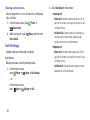
Managing Messages
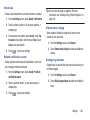
– Locked messages: View messages you’ve locked.
Messages you send and receive to the same contact, number
or address are grouped together as a “thread”, so you can
see all the messages you exchanged with a recipient in one
place, like a conversation.
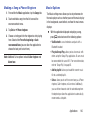
1. From the Home screen, touch
Messages.
2. Message threads display by contact, number, or
address. While viewing message threads, you have
these options:
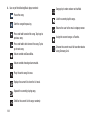
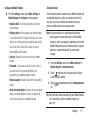
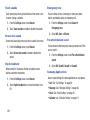
• Touch and hold a thread to choose options, including:
– View Contact / Add to Contacts: View the contact
record, or save the sender/recipient’s information.
– Delete thread: Erase the entire message thread.
– Save messages: Save the message.
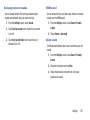
• Touch
Menu for options, including:
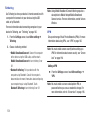
– Search: Enter characters to search messages and
recipients.
– Delete threads: Choose message threads to erase.
– Draft messages: View messages you’ve created
but not yet sent.
Locked messages cannot be deleted.
– Font size: Change the size of your message font.
– Save messages: Save messages to storage.
– Settings: Configure Messaging settings.
– About: View information about Messaging.
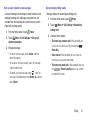
Message Settings
Configure settings for message storage, delivery, or alerts.
1. From the Home screen, touch
Messages.
Menu, and then touch Settings ➔ General
2. Touch
tab for options:
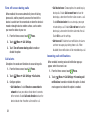
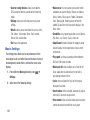
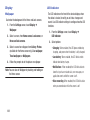
• General settings:
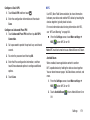
– Default messaging app: Select any installed
messaging app (such as Samsung Messages or
Hangouts) as your default messaging app.
– Restore messages: Restore messages saved to an
optional memory card back to the Messaging app.
– Delete old messages: When enabled, messages
are automatically erased when storage reaches
default limits. When disabled, the device will prompt
you to delete old messages to make room.
Messaging
65