1
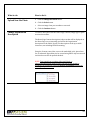
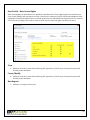
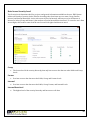
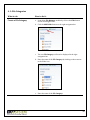
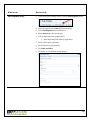
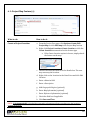
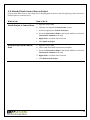
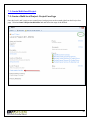
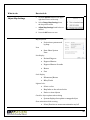
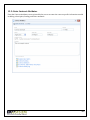
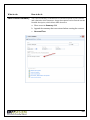
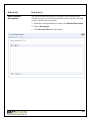
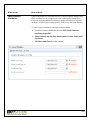
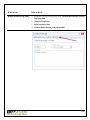
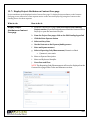
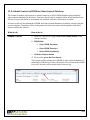
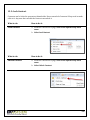
Quantify Results (Reporting Codes)
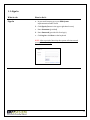
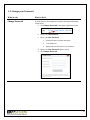
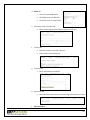
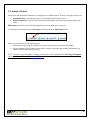
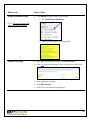
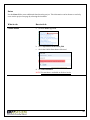
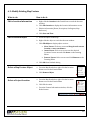
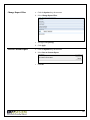
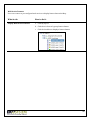
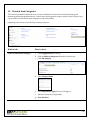
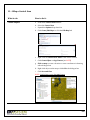
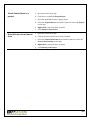
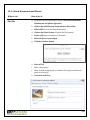
a. Check the Quantify Result box
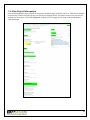
b. Select a Quantify Mode
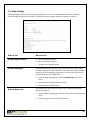
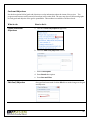
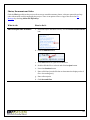
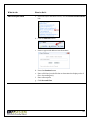
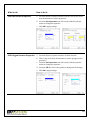
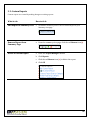
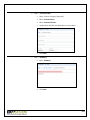
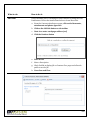
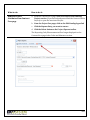
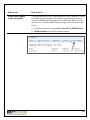
c. Click Automatic to quantify the Goal using a Reporting Code (does
not roll-up in multi-level hierarchy)
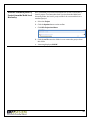
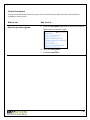
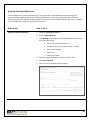
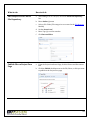
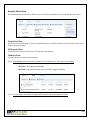
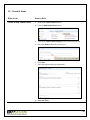
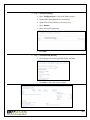
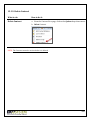
a. Select a Reporting code from the drop down list
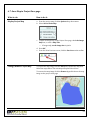
b. Enter Goal
c. Actual Value computed automatically from reporting code
(s) updates within project (s)
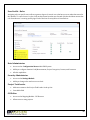
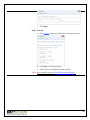
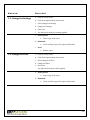
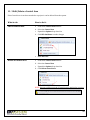
d. Click Save and Close
e. Click Close to exit without saving changes
49