1
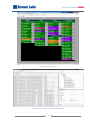
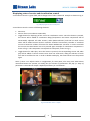
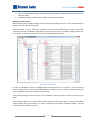
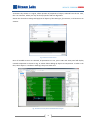
Log window for reviewing of alarms; State panel for selected services which displays composition of alerts. You can select needed panels using check boxes in «Panels» branch as shown on Fig. 8: Fig. 1 Panel selection for monitoring window Also, using «Properties», you may change window name («Window» branch), its location on screen and size («Layout» branch), and location of dividers («Splitter position» branch). Stream Multi Monitor Designer allows previewing and visual setup of monitoring windows. Right click on chosen window from objects tree and select «Open Monitoring Windows» from context menu. All properties’ changes, i.e. size, location, content of panels, executed during preview, will be saved. Notes: monitoring windows will not open up if state panel is being currently edited. All settings for monitoring can be reverted if you select «New tree objects» from main menu of Multi Monitor Designer. State panel «State panel» could be displayed in monitoring window. This panel allows visual monitoring alerts, originating from services, processed by Stream MultiScreen 4.X server. In order to configure «State panel» perform following steps: Connect to Stream MultiScreen servers (in category Servers), which analyze streams; Select needed state panel from objects tree and double click it. Alternatively you may right click it and select «View Designer» from context menu. State panel will open up in work area; Left click state panel and press Ctrl+N; or click «New» button in top left corner in order to start wizard; 7