1
5.4.4
Attendance Records
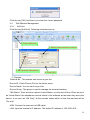
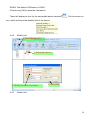
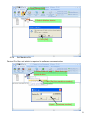
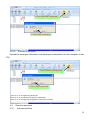
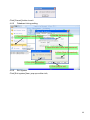
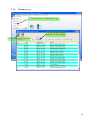
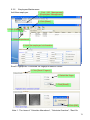
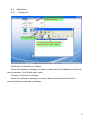
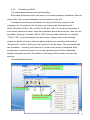
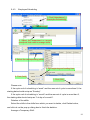
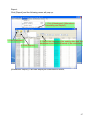
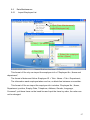
1. Click [Attendance] —
[Attendance Record]
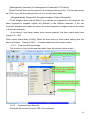
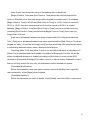
3. Click [Search]
2. Select the department, Employee, the beginning
and ending time that need to inquire about
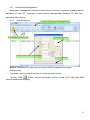
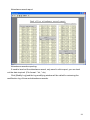
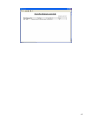
Click [Attendance Records] in [Attendance] menu, the following appears:
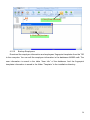
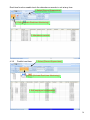
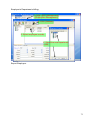
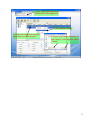
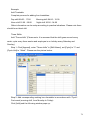
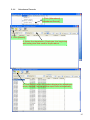
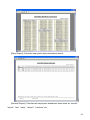
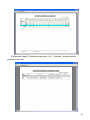
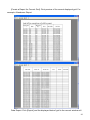
4. Click [Report] when the window displays the attendance
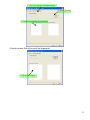
inquiry records, we can get the report form automatically.
83