1
Appendix
2
FTP File Operations
Set the IP address and other network setting items for
this unit.
For details, see the Installation Manual.
File operations between this unit and a remote computer
can be carried out by the File Transfer Protocol (called
FTP below).
Directory Structure
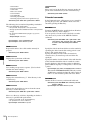
The following figure shows the directory structure
example of the SR-R1000 visible to a remote computer.
This figure assumes that the SRMemory cards are inserted
in SRMemory slots 1 and 2.
Appendix
To connect a computer running Windows Vista or
Windows 7
Disable the Internet Protocol Version 6 (TCP/IPv6).
Windows Vista: (1) Open “Network and Sharing Center”
>“Manage network connections” >“Local Area
Connection” in the control panel. (2) In the “Local
Area Connection Properties”, uncheck the “Internet
Protocol Version 6 (TCP/IPv6)”, and then click the
OK button.
Windows 7: (1) Open “View network status and tasks”
>“Change adapter settings” >“Local Area
Connection” in the control panel. (2) In the “Local
Area Connection Properties”, uncheck the “Internet
Protocol Version 6 (TCP/IPv6)”, and then click the
OK button.
Making FTP Connections
FTP connections between this unit and a remote computer
can be made with either of the following.
• The command prompt
• FTP client software
This section explains how to use the command prompt. For
more information about using FTP client software, refer to
the documentation of the FTP client software on your
system.
To log in
Preparations
1
Connect the network connectors of this unit and a
remote computer with a network cable. Or connect this
unit to the network to which the remote computer is
connected.
1
Start the command prompt.
2
Enter “ftp <SP> <IP address>”, and press the Enter
key. (<SP> refers to a space.)
For example, if the IP address of this unit is set to
“192.168.001.010”, enter “ftp 192.168.1.10”.
FTP File Operations
51