1
Task manager
Task Manager will help you resolve problems when the phone freezes. It can also help you solve memory
problems and allow you to terminate unnecessary tasks.
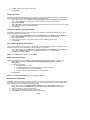
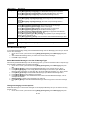
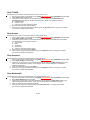
1. On the Home screen, press [Start] [All Programs] [More]. Select Applications, press OK.
2. Scroll to Task Manager and press OK.
3. Press [End Task] to terminate programs.
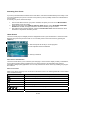
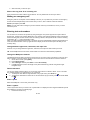
If you want to check the battery status, memory and storage, press [Menu] and select [Status Info] .
You can check the remaining battery power level. And also get information of remaining memory in use for
memory and storage.
Voice Command
The Pantech C820 has the most advanced voice command technology available in cell phones. You can
manage and use your phone without pressing buttons by setting up the Voice Command systems.
Follow these three easy steps:
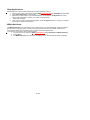
1. Adjust the Microphone
2. Set the Voice Command Button
3. Try out Voice Command
1 - Adjust the Microphone
To get better speech recognition:
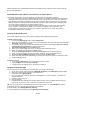
1. If there is a microphone setting available, turn off Automatic Gain Control and set the microphone
gain level to a medium level.
After completing this task, press Done and Back as needed to return to help.
2 - Set the Voice Command Button
The Voice Command Button is used to activate voice recognition.
To set the Voice Command Button:
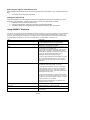
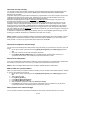
1. Press [Start] [Applications] [Voice Command].
2. In Voice Button, select the button you want to assign and press Done to accept.
3 - Try out Voice Command
Let's try the “Help” command to learn how to answer a question. If you have any problems read
Troubleshooting:
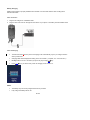
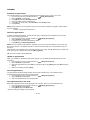
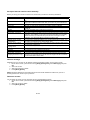
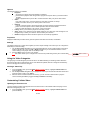
1. Hold your device about 2" away.
2. Press and release the Voice Command Button.
Note: A short melody will play and a microphone icon will appear at the top of your screen.
3. In a clear voice say, “Help”.
4. After Voice Command finishes speaking, answer “General“.
Note: You may also press the Voice Command Button anytime during a question to interrupt. Once
the microphone icon is visible you may say your answer.
102/142