1
RIM Confidential and Proprietary Information - Approved Third Parties
Video camera
Depending on your BlackBerry® smartphone, the camera or video camera might not be supported or some camera or video
camera features might not be available.
How to: Video camera
Video camera
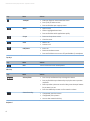
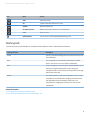
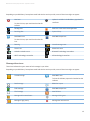
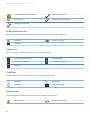
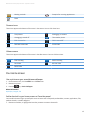
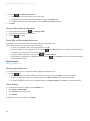
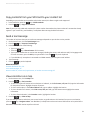
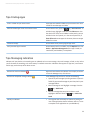
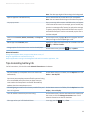
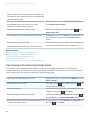
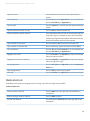
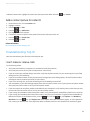
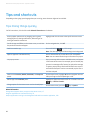
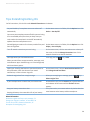
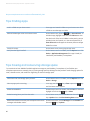
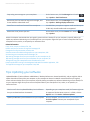
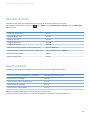
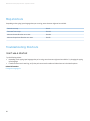
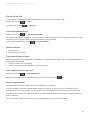
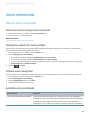
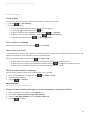
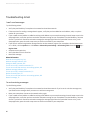
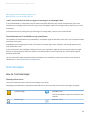
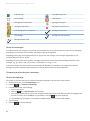
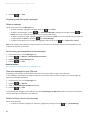
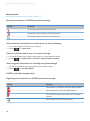
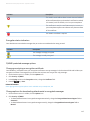
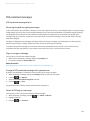
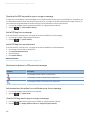
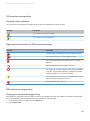
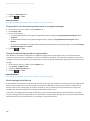
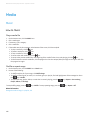
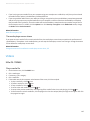
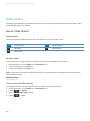
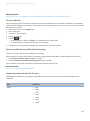
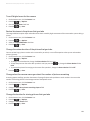
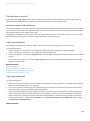
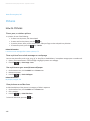
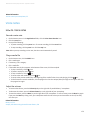
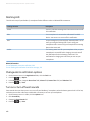
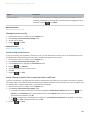
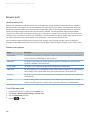
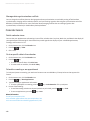
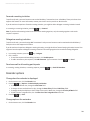
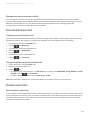
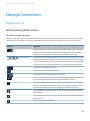
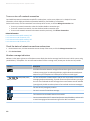
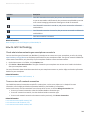
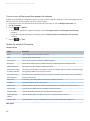
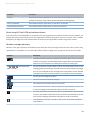
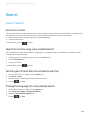
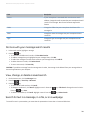
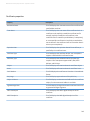
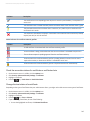
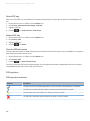
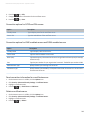
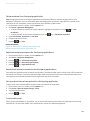
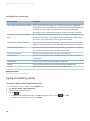
These icons appear at the bottom of the screen in the video camera. You can click these icons.
Start recording
Pause recording
Send video
Rename video
Delete video
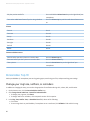
Record a video
To perform this task, you might need to have a media card inserted in your BlackBerry® smartphone.
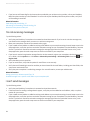
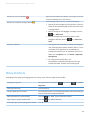
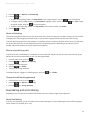
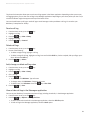
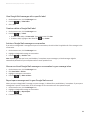
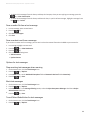
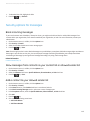
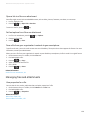
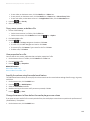
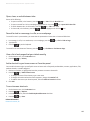
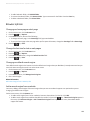
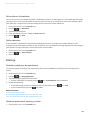
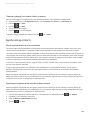
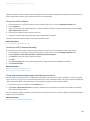
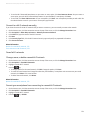
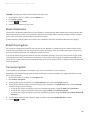
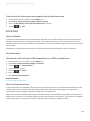
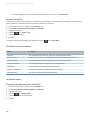
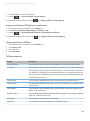
1. On the Home screen, click the Media icon > Video Camera icon.
2. To start recording, click the record icon.
3. To pause recording, click the pause icon.
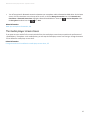
Note: The approximate amount of storage space available for saving videos appears on the lower part of the screen when
video recording is paused.
Related information
Take a picture, 160
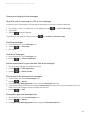
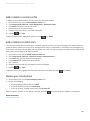
Turn on or turn off video lighting
In low lighting conditions, the video light can improve the quality of videos that you record.
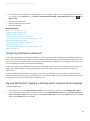
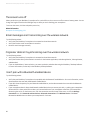
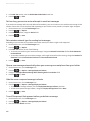
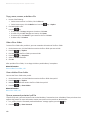
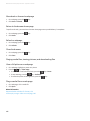
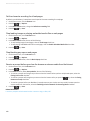
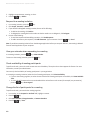
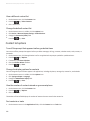
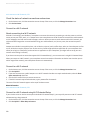
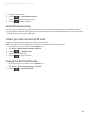
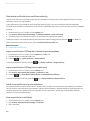
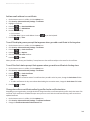
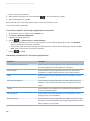
1. On the Home screen, click the Media icon > Video Camera icon.
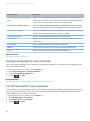
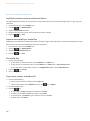
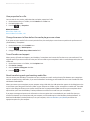
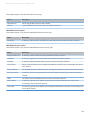
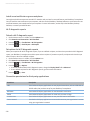
2. Press the
key > Options.
3. Select or clear the Video Light checkbox.
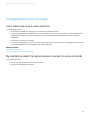
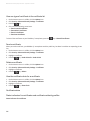
4. Press the
key > Save.
154