1
Sprint M240.book Page 41 Sunday, July 26, 2009 11:11 AM
Setting Message Notification
1. Press
> Settings > More... > Location. (The
Location disclaimer will be displayed.)
2. Read the disclaimer and press OK (left softkey).
3. Highlight On or Off and press
.
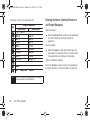
When you turn the Location feature on, the phone
displays the
icon. When you turn Location off, the
phone displays the
icon.
Messaging Settings
Your phone’s advanced messaging capabilities let you
send and receive many different kinds of text
messages without placing a voice call. (For more
information, see “Accessing Messaging” on page 95.)
Messaging settings allow you to decide how you would
like to be notified of new messages, create a signature
with each sent message, and create your own preset
messages.
When you receive a message, your phone notifies you
by displaying an icon on your display screen. You can
also choose to be notified with a message notification
on your display screen.
1. Press
> Settings > Messages > Notification.
2. Select Message & Icon or Icon Only.
Tip
To access the Messaging Settings menu, you can
> Messages > Settings.
also press
Adding a Customized Signature
Add a customized signature to each message you
send.
1. Press
> Settings > Messages > Edit Signature.
2. From the onscreen “Add signature to new
Message” popup, highlight On and press
. (If
you do not wish to attach a signature, select Off.)
Settings
To enable your phone’s Location feature:
3. Enter a signature and press Done (left softkey).
(See “Entering Text” on page 27.)
2B. Settings
41