1
4
I: The IGLU Device
Even in a packaged state, there are several errors that can occur while operating the
device. During normal operation, many users will tend to be unable to provide a
successful button press and will not be able to scan items successfully. On the rare
occasion, a screen might start showing distorted images and the system might become
unresponsive to any input.
User Input – Buttons
Since the IGLU device is based upon a flush button interface, a normal button press will
not behave as a normal button. For example, a user will place their finger over the
button and will be unaware that the button is activated unless a visual indicator occurs.
Unresponsive user input in this fashion is a very easy problem to solve, but is very
complex in theory.
Simple Solution
If the buttons are being pressed and no indication is provided on the screen, three
solutions can be used:
1) Use a different/larger finger.
2) Place the finger completely and confidently over the button.
3) Attempt a system restart.
Complex Solution
Since the simple solution provides enough instruction on how to get a button press, the
operation of the buttons will be discussed.
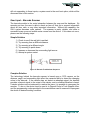
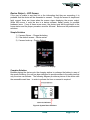
Figure 1: Button Interface Example
Instead of using a typical membrane keypad that most devices use, Digerati opted to
use a capacitive button interface to eliminate the need to replace membranes and
broken keys. By using the AD7142 from Analog Devices, the IGLU device is able to
detect the change in capacitance of the button circuit and determine if the button has
been pressed or not. Through the setup and calibration process, limits are set within
the chip itself to allow the AD7142 the ability to sense the electric field above a given
trace. If calibrated improperly, a smaller finger might not trigger a capacitance change
within the given trigger limits. Also, if the finger is not completely over the trace, a
similar input is given to the chip which might provide the incorrect input. If the device is
IGLU
Page 4 of 13