1
Users Guide
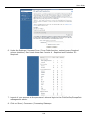
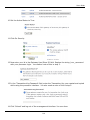
10. Under the Payment And Receipt Forms function, select the Form Fields function. There
uncheck every checkbox, then check these two: Invoice # - Required and Customer ID Required.
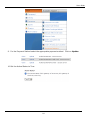
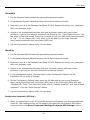
11. Under the Automated Direct Connect function, select the ADC Relay Response function.
Enter the full http path to your script in the URL field.
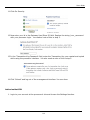
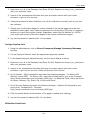
12. Under the Security function, uncheck the Require Password For All Transactions box.
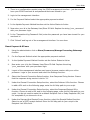
13. Under the Email Receipts function, uncheck the Email Transaction Receipt To Customer
box.
14. For the CVV2 Verification and Address Verification functions, select levels that you feel
comfortable with.
15. Log out of processor's admin utility. You are done.
SkipJack
1. Login to your account at the processor's site and choose the 'Preferences' function.
2. Select the 'Response Files' function.
3. Click the 'Send Customer to the following WebPages/URLs' radio button and in the four
text boxes provided under that button, enter in the full path to your script. Example:
http://www.yourdomain.com/core/relay/{APP}.php. The same entry goes in all four text
boxes.
4. Logout of your account at the processor's site. You are done.
PSiGate
1. Enter your id in the Gateway User/Store ID field. Replace the string 'your_username' with
your processor login.
2. The default PSiGate response method is a GET response. If you have changed this to a
POST response at PSiGate, change back to GET.
3. PSiGate regulations specify that you must inform them whether you will be using their
payment form or your own secure server to collect credit card information. Inform them of
the method you're using and PSiGate will configure your account correctly.
NetBilling
1.
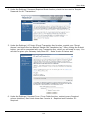
Under the Fraud Controls function, choose the Fraud Defense sub-function. Under the
Enable Fraud Defense heading, make sure that Fraud Defense is Enabled. Under the
141