1
Installing your Text Display (TD) Device
2.6 Installing a Faceplate for the TD 100C, TD 200C and TD400C
2.6
Installing a Faceplate for the TD 100C, TD 200C and TD400C
Installing a Faceplate for the TD 100C, TD 200C, and TD400C
The TD 100C and TD 200C ship with a blank faceplate (envelope size) for creating a
custom-designed faceplate. The TD400C does not ship with a blank faceplate; you can order
a package with blank faceplates (see appendix A for order information).
The TD devices do not ship with the faceplate attached. The front of the TD is an adhesive
surface (shipped with a protective paper) that allows you to attach your custom faceplate.
Refer to Chapter 3 for information about designing and printing a custom faceplate.
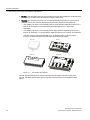
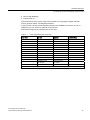
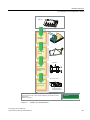
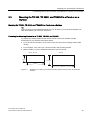
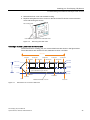
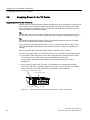
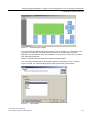
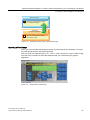
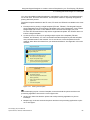
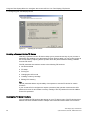
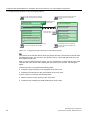
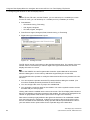
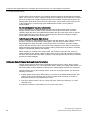
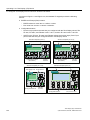
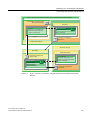
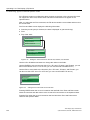
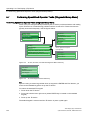
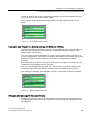
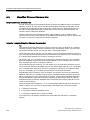
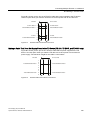
The figure below shows the dimensions for the faceplate of the TD devices. Blank faceplate
material for the TD 100C, TD 200C and TD400C is available in the sizes shown below.
● Envelope size for printing a single faceplate (TD 100C, TD 200C only)
● A4 size (210 mm x 297 mm) for printing multiple copies of the faceplate (TD 100C, TD
200C, and TD400C)
You must cut the faceplate from the envelope-sized material, but the A4 material is
perforated to allow you to remove the faceplates without cutting.
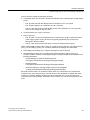
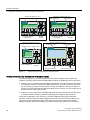
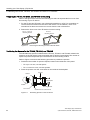
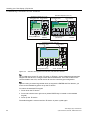
Use the following procedure to install your custom faceplate on the TD device. The example
shown here is for the TD 200C. Installing a faceplate on a TD 100C and TD400C is similar;
the differences are noted below. To prepare for installation, remove the protective film
covering the display window of the TD device and the back of the preprinted (standard)
faceplate. The protective film is blue for the TD 100C and the TD 200C, and is transparent
for the TD400C.
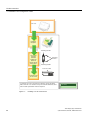
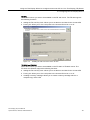
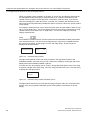
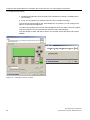
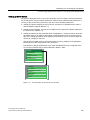
1. The dimensions for the custom faceplate are shown for the TD device.
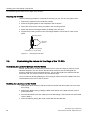
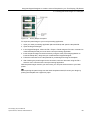
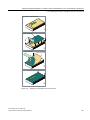
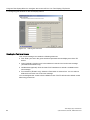
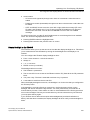
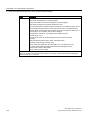
2. If your TD device has a strip of protective paper, remove the strip to expose the strip of
the adhesive. For the TD 200C and the TD400C, it is on the left side of the device. For
the TD 100C, it is on the right side of the device.
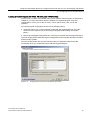
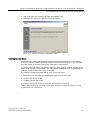
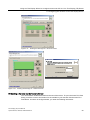
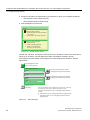
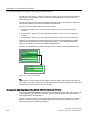
3. Carefully align your custom faceplate on the entire TD device, and then seal the faceplate
to the exposed adhesive by pressing down on the left (TD 200C and TD400C) or on the
right (TD 100C) side of the faceplate.
Text Display (TD) User Manual
38
System Manual, 08/2008, A5E00765548-03