1
Using the Keypad Designer to Create a Custom Faceplate for your Text Display (TD) Device
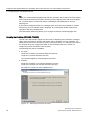
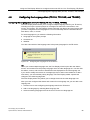
3.7 Adding a Panel Image to the Faceplate
Tip
When you design the colors for your panel image, be aware that any white area will be
printed as transparent (clear).
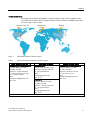
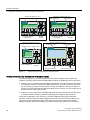
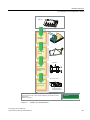
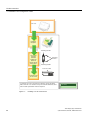
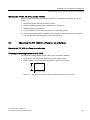
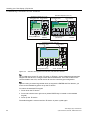
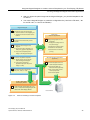
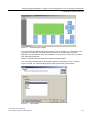
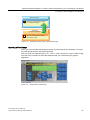
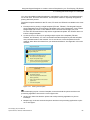
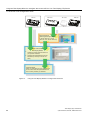
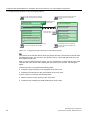
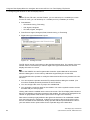
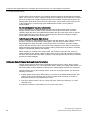
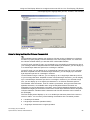
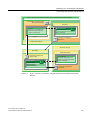
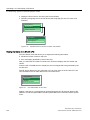
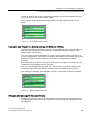
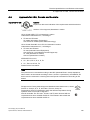
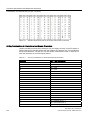
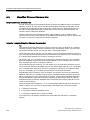
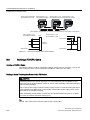
.H\SDG/D\RXW
LQWKH.H\SDG'HVLJQHU
%XWWRQ7HPSODWH
H[SRUWHGWRDJUDSKLFV
DSSOLFDWLRQ
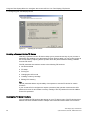
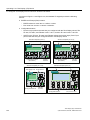
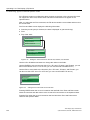
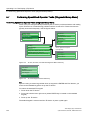
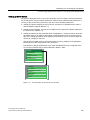
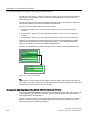
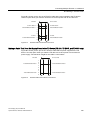
Figure 3-13
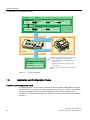
3.7
Exporting the Button Template to a Graphics Application
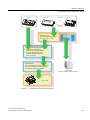
Adding a Panel Image to the Faceplate
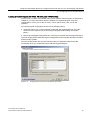
Adding a Panel Image to the Faceplate
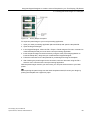
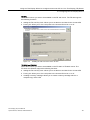
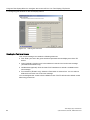
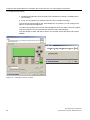
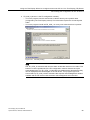
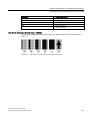
Using your own graphics application, you create the following graphical elements for the
faceplate of the TD 100C, TD 200C, or the TD400C:
● Button images
● Background image or color scheme
● Text (for the buttons or the background)
● Logotypes (and other images or text)
For the TD 100C and the TD 200C, you are not required to use square buttons. However,
you must ensure that your button design covers the area of the button as defined in the
button template.
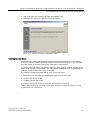
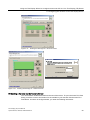
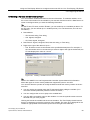
After you have used your graphics application to modify the panel image for the faceplate,
save the design as a bitmap file (*.bmp).
Text Display (TD) User Manual
56
System Manual, 08/2008, A5E00765548-03