1
FOXIT READER 2.2
User Manual
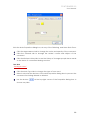
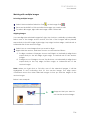
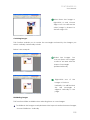
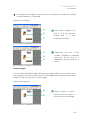
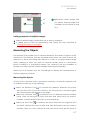
To flip the measurement and annotation of the object, do the following:
Select the Hand Tool
or Annotation Selection Tool
.
Right-click the object you draw > select Flip.
Working on measurement objects as comments
The measurement objects can also be used as comments, as a result of which,
you cannot only set status, open popup note, delete, reply to the objects, but you
can also set properties, and set current properties as default for them.
For the information of how to work on the objects as comments, please refer to
the corresponding section of ―Chapter 6 – Comments‖.
Running JavaScript
JavaScript is a dynamic, prototype-based language with first-class functions,
which serves as a means to easily create interactive web pages. In Foxit Reader,
you can easily integrate this level of interactivity into your PDF documents.
With Foxit Reader, you can invoke JavaScript code using actions associated with
documents, bookmarks, links, and pages. Foxit Reader provides two options for
you to do it – JavaScript Console and Document JavaScript. The JavaScript
Console provides an interactive and convenient interface for testing portions of
JavaScript code and experimenting with object properties and methods. The
Document JavaScript command lets you create document-level JavaScript
actions that apply to the entire document.
Using JavaScript Console
JavaScript Console is a control panel for the execution and debugging of
JavaScript code. Serving as a debugging aid, it is quite useful for displaying
debug messages and executing JavaScript.
To active the JavaScript console, select Advanced > JavaScript Console, and do
the following:
120