1
1. Connect the instrument to the test circuit and to KITSTM as per scenario A
above. Ensure that the instrument is in manual mode, not Autotest. ORL
measurement is not possible for 1 Way Autotest mode.
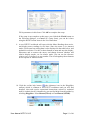
2. Click on the required ORL reading cell for the selected location. This will
automatically initiate the ORL measurement for the selected wavelength
and insert the result in the cell. Depending upon the type and purpose of
the test, a non reflective termination (eg a mandrel wrap) may be required
at the remote end of the fibre.
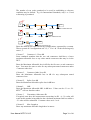
Pair of two-way KI7340 series Autotest instruments
If a pair of two-way KI7340 series Autotest instruments is used at each end of
the fibre under test, then all measurements for that fibre (including ORL from
each end) can be automatically entered following a single click on any
measurement cell related to that fiber. Both instruments must be connected to
the fiber using their left port.
1. Connect the instrument to the test circuit. In this configuration, both
instruments are connected to the fiber using their left port.
2. Press the [AUTO TEST] button on either instrument to initiate the twoway Autotest mode.
3. Connect to KITSTM as per scenario A above.
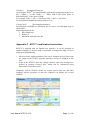
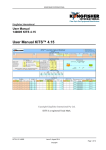
4. Now you have set up your test. With the meter still in Autotest mode, click
on any Ref, Meas or ORL cell (yellow background), and you will get
Reference, Measurement and ORL values entered for all wavelengths of
the selected fiber. The other cells (in light blue colour which indicates
system output) are filled in automatically.
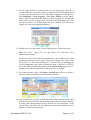
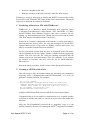
Switch to the Loss Testing sheet (use tab at bottom of screen. If the Loss
Testing tab is not present, select Kingfisher / Loss Testing). The data area is
filled with test data obtained from the Live Data sheet using Excel formulae.
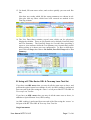
Click the 1st or 2nd wavelength cell (with yellow background) to bring out a
popup form, from which to choose another wavelength.
Go back to the Live Data Sheet. Print the worksheet and then select “Save As
…” to save the workbook to your choice of file folder. The print-out is your
un-customized report Select one of the Clear buttons to clear the report data.
A traditional KITSTM style report for any 2 wavelengths can produced via the
Loss Testing worksheet. Alternatively you may design your own report layout
using the inbuilt XML based New Report feature discussed elsewhere in this
manual.
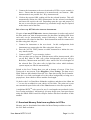
C. Download Memory Data from any Meter to KITSTM
Memory may be downloaded into either the Meter Dump worksheet or into
the Live Data worksheet.
User Manual KITS™ V4.13
Page 18 of 46