1
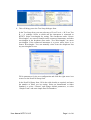
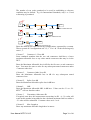
12. To print, select Print / 'Data + Summary', 'Graph + Summary' or 'Graph
Only'.
Automatic Data Logging
Automatic data logging allows user to specify the number of data points and
log time interval. During the data logging, each data point is automatically
written to the specified log file, minimising data loss in case of a process
interruption.
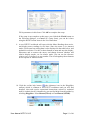
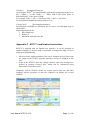
1. To select the wavelength, use the arrow buttons next to Wavelength.
2. Define Size of Log.
3. Define Log Interval (sec).
4. To select relative mode, select Relative Mode.
5. Optionally add a Description, which can be any text you like.
6. To clear existing data, select Clear Log.
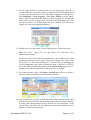
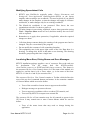
7. Click Start Autolog to start. You will be asked to enter a log file name.
While logging is in progress, each data point is written direct to disk.
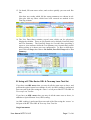
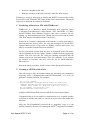
8. The log finishes when the number of log points reaches the specified size
of log. To stop a log before it is completed, use Stop. Click Continue to
continue Autolog.
3.6.
Using the Loss Testing Sheet
The Loss Testing worksheet cannot be used for manual data input. The Loss
Testing worksheet derives all its input from the Live Data worksheet.
In KITS™ 3.x and earlier versions, the Loss Testing sheet was the main data
acquisition and report generation sheet. Realising it is impossible to satisfy all
different needs of reporting in one worksheet, from KITS™ 4.10 an attempt is
made to separate the two functions. The Live Data sheet is the place to
perform all data acquisition functions (including input of job details and site
data). The Loss testing sheet is retained in this release to give users a familiar
view of KITS™ reporting sheet.
After filled some data in the Live Data sheet, user can select the Loss Testing
tab (or click Kingfisher / Loss testing) to view the Loss Testing sheet. The
data cells are filled in automatically using Excel formulae. By default, it uses
the data of the first and second wavelength. User can choose different
wavelengths by click on either the 1st or 2nd wavelength cell (with yellow
background).
The three show/hide menu items under Show/Hide Details allow user to
choose which sheet sections to view and print:
User Manual KITS™ V4.13
Page 27 of 46