1
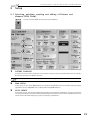
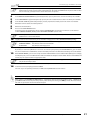
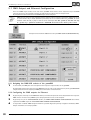
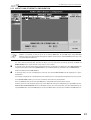
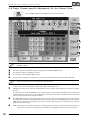
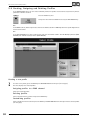
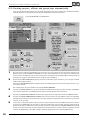
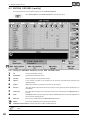
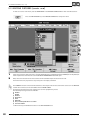
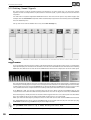
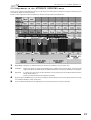
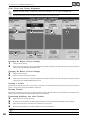
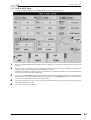
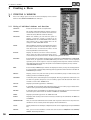
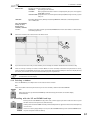
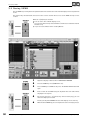
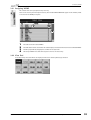
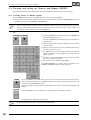
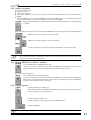
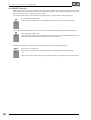
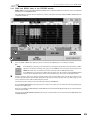
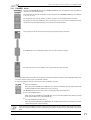
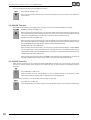
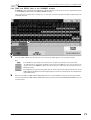
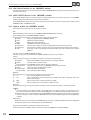
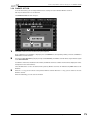
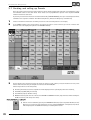
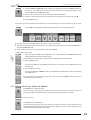
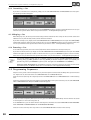
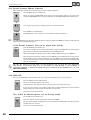
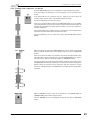
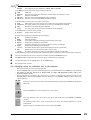
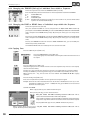
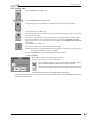
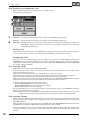
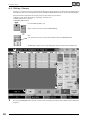
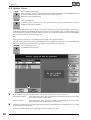
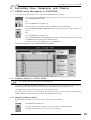
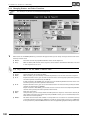
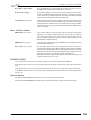
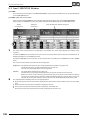
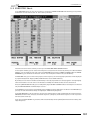
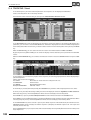
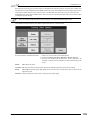
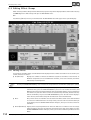
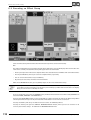
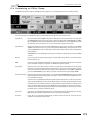
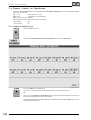
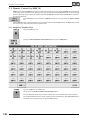
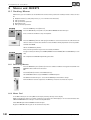
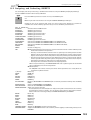
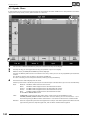
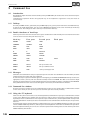
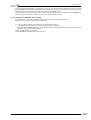
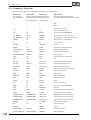
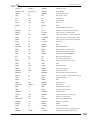
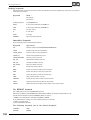
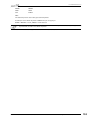
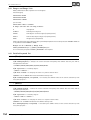
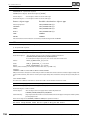
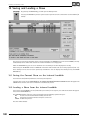
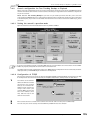
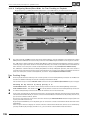
8.1 Programming and creating Macros 8 Macros und QUIKEYS 8 . 1 Creating Macros With macros, you can combine sets of command line entries and key strokes for recalling in batchs. These can also be: ● ● ● ● ● Playback buttons (e.g. GO, Fader, Pause, etc., incl. number of the Executor) Call-ups of Views Call-ups of Delete operations Other Macro calls Call-ups of Clear operations Press the STORE key once (LED is on). Press the MACRO key once (LED is on). The SELECT MACRO window will open. Enter a name for the Macro using the keyboard. Press the TIMED key (will turn dark-gray) if the Macro is to be executed over the same amount of time as it takes to record it. The alternitive is that the Macro will be played back as fast as possible. Confirm with ENTER. LED in the MACRO key flashes. Now, enter all operational steps to be executed by this Macro. To stop recording the macro press STORE, MACRO and then ENTER (LED in the MACRO key is now off). This completes the MACRO Programming procedure. 8.1.1 Activating Macros Press the MACRO key once (LED is on). Enter the number of a Macro via keypad and confirm with ENTER.The macro will now be executed. Or: Press Edit (LED on) and one of the VIEW soft keys. Select MACRO from the assign a MACRO or a VIEW dialog box The SELECT window will open select which MACRO you would like to assign. Now the Macro has been assigned to the VIEW key and can be activated at any time. 8.1.2 Macro Pool In the Macro Pool you can call up Macros directly by touching directly on the display. Make a right mouse click on an empty position on one of the three TFT displays or on an external monitor. The CREATE A WINDOW menu will open. à 3.1 Creating Windows. Select MACRO pool and the MACRO window will open . By press an MACRO soft key you can be activated at any time. 140 MA Lighting Technology GmbH . Dachdeckerstr. 16 . D-97297 Waldbüttelbrunn . www.malighting.de eMail: [email protected]