1
 Using the EyeFly3D Video App Step 4: Using the application EyeFly3D Video to view 3D videos
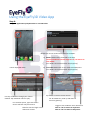
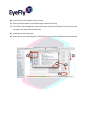
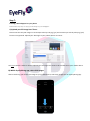
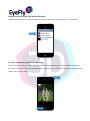
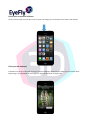
Launch EyeFly3D Video Media Files can be viewed via 2 different methods: A) Media: Media Files transferred to the App Use this method to transfer large files to your device to view offline (For details see: www.nanoveu.com/support/) B) You Tube: Media Files on You Tube streamed online (For details see: www.nanoveu.com/support/) Lists any media files through your chosen method. Tap individual videos to play. Tap “Back” to return to main screen. For 3D media files, slide up and down to minimize ghosting. For YouTube option, type search here. Search will filter only 3D content. Toggle to suit media file 3D or 2D format. Slide to “3D”to switch to 3D format. Slide to “2D” to switch to 2D format. Slide for search of high or low definition content.